
Vonets VAR11N-300
Vonets VAR11N-300 Mini WiFi Router User Manual
Model: VAR11N-300
1. Úvod
This manual provides detailed instructions for the setup, operation, and maintenance of the Vonets VAR11N-300 Mini WiFi Router. The VAR11N-300 is a versatile device designed to function as a WiFi Router, WiFi Bridge, and WiFi Repeater, offering flexible networking solutions for various environments.

Obrázek 1.1: Přední strana view of the Vonets VAR11N-300 Mini WiFi Router.
The device is compact and portable, making it ideal for travel, home, or office use. It supports 802.11n wireless technology, providing a data transfer rate of up to 300Mbps.
2. Bezpečnostní informace
- Umístění: Place the device in a well-ventilated area to prevent overheating. Do not cover ventilation openings.
- Zdroj napájení: Use only the specified power supply (DC 5V) or a compatible USB power source.
- Vystavení vodě: Nevystavujte zařízení vodě nebo vlhkosti.
- Čištění: Clean the device with a dry, soft cloth. Do not use liquid cleaners or aerosol sprays.
- Demontáž: Nepokoušejte se zařízení rozebírat ani opravovat sami. Veškerý servis svěřte kvalifikovanému personálu.
3. Obsah balení
Ověřte, zda jsou v balení přítomny všechny položky:
- Vonets VAR11N-300 Mini WiFi Router
- Ethernetový kabel RJ45
- Napájecí kabel DC/USB
- Uživatelská příručka (tento dokument)

Figure 3.1: Vonets VAR11N-300 with its accompanying RJ45 Ethernet and DC/USB power cables.
4. Konec produktuview
The VAR11N-300 features a compact design with essential ports for connectivity.
4.1. Fyzikální vlastnosti
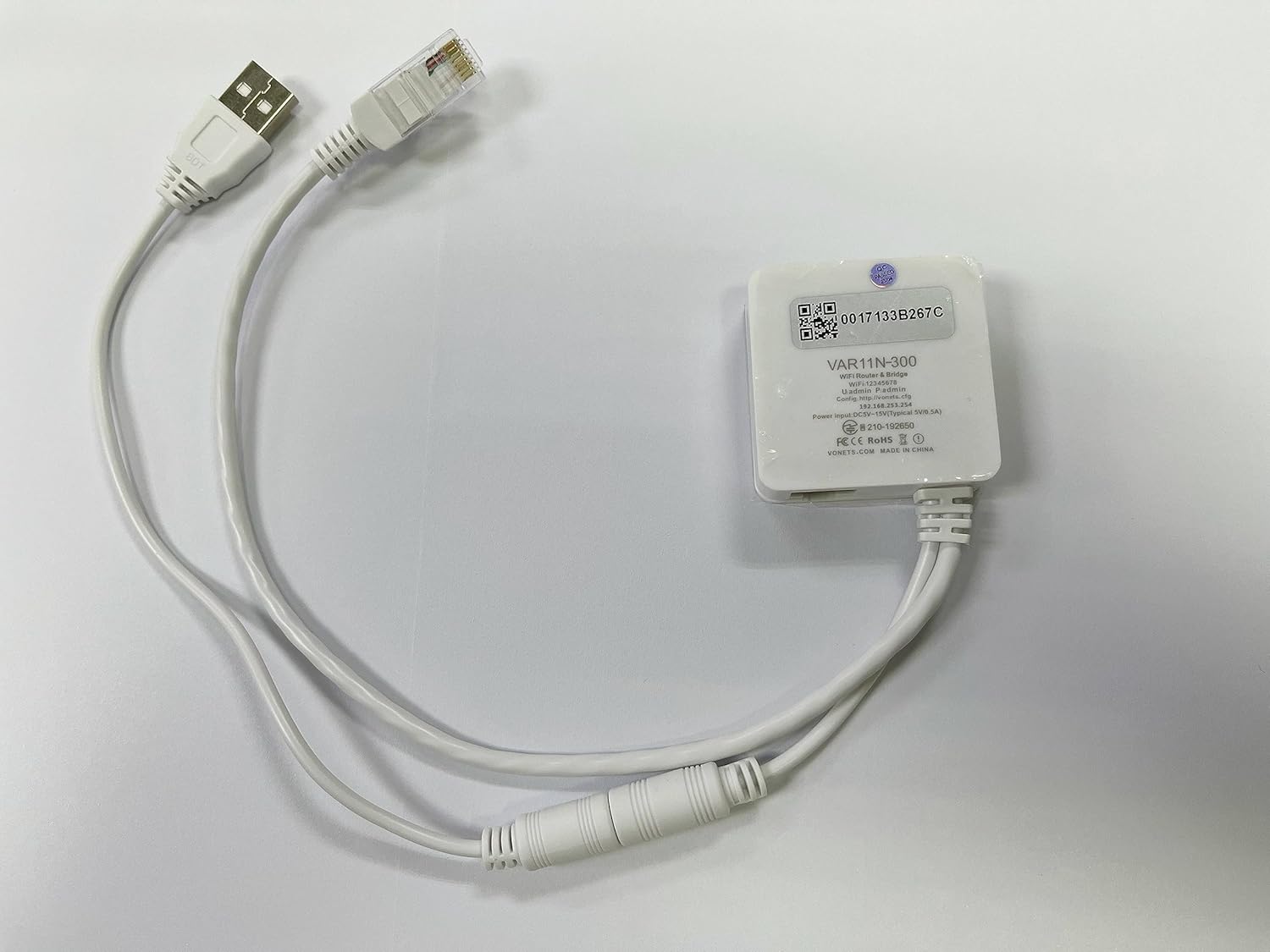
Obrázek 4.1: Zadní view of the VAR11N-300, highlighting the ports.
- Port DC 5V: Vstupní napájení zařízení.
- LAN port: Used for local area network connections in Router mode or for connecting wired devices in Bridge mode.
- Port WAN: Used for Wide Area Network connection (e.g., to a modem) in Router mode.
- Resetovací tlačítko: Používá se k obnovení zařízení do továrního nastavení.
4.2. Indikátory stavu LED
Zařízení je vybaveno LED indikátory, které zobrazují jeho provozní stav:
- Ethernet Port Status (Green Light): Indikuje aktivitu na ethernetovém portu.
- Ethernet Cable Status (Green Light): Indicates a successful physical connection via Ethernet cable.
- Hotspot Connection Status (Blue Light): Indicates active connections to the device's WiFi hotspot.
- WiFi Status (Blue Light): Indicates the WiFi module is active and broadcasting.
5. Nastavení a konfigurace
The VAR11N-300 offers a quick and easy setup process.
5.1. Počáteční připojení
- Connect the VAR11N-300 to a power source using the provided DC/USB cable.
- Wait for the device to power on and its WiFi indicator to become active.
- On your computer or mobile device, disable any existing local network connections (e.g., Ethernet).
- Connect to the VAR11N-300's default WiFi hotspot. The SSID typically starts with "VONETS_" followed by a series of characters.
5.2. Wireless Quick Configuration
- Once connected to the VAR11N-300's WiFi, open a web prohlížeč (např. Chrome, Firefox).
- In the address bar, enter the virtual configuration domain name: http://vonets.cfg
- You will be prompted for a username and password. The default credentials are:
uživatelské jméno: admin
Heslo: admin - After logging in, select your desired WiFi network from the available list.
- Enter the password for your selected WiFi network and submit the configuration.
- The device will restart to apply the new settings. After restarting, your device should be connected to the internet via the configured mode.
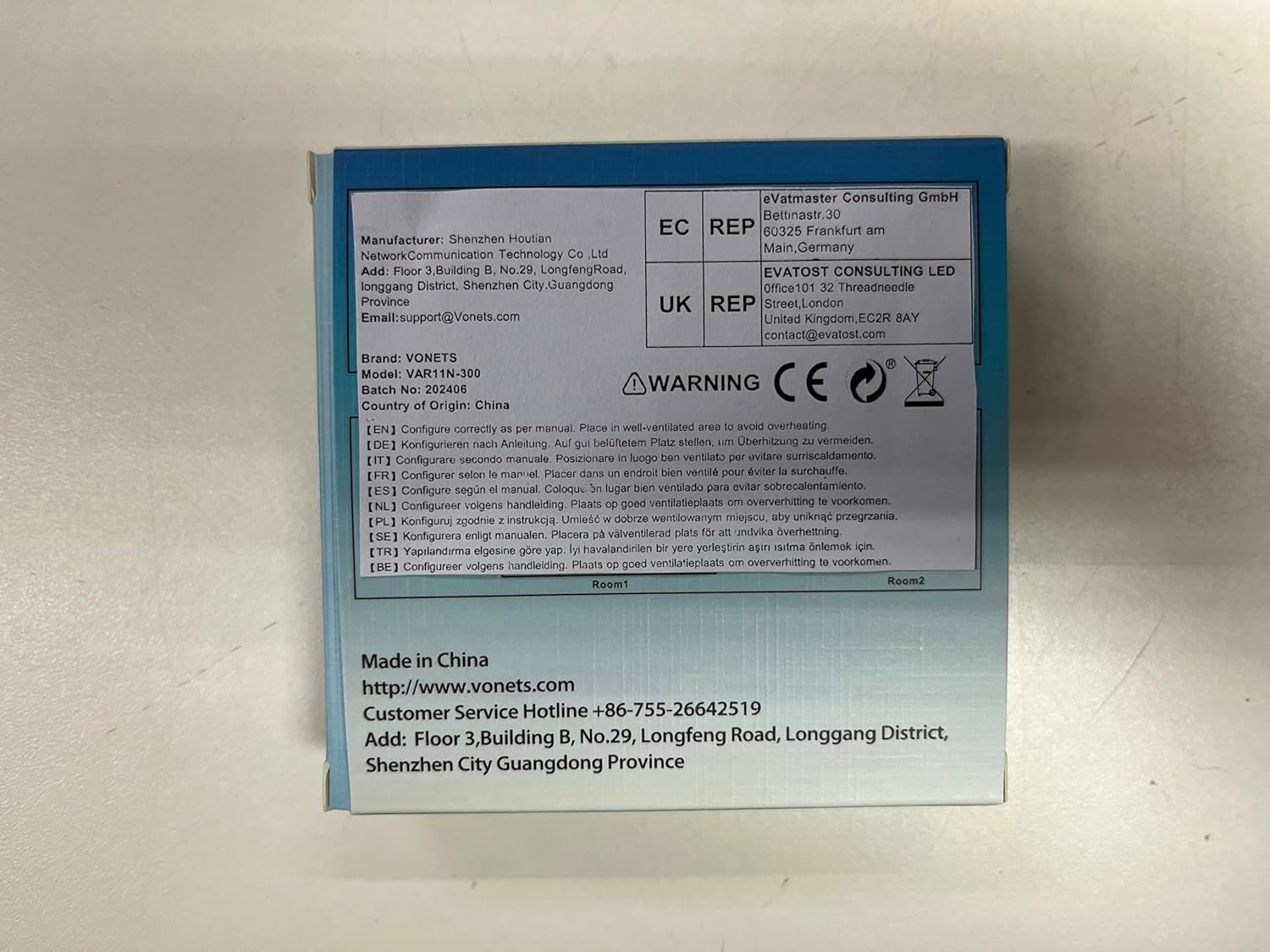
Figure 5.1: Visual guide for the three-step quick configuration process.
6. Provozní režimy
The VAR11N-300 supports three primary operating modes:
6.1. WiFi Router Mode
In Router mode, the VAR11N-300 acts as a traditional router, suitable for broadband users. It connects to a modem via its WAN port and provides internet access to multiple devices via WiFi or its LAN port.
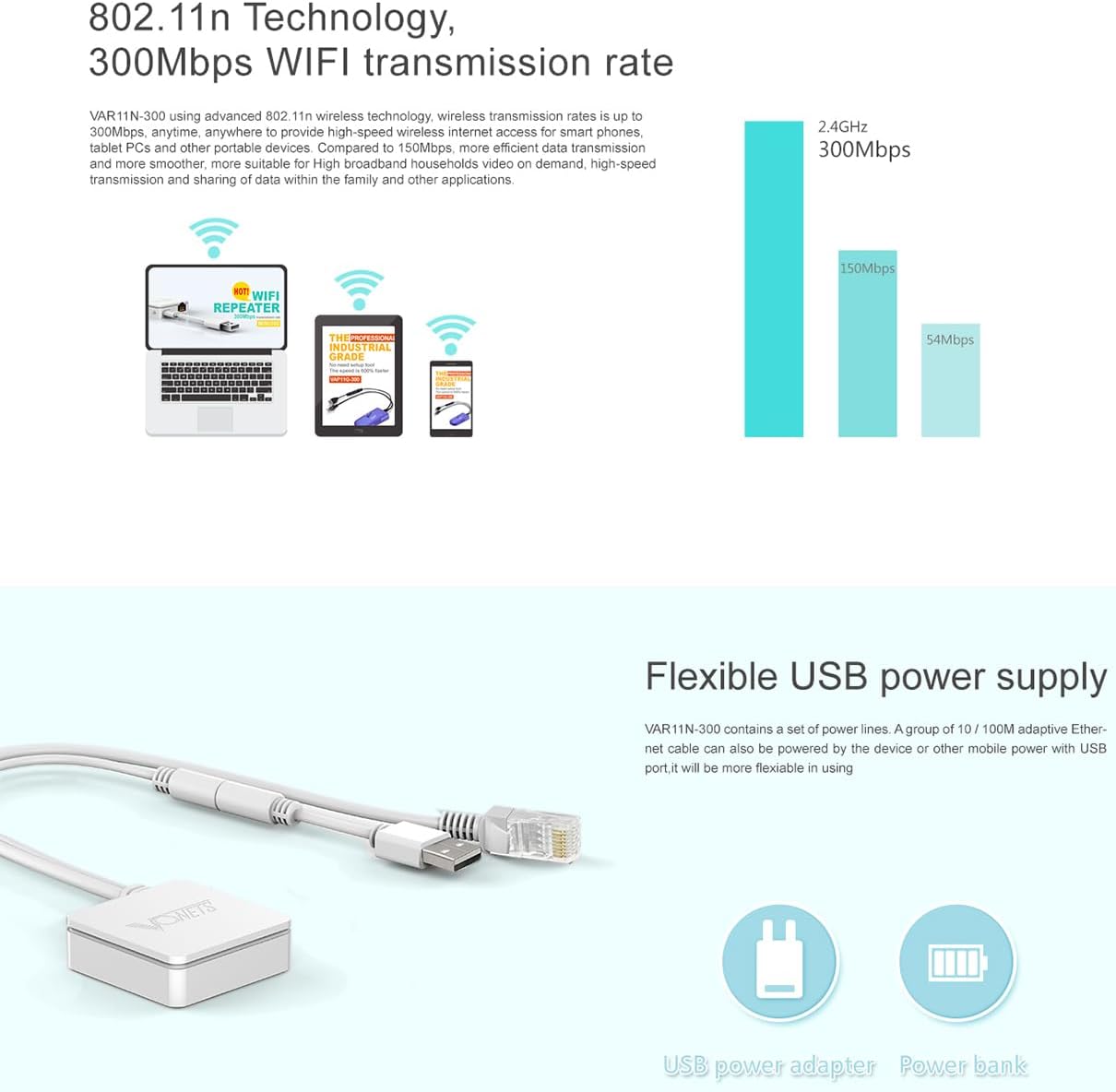
Figure 6.1: Setup for WiFi Router Mode, connecting to a modem and providing internet to devices.
6.2. WiFi Bridge Mode (WiFi to Ethernet)
In Bridge mode, the VAR11N-300 converts a WiFi signal into a wired Ethernet connection. This is useful for devices that only have an Ethernet port but need to connect to a wireless network (e.g., smart TVs, gaming consoles, printers).

Obrázek 6.2: Přample of WiFi Bridge Mode, connecting a wired device to a wireless network.
6.3. Wireless Repeater Mode
Repeater mode extends the range of an existing WiFi signal. The VAR11N-300 receives a weak WiFi signal and amplifies it, re-broadcasting it to cover a larger area, improving signal strength in dead zones.
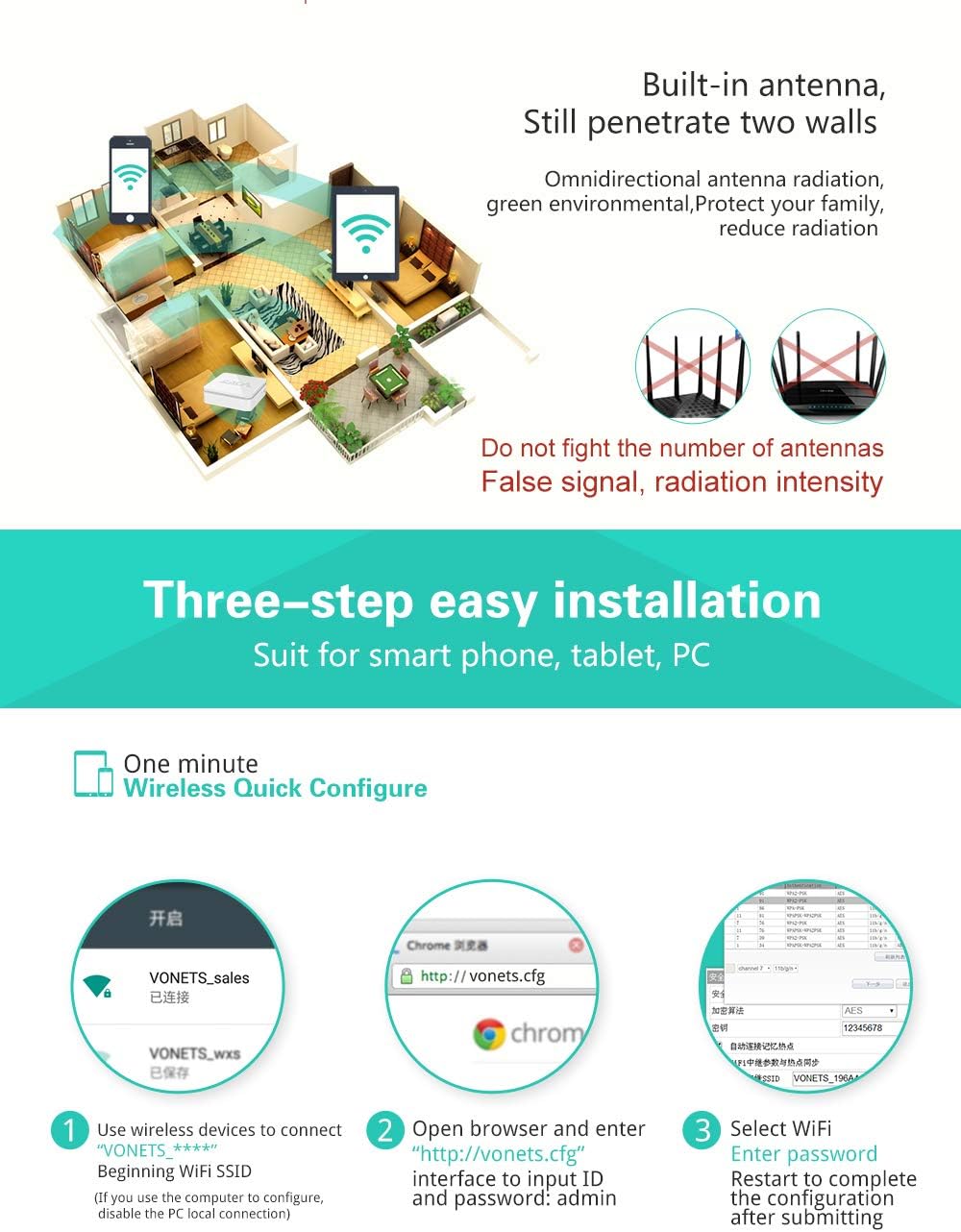
Figure 6.3: How Wireless Repeater Mode extends WiFi coverage.
7. Pokročilá konfigurace
For more detailed settings, access the web management interface via http://vonets.cfg.
7.1. Channel Idle Algorithm
The VAR11N-300 features a channel idle algorithm that automatically selects the best WiFi channel to avoid signal interference and improve performance, especially in environments with many WiFi networks.
7.2. Flexible USB Power Supply
The device can be powered via its DC 5V port or directly through a USB port, offering flexibility for various power sources, including power banks, making it highly portable.

Figure 7.1: The VAR11N-300 can be powered by a USB adapter or a power bank.
8. Údržba
To ensure optimal performance and longevity of your VAR11N-300:
- Pravidelný úklid: Keep the device free from dust and debris. Use a soft, dry cloth for cleaning.
- Aktualizace firmwaru: Periodically check the official Vonets website for firmware updates. Updating firmware can improve performance, add new features, and fix bugs. Follow the instructions provided with the firmware update carefully.
- Správné větrání: Always ensure the device is placed in an area with adequate airflow to prevent overheating.
9. Řešení problémů
If you encounter issues with your VAR11N-300, try the following solutions:
| Problém | Možná příčina | Řešení |
|---|---|---|
| Cannot access configuration page (http://vonets.cfg) | Not connected to VAR11N-300 WiFi; IP conflict; Browser issue. | Ensure your device is connected to the VAR11N-300's WiFi. Disable other network adapters. Try a different browser. Reset the device to factory defaults. |
| Po nastavení není přístup k internetu | Incorrect WiFi password; Incorrect mode configuration; Upstream network issue. | Verify the WiFi password. Check if the selected operating mode (Router, Bridge, Repeater) is appropriate for your network setup. Ensure your modem/main router is working correctly. |
| Weak WiFi signal or frequent disconnections | Interference; Distance from main router (in Repeater mode); Obstructions. | Relocate the VAR11N-300 to a central location. Minimize physical obstructions. Check for other devices causing interference. Consider using Repeater mode if signal is weak. |
| Zařízení se přehřívá | Poor ventilation; Prolonged heavy use. | Ensure the device is in a well-ventilated area. Do not cover it. If the problem persists, contact support. |
10. Specifikace
| Funkce | Detail |
|---|---|
| Číslo modelu | VAR11N-300 |
| Rozměry produktu | 1.73 x 1.73 x 0.59 palce |
| Hmotnost položky | 1.94 unce |
| Standard bezdrátové komunikace | 2.4 GHz Radio Frequency, 802.11bgn, 802.11n |
| Rychlost přenosu dat | 300 megabitů za sekundu |
| Třída frekvenčního pásma | Jednopásmové |
| Speciální funkce | Access Point Mode, Bridge/Repeater Mode, Router Mode, WiFi to Ethernet, Wireless to Wired |
| Vstup napájení | DC 5V (přes USB) |
11. Záruka a podpora
The Vonets VAR11N-300 comes with a 1-year manufacturer warranty. For technical support or warranty claims, please contact Vonets customer service.
- Hotline zákaznických služeb: +86-755-26642519
- E-mail: support@vonets.com
- Webmísto: www.vonets.com
Uschovejte si prosím doklad o koupi pro účely záruky.
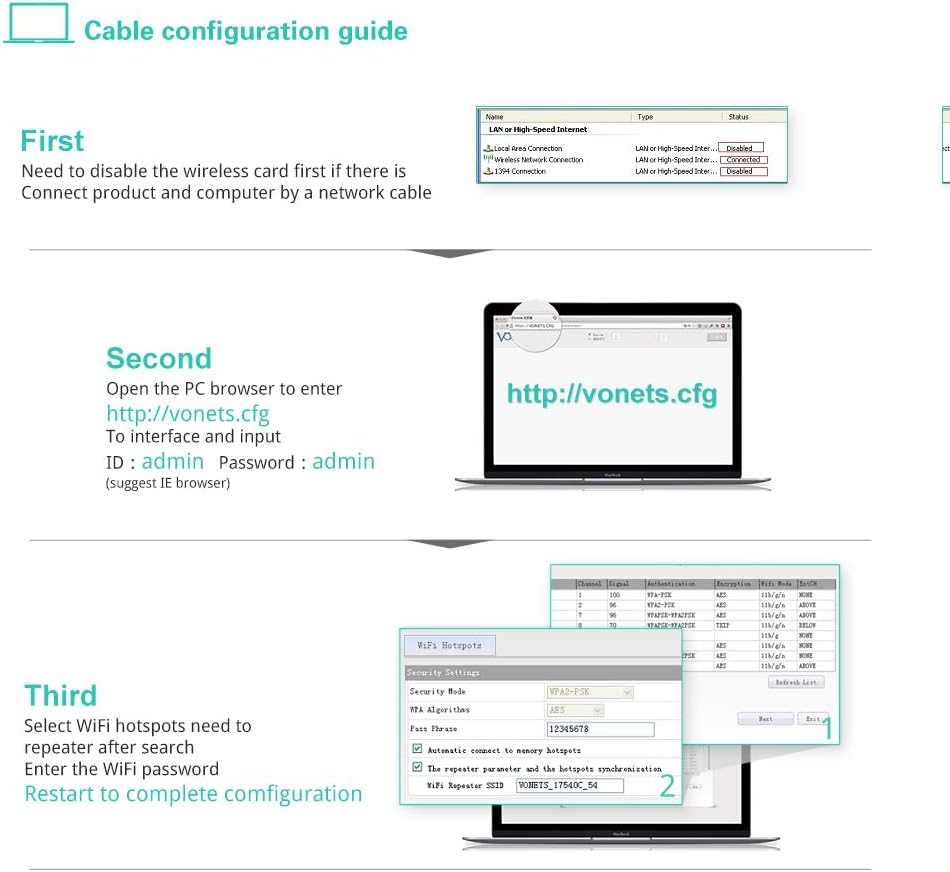
Figure 11.1: Compliance and manufacturer information.
Ask a question about this manual
Ask about setup, troubleshooting, compatibility, parts, safety, or missing instructions. Manuals+ will review the question and use this page’s manual context to help answer it.