
1. Úvod
This manual provides detailed instructions for the operation and maintenance of the Walfront JDS6600 DDS Signal Generator Counter. The JDS6600 is a dual-channel arbitrary waveform function generator and frequency meter, capable of producing various waveforms with high precision and stability. It is designed for use in factories, schools, research institutes, and laboratories.
2. Bezpečnostní informace
- Zajistěte napájení objtage odpovídá požadavkům zařízení.
- Neprovozujte zařízení ve vlhku nebo damp podmínky.
- Avoid exposing the device to direct sunlight or high temperatures.
- Nepokoušejte se zařízení rozebírat ani opravovat sami. O servis se obraťte na kvalifikovaný personál.
- Use only specified accessories and cables.
3. Obsah balení
Ověřte, zda jsou v balení obsaženy všechny níže uvedené položky:
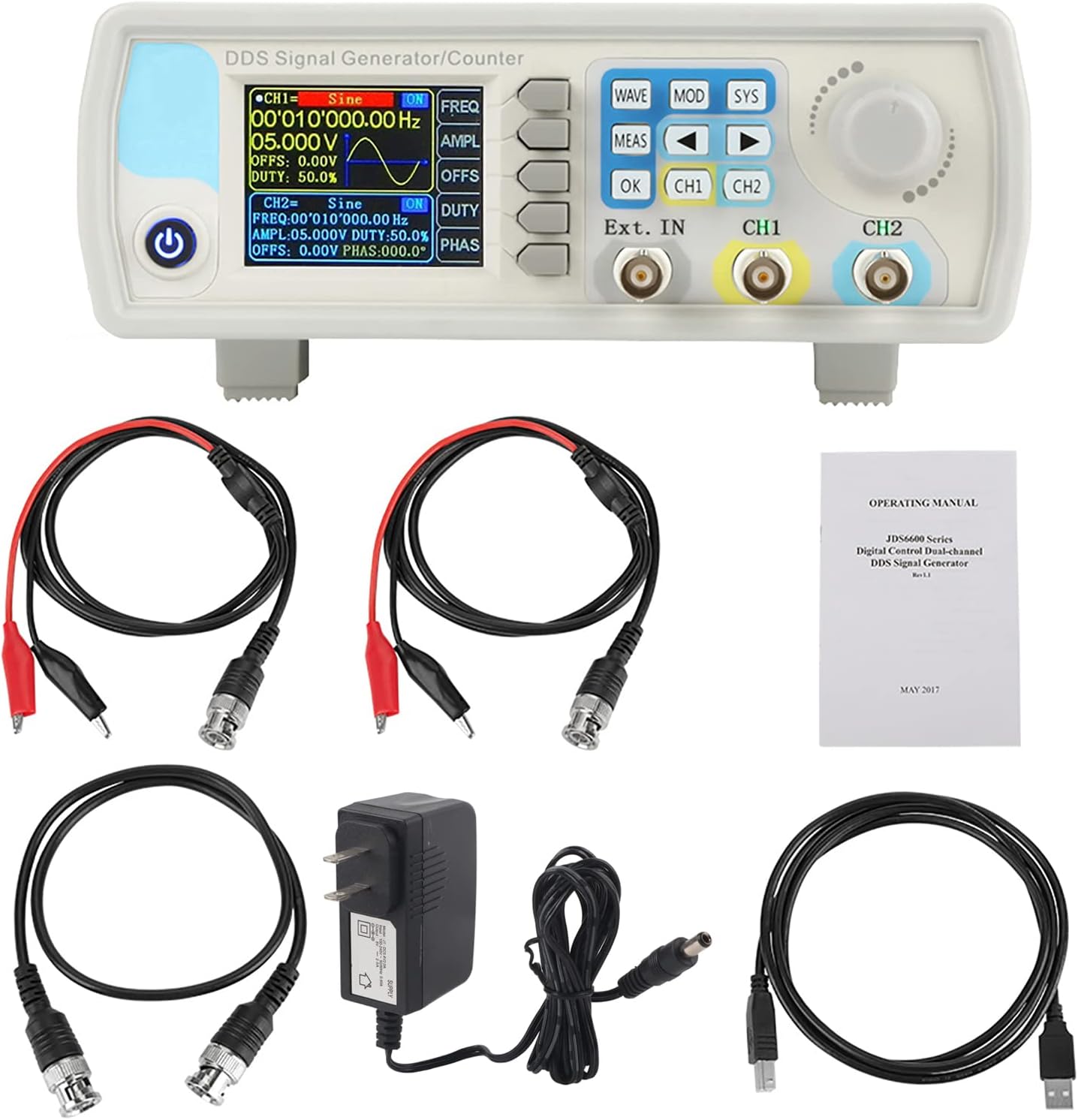
- 1 x JDS6600 DDS Signal Generator Counter Unit
- 2 x BNC to Alligator Clip Cables
- 1 x BNC to BNC Cable
- 1 x USB kabel
- 1 x napájecí adaptér
- 1 x Návod k obsluze
- 1 x CD (Software/Drivers)
4. Konec produktuview
4.1 Rozložení předního panelu
The front panel features a 2.4-inch TFT color LCD display, control buttons, a rotary encoder, and BNC output terminals for channels 1 and 2, as well as an external input.

4.2 Připojení zadního panelu
The rear panel includes the TTL extension interface, USB communication port, and the DC 5V power supply input.

4.3 Rozhraní displeje
The 2.4-inch TFT color LCD displays parameters for both Channel 1 (CH1) and Channel 2 (CH2), including waveform type, frequency, amplitude, offset, and duty cycle. It also shows the current channel output status, a waveform display, and a soft-key menu bar for navigation.

4.4 Klíčové vlastnosti
- Exquisite Waveform: 14-bit vertical resolution, 266MSa/s sampling rate. Sine frequency up to 60MHz, square up to 15MHz.
- Dvoukanálový výstup: Fully independent dual-channel operation with adjustable phase difference (0.1 degrees precision).
- Diverse Waveforms: Supports Sine, Square, Pulse (adjustable duty cycle, pulse width, period), Triangular, Partial Sine, CMOS, DC level, Half Wave, Full Wave, Positive Staircase, Anti-Ladder, Noise, Exponential Rise/Drop, Multi-Sonic, and 60 arbitrary waveforms.
- Ovládání pomocí PC softwaru: Allows control of all machine functions and creation of arbitrary waveforms via standard PC software.
- Ochrana výstupu: Output short circuit protection for up to 60 seconds under load.
- Vysoká přesnost: Utilizes large-scale integrated circuits and SMT technology for high reliability and precise bias adjustment (-9.99V to +9.99V).

5. Nastavení
5.1 Připojení napájení
Connect the provided DC 5V power adapter to the power input port on the rear panel of the JDS6600 unit. Plug the adapter into a suitable power outlet.
5.2 USB Connection (for PC Control)
To control the JDS6600 via PC software, connect the unit to your computer using the supplied USB cable. The USB port is located on the rear panel.
5.3 Výstupní připojení
Connect BNC cables to the CH1 and CH2 output terminals on the front panel. These cables can then be connected to an oscilloscope, frequency counter, or other test equipment.
5.4 Instalace softwaru
The JDS6600 comes with PC software that allows for comprehensive control and arbitrary waveform generation. Install the software from the provided CD or download the latest version from the manufacturer's website. Follow the on-screen instructions for driver and software installation.
6. Návod k obsluze
6.1 Základní obsluha
After connecting the power, press the power button to turn on the device. The display will show the default settings for CH1 and CH2. Use the CH1 and CH2 buttons to toggle the output of each channel on or off. The rotary encoder is used to navigate menus and adjust parameter values.
6.2 Waveform Selection and Parameter Adjustment
Stiskněte tlačítko VLNA button to cycle through available waveform types. Once a waveform is selected, use the dedicated function buttons (FREKV, AMPL, OFFS, POVINNOST, PHAS) to adjust its parameters. Turn the rotary encoder to change the values, and press OK potvrdit.
6.3 Nastavení systému
Stiskněte tlačítko SYS button to access system settings. Here you can save and load configurations, adjust sound and brightness, change the display language, and manage other system-wide preferences.
6.4 Modulační režimy
Stiskněte tlačítko MOD button to enter modulation mode. You can select various modulation types such as Sweep Frequency, Pulse Generator, and Burst. Use the arrow keys and rotary encoder to configure the modulation parameters.
6.5 Režim měření
The MEAS button allows you to use the device as a frequency counter for external signals. Connect the external signal to the 'Ext. IN' BNC port and configure the measurement settings via the menu.
6.6 Ovládání pomocí softwaru pro PC
Once the PC software is installed and the device is connected via USB, you can control all functions from your computer. The software interface mirrors the device's controls, allowing for precise adjustments and the creation of custom arbitrary waveforms. This enables advanced signal generation and analysis.

7. Údržba
- Udržujte zařízení čisté a bez prachu. K čištění používejte měkký, suchý hadřík.
- Avoid using abrasive cleaners or solvents that could damage the casing nebo displej.
- Pokud zařízení nepoužíváte, skladujte jej v chladném a suchém prostředí.
- Regularly check cables and connectors for any signs of wear or damage.
8. Řešení problémů
- Bez napájení: Zkontrolujte připojení napájecího adaptéru a ujistěte se, že je zásuvka funkční.
- No Signal Output: Verify that the correct channel (CH1 or CH2) is enabled and that parameters like amplitude and frequency are set appropriately. Check cable connections.
- PC Software Connection Issues: Ensure USB drivers are correctly installed (refer to Section 5.4). Check the COM port selection in the software.
- Nesprávné zobrazení křivky: Confirm that the selected waveform type and parameters match your intended output.
9. Specifikace
9.1 Všeobecné specifikace
| Funkce | Popis |
|---|---|
| Zobrazit | 2.4 inch TFT color LCD |
| Store and Load | Quantity: 100 (00 to 99), Position: 00 to 99 (00 memory location is loaded by default as power on) |
| Libovolná vlna | Quantity: 1 to 60 total (15 groups by default as power on) |
| Režim rozhraní | Rozhraní USB na sériové rozhraní |
| Rozhraní rozšíření | Se sériovým rozhraním v režimu TTL pro sekundární vývoj uživatele |
| Rychlost komunikace | Standard 115200bps |
| Protokol | Using the command line, the protocol is public |
| Napájení | DC5V±0.5V |
| Výrobní technologie | Technologie povrchové montáže, rozsáhlé integrované obvody, vysoká spolehlivost, dlouhá životnost |
| Rychlý tón | Uživatelé mohou zapnout nebo vypnout nastavením programu |
| Provozní charakteristiky | Všechny klíčové operace, plynulé nastavení knoflíku |
| Podmínky prostředí | Temperature: 0~40°C, Humidity: <80% |
9.2 Waveform Characteristics
| Funkce | Popis |
|---|---|
| Typ průběhu | Sine, Square, Pulse (adjustable duty cycle, precise adjustment of pulse width and period), Triangular, Partial Sine, CMOS, DC level, Half Wave, Full Wave, Positive Staircase, Anti-Ladder, Noise, Exponential Rise/Drop, Multi-Sonic, Symplectic Pulse, Lorenz Pulse, and 60 arbitrary waveforms. |
| Délka vlny | 2048 bodů |
| Sampsazba ling | 266MSa / s |
| Waveform Vertical Resolution | 14 bitů |
9.3 Frequency Ranges (JDS6600-15M Model)
| Typ průběhu | Frekvenční rozsah |
|---|---|
| Sinusoida | 0~15 MHz |
| Čtvercová vlna | 0~15 MHz |
| Trojúhelníková vlna | 0~15 MHz |
| Pulzní vlna | 0~6 MHz |
| TTL Digital Wave | 0~6 MHz |
| Arbitrary Frequency | 0~6 MHz |
9.4 Other Parameters
| Parametr | Hodnota |
|---|---|
| Pulse Width Adjustment Range | 100ns ~ 4000s |
| Square Wave Rise Time | ≤ 25 ns |
| Minimum Frequency Resolution | 0.01uHz (0.00000001Hz) |
| Přesnost frekvence | ±20 ppm |
| Frekvenční stabilita | ±1 ppm/3 hodiny |
| Rozměry produktu | 194 x 178 x 69 mm (7.48 x 7.09 x 2.76 palce) |
| Hmotnost položky | 0.98 kg (2.16 liber) |


10. Záruka a podpora
Pro informace o záruce, technickou podporu nebo servisní dotazy se prosím obraťte na svého prodejce nebo přímo na výrobce. Uschovejte si účtenku jako doklad o koupi.