
1. Konec produktuview
The HP t430 Thin Client is designed for desktop virtualization and cloud-based applications, offering a streamlined computing experience. It features an Intel Celeron N4000 dual-core processor, DDR4 memory, solid-state storage, and supports 4K display output. Its compact design includes a built-in VESA mount for flexible placement options, such as mounting behind a display or discreetly on or under a desk. The system comes with a simplified operating system, providing an intuitive user interface.
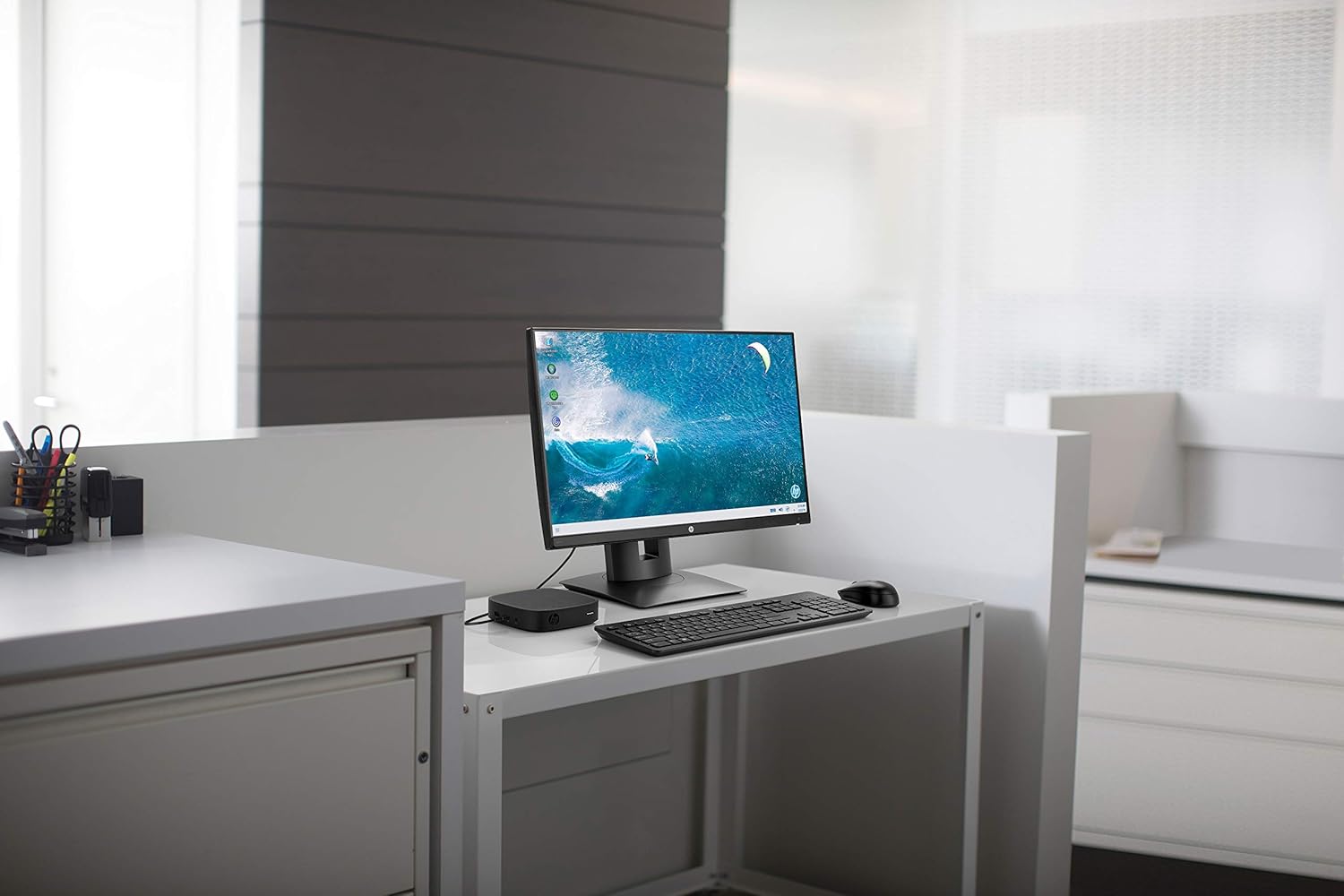
Obrázek 1.1: HP t430 Thin Client in a typical office setup, connected to a display and peripherals.
2. Pokyny k nastavení
2.1 Vybalení zařízení
Carefully remove all components from the packaging. The box should contain the HP t430 Thin Client unit. Ensure no components are damaged during unpacking.
2.2 Připojení periferních zařízení
- Připojení displeje: Use an HDMI or DisplayPort cable to connect your monitor to the corresponding port on the HP t430 Thin Client. The device supports up to 4K resolution.
- Připojení klávesnice a myši: Plug your USB keyboard and mouse into the available USB ports on the thin client.
- Připojení k síti (volitelné): For a wired network connection, connect an Ethernet cable from your router or network switch to the RJ-45 port on the thin client. For wireless connectivity, ensure your Wi-Fi network is available during initial setup.
- Připojte napájení: Plug the power adapter into the thin client's power input, then connect the adapter to a power outlet.
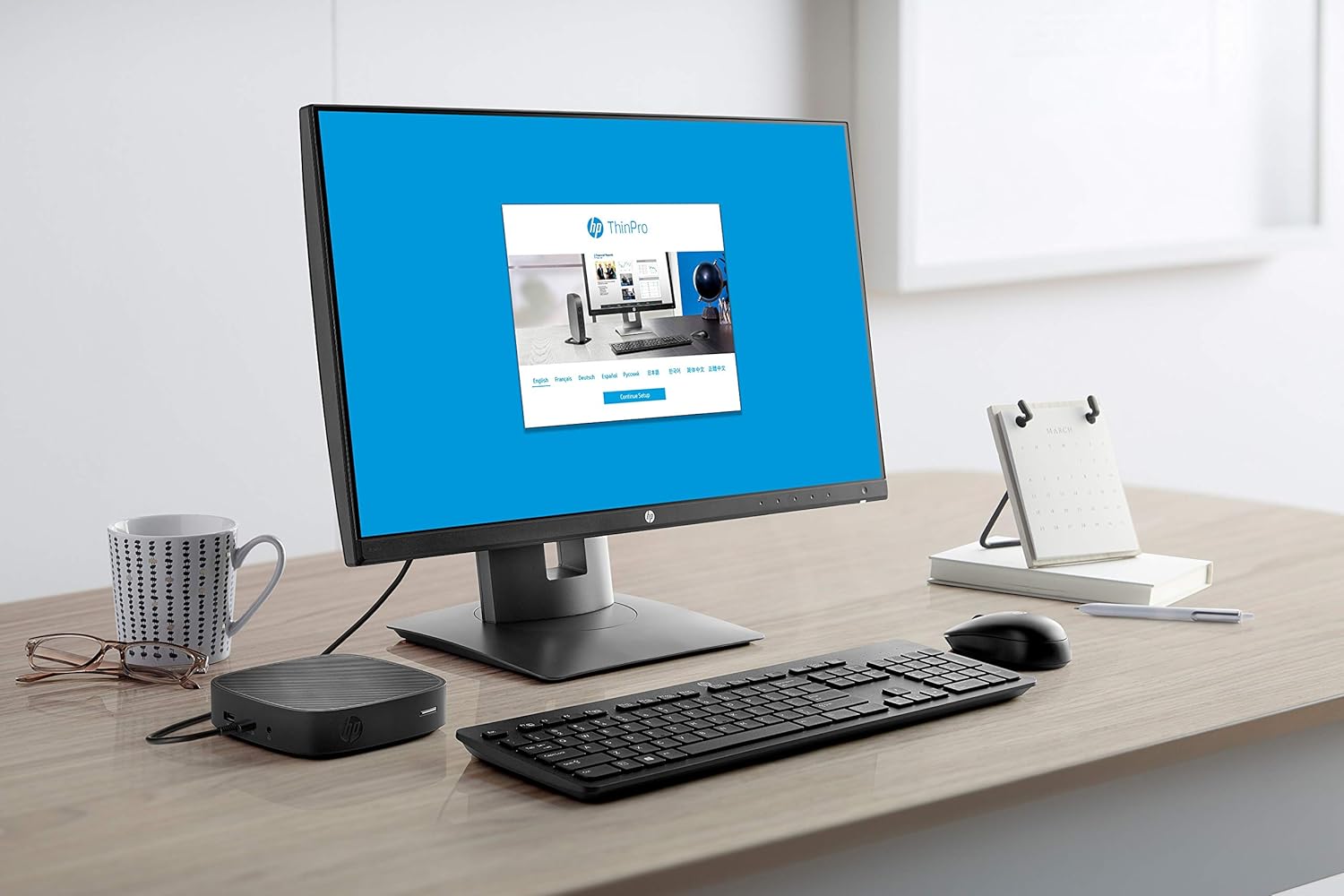
Obrázek 2.1: HP t430 Thin Client with HP ThinPro login screen, demonstrating a ready-to-use state.
2.3 První zapnutí
After connecting all necessary peripherals and power, press the power button on the HP t430 Thin Client. The device will boot up, and the operating system (HP Smart Zero Core) will load. Follow any on-screen prompts for initial configuration, such as network setup or user login.
3. Návod k obsluze
3.1 Zapnutí/vypnutí
- Zapnutí: Press the power button located on the front of the thin client.
- Vypnutí: Use the shutdown option within the operating system's menu. Alternatively, press and hold the power button for several seconds for a forced shutdown (use only when necessary).
3.2 Operating System Navigation
The HP t430 Thin Client runs on HP Smart Zero Core, designed for simplicity and ease of use. Navigate the interface using the connected keyboard and mouse. Access applications and settings through the main menu or desktop icons.
3.3 Síťové připojení
- Kabelová síť: If an Ethernet cable is connected, the device should automatically establish a wired network connection.
- Bezdrátová síť: To connect to a Wi-Fi network, access the network settings within the operating system. Select your desired Wi-Fi network and enter the password if prompted.
3.4 Použití USB portu
The thin client is equipped with USB ports for connecting various devices such as external storage, printers, or other peripherals. Simply plug the USB device into an available port.
4. Údržba
4.1 Čištění zařízení
- Před čištěním se ujistěte, že je zařízení vypnuté a odpojené ze zásuvky.
- Lehce používejte měkký hadřík, který nepouští vlákna dampnatřete vodou nebo jemným čisticím roztokem k otření vnějších povrchů.
- Avoid using harsh chemicals, abrasive cleaners, or spraying liquids directly onto the device.
- Udržujte větrací otvory čisté od prachu a nečistot.
4.2 Aktualizace softwaru
Regularly check for and apply operating system and firmware updates as recommended by HP. These updates often include security patches and performance improvements. Refer to the HP support website for specific instructions on updating your HP t430 Thin Client.
5. Řešení problémů
5.1 Běžné problémy a řešení
| Problém | Možné řešení |
|---|---|
| Žádná síla |
|
| Žádný výstup displeje |
|
| Problémy s připojením k síti |
|
| Periferní zařízení nereaguje |
|
If you encounter issues not listed here or if the suggested solutions do not resolve the problem, please refer to the HP support webwebu nebo se obraťte na zákaznický servis HP, kde vám poskytnou další pomoc.
6. Technické specifikace
| Funkce | Specifikace |
|---|---|
| Název modelu | t430 |
| Číslo modelu | 3VQ03AT#ABA |
| Procesor | Intel Celeron N4000 Dual-core (2 Core) |
| Rychlost procesoru | 1.10 GHz (up to 2.6 GHz burst) |
| Paměť RAM | 2 GB DDR4 SDRAM |
| Skladování | 16 GB SSD |
| Operační systém | HP Smart Zero Core |
| Grafika | Integrated Intel Graphics (Dedicated Graphics Card Description) |
| Video výstup | HDMI, DisplayPort |
| Maximální rozlišení displeje | 3840 x 2160 (4K) |
| USB porty | 2 Total USB Ports |
| Připojení k síti | Ethernet (RJ-45), Wi-Fi |
| Další funkce | Mikrofon |
| Rozměry (VxŠxH) | 5.3 x 5.3 x 1.3 palce |
| Hmotnost | 1.6 libry |
| Zahrnuté komponenty | tenký klient t430 |
7. Informace o záruce
The HP t430 Thin Client comes with a 3letá omezená záruka. For detailed terms and conditions, including coverage specifics and how to make a warranty claim, please refer to the official HP warranty documentation included with your product or visit the official HP support webwebu. Uschovejte si doklad o koupi pro ověření záruky.
8. Zákaznická podpora
For technical assistance, product information, or to download drivers and software updates, please visit the official HP support webmísto:
https://support.hp.com
You may also find contact information for HP customer service in your region on the support website. When contacting support, please have your product model number (3VQ03AT#ABA) and serial number ready.