
HP Sprocket 2-in-1
Uživatelská příručka k přenosné fototiskárně a fotoaparátu HP Sprocket 2 v 1
Model: Sprocket 2-in-1 (2FB98A)
Zavedení
This manual provides instructions for the HP Sprocket 2-in-1 Portable Photo Printer & Instant Camera. This device combines a portable photo printer with an instant camera, allowing users to capture and print 2x3-inch sticky-backed photos directly or from a connected smartphone. Key features include Bluetooth connectivity, ZINK Zero Ink technology, and compatibility with the HP Sprocket app for photo customization.
Co je v krabici
Ověřte, zda jsou v balení přítomny všechny součásti:
- HP Sprocket 2-in-1 (Red)
- Pásek na zápěstí
- Micro USB kabel
- Karta nastavení
- Regulatory and warranty sheets
- Fotopapír HP ZINK® s lepicí zadní stranou (10 listů)

Image: All items included in the HP Sprocket 2-in-1 product box.
Konec produktuview
Familiarize yourself with the physical components and controls of your HP Sprocket 2-in-1 device.
Přední View (Camera Mode)

Image: The front of the HP Sprocket 2-in-1, featuring the camera lens and branding.
Key Components and Ports

Image: Labeled diagram showing the pop-up viewfinder, selfie mirror, LED flash, and print output slot.
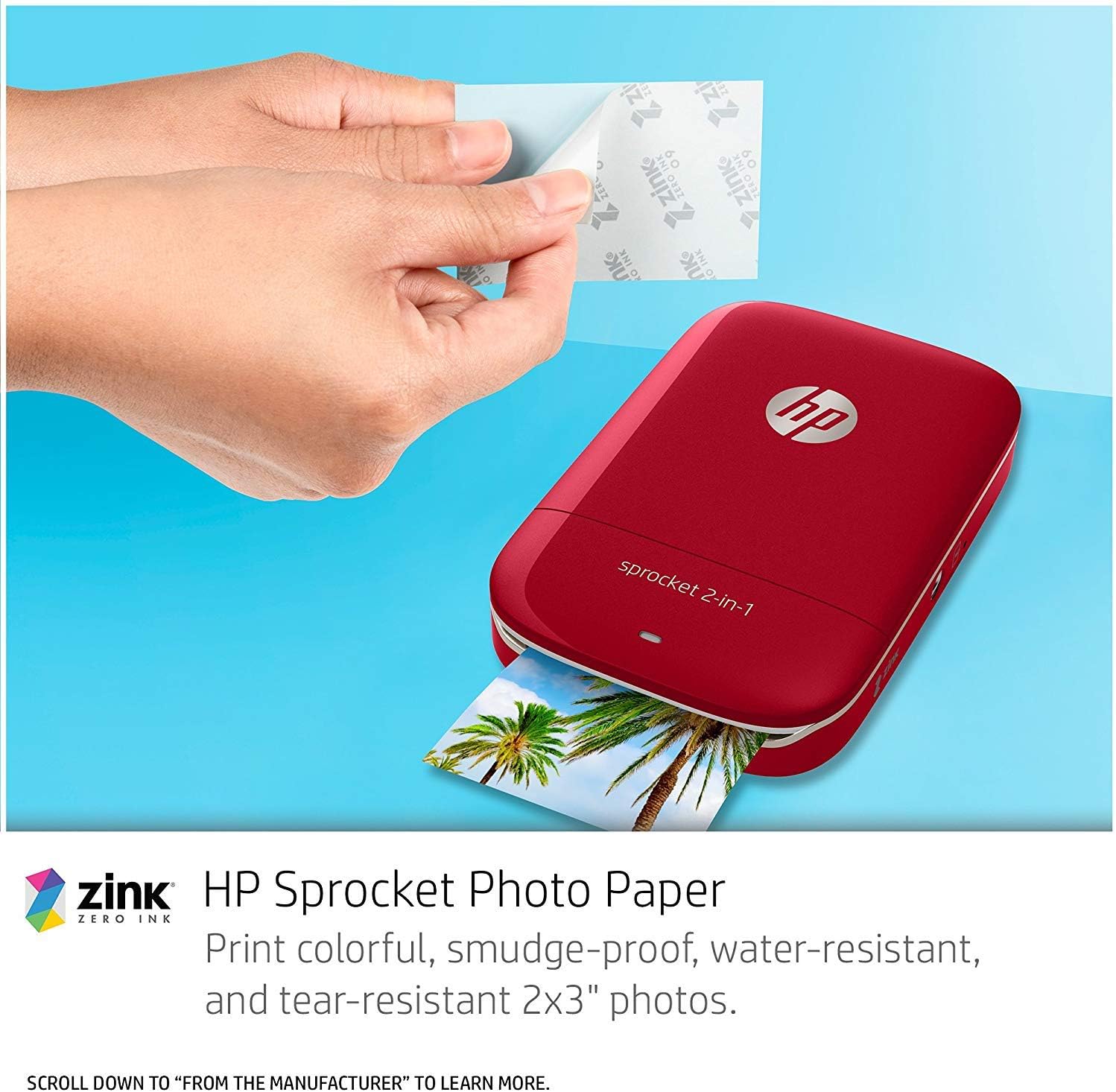
Image: Labeled diagram showing the loop for accessories, power switch, shutter button, 10-second timer, and USB charging port.

Image: Labeled diagram showing the tripod mount and Micro SD card slot.
- Objektiv fotoaparátu: Captures images.
- Pop-up Viewfinder & Selfie Mirror: Used for framing shots and taking selfies.
- LED blesk: Poskytuje osvětlení za zhoršených světelných podmínek.
- Print Output Slot: Where printed photos exit the device.
- Vypínač: Zapíná nebo vypíná zařízení.
- Tlačítko spouště: Activates the camera to take a photo.
- 10-second Timer Button: Nastaví prodlevu před pořízením fotografie.
- USB nabíjecí port: Připojuje zařízení ke zdroji napájení pro nabíjení.
- Slot pro kartu Micro SD: For optional storage of photos.
- Držák na stativ: Allows attachment to a tripod for stable shots.
- Loop for Charms/Wrist Strap: For attaching accessories.
Nastavení
1. Nabijte zařízení
Before initial use, fully charge your HP Sprocket 2-in-1. Connect the included Micro USB cable to the device's charging port and the other end to a USB power adapter (not included) or a computer's USB port. The charging indicator light will show the charging status.

Image: Connecting the Micro USB cable to the HP Sprocket 2-in-1 for charging.
2. Load HP ZINK Photo Paper
The HP Sprocket 2-in-1 uses HP ZINK 2x3-inch photo paper. This paper features peel-and-stick backing and does not require ink cartridges.
- Open the paper tray cover on the device.
- Insert up to 10 sheets of HP ZINK Photo Paper with the HP logos facing down. Ensure the blue Smartsheet is at the bottom of the stack, facing down.
- Bezpečně zavřete kryt zásobníku papíru.

Image: Loading HP ZINK photo paper into the device.
3. Install the HP Sprocket App
For printing from your smartphone and accessing customization features, download the free HP Sprocket app from your device's app store (iOS or Android).
4. Pair via Bluetooth
To print from your smartphone, establish a Bluetooth connection:
- Ensure your HP Sprocket 2-in-1 is powered on.
- Povolte na svém smartphonu Bluetooth.
- Open the HP Sprocket app and follow the on-screen instructions to connect to your device.
Provozní
Using as an Instant Camera
- Zapněte zařízení pomocí vypínače.
- Flip the device to camera mode (lens facing forward).
- Use the pop-up viewfinder to frame your shot. For selfies, use the selfie mirror.
- Stisknutím tlačítka spouště pořídíte fotografii.
- The photo will automatically print from the output slot.
- Optionally, press the 10-second timer button before the shutter for a delayed photo.

Image: The device can be used as an instant camera or a portable printer.
Printing from the HP Sprocket App
- Ensure the device is powered on and connected via Bluetooth to your smartphone.
- Open the HP Sprocket app on your smartphone.
- Select a photo from your gallery or social media accounts within the app.
- Utilize the app's editing tools to customize your photo (filters, borders, emojis, text).
- Tap the print icon in the app. The photo will be sent to your Sprocket 2-in-1 for printing.

Image: The HP Sprocket 2-in-1 printing a photo, demonstrating its function as a portable printer.

Image: The HP Sprocket app interface showing photo customization options.
Údržba
- Čištění: Use a soft, dry cloth to clean the exterior of the device. Do not use liquid cleaners or abrasives.
- Manipulace s papírem: Store HP ZINK Photo Paper in its original packaging in a cool, dry place to prevent damage and ensure print quality. Avoid touching the printing surface of the paper.
- Péče o baterie: To prolong battery life, avoid exposing the device to extreme temperatures. Charge the device regularly, even if not in frequent use.
Odstraňování problémů
| Problém | Možné řešení |
|---|---|
| Zařízení se nezapne | Ensure the device is fully charged. Connect to a power source and allow it to charge for at least 30 minutes before attempting to power on again. |
| Photos are not printing | Check if HP ZINK Photo Paper is loaded correctly and that there is enough paper. Ensure the device is connected via Bluetooth to the app. Restart the device and the app. |
| Špatná kvalita tisku | Ensure you are using genuine HP ZINK Photo Paper. Check if the paper is loaded correctly. The blue Smartsheet should be at the bottom of the stack. Avoid exposing paper to moisture or extreme temperatures. |
| Problémy s připojením Bluetooth | Ensure Bluetooth is enabled on your smartphone and the device. Move the device closer to your smartphone. Try unpairing and re-pairing the device in your smartphone's Bluetooth settings. Restart both devices. |
| Camera photos are blurry | Ensure the camera lens is clean and free of smudges. Hold the device steady when taking a photo. Ensure adequate lighting. |
Specifikace
| Funkce | Detail |
|---|---|
| Název modelu | Sprocket 2-in-1 |
| Číslo modelu položky | 2FB98A#B1H |
| Technologie připojení | Bluetooth |
| Technologie tisku | Thermal (ZINK Zero Ink) |
| Tiskový výstup | Barva |
| Maximální rychlost tisku (barevně) | 40 seconds per print |
| Kompatibilní zařízení | Chytré telefony (iOS, Android) |
| Tisková média | HP ZINK 2x3 inch Glossy Photo Paper |
| Maximální vstupní kapacita listu | 10 listů |
| Hmotnost položky | 6.7 unce (190 gramů) |
| Rozměry produktu | 4.8 x 3.05 x 1.14 palce (12.2 x 7.7 x 2.9 cm) |
| Baterie | 1 lithium-polymerová baterie (součástí balení) |
| Kapacita paměti | 512 MB |
Záruka a podpora
Informace o záruce
The HP Sprocket 2-in-1 Portable Photo Printer & Instant Camera comes with a one-year limited hardware warranty. Please refer to the included warranty sheets for detailed terms and conditions.
Zákaznická podpora
Pro další pomoc, technickou podporu nebo dotazy ohledně náhradních dílů a příslušenství navštivte oficiální stránky podpory HP. website or contact HP customer service. Contact information can typically be found on the HP webwebu nebo v dokumentaci dodané s vaším produktem.
Ask a question about this manual
Ask about setup, troubleshooting, compatibility, parts, safety, or missing instructions. Manuals+ will review the question and use this page’s manual context to help answer it.