
1. Úvod
The HP 10-P018WM is a versatile 2-in-1 detachable laptop designed for adaptability. It functions as a traditional laptop, a tablet, and can be configured into stand and tent modes. Featuring a 10.1-inch IPS touch display and an Intel Atom X5-Z8350 processor, this device supports Windows inking features with the included HP Active Pen, offering flexibility for various tasks.

Figure 1: HP 10-P018WM Detachable Laptop in tablet mode, highlighting its touchscreen capability.
2. Co je v krabici
Ověřte, zda jsou v balení přítomny všechny součásti:
- HP 10-P018WM Detachable Laptop (Tablet unit and Keyboard base)
- HP Active Pen
- Napájecí adaptér
- Stručný průvodce (pokud je součástí dodávky)
3. Nastavení
3.1 Počáteční nabíjení
Before first use, connect the power adapter to the laptop and a power outlet. Allow the device to charge for at least 30 minutes, or until the battery indicator shows a sufficient charge. A 50% charge can be achieved in approximately 30 minutes.
3.2 Zapnutí
Press and hold the power button, typically located on the side or top edge of the tablet unit, until the HP logo appears on the screen.
3.3 Windows 10 Setup and Updates
Follow the on-screen prompts to complete the initial Windows 10 setup. This includes selecting your region, language, connecting to a Wi-Fi network, and creating a user account. It is crucial to allow the system to download and install all pending Windows updates after the initial setup. This process may take several hours and require multiple restarts. Attempting to use the device extensively during updates can result in slow performance.
3.4 Attaching and Detaching the Keyboard
To attach the keyboard, align the tablet unit with the keyboard base connectors and gently press until it clicks into place. To detach, firmly pull the tablet unit away from the keyboard base. Ensure the connection is secure when attaching.
4. Obsluha vašeho zařízení
4.1 Device Modes
The HP 10-P018WM supports multiple modes:
- Režim notebooku: Traditional laptop experience with keyboard and touchpad.
- Režim tabletu: Detach the tablet from the keyboard for a portable touch experience.
- Režim stojanu: Flip the tablet to face away from the keyboard, ideal for watching videos or presentations.
- Režim stanu: Fold the device into an inverted 'V' shape, suitable for touch-based applications in confined spaces.
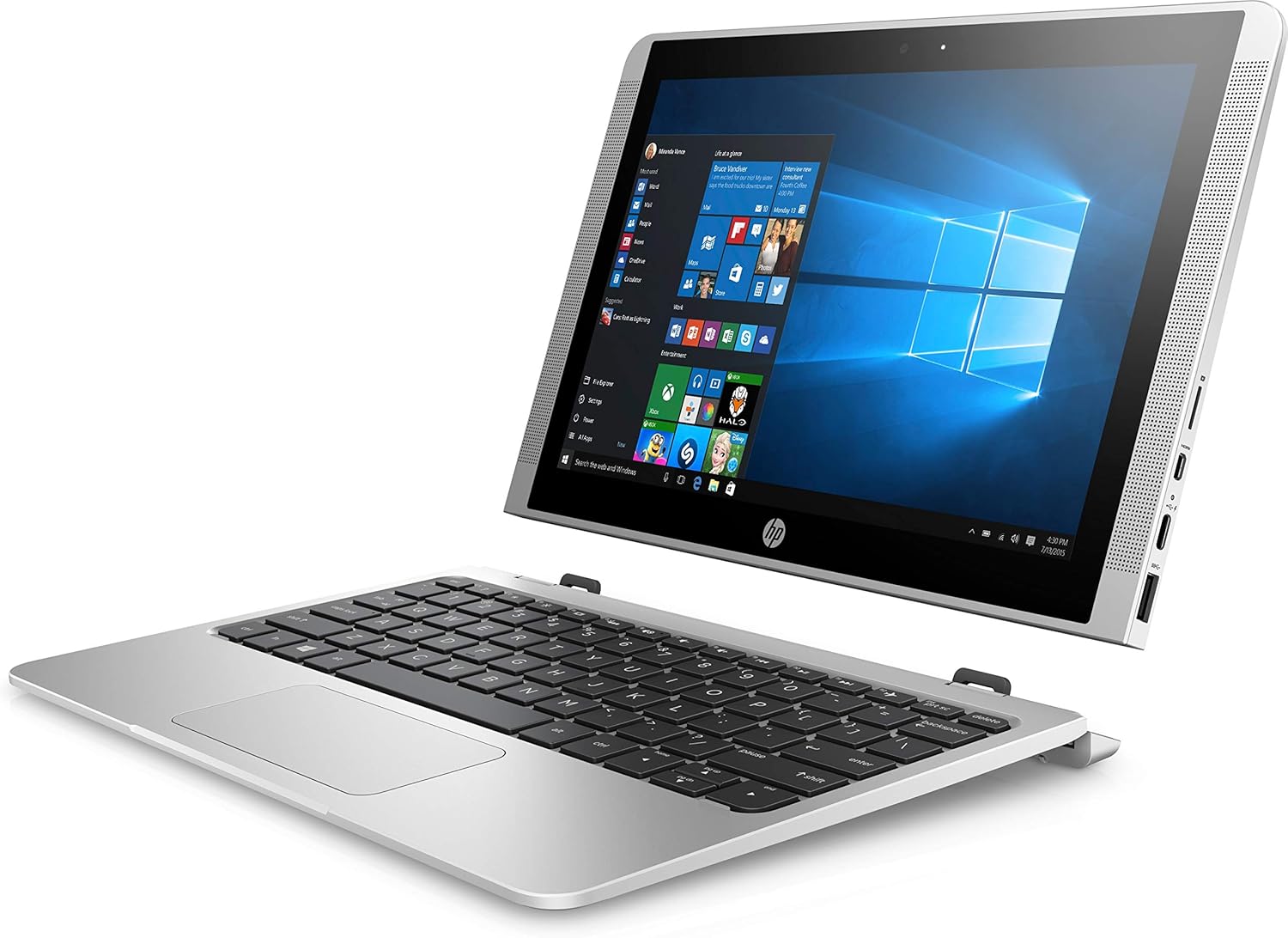
Figure 2: HP 10-P018WM in stand mode, showcasing jeho všestrannost.
4.2 Používání dotykové obrazovky
The 10.1-inch IPS display is touch-enabled. Use standard touch gestures for navigation, such as tapping to select, swiping to scroll, and pinch-to-zoom.
4.3 HP Active Pen Usage
The included HP Active Pen allows for precise input, drawing, and writing directly on the screen. It supports Windows inking features for note-taking, sketching, and annotating documents. Ensure the pen has a working battery if applicable.
Funkce 4.4 fotoaparátu
The device features a 5MP rear camera, positioned to minimize accidental finger obstruction. Use the built-in Camera application in Windows 10 to capture photos and videos.
5. Údržba
5.1 Čištění
K čištění obrazovky použijte jemný hadřík, který nepouští vlákna dampened with water or a screen cleaner solution. For the device body, use a soft, dry cloth. Avoid harsh chemicals or abrasive materials.
5.2 Péče o baterii
To maximize battery lifespan, avoid fully discharging the battery frequently. Store the device in a cool, dry place. If storing for an extended period, ensure the battery is charged to approximately 50%.
5.3 Aktualizace softwaru
Regularly check for and install Windows updates to ensure optimal performance, security, and compatibility. Navigate to Nastavení > Aktualizace a zabezpečení > Windows Update.
5.4 Správa úložiště
With 64GB eMMC storage, managing disk space is important. Regularly delete unnecessary fileodinstalujte nepoužívané aplikace a zvažte použití cloudového úložiště nebo externích disků pro velké files pro udržení výkonu systému.
6. Řešení problémů
6.1 Pomalý výkon
- Zkontrolovat aktualizace: Ensure all Windows updates are installed.
- Zavřít aplikace na pozadí: Zavřete nepotřebné aplikace běžící na pozadí.
- Místo na disku: Free up storage space if the drive is nearly full.
- Restartovat: Jednoduchý restart může vyřešit mnoho dočasných problémů s výkonem.
6.2 Zařízení se nezapne
- Zkontrolujte napájení: Ujistěte se, že je zařízení nabité nebo připojené k funkční zásuvce.
- Tvrdý reset: Stiskněte a podržte tlačítko napájení po dobu 15–20 sekund pro provedení tvrdého resetu.
6.3 HP Active Pen Not Responding
- Zkontrolujte baterii: Replace the pen's battery if applicable.
- Restartovat zařízení: Restart the laptop to refresh connections.
- Aktualizace ovladačů: Ensure pen drivers are up to date via Windows Update or HP Support webmísto.
6.4 Přehřátí
- Větrání: Ensure the device's vents are not blocked. Use on a hard, flat surface.
- Snížit zátěž: Close demanding applications if the device feels excessively warm.
7. Specifikace
| Funkce | Specifikace |
|---|---|
| Číslo modelu | 10-P018WM (X7U47UA) |
| Zobrazit | 10.1-inch IPS Touch Display, 1366 x 768 pixels |
| Procesor | Intel Atom X5-Z8350 (1.1 GHz) |
| BERAN | 4 GB DDR |
| Skladování | 64 GB eMMC |
| Grafika | Grafická karta Intel HD 400 (integrovaná) |
| Operační systém | Windows 10 Home |
| Bezdrátové připojení | 802.11ac |
| USB porty | 3x USB 2.0, 3x USB 3.0 |
| Životnost baterie | Až 10 hodin a 30 minut |
| Fotoaparát | 5MP Zadní kamera |
| Hmotnost | Přibližně 2.2 libry |
| Speciální funkce | Detachable design, HP Active Pen support |
8. Záruka a podpora
This HP product comes with a standard limited warranty. For detailed warranty information, please refer to the warranty card included with your purchase or visit the official HP support website. For technical assistance, driver downloads, or service inquiries, please visit www.hp.com/support and search for your specific model number (10-P018WM or X7U47UA).