
Zavedení
This manual provides detailed instructions for the installation, operation, and maintenance of the ECS Elitegroup B350AM4-M2 Micro ATX Motherboard. This motherboard is designed to support AMD AM4 socket processors, including AMD Ryzen and 7th Gen Athlon processors. It features a 4+2 phase thermal design, 100% solid capacitor design, and dual-channel DDR4 memory architecture supporting up to 64 GB across four DIMM sockets.
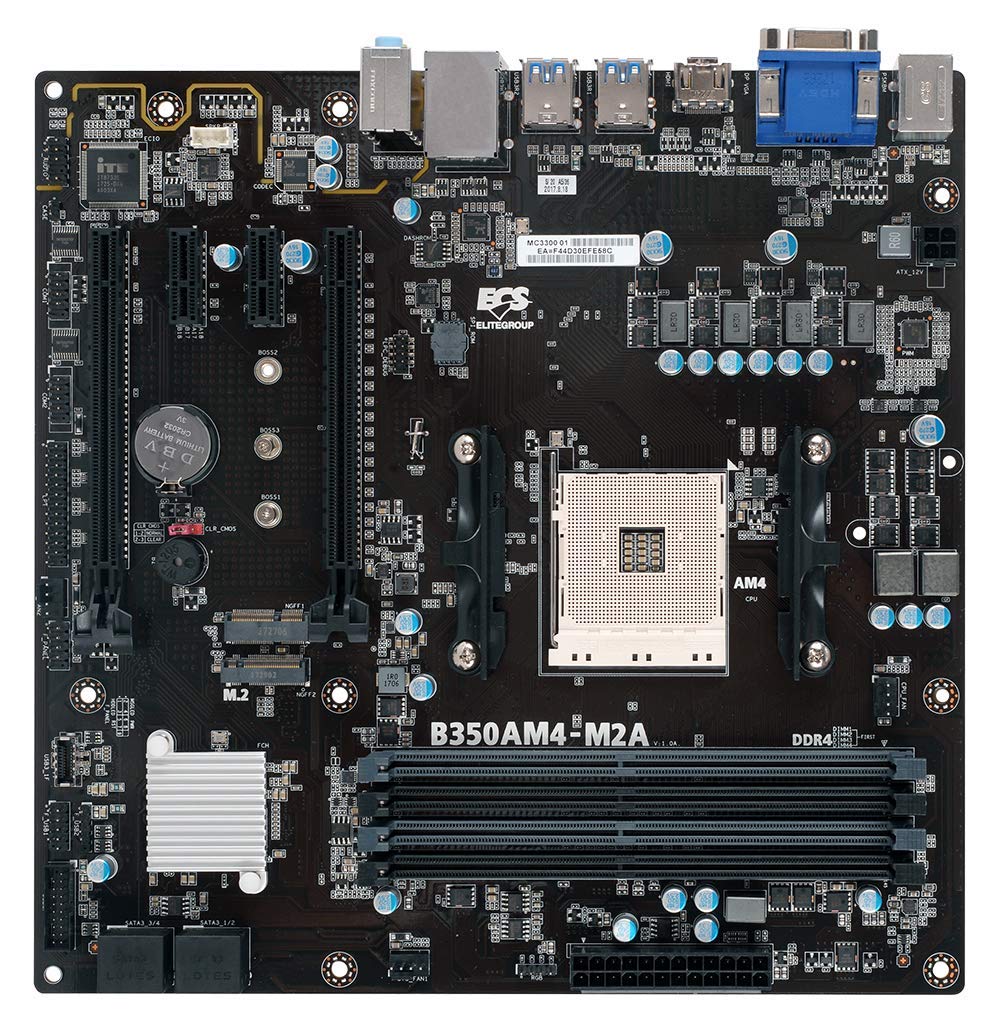
Obrázek 1: Přesview of the ECS B350AM4-M2 Motherboard, showing its general layout and components.
Obsah balení
Verify that all items listed below are present in the package. If any item is missing or damaged, contact your retailer.
- ECS B350AM4-M2 Motherboard
- Disk CD s ovladači
- Uživatelská příručka (tento dokument)
- SATA kabely
Nastavení a instalace
Před zahájením instalace se ujistěte, že je systém vypnutý a odpojený od elektrické zásuvky. Používejte antistatický náramek, abyste zabránili poškození součástí elektrostatickým výbojem (ESD).
1. Instalace procesoru
- Najděte patici procesoru AM4 na základní desce.
- Zvedněte páku zatížení na boku zásuvky.
- Pečlivě zarovnejte trojúhelníkovou značku na procesoru s odpovídající značkou na patici.
- Opatrně vložte procesor do patice, aniž byste na něj tlačili.
- Lower the load lever back into its locked position to secure the CPU.
- Naneste teplovodivou pastu na povrch procesoru a nainstalujte chladič procesoru podle pokynů výrobce.
Figure 2: The AM4 CPU socket and surrounding area on the motherboard, where the processor is installed.
2. Instalace paměti (RAM)
The B350AM4-M2 motherboard has four 288-pin DDR4 DIMM sockets. For optimal performance, install memory modules in pairs for dual-channel operation. Refer to the motherboard's silkscreen for recommended slot population order.
- Otevřete klipsy na obou koncích patice DIMM.
- Align the notch on the DDR4 memory module with the key in the DIMM socket.
- Pevně zasuňte modul do patice, dokud nezacvaknou klipy.
- Repeat for additional memory modules.
Figure 3: Location of the four DDR4 DIMM slots for memory installation.
3. Instalace úložného zařízení (SATA a M.2)
Connect SATA storage devices (HDDs/SSDs) to the SATA 6Gb/s ports. For M.2 SSDs, locate the M.2 slot.
- For SATA devices: Connect one end of the SATA data cable to the storage device and the other end to a SATA port on the motherboard. Connect the SATA power cable from your power supply to the device.
- For M.2 SSDs: Insert the M.2 SSD into the M.2 slot at an angle. Push it down and secure it with the provided screw.
4. Instalace rozšiřující karty (PCIe)
Install graphics cards or other expansion cards into the appropriate PCI Express slots.
- Zarovnejte rozšiřující kartu s vybraným slotem PCIe.
- Press down firmly until the card is seated correctly and the retention clip (if present) locks into place.
- Připevněte kartu k šasi šroubem.
5. Připojení napájení
Připojte napájecí kabely k základní desce.
- 24pinový napájecí konektor ATX: Připojte hlavní 24pinový napájecí kabel ze zdroje napájení k odpovídajícímu konektoru na základní desce.
- 4-pin CPU Power Connector: Connect the 4-pin CPU power cable (often labeled P4 or ATX12V) from your power supply to the connector near the CPU socket.
6. Připojení k přednímu panelu a USB
Connect your chassis's front panel connectors (power button, reset button, HDD LED, power LED, front USB ports, front audio) to the corresponding headers on the motherboard. Refer to the motherboard layout diagram in the full manual for exact header locations.
Návod k obsluze
1. Nastavení BIOSu/UEFI
The BIOS (Basic Input/Output System) or UEFI (Unified Extensible Firmware Interface) is the firmware that initializes hardware during startup. To access the BIOS/UEFI setup utility:
- Zapněte počítač.
- Stiskněte tlačítko DEL key repeatedly during the initial boot screen. The exact key may vary; consult the on-screen prompts.
Within the BIOS/UEFI, you can configure system settings such as boot order, date/time, CPU/memory frequencies, and enable/disable integrated peripherals. Save changes before exiting.
2. Instalace operačního systému
After assembling your system, you will need to install an operating system (e.g., Windows 10, Windows Vista, Linux).
- Insert your operating system installation media (USB drive or DVD) into the computer.
- Access the BIOS/UEFI setup and set the boot order to prioritize your installation media.
- Save changes and exit. The system will boot from the installation media.
- Při instalaci operačního systému postupujte podle pokynů na obrazovce.
- After installation, install the necessary drivers from the provided driver CD or the ECS Elitegroup webmísto.
Údržba
Správná údržba zajistí dlouhou životnost a stabilní provoz vaší základní desky.
- Odstranění prachu: Regularly clean dust from inside your computer case using compressed air. Ensure fans and heatsinks are free from obstructions.
- Aktualizace BIOSu: Periodically check the ECS Elitegroup website for updated BIOS versions. BIOS updates can improve compatibility, stability, and performance. Follow the update instructions carefully to avoid system damage.
- Správa kabelů: Zajistěte úhledné vedení vnitřních kabelů, aby se zlepšilo proudění vzduchu a zabránilo se rušení.
Odstraňování problémů
Tato část se zabývá běžnými problémy, se kterými se můžete setkat.
Žádné napájení / Systém se nezapne
- Check all power connections: 24-pin ATX, 4-pin CPU, and power cables to peripherals.
- Ujistěte se, že je vypínač napájení v poloze „ON“.
- Verify the front panel power button connector is correctly attached to the motherboard header.
- Otestujte napájecí zdroj pomocí jiného systému nebo testeru napájecích zdrojů, pokud je k dispozici.
No Display / No POST (Power-On Self-Test)
- Ensure the monitor is connected to the correct display output (motherboard integrated graphics or discrete graphics card).
- Znovu vložte grafickou kartu a paměťové moduly.
- Check if the CPU cooler is properly installed and connected.
- Listen for beep codes. A series of 9 short beeps often indicates a BIOS ROM error, suggesting a potential issue with the motherboard's firmware.
- Try booting with only essential components (CPU, one RAM stick, graphics card if no integrated graphics) to isolate the problem.
Nestabilita systému / Pády
- Ujistěte se, že všechny ovladače jsou aktuální.
- Zkontrolujte teplotu CPU a GPU, abyste zabránili přehřátí.
- Spusťte diagnostické nástroje paměti a zkontrolujte, zda není RAM vadná.
- Verify that the power supply provides sufficient wattage pro všechny komponenty.
Specifikace
| Funkce | Detail |
|---|---|
| Značka | ECS Elitegroup |
| Číslo modelu | B350AM4-M2 |
| Zásuvka CPU | Zásuvka AM4 |
| Kompatibilní procesory | AMD Ryzen Processors, AMD 7th Gen Athlon Processors |
| Typ čipové sady | AMD B350 |
| Technologie paměti RAM | DDR4 |
| K dispozici paměťové sloty | 4 x 288-pin DDR4 DIMM sockets |
| Maximální velikost paměti RAM | 64 GB |
| Rychlost paměti | 2667/2400 MHz (non-ECC, Un-buffered SDRAM) |
| Rozhraní grafické karty | PCI Express |
| Total Number of HDMI Ports | 1 (HDMI 1.4a) |
| DisplayPort | Integrated DP with up to 2560x1600 resolution |
| Porty USB 2.0 | 1 (internal header, total ports may vary) |
| Typ konektoru S/PDIF | Optický |
| Podporovaný standard systémové sběrnice | SATA 3 |
| Platforma | Windows 10, Windows Vista |
| Hmotnost položky | 1.15 libry |
Záruka a podpora
The ECS Elitegroup B350AM4-M2 Motherboard comes with a 2-letá záruka from the date of purchase. This warranty covers defects in materials and workmanship under normal use. For warranty claims or technical support, please contact your retailer or visit the official ECS Elitegroup webweb s podpůrnými zdroji a kontaktními informacemi.
Online podpora: For the latest drivers, BIOS updates, and additional support, please visit the ECS Elitegroup official webmísto.