
BenQ EX3501R
BenQ EX3501R Ultrawide Curved Gaming Monitor User Manual
Model: EX3501R
1. Nastavení
1.1 Vybalení monitoru
Opatrně vyjměte všechny součásti z obalu. Ujistěte se, že jsou přítomny všechny níže uvedené položky:
- BenQ EX3501R Monitor
- Stojan na monitor (základna a krk)
- Napájecí adaptér
- Napájecí kabel
- HDMI kabel
- Kabel DisplayPort
- USB-C kabel
- Uživatelská příručka (tento dokument)
1.2 Sestavení stojanu
Pro připevnění stojanu k monitoru postupujte takto:
- Položte monitor displejem dolů na měkký, čistý hadřík, abyste zabránili poškrábání.
- Připevněte krk stojanu k zadní straně monitoru. Ujistěte se, že bezpečně zacvakne na místo.
- Connect the stand base to the neck, tightening any screws as indicated in the quick start guide.

Obrázek 1: Přední strana view of the BenQ EX3501R monitor with its stand.
1.3 Propojovací kabely
Connect the necessary cables to the monitor and your computer. The monitor supports various input options:
- Moc: Připojte napájecí adaptér k monitoru a poté do elektrické zásuvky.
- Video vstup: Use either the HDMI, DisplayPort, or USB-C cable to connect your computer to the monitor.
- USB-C: The USB-C port supports video, data transfer, and power delivery, allowing for a single-cable connection with compatible devices.
- USB porty: 3.0 Utilize the integrated USB 3.0 ports for connecting peripherals.
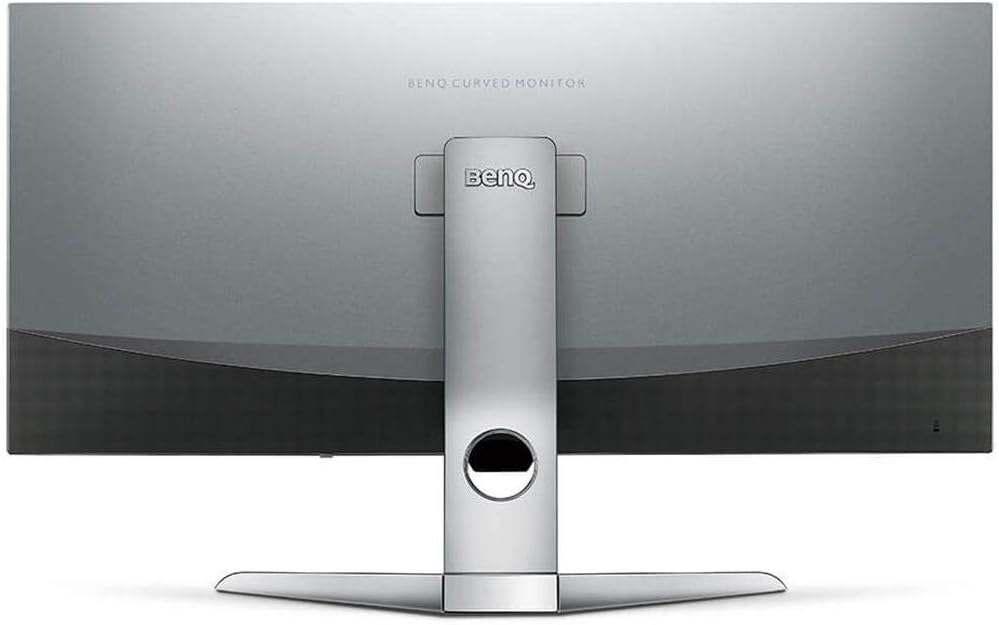
Obrázek 2: Zadní view of the monitor displaying the connectivity ports.
2. Obsluha monitoru
2.1 Zapnutí/vypnutí
Stisknutím tlačítka napájení, které se obvykle nachází v pravé dolní části monitoru, jej zapnete nebo vypnete. Kontrolka napájení se rozsvítí, když je monitor aktivní.
2.2 Navigace v nabídce na obrazovce (OSD)
Use the joystick or buttons located on the monitor's underside to navigate the On-Screen Display (OSD) menu. This menu allows you to adjust various settings such as brightness, contrast, color modes, and input sources.
2.3 Display Features and Eye-Care Technology
The BenQ EX3501R incorporates several technologies designed to enhance viewing experience and reduce eye strain:
- Inteligence jasu Plus (BI+): This patented technology automatically senses ambient lighting conditions and adjusts the screen's brightness and color temperature to provide optimal viewing comfort and protect your eyes during extended use.
- Nízké modré světlo: Filters out harmful blue light emissions to reduce eye fatigue. Multiple levels of blue light reduction are available.
- ZeroFlicker™: Eliminates screen flickering at all brightness levels, further reducing eye strain and discomfort.
- HDR (vysoký dynamický rozsah): Offers enhanced brightness and contrast, bringing greater detail and vibrancy to HDR video content.
Video 1: Overview of BenQ's Eye-Care technology, including Low Blue Light, ZeroFlicker, and Brightness Intelligence Plus, demonstrating how these features work to reduce eye strain and adjust screen settings automatically based on ambient light.
2.4 Rozlišení a obnovovací frekvence
The monitor features a QHD (3440x1440) resolution and a 100Hz refresh rate, providing a smooth and detailed visual experience. The 21:9 ultrawide aspect ratio offers ample screen space for multitasking, such as viewing multiple documents side-by-side without needing a second monitor.
2.5 AMD FreeSync
For a fluid gaming experience, the monitor supports AMD FreeSync technology, which synchronizes the monitor's refresh rate with your graphics card's frame rate to eliminate screen tearing and stuttering.
3. Údržba
3.1 Čištění monitoru
To maintain optimal performance and appearance, regularly clean your monitor:
- Obrazovka: Obrazovku jemně otřete měkkým hadříkem, který nepouští vlákna. Na odolné šmouhy použijte čisticí roztok určený pro monitory nanesený na hadřík, nikoli přímo na obrazovku.
- Vnější: Use a soft, dry cloth to wipe dust and debris from the monitor casing and stand.
Nepoužívejte abrazivní čisticí prostředky, vosky nebo rozpouštědla, protože by mohly poškodit povrch monitoru.
3.2 Obecné tipy pro péči
- Neblokujte větrací otvory na monitoru.
- Neumisťujte monitor na přímé sluneční světlo nebo do blízkosti zdrojů tepla.
- S monitorem zacházejte opatrně, aby nedošlo k jeho fyzickému poškození.
4. Řešení problémů
If you encounter issues with your BenQ EX3501R monitor, refer to the following common troubleshooting steps:
4.1 Žádný displej nebo černá obrazovka
- Ujistěte se, že je napájecí kabel bezpečně připojen k monitoru i k elektrické zásuvce.
- Verify that the video cable (HDMI, DisplayPort, or USB-C) is firmly connected to both the monitor and your computer.
- Zkontrolujte, zda je v nabídce OSD monitoru vybrán správný vstupní zdroj.
- Restartujte počítač.
4.2 Blikání nebo nestabilní obraz
- Ensure the ZeroFlicker™ feature is enabled in the OSD menu.
- Zkontrolujte, zda nejsou uvolněná připojení video kabelu.
- Aktualizujte ovladače grafické karty na nejnovější verzi.
- Pokud používáte AMD FreeSync, ujistěte se, že je správně nakonfigurován v nastavení grafické karty.
4.3 Color or Brightness Issues
- Upravte jas, kontrast a nastavení barev pomocí nabídky OSD.
- Enable or disable Brightness Intelligence Plus (B.I.+) to see if it resolves the issue.
- Proveďte obnovení továrního nastavení pomocí nabídky OSD.
5. Specifikace
Key technical specifications for the BenQ EX3501R monitor:
| Funkce | Specifikace |
|---|---|
| Velikost obrazovky | 35 palce |
| Maximální rozlišení obrazovky | 3440 x 1440 Pixels (QHD Ultrawide) |
| Poměr stran | 21:9 |
| Obnovovací frekvence | 100 Hz |
| Zakřivení | 1800R |
| Typ panelu | VA (vertikální zarovnání) |
| Konektivita | USB-C, HDMI, DisplayPort |
| Speciální funkce | AMD FreeSync, Brightness Intelligence Plus, Low Blue Light, ZeroFlicker |
| Hmotnost položky | 21.3 libry |
| Rozměry produktu | 6.88 x 3.47 x 12.93 palce |
6. Záruka a podpora
6.1 Záruka na produkt
The BenQ EX3501R monitor typically comes with a 3-year manufacturer's warranty. Please refer to the warranty card included in your product packaging for specific terms and conditions, or visit the official BenQ webpodrobné záruční informace.
6.2 Zákaznická podpora
For further assistance, technical support, or warranty claims, please contact BenQ customer service. You can find contact information and support resources on the official BenQ webmísto: www.benq.com/en-us/support.html
Ask a question about this manual
Ask about setup, troubleshooting, compatibility, parts, safety, or missing instructions. Manuals+ will review the question and use this page’s manual context to help answer it.