
1. Úvod
The HP Ultra-Slim Z4000 Wireless Optical Mouse is designed for portability and comfort, offering reliable 2.4 GHz wireless connectivity. Its sleek, low-profile design and ergonomic shape provide a natural fit for your hand, making it an ideal accessory for notebooks and tablets. This manual provides detailed instructions for the setup, operation, and maintenance of your mouse.

Figure 1: HP Z4000 Wireless Mouse, demonstrating its slim and stylish design alongside a keyboard.
2. Nastavení
2.1 Obsah balení
Než začnete, ujistěte se, že balení obsahuje všechny položky:
- HP Z4000 Wireless Mouse
- 2.4GHz Micro Receiver (USB dongle)
- 1 AA baterie
- Rychlý start plakát
- Oznámení o produktu
- Záruční list
2.2 Instalace baterie
- Najděte přihrádku na baterie na spodní straně myši.
- Posunutím otevřete kryt baterie.
- Vložte dodanou baterii AA a dbejte na správnou polaritu (+/-).
- Pevně zavřete kryt baterie.

Figure 2: Underside of the mouse, showing the battery compartment (under the main cover), CONNECT button, and ON/OFF switch.
2.3 Připojení přijímače
- Locate the 2.4GHz Micro Receiver (USB dongle). This may be stored inside the mouse's battery compartment or included separately.
- Insert the USB receiver into an available USB port on your computer or tablet.
- Zapněte myš pomocí vypínače ON/OFF, který se nachází na spodní straně.
- Váš počítač by měl automaticky detekovat a nainstalovat potřebné ovladače. Myš je připravena k použití.
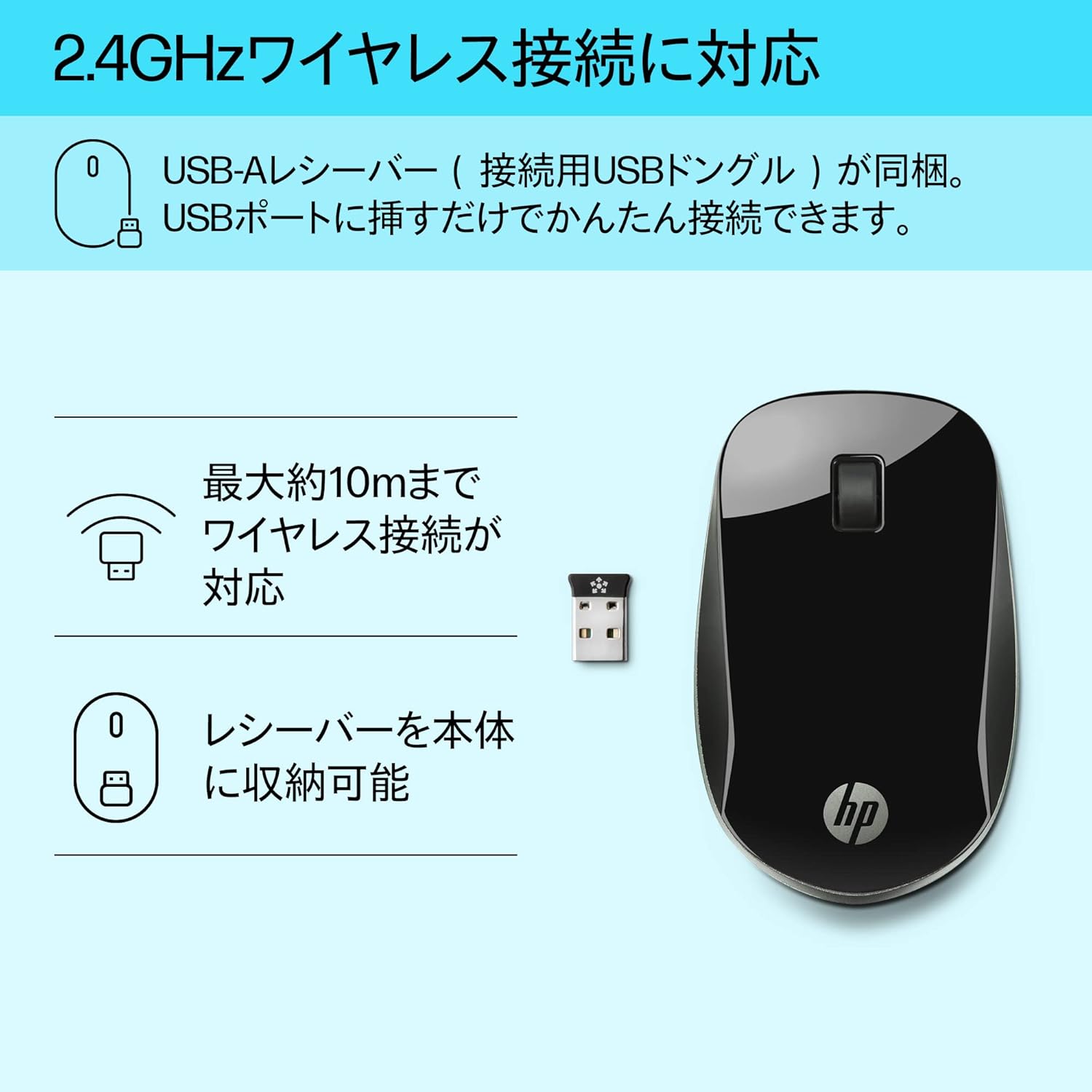
Figure 3: The HP Z4000 mouse and its 2.4GHz USB receiver, demonstrating the simple plug-and-play connection.
3. Ovládání myši
The HP Z4000 mouse features a standard three-button layout and a scroll wheel for intuitive navigation.
3.1 Základní funkce
- Levé kliknutí: Hlavní tlačítko pro výběr položek, otevírání filea provádění příkazů.
- Klikněte pravým tlačítkem myši: Sekundární tlačítko pro přístup k kontextovým nabídkám a dalším možnostem.
- Rolovací kolečko: Procházení dokumentů pomocí posunu nahoru nebo dolů web pages. The scroll wheel is also clickable for middle-click functionality (if supported by your operating system/application).

Obrázek 4: Nahoře view of the mouse, indicating the left click, right click, and rubber scroll wheel for easy operation.
3.2 Ergonomie a design
The mouse features an arch-shaped, symmetrical design that comfortably fits both left and right hands. Its ultra-slim profile (less than 2.6 cm in height) promotes a natural hand and wrist position, reducing strain during extended use.
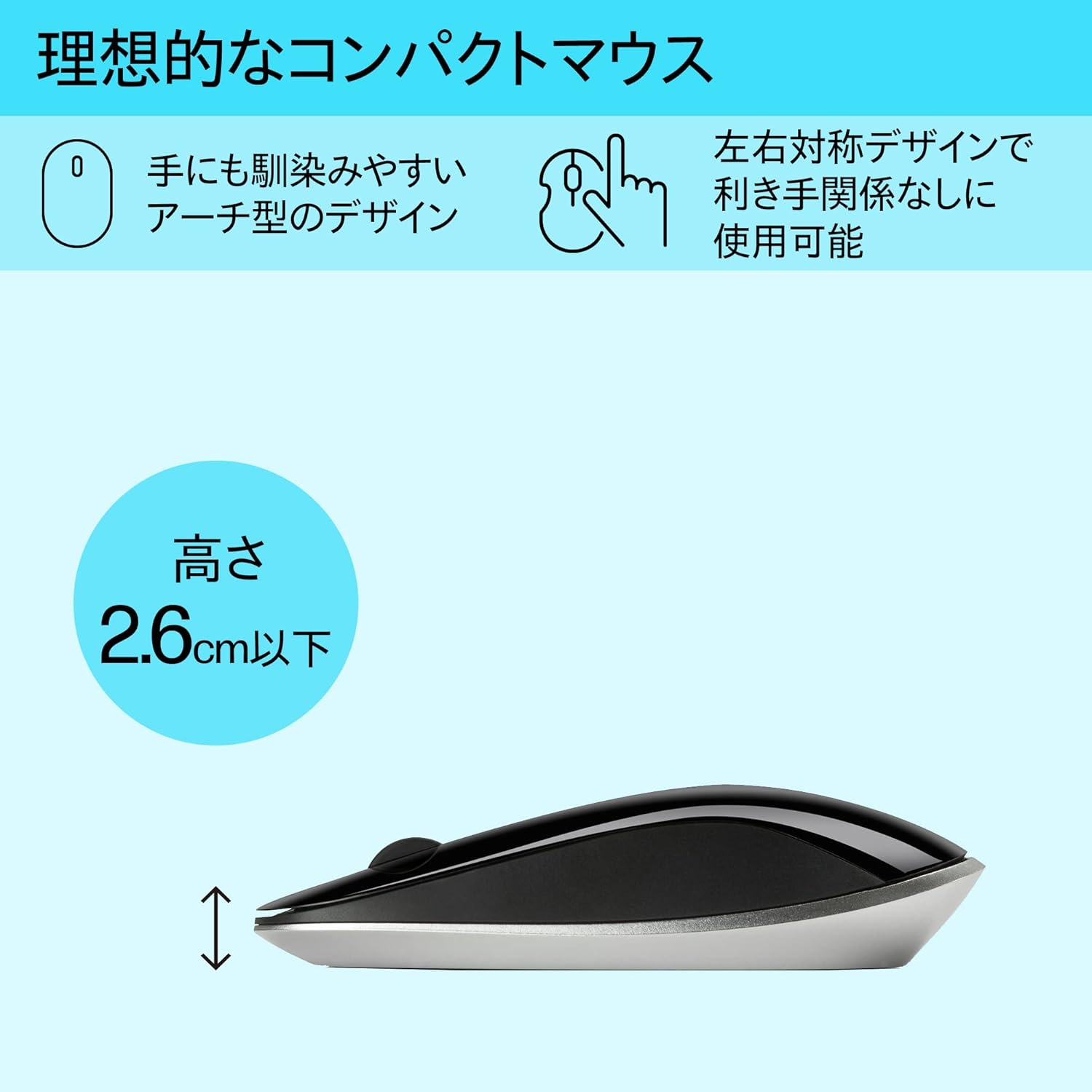
Figure 5: The ergonomic arch design and slim profile (under 2.6cm) of the HP Z4000 mouse, designed for comfortable use.
4. Údržba
4.1 Čištění myši
- Před čištěním se ujistěte, že je myš vypnutá.
- Lehce používejte měkký hadřík, který nepouští vlákna dampvodou nebo jemným čisticím roztokem.
- Wipe the surface of the mouse gently. Avoid excessive moisture.
- Nepoužívejte abrazivní čisticí prostředky nebo rozpouštědla.
4.2 Výměna baterie
The mouse uses one AA battery, with an average battery life of 12 months. When the mouse performance degrades or it stops responding, it's time to replace the battery.
- Vypněte myš pomocí vypínače ON/OFF.
- Otevřete kryt přihrádky na baterie na spodní straně myši.
- Vyjměte starou baterii typu AA.
- Insert a new AA battery, observing the correct polarity.
- Zavřete kryt baterie.
- Znovu zapněte myš.
5. Řešení problémů
5.1 Myš nereaguje
- Zkontrolujte napájení: Ujistěte se, že je myš zapnutá.
- Zkontrolujte baterii: Replace the AA battery if it is low or depleted.
- Zkontrolujte přijímač: Ujistěte se, že je USB přijímač bezpečně zapojený do funkčního USB portu v počítači. Zkuste jiný USB port.
- Obnovení připojení: If your mouse has a "CONNECT" button (refer to Figure 2), press it and then press the connect button on the receiver (if applicable, or simply re-insert the receiver).
- Vzdálenost: Ensure the mouse is within the 10-meter (30ft) operating range of the receiver.
5.2 Nepravidelný pohyb kurzoru
- Povrch: Používejte myš na čistém, nereflexním a rovnoměrném povrchu. Vyhněte se sklu nebo vysoce reflexním povrchům.
- Čistota senzoru: Check the optical sensor on the underside of the mouse for any dust or debris and clean it gently with a soft cloth.
- Rušení: Move the mouse away from other wireless devices that might cause interference.
6. Specifikace
| Funkce | Detail |
|---|---|
| Značka | HP |
| Číslo modelu | H5N61AA |
| Konektivita | Bezdrátové připojení 2.4 GHz (USB přijímač) |
| Detekce pohybu | Optický |
| Počet tlačítek | 3 (vlevo, vpravo, kliknutí kolečkem) |
| Rozměry (DxŠxV) | 10.1 x 2.5 x 6.4 cm (přibližně 4 x 1 x 2.5 palce) |
| Hmotnost | 231 g (přibližně 8.1 oz) |
| Barva | Černý |
| Typ baterie | 1 x AA baterie (součástí balení) |
| Průměrná životnost baterie | 12 měsíců |
| Kompatibilní operační systémy | Linux, Windows 7, Windows XP (a novější verze) |
7. Záruka a podpora
The HP Ultra-Slim Z4000 Wireless Optical Mouse comes with a 1letá záruka výrobce od data nákupu.
For warranty claims, technical support, or further assistance, please refer to the contact information provided in your product's warranty card or visit the official HP support webmísto:
Uschovejte si prosím doklad o koupi pro ověření záruky.