
ILEBYGO H18
ILEBYGO H18 Mini Wireless Keyboard Touchpad Combo User Manual
Model: H18 | Brand: ILEBYGO
1. Úvod
This manual provides detailed instructions for the ILEBYGO H18 2.4Ghz Mini Wireless Keyboard Touchpad Combo. This device combines a QWERTY keyboard with a multi-touch touchpad, offering versatile control for various smart devices. Please read this manual thoroughly before use to ensure proper operation and longevity of your device.
2. Co je v krabici
- 1 x ILEBYGO H18 2.4G Mini Wireless Keyboard (Batteries included)
- 1 x přijímač USB
- 1 x USB nabíjecí kabel
- 1 x Uživatelská příručka
3. Konec produktuview
The ILEBYGO H18 features a compact design with a large touchpad area that doubles as a keyboard. Key indicators and control buttons are strategically placed for ease of use.
3.1 Rozložení zařízení

Figure 1: ILEBYGO H18 device dimensions and top view.
3.2 Indikátory a tlačítka
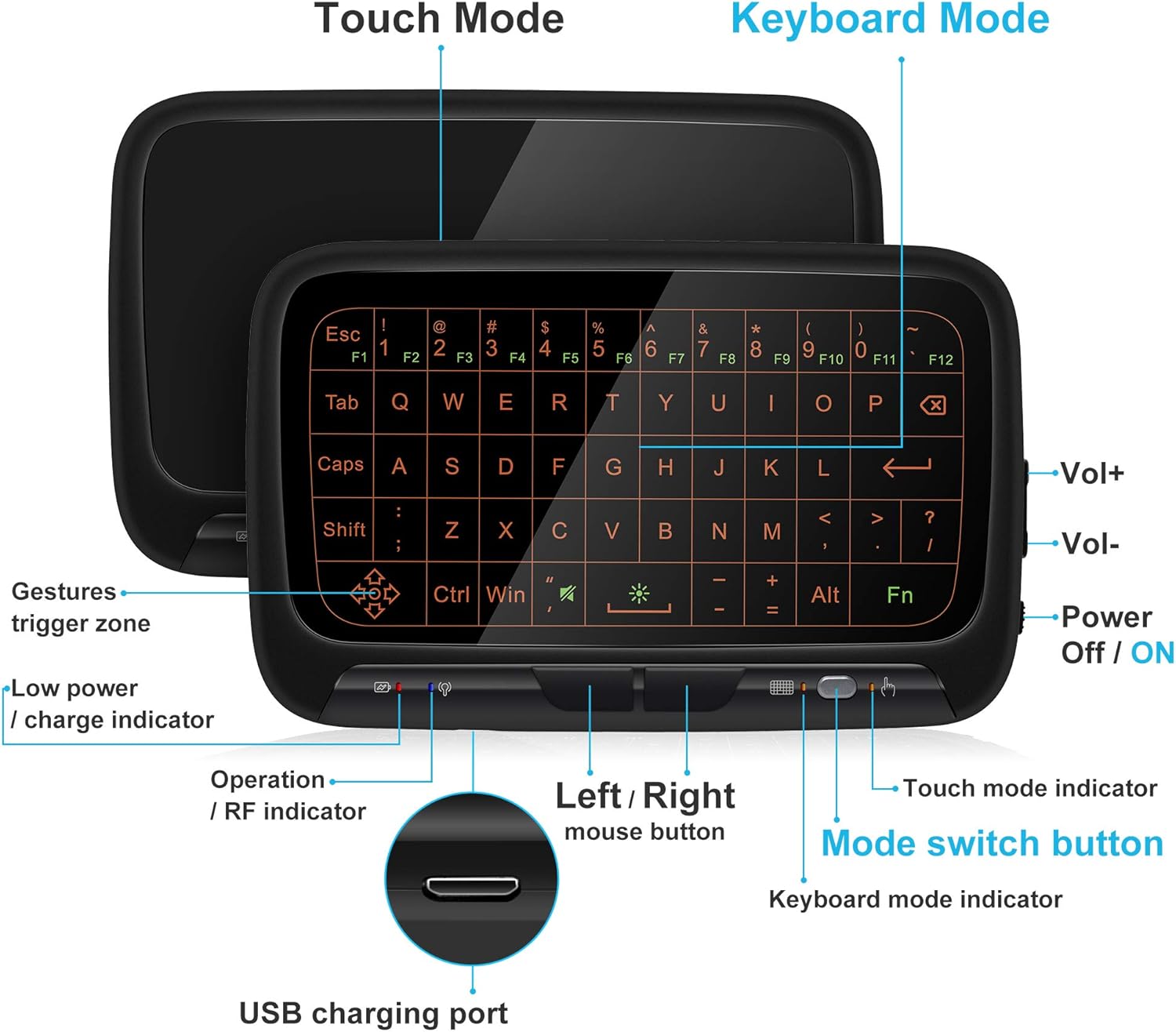
Obrázek 2: Přední strana view of the ILEBYGO H18 with labeled indicators and buttons.
- USB nabíjecí port: Pro nabíjení zařízení.
- Low Power / Charge Indicator: Ukazuje stav baterie.
- Operation / RF Indicator: Označuje stav připojení.
- Left / Right Mouse Buttons: Physical buttons for mouse clicks.
- Tlačítko pro přepnutí režimu: Toggles between Touchpad Mode and Keyboard Mode.
- Touch Mode Indicator: Lights up when in Touchpad Mode.
- Keyboard Mode Indicator: Lights up when in Keyboard Mode.
- Volume Controls (Vol+ / Vol-): Upravuje zvukový výstup.
- Power Off / ON Switch: Zapíná nebo vypíná zařízení.
4. Nastavení
4.1 Nabíjení zařízení
- Connect the provided USB charging cable to the micro USB port on the device.
- Druhý konec kabelu připojte k USB zdroji napájení (např. k USB portu počítače, USB adaptéru do zásuvky).
- The Low Power / Charge Indicator will illuminate during charging. It will change or turn off when fully charged.

Figure 3: Charging the ILEBYGO H18.
4.2 Připojení k zařízení
- Vyhledejte USB přijímač, který je součástí balení.
- Insert the USB receiver into an available USB port on your target device (e.g., Android TV Box, Projector, HTPC, PC, Laptop).
- Turn on the ILEBYGO H18 by sliding the Power Off / ON switch to the "ON" position.
- The Operation / RF Indicator will blink, then turn solid blue once a connection is established.

Figure 4: Connecting the ILEBYGO H18 via USB receiver.
5. Návod k obsluze
5.1 Switching Between Touchpad and Keyboard Modes
Stiskněte tlačítko Tlačítko pro přepnutí režimu (located near the right mouse button) to toggle between Touchpad Mode and Keyboard Mode. The corresponding indicator light will illuminate to show the active mode.

Figure 5: Switching between Keyboard and Touchpad Modes.
5.2 Touchpad Mode Gestures
The touchpad supports various multi-touch gestures for intuitive navigation:

Figure 6: Touchpad gesture guide.
- Jedno klepnutí: Klikněte levým tlačítkem myši.
- Klepnutí dvěma prsty: Klikněte pravým tlačítkem myši.
- Tažení jedním prstem: Mouse movement.
- Two-Finger Drag: Posuňte obrazovku.
- Štípnutí dvěma prsty: Přiblížit/oddálit.
- Three-Finger Swipe: Switch applications or access multitasking view.
5.3 Režim klávesnice
In Keyboard Mode, the touchpad area illuminates to display a full QWERTY keyboard layout. You can type by tapping on the virtual keys. The keyboard supports standard functions like Shift, Ctrl, Alt, and Windows key combinations.
5.4 Nastavení podsvícení
The keyboard features a 3-level adjustable backlight. To adjust the backlight brightness, press the Fn key and the backlight adjustment key (often indicated by a sun icon or similar) simultaneously or in sequence, depending on the specific model's implementation.

Figure 7: Adjusting keyboard backlight.
6. Údržba
- Udržujte zařízení čisté otíráním měkkým suchým hadříkem.
- Nevystavujte zařízení extrémním teplotám, vlhkosti nebo přímému slunečnímu záření.
- Nepokoušejte se zařízení rozebírat, jinak ztratíte záruku.
- Zařízení pravidelně nabíjejte, aby baterie vydržela v dobrém stavu, i když jej nepoužíváte často.
7. Řešení problémů
7.1 Zařízení nereaguje
- Ujistěte se, že je zařízení zapnuté.
- Check if the USB receiver is securely plugged into the host device.
- Verify the device battery is charged. Recharge if the low power indicator is active.
- Try plugging the USB receiver into a different USB port on the host device.
7.2 Podsvícení nefunguje
- Ensure the device is in Keyboard Mode.
- Press the Fn key and the backlight adjustment key to cycle through brightness levels or turn it on.
7.3 Touchpad Sensitivity Issues
- Ensure the device is in Touchpad Mode.
- Clean the touchpad surface to remove any dirt or oils that might affect sensitivity.
8. Specifikace
| Funkce | Detail |
|---|---|
| Značka | ILEBYGO |
| Číslo modelu | H18 |
| Technologie připojení | Bezdrátové připojení 2.4 GHz (USB přijímač) |
| Rozložení klávesnice | QWERTY |
| Speciální funkce | 3-Level Backlit, Rechargeable, Touchpad Mode, Keyboard Mode |
| Baterie | Vestavěná 300mAh Li-ion baterie |
| Rozměry produktu | 5.6 cm D x 3.6 cm Š x 0.7 cm V |
| Hmotnost položky | 0.13 libry |
| Kompatibilní zařízení | Laptop, PC, Projector, Android TV Box, IPTV, HTPC |
9. Záruka a podpora
ILEBYGO provides a 12-month warranty for this product. For any issues, questions, or support needs, please contact our customer service. Refer to the contact information provided with your purchase or visit the official ILEBYGO webmísto.
Note: The warranty does not cover damage caused by misuse, accidents, or unauthorized modifications.
10. Produktová videa
Video 1: Oficiální konecview of the ILEBYGO 2.4Ghz Mini Wireless Keyboard Touchpad Combo, demonstrating its features and functionality.
Ask a question about this manual
Ask about setup, troubleshooting, compatibility, parts, safety, or missing instructions. Manuals+ will review the question and use this page’s manual context to help answer it.