
1. Konec produktuview
The HP Z210 Workstation Tower is a robust desktop computer designed for demanding tasks. This particular unit is a renewed product, meaning it has been professionally inspected and tested by Amazon-qualified suppliers to ensure it functions and appears like new. It features an Intel Core i7 processor, 16GB of RAM, and a 1TB HDD, providing ample performance and storage for various applications.
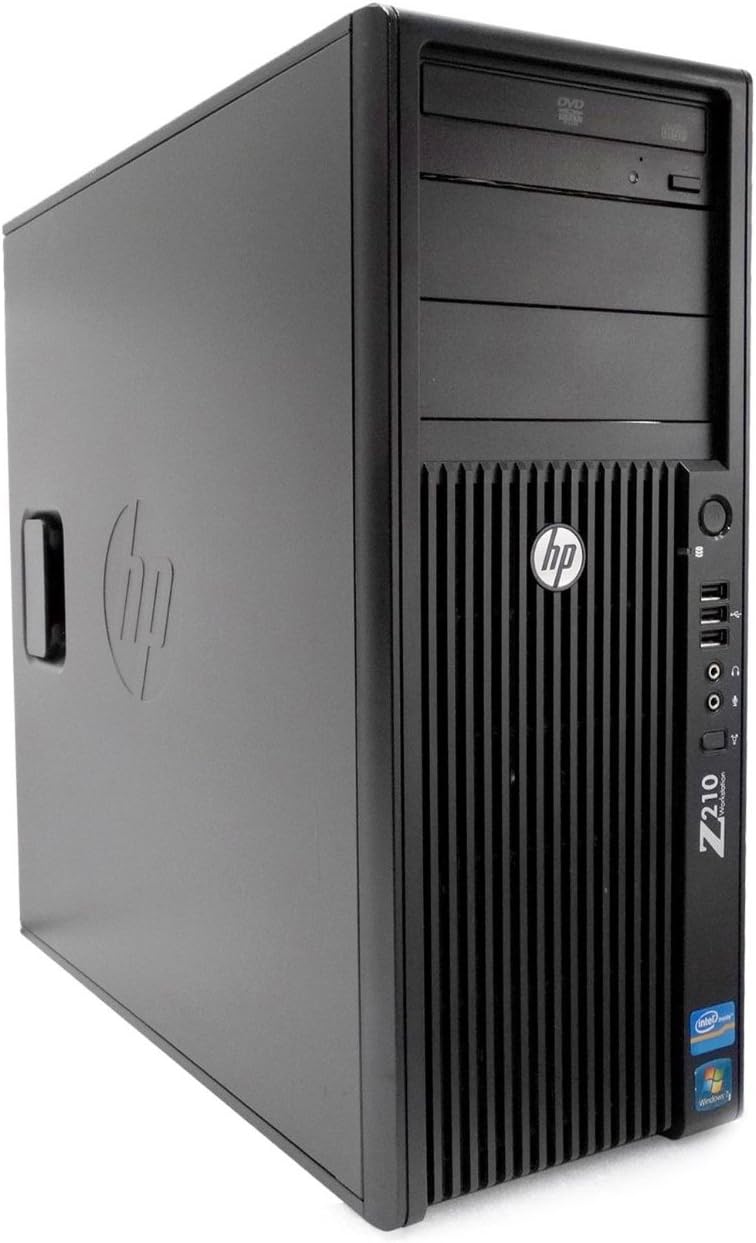
Obrázek 1.1: Přední strana view of the HP Z210 Workstation Tower, showcasing its compact tower design and front panel ports.
2. Obsah balení
Upon unboxing your HP Z210 Workstation Tower, verify that all the following items are included:
- Pracovní stanice HP Z210 Tower
- Napájecí kabel
- Klávesnice
- Myš
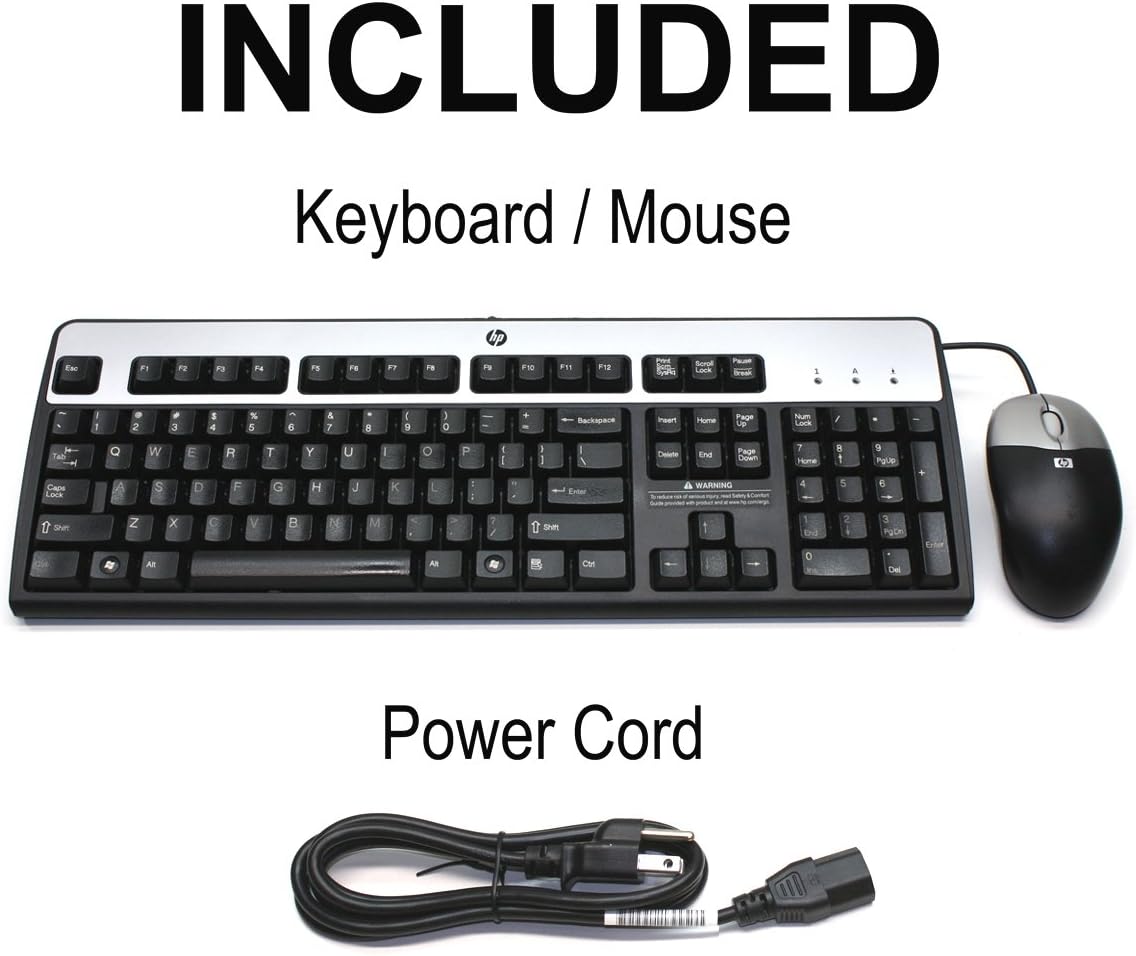
Figure 2.1: Standard accessories included with the HP Z210 Workstation Tower, typically a keyboard, mouse, and power cord.
3. Průvodce nastavením
Follow these steps to set up your HP Z210 Workstation Tower:
- Rozbalte pracovní stanici: Carefully remove the workstation and all accessories from the packaging. Retain the packaging for future transport or storage.
- Připojení periferií:
- Connect your monitor to the appropriate video output port (e.g., DisplayPort, DVI, VGA) on the rear of the workstation.
- Připojte klávesnici a myš k dostupným USB portům.
- Connect any other peripherals such as speakers, printers, or external drives.
- Připojení k síti (volitelné): If using a wired connection, connect an Ethernet cable from your router or modem to the Ethernet port on the rear of the workstation.
- Připojte napájení: Insert the power cord into the power supply port on the rear of the workstation, then plug the other end into a grounded electrical outlet.
- Počáteční spuštění: Press the power button on the front of the workstation. The system will begin to boot. Follow any on-screen instructions for initial Windows setup.
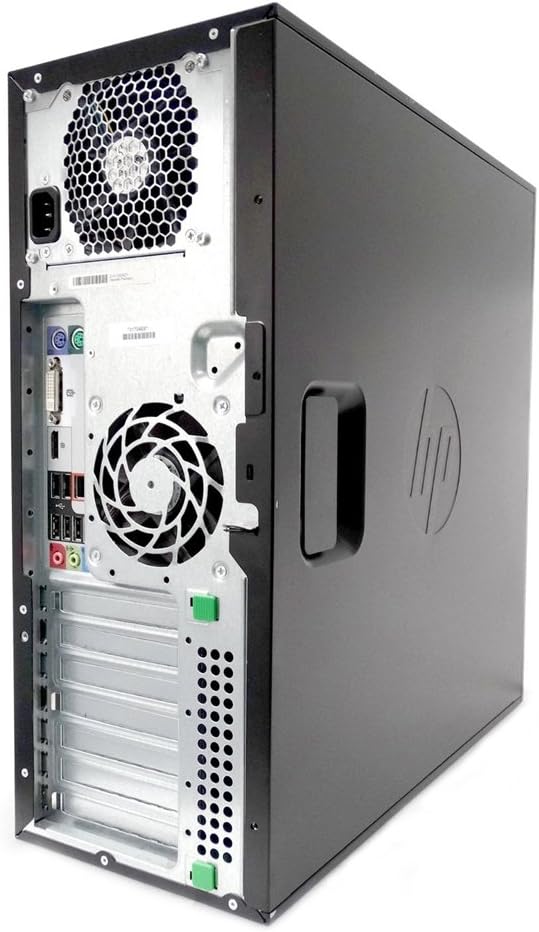
Obrázek 3.1: Zadní view of the HP Z210 Workstation Tower, illustrating the various input/output ports for connecting peripherals and power.
4. Návod k obsluze
This section provides basic instructions for operating your HP Z210 Workstation Tower.
4.1 Zapnutí/vypnutí
- Zapnutí: Stiskněte tlačítko napájení umístěné na předním panelu.
- Vypnout:
- Windows 10: Klikněte na tlačítko Start a poté na Napájení > Vypnout.
- Windows 11: Klikněte na tlačítko Start a poté na Napájení > Vypnout.
- Restartovat: Use the Restart option in the Power menu to reboot the system.
- Spát: Use the Sleep option in the Power menu to put the system into a low-power state.
4.2 Basic Navigation (Windows 10/11)
Your workstation comes with either Windows 10 Pro or Windows 11 pre-installed. Familiarize yourself with the operating system's interface for optimal use.
- Nabídka Start: Přístup k aplikacím, nastavením a možnostem napájení.
- Hlavní panel: Připněte si často používané aplikace a view otevřené programy.
- File Badatel: Spravovat files a složky.
- Nastavení: Configure system preferences, network connections, and device settings.
5. Údržba
Pravidelná údržba pomáhá zajistit dlouhou životnost a optimální výkon vaší pracovní stanice.
- Čištění:
- Gently wipe the exterior of the tower with a soft, damp tkanina.
- Use compressed air to clear dust from vents and fan openings periodically. Ensure the system is powered off before cleaning.
- Aktualizace softwaru: Regularly check for and install operating system updates (Windows Update) and driver updates for your hardware.
- Záloha dat: Pravidelně zálohujte důležitá data na externí disk nebo cloudové úložiště, abyste předešli jejich ztrátě.
- Antivirová ochrana: Ensure your antivirus software is up-to-date and performing regular scans.
6. Řešení problémů
Tato část se zabývá běžnými problémy, se kterými se můžete setkat, a poskytuje základní kroky pro jejich řešení.
6.1 Bez napájení
- Ujistěte se, že je napájecí kabel bezpečně připojen k pracovní stanici i do elektrické zásuvky.
- Ověřte funkčnost elektrické zásuvky zapojením jiného zařízení.
- Check the power supply unit (PSU) switch on the rear of the workstation, if present, to ensure it is in the 'On' position.
6.2 Žádné zobrazení na monitoru
- Zkontrolujte, zda je monitor zapnutý a zda svítí kontrolka napájení.
- Check that the video cable is securely connected to both the workstation and the monitor.
- Ensure the monitor's input source is set correctly (e.g., HDMI, DisplayPort, DVI).
- If using a dedicated graphics card, ensure the monitor is connected to the graphics card's output, not the motherboard's integrated graphics ports.
6.3 Pomalý výkon
- Zavřete nepotřebné aplikace běžící na pozadí.
- Check Task Manager (Ctrl+Shift+Esc) for high CPU, RAM, or disk usage by specific processes.
- Ensure the operating system and drivers are up-to-date.
- Spusťte utilitu pro čištění a defragmentaci disku (pro pevný disk) nebo TRIM (pro SSD).
- Prohledejte systém, zda neobsahuje malware nebo viry.
7. Technické specifikace
| Funkce | Specifikace |
|---|---|
| Značka | HP |
| Série | Z210 |
| Název modelu | Z210 |
| Hardwarová platforma | PC |
| Operační systém | Windows 11 (or Windows 10 Pro as per title) |
| Procesor | Intel Core i7 |
| Počet procesorů | 4 |
| BERAN | 16 GB DDR4 (or DDR3 SDRAM as per specs) |
| Pevný disk | 1 TB pevný disk (sériový ATA) |
| Grafický koprocesor | Grafická karta Intel HD Graphics 2000 |
| Popis karty | Integrovaný |
| Typ optické mechaniky | DVD±RW |
| Screen Resolution (Typical) | 1920 x 1080 |
Note: Specifications may vary slightly based on specific renewed configuration. The operating system may be Windows 10 Pro or Windows 11 as per product listing details. RAM type is listed as both DDR4 and DDR3 SDRAM in provided data; please refer to your specific unit's documentation for exact details.
8. Záruka a podpora
As an Amazon Renewed product, your HP Z210 Workstation Tower is backed by the Obnovená záruka AmazonuTato záruka zajišťuje, že pokud nejste s nákupem spokojeni, máte nárok na výměnu nebo vrácení peněz za obnovené produkty do 90 dnů od jejich obdržení.
For further assistance or to inquire about specific issues, please refer to the Amazon Renewed program details or contact Amazon customer support.