
1. Úvod
Děkuji za nákupasing the Zebronics ZEB-A18 Plus 17.3-inch LED Monitor. This manual provides essential information for setting up, operating, and maintaining your monitor. Please read it thoroughly before use and retain it for future reference.
1.1 Co je v krabici
- Monitor
- Napájecí adaptér
- Stojan na monitor
- Uživatelská příručka
- VGA kabel
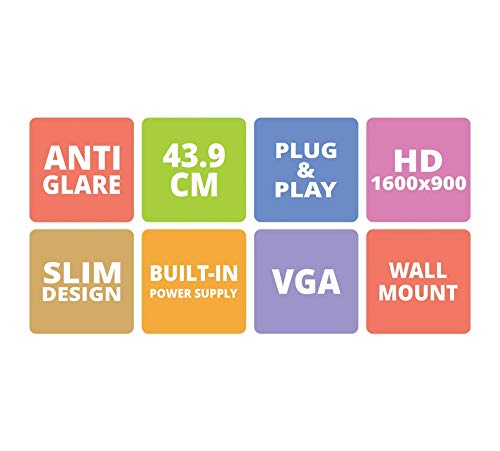
Figure 1: Key features of the Zebronics ZEB-A18 Plus monitor, including Anti Glare, 43.9 CM screen size, Plug & Play functionality, HD 1600x900 resolution, Slim Design, Built-in Power Supply, VGA connectivity, and Wall Mount compatibility.
2. Bezpečnostní informace
Pro zajištění bezpečného provozu a prevenci poškození dodržujte prosím následující bezpečnostní opatření:
- Nevystavujte monitor dešti ani vlhkosti.
- Neotevírejte monitor casing; veškerý servis svěřte kvalifikovanému personálu.
- Umístěte monitor na stabilní rovný povrch.
- Zajistěte správné větrání kolem monitoru.
- Používejte pouze dodaný napájecí adaptér.
- Odpojte napájecí kabel během bouřek nebo pokud jej nebudete delší dobu používat.
3. Nastavení
3.1 Sestavení stojanu
- Opatrně vyjměte komponenty monitoru a stojanu z obalu.
- Připevněte základnu stojanu k hrdlu stojanu.
- Secure the assembled stand to the back of the monitor using the provided screws. Ensure it is firmly attached.
3.2 Připojení monitoru
- Připojení napájení: Connect the power adapter to the monitor's power input and then plug the adapter into a power outlet.
- Připojení videa: Připojte jeden konec kabelu VGA k portu VGA na grafické kartě počítače a druhý konec ke vstupnímu portu VGA na monitoru.
- Připojení zvuku (pokud je k dispozici): The monitor has built-in speakers. No separate audio cable is typically needed for VGA connections as audio is not transmitted via VGA. Ensure your computer's audio output is configured correctly.
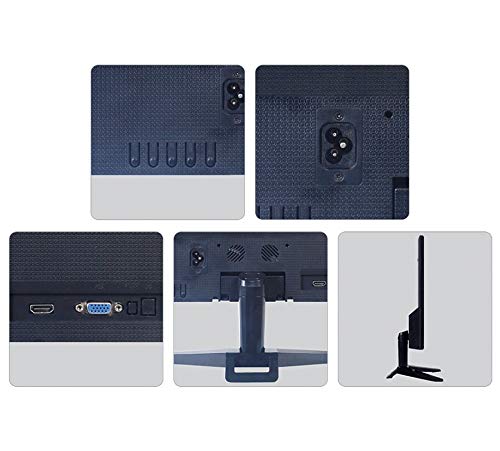
Obrázek 2: Zadní view of the Zebronics ZEB-A18 Plus monitor showing the power input, VGA port, and side profile. This image illustrates the available connection points for power and video input.
4. Návod k obsluze
4.1 Zapnutí/vypnutí
Stisknutím tlačítka napájení na monitoru jej zapnete nebo vypnete. Kontrolka napájení se rozsvítí, když je monitor aktivní.
4.2 Basic Display Adjustments
The monitor features an On-Screen Display (OSD) menu for adjusting various settings. Use the control buttons (usually located on the bottom or back of the monitor) to navigate the OSD menu. Common adjustments include:
- Jas: Upravuje celkový jas obrazovky.
- Kontrast: Upravuje rozdíl mezi světlými a tmavými oblastmi.
- Nastavení barev: Fine-tune color temperature or individual RGB levels.
- Výběr vstupu: Manually select the video input source (e.g., VGA).
4.3 Vestavěné reproduktory
The ZEB-A18 Plus monitor includes built-in speakers. Ensure your computer's audio output is directed to the monitor if you wish to use them. Volume can typically be controlled via your computer's operating system.
5. Údržba
5.1 Čištění monitoru
- Před čištěním vždy odpojte monitor od elektrické zásuvky.
- Lehce používejte měkký hadřík, který nepouští vlákna dampvodou nebo neabrazivním čističem obrazovek.
- Nestříkejte čisticí prostředek přímo na obrazovku.
- Vyhněte se používání agresivních chemikálií, rozpouštědel nebo abrazivních materiálů.
- Otřete casinměkkým, suchým hadříkem.
6. Řešení problémů
Pokud se s monitorem setkáte s problémy, podívejte se na následující běžné problémy a jejich řešení:
- No Display / "No Signal" Message:
- Ensure the monitor is powered on and the power indicator is lit.
- Check that the VGA cable is securely connected to both the monitor and the computer.
- Ověřte, zda je počítač zapnutý a není v režimu spánku.
- Zkuste restartovat počítač.
- If using multiple monitors, ensure the correct display output is selected on your computer.
- Špatná kvalita obrazu (rozmazaný, zkreslený, nesprávné barvy):
- Check the VGA cable for damage or loose connections.
- Upravte rozlišení počítače tak, aby odpovídalo nativnímu rozlišení monitoru (1600 x 900).
- Use the OSD menu to adjust brightness, contrast, and color settings.
- No Sound from Built-in Speakers:
- Ensure the monitor's volume is not muted or set too low via the OSD (if available) or your computer's audio settings.
- Verify that your computer's audio output is correctly configured to send sound to the monitor.
7. Specifikace
| Značka | ZEBRONIKA |
| Název modelu | ZEB A18 Plus |
| Číslo modelu | ZEB-A18 |
| Velikost obrazovky | 17.2 palce |
| Typ zobrazení | LED |
| Maximální rozlišení displeje | 1600 × 900 (HD+) |
| Poměr stran | 16:9 |
| Obnovovací frekvence | 60 Hz |
| Doba odezvy | 8 milisekund |
| Jas obrázku | 220 cd/m² |
| Kontrastní poměr | 400:1 |
| Viewúhel | 178 stupňů |
| Konektivita | VGA |
| Vestavěné reproduktory | Ano |
| Typ montáže | Držák na zeď |
| Barva | Černý |
| Spotřeba energie | 15W |
| Hmotnost | 1.1 kg |
| Dimensions with Stand (W x D x H) | Rozměr 415 x 13 x 340 mm |
8. Záruka a podpora
8.1 Informace o záruce
Your Zebronics ZEB-A18 Plus monitor is covered by a limited warranty. Please refer to the warranty card included with your product for specific terms and conditions. Keep your purchase receipt as proof of purchase for warranty claims.
8.2 Zákaznická podpora
For technical assistance, troubleshooting, or warranty inquiries, please contact Zebronics customer support. Contact details can typically be found on the official Zebronics webmístě nebo na obalu produktu.