
Zavedení
This manual provides comprehensive instructions for the setup, operation, and maintenance of your NETUM NT-R3 Mini 1D CCD Bluetooth Barcode Scanner. Please read this guide thoroughly to ensure proper use and to maximize the performance of your device.
Obsah balení
Po vybalení se prosím ujistěte, že jsou všechny níže uvedené položky přítomny a v dobrém stavu:
- 1 x NETUM Mini Bluetooth Barcode Scanner (NT-R3)
- 1 x USB nabíjecí kabel
- 1 x Průvodce rychlým startem
- 1 x 2.4 GHz Adapter
Konec produktuview
The NETUM NT-R3 is a compact and versatile 1D CCD barcode scanner designed for portability and ease of use. Its ring-style design allows for comfortable wear, enhancing productivity in various environments.

Image: The NETUM NT-R3 Mini Barcode Scanner, a small black electronic device with a screen and button, designed to be worn on a finger with an adjustable ring structure.
Klíčové vlastnosti:
- Ring Design: Hořčíková slitina casing and trigger for durability and ease of use.
- Otočení o 180°: Unique rotatable design for scanning from various angles.
- CCD Scanning: Reads 1D barcodes directly from LCD screens of computers or mobile devices, including poorly printed or damaged barcodes.
- Bezdrátové připojení: Supports Bluetooth (SPP, HID) and 2.4 GHz wireless connections.
- Široká kompatibilita: Compatible with Windows XP/7/8/8.1/10, Google Android, iOS, and Mac OS X.
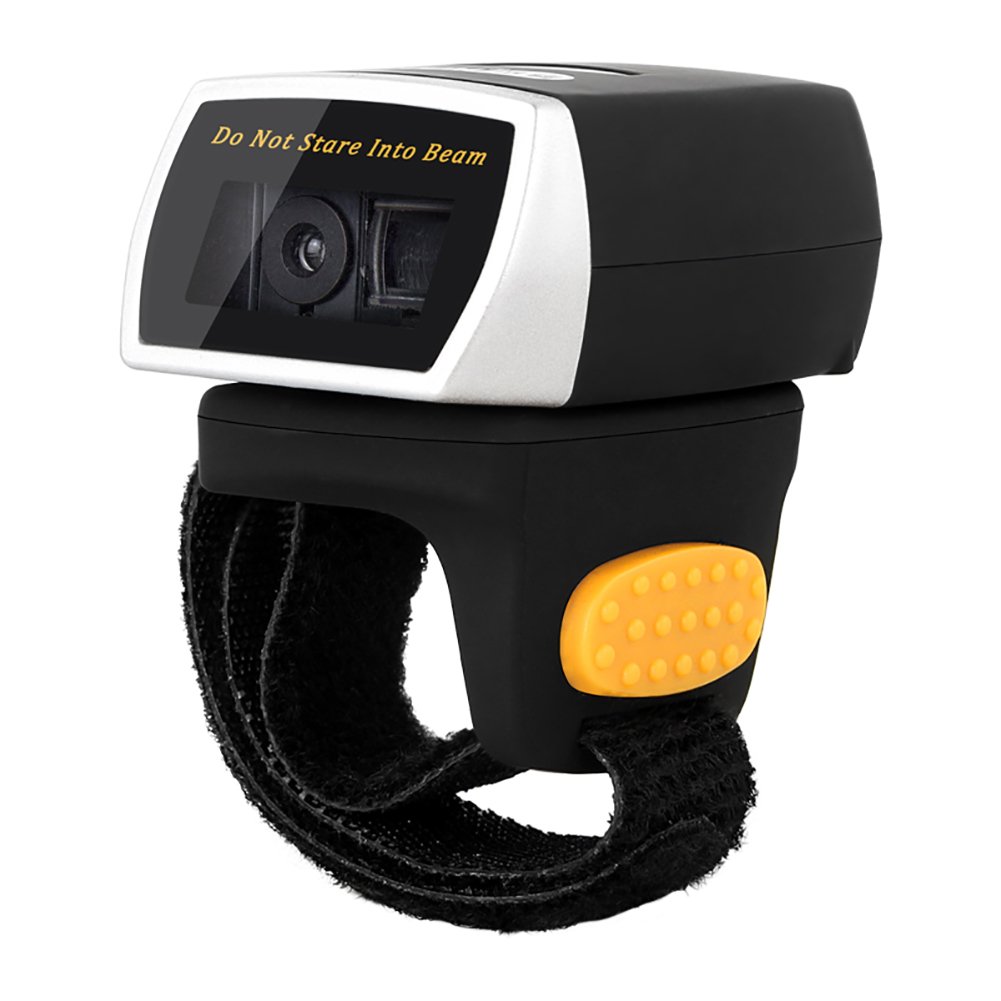
Image: The NETUM NT-R3 Mini Barcode Scanner demonstrating its 180-degree rotation design, allowing for flexible scanning angles.

Image: The NETUM NT-R3 Mini Barcode Scanner held in a hand, illustrating its compact dimensions (50mm x 44mm x 38mm) and light weight (50g), emphasizing its strong compatibility with various devices.
Nastavení a připojení
1. Nabíjení skeneru
Before initial use, fully charge the scanner using the provided USB charging cable. Connect the small end of the USB cable to the scanner's charging port and the other end to a USB power source (e.g., computer, USB wall adapter). The charging indicator light will show the charging status.
2. Zapnutí/vypnutí
To power on the scanner, press and hold the trigger button for a few seconds until you hear a beep and see the indicator light. To power off, press and hold the trigger button again until the indicator light turns off.
3. Možnosti připojení
The NT-R3 scanner offers two primary connectivity methods:
Bluetooth Connection (HID Mode - Keyboard Emulation)
- Ujistěte se, že je skener zapnutý.
- Scan the "Bluetooth HID Mode" barcode (refer to the Quick Start Guide for specific barcodes).
- Na hostitelském zařízení (chytrý telefon, tablet, počítač) povolte Bluetooth a vyhledejte dostupná zařízení.
- Select "NETUM Barcode Scanner" or a similar name from the list of devices.
- The scanner will beep to confirm successful pairing.
In HID mode, scanned barcodes are input directly as keyboard entries into any active text field.
Bluetooth Connection (SPP Mode - Serial Port Profile)
SPP mode is typically used for applications that require direct data communication with the scanner. This mode requires specific software on the host device to interpret the data. Refer to your application's documentation for SPP setup.
- Ujistěte se, že je skener zapnutý.
- Scan the "Bluetooth SPP Mode" barcode (refer to the Quick Start Guide).
- Follow the instructions provided by your specific application for connecting to an SPP device.
Bezdrátové připojení 2.4 GHz
- Plug the provided 2.4 GHz adapter into a USB port on your computer.
- Ujistěte se, že je skener zapnutý.
- Scan the "2.4G Wireless Mode" barcode (refer to the Quick Start Guide).
- The scanner will automatically connect to the adapter. A successful connection is indicated by a specific beep or light pattern (refer to the Quick Start Guide for details).
The 2.4 GHz connection offers a wireless range of up to 10 meters (30 feet).
Provozní režimy
The NETUM NT-R3 scanner supports two data upload modes:
1. Režim okamžitého nahrávání
In this mode, scanned barcodes are immediately transmitted to your connected device. This is suitable for real-time data entry.
2. Režim úložiště
The scanner can store up to 2000 barcodes in its built-in flash memory. This mode is useful when working out of range of your host device. Barcodes can be uploaded later when a connection is established.
Image: A visual representation of the two upload modes. Instant Upload Mode shows barcodes being sent directly to a device. Storage Mode shows barcodes being stored internally and then uploaded later.
To switch between modes, scan the corresponding configuration barcodes found in the Quick Start Guide.
Skenování čárových kódů
Chcete-li naskenovat čárový kód:
- Držte skener skenovacím okénkem směrem k čárovému kódu.
- Press the trigger button. A red scanning line will appear.
- Align the red scanning line across the entire barcode.
- Once successfully scanned, the scanner will emit a beep, and the indicator light will flash.
The NT-R3 is capable of reading 1D barcodes from various surfaces, including:
- Tištěné štítky
- LCD screens (computers, smartphones, tablets)
- Poorly printed or damaged barcodes
Údržba
Péče o baterie
- Chcete-li prodloužit životnost baterie, vyvarujte se častého úplného vybíjení.
- Charge the scanner regularly, even if not in constant use.
- Pokud skener delší dobu nepoužíváte, skladujte jej na chladném a suchém místě.
Čištění
- Use a soft, dry, lint-free cloth to clean the scanner's exterior.
- For the scanning window, use a lens cleaning cloth or a soft cloth lightly dampvodou nebo jemným, neabrazivním čisticím prostředkem.
- Nepoužívejte agresivní chemikálie, rozpouštědla ani abrazivní materiály, protože by mohly zařízení poškodit.
Odstraňování problémů
| Problém | Možná příčina | Řešení |
|---|---|---|
| Skener se nezapne. | Slabá baterie. | Nabíjejte skener alespoň 2 hodiny. |
| Skener se nepřipojuje přes Bluetooth. | Incorrect mode selected; device not discoverable; out of range. | Ensure "Bluetooth HID Mode" or "SPP Mode" is scanned. Make sure Bluetooth is enabled on the host device and the scanner is within 10 meters. Try re-pairing. |
| Scanner does not connect via 2.4 GHz adapter. | Adapter not properly inserted; incorrect mode selected. | Ensure the 2.4 GHz adapter is securely plugged in. Scan the "2.4G Wireless Mode" barcode. |
| Skener nečte čárové kódy. | Barcode is unreadable; scanner not aligned; scanner in storage mode. | Ensure the barcode is clear and well-lit. Align the red line across the entire barcode. If in storage mode, switch to instant upload mode or upload stored data. |
| Naskenovaná data se zobrazují nesprávně. | Keyboard layout mismatch (for HID mode). | Scan the appropriate keyboard layout barcode (e.g., US, UK, French) from the Quick Start Guide. |
Technické specifikace
| Funkce | Detail |
|---|---|
| Číslo modelu | NT-R3 |
| Technologie skenování | 1D CCD |
| Konektivita | Bluetooth (SPP, HID), 2.4 GHz Wireless, USB |
| Kompatibilní operační systémy | Windows XP/7/8/8.1/10, Google Android, iOS, Mac OS X |
| Rychlost skenování | 260 samples za sekundu |
| Kapacita úložiště | Až 130 000 čárových kódů (v režimu ukládání) |
| Typ baterie | 1 Lithium metal battery (included) |
| Zdroj napájení | Napájení z baterie |
| Provozní svtage | 5 voltů |
| Maximální skladovací teplota | 45 stupňů Celsia |
| Certifikace | CE, ISO, RoHS |
| Výrobce | Guangzhou Netum Electronic Technology Co.,Ltd. |
| Země původu | Čína |
Záruka a podpora
Zásady vrácení
Tento produkt má nárok na vrácení peněz nebo výměnu do 30 dnů od zakoupení v souladu s podmínkami pro vrácení zboží prodejce.
Informace o výrobci
Manufacturer: Guangzhou Netum Electronic Technology Co.,Ltd.
For further assistance or technical support, please refer to the contact information provided in your Quick Start Guide or visit the official NETUM webmísto.
Note: Information regarding spare parts availability and guaranteed software updates is not available at this time.