
1. Úvod
The DIGITNOW Video Capture Card is an upgraded, all-in-one device designed for capturing video and audio from various sources. Featuring a built-in H.264 chip, it offers wide compatibility with HDMI, USB, 3.5MM REC-KEY, CVBS, and YPbPr inputs. This versatile converter allows you to capture your favorite video clips from devices like Xbox, PC, Mac, PS, and HD Cable Boxes, storing them directly to HDDs or USB sticks. It's an ideal solution for office, teaching, and home cinema applications, enabling easy archiving and sharing of your media.
2. Co je v krabici
- Capture Card
Note: Additional cables (HDMI, RCA, YPbPr, USB) and power adapter are typically included or required for full functionality, though not explicitly listed in the "What's in the Box" section.
3. Konec produktuview & Funkce
The DIGITNOW Video Capture Card is compact and designed for ease of use. It supports various input and output options, allowing for flexible connectivity with a wide range of devices.

Obrázek 1: Přední strana view of the DIGITNOW Video Capture Card showing various input and output ports, including YPbPr, CVBS, Power, HDMI In, and USB.
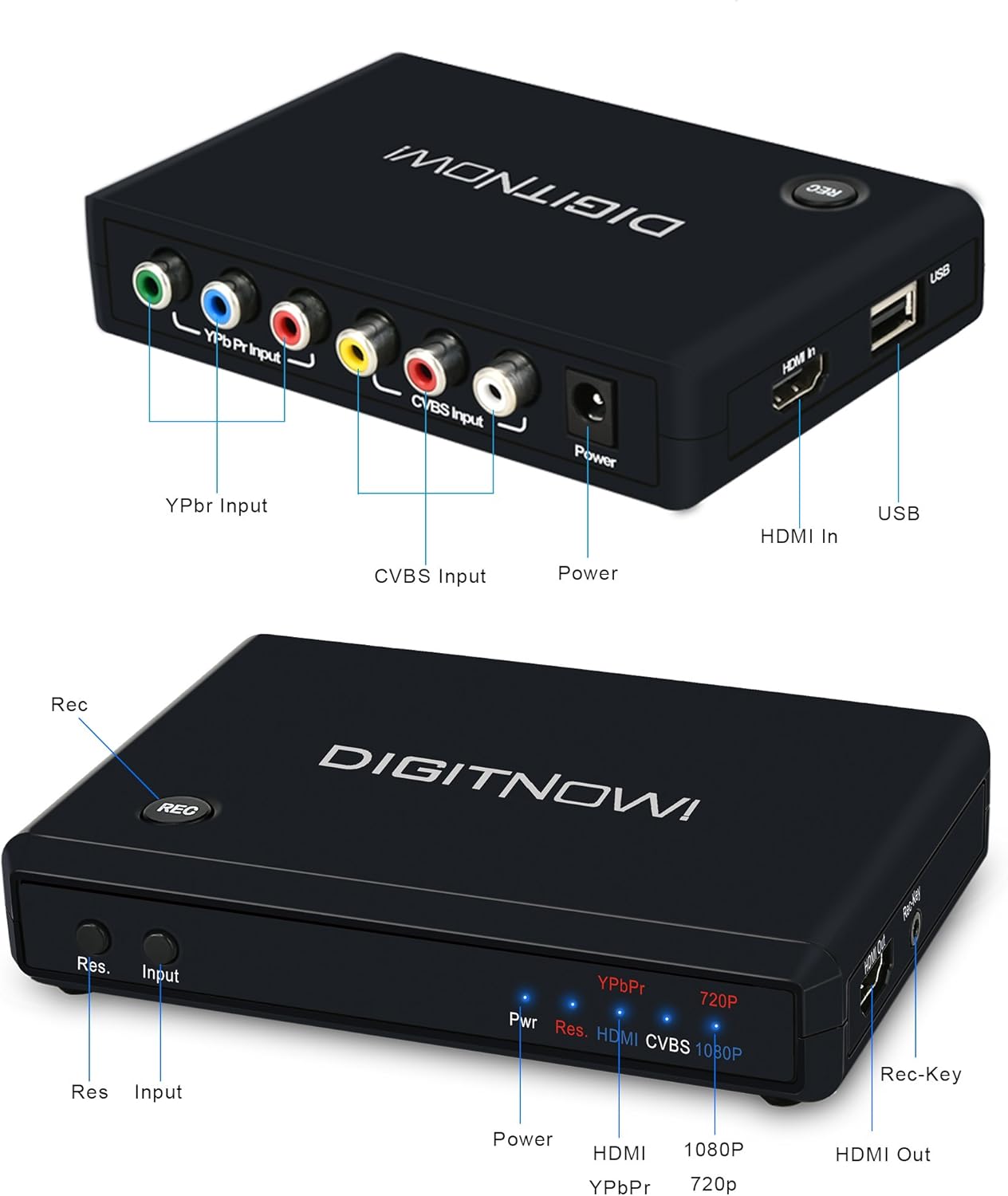
Figure 2: Annotated diagram highlighting the YPbPr Input, CVBS Input, Power port, HDMI In, USB port, REC-Key, and HDMI Out on the device.

Figure 3: Illustration of the main Recording Button on the device and the external REC-key for starting/ending or continuing/pausing recordings.

Figure 4: Connectivity diagram showing how devices like Xbox, PS, PC, HD Media Player, HD Cable Box, Satellite DVR, PS3, Xbox 360, and Blu-ray Player can connect to the capture card via various inputs, with HDMI output to a TV display.
Oficiální produktová videa:
Video 1: Obecné informaceview of the DIGITNOW HDMI Video Capture device, showcasing its various ports and functionalities. The video highlights its ability to capture footage from different sources and save it to a USB stick.
Video 2: An update video for the DIGITNOW HDMI Video Capture Card, providing additional insights or clarifications on its features and usage.
4. Nastavení
Setting up your DIGITNOW Video Capture Card is straightforward. Follow these steps to connect your devices:
- Připojení napájení: Connect the provided power adapter to the "Power" port on the capture card and plug it into a wall outlet. The device does not have an internal battery and requires continuous power during operation.
- Připojení vstupního zařízení:
- HDMI vstup: For modern devices like PS4, Xbox One, Blu-ray players, or PCs, connect an HDMI cable from your source device's HDMI output to the "HDMI In" port on the capture card.
- YPbPr Input: For component video sources, connect the green, blue, and red YPbPr cables from your source device to the corresponding "YPbPr Input" ports.
- CVBS Input (RCA): For composite video sources (standard definition), connect the yellow video cable and red/white audio cables from your source device to the "CVBS Input" ports.
- Output Display Connection: Connect an HDMI cable from the "HDMI Out" port on the capture card to an HDMI input on your TV or monitor. This allows you to view the live feed from your source device.
- Připojení úložného zařízení: Insert a USB stick or external HDD into the "USB" port on the capture card. This is where your captured video and audio files will be saved. Ensure the storage device is formatted correctly (e.g., FAT32 or NTFS, depending on device compatibility and file potřeby velikosti).
5. Návod k obsluze
Once all connections are made and your source device is powered on, follow these steps to begin recording:
- Vyberte vstup: Press the "Input" button on the capture card to cycle through the available input sources (HDMI, YPbPr, CVBS) until your desired source is displayed on your monitor. The indicator lights (HDMI, CVBS, 1080P, 720P) will show the active input and resolution.
- Spustit nahrávání: Press the "Rec-Key" button (or the external REC-Key if connected) to start recording. The "Rec" indicator light will illuminate, indicating that recording is in progress.
- Pozastavení/Obnovení nahrávání: During recording, press the "Rec-Key" button again to pause the recording. Press it once more to resume.
- Zastavit nahrávání: Press and hold the "Rec-Key" button for a few seconds to stop the recording. The "Rec" indicator light will turn off. Your recorded file will be saved to the connected USB storage device.
- Výběr rozlišení: The device supports 1080p and 720p resolutions. Use the "Res" button to switch between these resolutions if needed. Note that some input types (e.g., RCA) may be limited to 720p.
6. Údržba
To ensure the longevity and optimal performance of your DIGITNOW Video Capture Card, follow these maintenance guidelines:
- Čištění: K čištění vnější strany zařízení používejte měkký, suchý hadřík. Nepoužívejte tekuté čisticí prostředky ani abrazivní materiály.
- Větrání: Ujistěte se, že je zařízení umístěno v dobře větraném prostoru, aby se zabránilo přehřátí. Neblokujte větrací otvory.
- Skladování: Pokud zařízení nepoužíváte, uložte jej na chladném a suchém místě mimo přímé sluneční světlo a extrémní teploty.
- Péče o kabely: Handle all cables and connectors carefully to prevent damage. Avoid bending cables sharply or pulling them by the cord.
7. Řešení problémů
If you encounter issues with your DIGITNOW Video Capture Card, refer to the following common troubleshooting tips:
- Žádný signál/Prázdná obrazovka:
- Ujistěte se, že všechny kabely (vstupní, výstupní, napájecí) jsou bezpečně připojeny.
- Verify that the correct input source is selected on the capture card using the "Input" button.
- Check if your source device (e.g., PS4) has HDCP (High-bandwidth Digital Content Protection) enabled. Some devices may require HDCP to be disabled in their settings for the capture card to receive a signal.
- Try a different HDMI cable or input port on your display.
- Recording Stops Unexpectedly or Corrupts Files:
- The device has a 2GB file size limit (approximately 1 hour 5 minutes at 720p or 27 minutes at 1080p). If recording continuously, it will automatically create new files once this limit is reached. This is normal behavior.
- Ensure your USB stick or external drive is formatted correctly (FAT32 is common, but NTFS may also work). Try reformatting the drive if issues persist.
- Use a high-quality, reliable USB storage device. Some drives may not be compatible or fast enough.
- Monitor the device's temperature. Excessive heat can sometimes lead to recording issues. Ensure proper ventilation.
- Audio Lag/Synchronization Issues:
- Check all audio connections.
- Ensure your source device's audio output settings are correct.
- While some users report no audio lag even over long recordings, if you experience it, try a different USB storage device or reduce the recording resolution.
- Poor Video Quality (especially with RCA/Component):
- RCA inputs are standard definition, so 720p is often the maximum achievable resolution. Quality may appear "washed out" compared to HDMI.
- Ensure cables are fully inserted and not damaged.
- The quality of the source video significantly impacts the recorded output.
8. Specifikace
| Funkce | Detail |
|---|---|
| Značka | DIGITNOW |
| Série | HD Video Converter for PS4 |
| Číslo modelu položky | BR107 |
| Kompatibilita operačního systému | Mac (Note: Device is standalone, but software for editing may be Mac compatible) |
| Hmotnost položky | 4.5 unce |
| Rozměry produktu (DxŠxV) | 4.92 x 3.66 x 0.98 palce |
| Hardwarové rozhraní | USB, USB 3.0 |
| Rozlišení záznamu videa | 1080p |
| První dostupný termín | 6. června 2018 |
9. Záruka a podpora
For warranty information and technical support, please refer to the documentation included with your product or visit the official DIGITNOW webUschovejte si účtenku jako doklad o koupi pro případné reklamace.