
1. Úvod a konecview
The AULA Excalibur 109R is a one-handed mechanical gaming keyboard designed for enhanced gaming performance. It features customizable RGB LED backlighting, blue mechanical switches for tactile feedback, and programmable macro keys. The ergonomic design includes a removable wrist rest for comfort during extended use.
Mezi klíčové vlastnosti patří:
- Customizable RGB LED Backlight with 5 pre-programmed modes and user-defined profiles.
- 8 programmable keys for macros and hotkeys.
- Durable Blue Mechanical Switches with an ultra-long lifetime of up to 50 million clicks.
- Ergonomic design with a removable wrist rest to reduce fatigue.
- 100% Anti-Ghosting with all Key Roll-over on USB.
- Compatibility with Windows XP, Vista, 7, 8, 10, and MAC OS X.
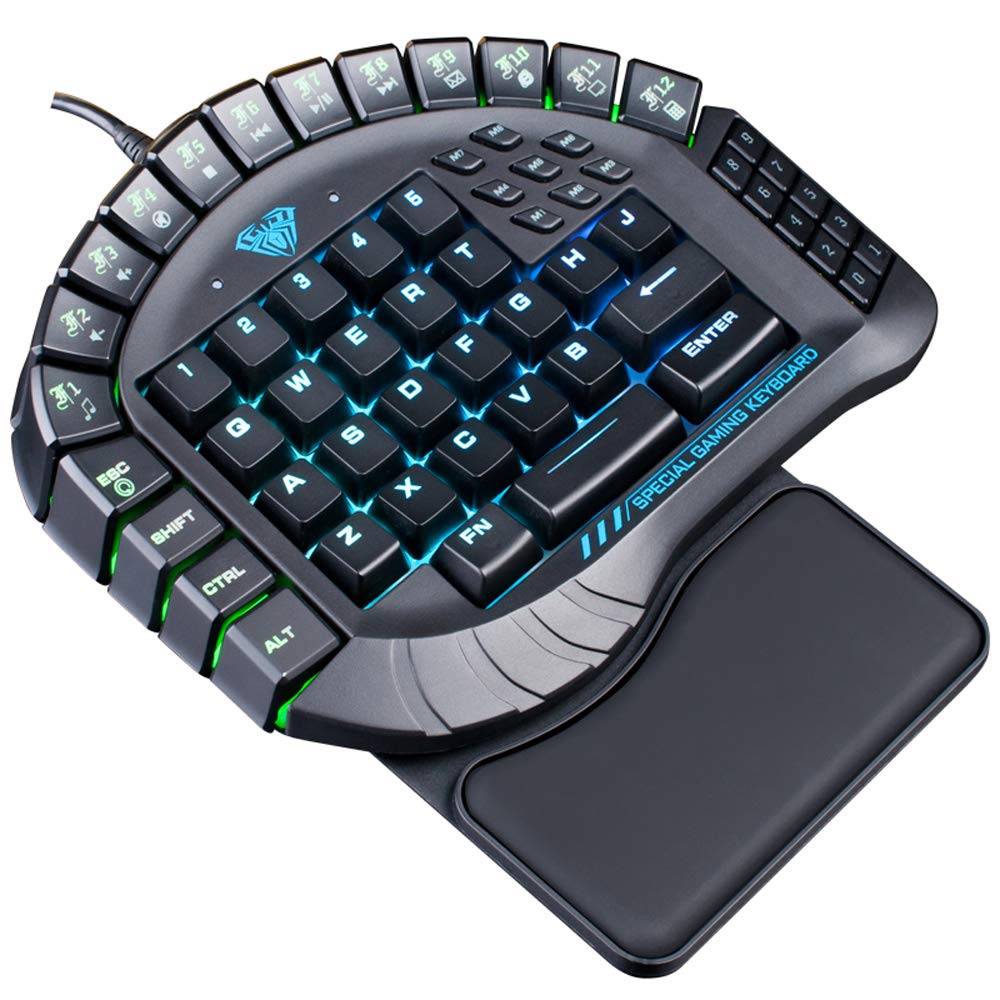
Obrázek 1: Shora dolů view of the AULA Excalibur 109R keyboard with RGB backlighting active.
2. Pokyny k nastavení
2.1 Připojení klávesnice
The AULA Excalibur 109R keyboard is a plug-and-play device. Connect the USB connector from the keyboard directly to an available USB port on your computer. No additional drivers are typically required for basic functionality on supported operating systems.
2.2 Připevnění opěrky zápěstí
For enhanced ergonomic comfort, attach the removable wrist rest to the keyboard. Align the wrist rest with the bottom edge of the keyboard and secure it into place. The wrist rest is designed to provide support during long gaming sessions.

Obrázek 2: Detail view of the ergonomic, removable wrist rest.
3. Návod k obsluze
3.1 Přizpůsobení RGB podsvícení
The keyboard features customizable RGB backlighting. It comes with 5 pre-programmed lighting modes. You can also create and save 5 customized backlighting profiles. Refer to the included software or the manufacturer's website for detailed instructions on customizing lighting effects and profiles.

Obrázek 3: Zobrazení klávesniceasing dynamic RGB backlighting.
3.2 Programování makro kláves
The AULA Excalibur 109R includes 8 independent macro keys and 10 hotkeys accessible via the Fn key. These keys can be programmed to execute complex commands or sequences with a single press. Programming is typically done through the dedicated software provided with the keyboard or available for download from the manufacturer's official website. Consult the software's user interface for specific programming steps.
3.3 Režim spánku
To conserve power, the keyboard will automatically enter sleep mode after 10 minutes of inactivity. To reactivate the keyboard, simply press any key.
Video 1: Demonstration of the AULA Excalibur 109R keyboard's RGB backlighting and key responsiveness. This video illustrates the dynamic lighting effects and the tactile feedback of the mechanical keys.
4. Údržba
4.1 Čištění
K čištění klávesnice použijte měkký, suchý hadřík. V případě odolných nečistot použijte lehceamp cloth with mild soap can be used, ensuring no liquid enters the key switches or internal components. Avoid using harsh chemicals or abrasive cleaners.
4.2 Liquid Spill Precaution
Keep the device away from liquids and chemicals. In the event of a liquid spill, immediately unplug the keyboard. The keyboard is designed with drainage holes at the bottom. Deploy the keyboard feet to allow any liquid to drain out. Allow the keyboard to dry completely before reconnecting it.

Obrázek 4: Spodní strana view of the keyboard, highlighting the drainage holes for liquid spills.
5. Řešení problémů
5.1 Klávesnice nereaguje
- Ujistěte se, že je kabel USB bezpečně připojen k klávesnici i k počítači.
- Zkuste připojit klávesnici k jinému USB portu na počítači.
- If the keyboard is in sleep mode, press any key to reactivate it.
- Otestujte klávesnici na jiném počítači, abyste zjistili, zda je problém s klávesnicí nebo s nastavením počítače.
5.2 Problémy s podsvícením
- Verify that the keyboard's lighting functions are enabled. Refer to the operating instructions for backlight customization.
- Pokud používáte vlastní profesionályfiles, ensure they are correctly loaded via the software.
- Ensure the keyboard's software/drivers are up to date, if applicable, as they control advanced lighting features.
5.3 Macro Key Malfunction
- Confirm that the macro keys have been programmed correctly using the dedicated software.
- Check for any conflicts with other software or system settings that might interfere with macro execution.
- Ensure the software is running in the background if required for macro functionality.
6. Specifikace
| Funkce | Detail |
|---|---|
| Značka | AULA |
| Číslo modelu | 109R |
| Technologie připojení | Kabelové (USB) |
| Popis klávesnice | Herní, mechanické |
| Typ přepínače | Modré spínače |
| Počet klíčů | 60 |
| Key Force | 60 ± 10 g |
| Key Route | 4.0 mm |
| Jmenovitý objemtage/Aktuální | DC 5V |
| Product Dimensions (without wrist rest) | 8.4"(L) x 7.28"(W) x 1.89"(H) ± 0.02 inch |
| Product Dimensions (with wrist rest) | 8.4"(L) x 9.69"(W) x 1.89"(H) ± 0.02 inch |
| Hmotnost klávesnice | 1.1 lb (přibližně 0.5 kg) |
| Materiál | Plast |
| Kompatibilita operačního systému | Windows Vista/7/8/10, MAC OS X |
| Speciální funkce | Macro, Customizable RGB Backlight, Anti-Ghosting |
7. Informace o záruce
This AULA Excalibur 109R keyboard comes with a 30denní záruka from the date of purchase. This warranty covers manufacturing defects and malfunctions under normal use. It does not cover damage caused by misuse, accidents, unauthorized modifications, or improper maintenance. Please retain your proof of purchase for warranty claims.
8. Podpora
For further assistance, technical support, or warranty inquiries, please contact AULA customer service. Refer to the product packaging or the official AULA website for contact details and additional support resources.