
1. Úvod
This manual provides comprehensive instructions for the proper use and maintenance of your FOXWELL NT201 OBD2 Scanner. The NT201 is a powerful diagnostic tool designed to help both entry-level users and experienced technicians quickly and efficiently identify and resolve OBDII/EOBD related issues in modern vehicles. Please read this manual thoroughly before operating the device to ensure safe and effective use.
2. Konec produktuview
The FOXWELL NT201 OBD2 Scanner is a versatile tool compatible with all OBDII/EOBD compliant cars, light trucks, SUVs, and minivans worldwide. It offers a range of diagnostic functions to help you understand and address vehicle issues.
Klíčové vlastnosti:
- Široká kompatibilita vozidel: Works with most 1996 and newer vehicles (OBDII/EOBD/JOBD and CAN compliant).
- Diagnostika kontrolky motoru: Determines the cause of the 'Check Engine Light' (MIL) illumination.
- DTC Management: Reads and clears Diagnostic Trouble Codes (DTCs), turns off MIL, and resets monitors.
- Živý datový stream: Displays complete live vehicle sensor data in both text and graph formats.
- Data zmrazeného snímku: Retrieves freeze frame data, showing engine conditions at the time a fault code was set.
- Připravenost I/M: One-click I/M readiness shortcut keys provide quick access to emissions readiness status.
- Informace o vozidle: Získá identifikační číslo vozidla (VIN), kalibrační ID (CID) a ověřovací číslo kalibrace (CVN).
- Podpora více jazyků: Menu options and code definitions available in multiple languages including English, Spanish, French, and Portuguese.
- Doživotní bezplatné aktualizace: Exclusive one-click updates and automatic reminders ensure the device stays current with the latest technology via USB.

Obrázek 1: Přední strana view of the FOXWELL NT201 OBD2 Scanner, showing its display and control buttons.
3. Obsah balení
Upon opening your FOXWELL NT201 package, please ensure all the following items are present and in good condition:
- FOXWELL NT201 CAN OBDII Code Reader
- Uživatelská příručka
- USB kabel

Figure 2: The FOXWELL NT201 scanner, USB cable, and user guide as typically included in the package.
4. Začínáme
Connecting the Scanner to Your Vehicle:
- Vyhledejte 16pinový datový konektor (DLC) vozidla. Obvykle se nachází pod palubní deskou na straně řidiče.
- Ensure the vehicle's ignition is turned VYPNUTO.
- Pevně zapojte konektor OBDII skeneru do DLC karty vozidla.
- Otočte zapalování vozidla do polohy ON position (engine off). The scanner will automatically power on and initiate communication with the vehicle's onboard computer.
5. Návod k obsluze
5.1. Čtení diagnostických chybových kódů (DTC)
DTCs are codes stored by the vehicle's onboard computer system to identify a malfunction. The NT201 can read these codes to help diagnose issues.
- Connect the scanner to the vehicle.
- Z hlavní nabídky vyberte 'Read Codes'.
- The scanner will display any stored DTCs along with their definitions.

Figure 3: The scanner displaying a P0231 code, indicating a potential issue with the fuel pump secondary circuit.
5.2. Mazání diagnostických chybových kódů (DTC)
Clearing DTCs will turn off the Check Engine Light (MIL) and reset all monitor statuses. This should only be done after the underlying issue has been resolved.
- Connect the scanner to the vehicle.
- Z hlavní nabídky vyberte 'Erase Codes'.
- Confirm your selection when prompted. The MIL will turn off, and monitors will reset.
5.3. Zkouška připravenosti I/M
Funkce I/M Readiness kontroluje stav systémů monitorování emisí ve vozidle. To je klíčové pro úspěšné splnění emisních testů.
- Connect the scanner to the vehicle.
- Stiskněte příslušné tlačítko Připravenost I/M button or select it from the menu.
- The scanner will display the status of various monitors (e.g., MIL, Misfire, Fuel System, O2 Sensor). Green indicates 'OK', yellow indicates 'Pending', and red indicates 'Not OK'.

Figure 4: The I/M Readiness screen showing the status of emission monitors, helping to determine if the vehicle is ready for an emissions test.
5.4. Viewživá data
Live Data displays real-time sensor information from the vehicle's engine control unit (ECU), which can be viewed in text or graphical format.
- Connect the scanner to the vehicle.
- Z hlavní nabídky vyberte 'Live Data'.
- Vyberte si view data in text or graph mode. Scroll through the parameters to monitor various engine sensors.

Figure 5: Live data displayed graphically, illustrating O2 sensor readings which can help identify performance issues.
5.5. Viewzmrazení dat snímku
When an emission-related fault occurs, the ECU stores certain vehicle operating conditions at that moment. This 'freeze frame' data can be invaluable for diagnosis.
- Connect the scanner to the vehicle.
- Z hlavní nabídky vyberte 'View Zmrazený snímek.
- The scanner will display parameters such as engine RPM, vehicle speed, coolant temperature, and fuel system status at the time the DTC was set.
5.6. Retrieving Vehicle Information (VIN, CID, CVN)
The scanner can retrieve important vehicle identification information.
- Connect the scanner to the vehicle.
- Z hlavní nabídky vyberte 'Vehicle Info'.
- The scanner will display the Vehicle Identification Number (VIN), Calibration ID (CID), and Calibration Verification Number (CVN).
5.7. Navigace v menu
The NT201 features a user-friendly interface with a 2.8-inch TFT color screen and intuitive buttons for navigation.
- Použijte NAHORU/DOLŮ šipkami pro procházení možností nabídky.
- Stiskněte tlačítko ENTER tlačítko pro potvrzení výběru.
- Stiskněte tlačítko ZADNÍ tlačítko pro návrat na předchozí obrazovku nebo do předchozí nabídky.
- The POMOC button provides on-screen assistance for selected functions.

Figure 6: The main diagnostic menu of the NT201, showing various functions available to the user.
6. Údržba
6.1. Čištění zařízení
To keep your scanner in optimal condition:
- Použijte měkký, damp hadříkem k čištění vnějšku zařízení.
- Nepoužívejte abrazivní čisticí prostředky nebo rozpouštědla.
- Avoid getting moisture into the connectors or display.
6.2. Skladování
Pokud skener nepoužíváte, skladujte jej v čistém a suchém prostředí, mimo dosah extrémních teplot a přímého slunečního záření.
7. Aktualizace softwaru
The FOXWELL NT201 offers lifetime free software and firmware updates to ensure compatibility with new vehicle models and to incorporate the latest diagnostic protocols. This process is performed via a USB connection to a computer.
Postup aktualizace:
- Navštivte oficiální stránky FOXWELL website and download the update client software for your computer.
- Install the update client software on your PC.
- Connect the NT201 scanner to your computer using the provided USB cable.
- Launch the update client software. The software will detect your device and check for available updates.
- Follow the on-screen instructions to download and install the latest software and firmware onto your scanner.
Figure 7: The NT201 connected to a computer for software updates and the option to print diagnostic data.
8. Řešení problémů
This section addresses common issues you might encounter while using your FOXWELL NT201 scanner.
| Problém | Možná příčina | Řešení |
|---|---|---|
| Skener se nezapne. | Loose connection to DLC; vehicle ignition off; vehicle not OBDII compliant. | Ensure secure connection; turn ignition to ON; verify vehicle compatibility. |
| Chyba komunikace s vozidlem. | Faulty connection; incorrect protocol; vehicle's ECU is not responding. | Check cable connection; ensure ignition is ON; try on another vehicle if possible. |
| DTCs cannot be cleared. | Underlying fault still present; ignition not ON. | Repair the fault first; ensure ignition is ON (engine off). |
| Obrazovka zamrzá nebo zařízení nereaguje. | Softwarová závada; výpadek napájení. | Disconnect and reconnect the scanner; perform a software update. |
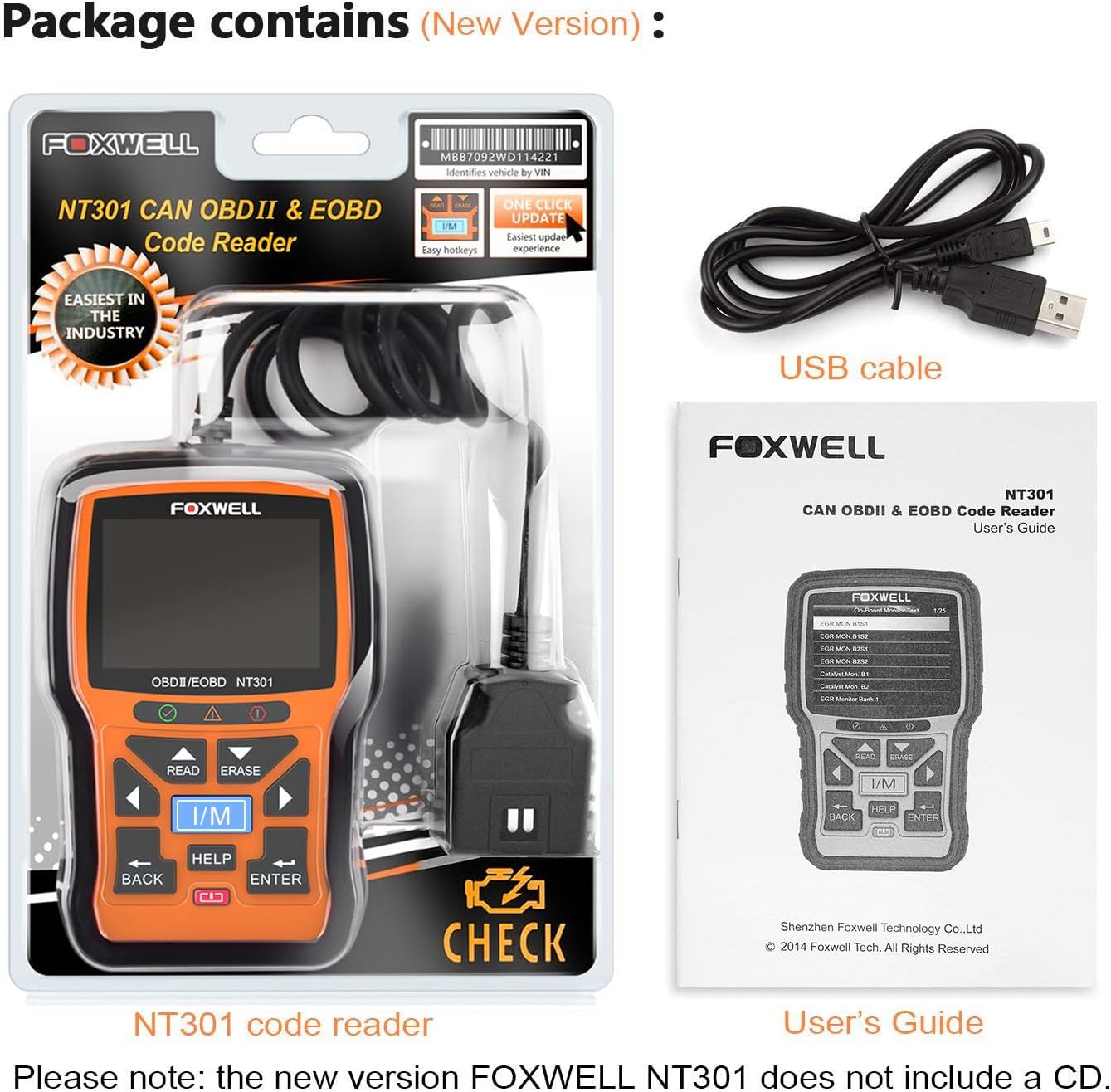
Figure 8: The scanner identifying a P0304 code, which points to a misfire in Cylinder 4, aiding in targeted troubleshooting.
9. Technické specifikace
| Funkce | Detail |
|---|---|
| Značka | FOXWELL |
| Číslo modelu | FOX-NT201-Black |
| Velikost obrazovky | 2.8 palce |
| UPC | 752058767045, 712321437754 |
| Počet položek | 1 |
| Zahrnuté komponenty | 1 USB cable, 1 FOXWELL NT201 Obd2 scanner |
10. Zákaznická podpora
For technical assistance, product inquiries, or warranty claims, please visit the official FOXWELL website or contact their customer support team. Refer to the product packaging or the FOXWELL webstránky s nejaktuálnějšími kontaktními informacemi.
11. Informace o záruce
FOXWELL products are manufactured to high-quality standards and are backed by a limited warranty. The specific terms and duration of the warranty may vary by region and product. Please retain your proof of purchase. For detailed warranty information, including coverage and claims procedures, refer to the warranty card included with your product or visit the official FOXWELL webmísto.