
Zebra ET55AE-W22E
Uživatelská příručka k tabletu Zebra ET55AE-W22E ET55 8.3"
Model: ET55AE-W22E
Zavedení
This manual provides essential instructions for the proper setup, operation, and maintenance of your Zebra ET55AE-W22E ET55 8.3" Tablet. Please read this manual thoroughly before using the device to ensure optimal performance and longevity.
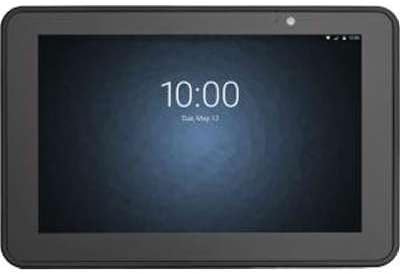
Obrázek: Přední strana view of the Zebra ET55AE-W22E ET55 8.3" Tablet. The screen displays the time "10:00" and the date "Tue, May 12". The tablet has a dark gray bezel and a front-facing camera visible at the top center.
Obsah balení
Upon unpacking, verify that all items are present and undamaged. The standard package for the Zebra ET55AE-W22E includes:
- Zebra ET55AE-W22E ET55 8.3" Tablet unit
- (Additional accessories such as power adapter, USB cable, and documentation may be sold separately or included depending on region/bundle.)
Nastavení
1. Počáteční nabíjení
Before first use, fully charge the tablet's battery. Connect the appropriate power adapter (not included with all models) to the tablet's charging port and then to a power outlet. The charging indicator will typically illuminate during this process.
2. Zapnutí/vypnutí
- Zapnutí: Stiskněte a podržte tlačítko napájení na boku tabletu, dokud se obrazovka nerozsvítí.
- Vypnutí: Press and hold the Power button, then select "Shut down" from the options that appear on the screen.
3. Initial Configuration (Windows 8.1)
Upon first power-on, the tablet will guide you through the Windows 8.1 setup process. This includes:
- Výběr jazyka a regionu.
- Accepting the license terms.
- Connecting to a Wi-Fi network (if available).
- Vytvoření účtu Microsoft nebo přihlášení pomocí něj.
- Setting up basic privacy and security settings.
Návod k obsluze
Navigating Windows 8.1
The Zebra ET55AE-W22E runs on Windows 8.1, optimized for touch interaction. Key navigation elements include:
- Startovací obrazovka: Swipe in from the right edge of the screen or press the Windows button to access the Start screen with live tiles.
- Charms Bar: Swipe in from the right edge of the screen to access the Charms bar (Search, Share, Start, Devices, Settings).
- Přepínání aplikací: Swipe in from the left edge to switch between open applications.
- Desktop: Tap the Desktop tile on the Start screen to access the traditional Windows desktop environment.
Připojování k sítím
- Wi-Fi: Access the Charms bar, select Nastavení, then click the Wi-Fi icon to view available networks. Select your desired network and enter the password if prompted.
- Bluetooth: Access the Charms bar, select Nastavení, pak Změňte nastavení PCa přejděte na PC and devices > Bluetooth. Turn Bluetooth on and pair with desired devices.
- WAN (Wireless Area Network): This model supports WAN connectivity. Insert your SIM card (if applicable and provided by your service provider) into the designated slot. Follow on-screen prompts or consult your service provider for configuration details.
Používání fotoaparátu
The tablet is equipped with a camera. To use it, locate and tap the Camera application icon on the Start screen or Desktop. Follow the on-screen instructions to capture photos or record videos.
Údržba
Čištění zařízení
- K čištění obrazovky a vnějšího povrchu použijte měkký hadřík, který nepouští vlákna.
- Pro odolné skvrny lehce otřeteamphadřík vodou nebo roztokem na čištění obrazovky.
- Nepoužívejte agresivní chemikálie, abrazivní čisticí prostředky ani aerosolové spreje přímo na zařízení.
Péče o baterie
- Nevystavujte tablet extrémním teplotám.
- Pro optimální životnost baterie se vyvarujte častého úplného vybíjení baterie.
- Pokud zařízení nebudete delší dobu používat, nabijte jej před uskladněním přibližně na 50 %.
Aktualizace softwaru
Regularly check for and install Windows 8.1 updates to ensure system stability, security, and performance. Access Settings > Change PC settings > Update and recovery > Windows Update.
Odstraňování problémů
| Problém | Možné řešení |
|---|---|
| Zařízení se nezapne. | Ensure the battery is charged. Connect the tablet to a power source and attempt to power on after a few minutes. |
| Nelze se připojit k Wi-Fi. | Verify Wi-Fi is enabled in settings. Check if the network password is correct. Restart the tablet and the Wi-Fi router. |
| Obrazovka nereaguje. | Perform a soft reset by holding the power button until the device restarts. Ensure the screen is clean and free of debris. |
| Aplikace jsou pomalé nebo padají. | Close unnecessary applications. Check for and install system updates. Consider uninstalling recently installed applications that may be causing issues. |
Specifikace
| Funkce | Detail |
|---|---|
| Model | Zebra ET55AE-W22E |
| Velikost obrazovky | 8.3 palce |
| Rozlišení obrazovky | 1920 x 1080 pixelů |
| BERAN | 4 GB |
| Paměťové úložiště | 64GB Flash |
| Operační systém | Windows 8.1 |
| Značka procesoru | Intel |
| Bezdrátový typ | Bluetooth, WAN |
| Hmotnost položky | 2 libry |
| Rozměry produktu (DxŠxV) | 1 x 1 x 1 palce |
Záruka a podpora
For information regarding warranty coverage, technical support, or service, please refer to the official Zebra webnebo se obraťte na jejich oddělení zákaznických služeb. Konkrétní záruční podmínky se mohou lišit v závislosti na regionu a datu nákupu.
Online podpora: Visit the official Zebra support portal for drivers, FAQs, and additional documentation.
Kontaktní údaje: Refer to your product packaging or the Zebra website for current contact details for technical assistance.
Ask a question about this manual
Ask about setup, troubleshooting, compatibility, parts, safety, or missing instructions. Manuals+ will review the question and use this page’s manual context to help answer it.