
1. Úvod
The Autel AutoLink AL419 is a powerful and user-friendly diagnostic tool designed to quickly and efficiently troubleshoot OBDII/CAN compliant vehicles. This device allows you to read and clear Diagnostic Trouble Codes (DTCs), view live data, perform I/M readiness tests, and retrieve vehicle information, helping you identify and resolve vehicle issues.

Image 1.1: Autel AutoLink AL419 device highlighting key functions.
2. Obsah balení
Please check the contents of your package carefully. If any items are missing or damaged, contact your vendor.

Image 2.1: Package contents of the Autel AutoLink AL419.
- Jednotka Autel AutoLink AL419
- Kabel OBDII
- USB kabel
- Uživatelská příručka
- Přepravní pouzdro
3. Konec produktuview
The AL419 features a TFT color display and an intuitive button layout for easy navigation. Key components include:
- LCD displej: Zobrazuje výsledky testů a možnosti nabídky.
- OBDII konektor: Připojuje se k datovému konektoru (DLC) vozidla.
- USB konektor: For connecting to a PC for updates or printing data.
- Tlačítko I/M: One-Click I/M Readiness check.
- Tlačítko ESC: Exits current screen or cancels an action.
- Tlačítko OK: Potvrzuje výběr nebo akci.
- Směrová podložka: Prochází nabídkami a možnostmi.
- Tlačítko nápovědy: Poskytuje kontextovou nápovědu.

Image 3.1: Labeled components of the Autel AutoLink AL419.
4. Nastavení
Before using the AL419, ensure your vehicle is OBDII compliant and the ignition is in the ON position.
- Locate the DLC: The Data Link Connector (DLC) is typically located under the dashboard on the driver's side. Refer to your vehicle's service manual for the exact location.
- Připojení skeneru: Plug the AL419's OBDII cable into the vehicle's DLC. The scanner will automatically power on.
- Inicializace systému: The scanner will perform a system initialization. Once complete, the main menu will appear.
5. Návod k obsluze
The AL419 offers various diagnostic functions accessible from the main menu.
5.1. Reading Codes
This function retrieves Diagnostic Trouble Codes (DTCs) from the vehicle's computer.
- Z hlavní nabídky vyberte 'Read Codes' a stiskněte OK.
- The scanner will display any stored or pending DTCs.
- Use the directional pad to scroll through the codes and their definitions.
5.2. Clearing Codes
This function erases DTCs from the vehicle's computer and turns off the Check Engine Light (MIL).
- Z hlavní nabídky vyberte 'Erase Codes' a stiskněte OK.
- Po zobrazení výzvy akci potvrďte.
- Note: Clearing codes does not fix the underlying problem. Address the issue before clearing codes to prevent them from reappearing.
5.3. Zkouška připravenosti I/M
The I/M Readiness function checks the status of the emission-related monitoring systems on the vehicle.

Image 5.1: I/M Readiness status display on the AL419.
- Stiskněte příslušné tlačítko I/M button on the device or select 'I/M Readiness' z nabídky.
- The screen will display the status of various monitors. A green checkmark indicates the monitor has completed its test, while a red 'X' indicates it has not.
- Color-coded LEDs (Green, Yellow, Red) and an audible tone provide quick status indication.
5.4. Viewživá data
This function displays real-time data from the vehicle's sensors and components.

Image 5.2: Live Data and RPM graph display.
- Z hlavní nabídky vyberte 'Live Data' a stiskněte OK.
- Vyberte si view data in a list format or graphical format (if supported).
- Observe parameters such as engine RPM, vehicle speed, oxygen sensor readings, and more.
5.5. Viewzmrazení dat snímku
Freeze Frame Data captures a snapshot of the vehicle's operating conditions at the moment a DTC was set.
- Z hlavní nabídky vyberte 'Freeze Frame' a stiskněte OK.
- The scanner will display various parameters recorded when the fault occurred, aiding in diagnosis.
5.6. Vyhledávání DTC
This feature provides detailed definitions for Diagnostic Trouble Codes.
- Z hlavní nabídky vyberte 'DTC Lookup' a stiskněte OK.
- Enter the DTC code manually or select a code from a previously read list.
- Skener zobrazí definici kódu.
5.7. Retrieving Vehicle Information (VIN, CIN, CVN)
This function allows you to retrieve the Vehicle Identification Number (VIN), Calibration Identification (CIN), and Calibration Verification Number (CVN).
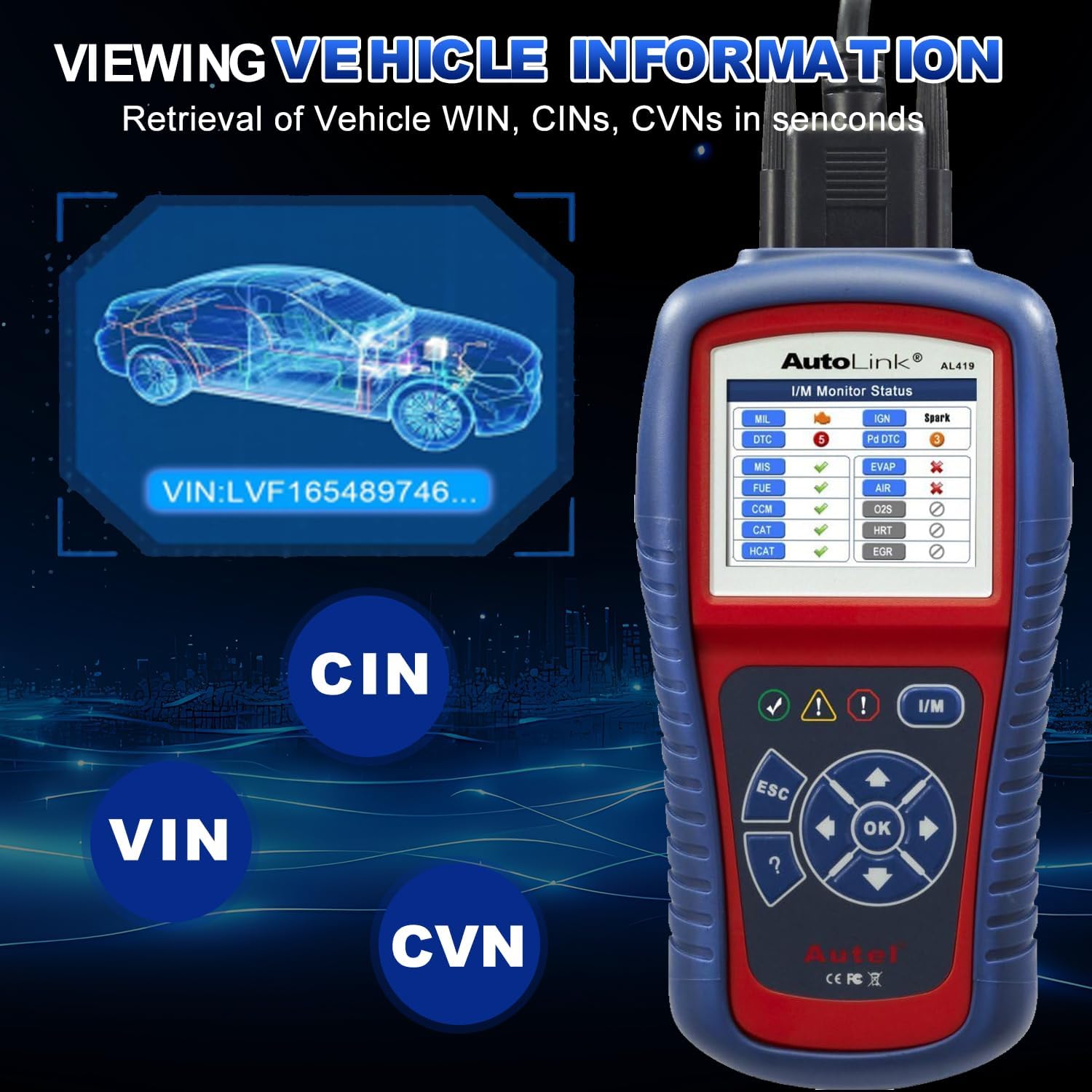
Obrázek 5.3: Viewing Vehicle Information on the AL419.
- Z hlavní nabídky vyberte 'Vehicle Info' a stiskněte OK.
- The scanner will display the available vehicle identification data.
5.8. Data Playback and Printing
The AL419 can store diagnostic data for later review a tisk.

Image 5.4: Additional features including Data Playback and Printing.
- Přehrávání dat: Review previously recorded diagnostic data directly on the device.
- Tisk dat: Connect the AL419 to a PC via the USB cable and use the provided software to print diagnostic reports.
6. Kompatibilita s vozidly
The Autel AutoLink AL419 is designed for broad vehicle compatibility, supporting most 1996 and newer vehicles that comply with OBDII & CAN protocols.
- Domestic & Imported Models: Works with a wide range of vehicles from various manufacturers.
- Petrol Vehicles: Applicable to models manufactured from 2001 onwards.
- Diesel Vehicles: Applicable to models manufactured from 2004 onwards.

Obrázek 6.1: Příkladamples of vehicle brands supported by the AL419.
7. Údržba
To ensure the longevity and optimal performance of your AL419, follow these maintenance guidelines:
- Čištění: Použijte měkký, damp K čištění zařízení použijte hadřík. Nepoužívejte abrazivní čisticí prostředky ani rozpouštědla.
- Skladování: Pokud zařízení nepoužíváte, skladujte jej v přepravním pouzdře na suchém a chladném místě.
- Aktualizace softwaru: Regularly check for software updates on the Autel official website to ensure the scanner has the latest vehicle data and features. Connect the device to a PC via the USB cable for updates.
- Péče o kabely: Avoid bending or twisting the OBDII cable excessively. Store it neatly to prevent damage.
8. Řešení problémů
Pokud se s přístrojem AL419 setkáte s problémy, podívejte se na následující běžné problémy a jejich řešení:
- Scanner Fails to Power On:
- Ujistěte se, že je kabel OBDII bezpečně připojen k DLC vozidla.
- Ověřte, zda je zapalování vozidla v poloze ON.
- Zkontrolujte stav baterie vozidlatage; a low battery might prevent the scanner from powering on.
- Chyba odkazu:
- Ověřte, zda je vozidlo kompatibilní s OBDII (většina vozidel vyrobených od roku 1996 a novějších).
- Zkontrolujte, zda není uvolněné spojení na DLC.
- Vypněte zapalování, počkejte 10 sekund, poté jej znovu zapněte a zkuste to znovu.
- Try the scanner on another OBDII compliant vehicle to rule out a vehicle-specific issue.
- Kódy DTC se nevymažou:
- Ujistěte se, že je zapalování zapnuté a motor vypnutý.
- If the underlying fault is still present, the codes will reappear immediately after clearing. Address the vehicle issue first.
9. Specifikace
| Značka | Autel |
| Model | AL419 |
| Zobrazit | TFT Color Display (320 x 240 dpi) |
| Zdroj napájení | Napájení 8.0 až 18.0 V z autobaterie |
| Provozní teplota | 0 až 60 °C (32 až 140 °F) |
| Skladovací teplota | -20 až 70 °C (-4 až 158 °F) |
| Hmotnost položky | 2.2 libry |
| Rozměry balení | 10.31 x 7.48 x 3.54 palce |
| Jazyk OSD | Angličtina, španělština, francouzština |
10. Záruka a podpora
Autel provides a limited warranty for its products. For specific warranty terms and conditions, please refer to the warranty card included with your product or visit the official Autel webmísto.
For technical assistance, product inquiries, or after-sales support, please contact Autel customer service. The product includes 24/7 after-sale support.
Official Autel Webmísto: www.autel.com