
1. Úvod
This manual provides essential information for the safe and efficient operation of your Argox OX-330 Barcode Monochrome Printer. Please read this manual thoroughly before using the printer and retain it for future reference. The Argox OX-330 is designed for direct thermal and thermal transfer printing, offering a resolution of 203 dpi for clear and precise label output.
2. Bezpečnostní informace
- Napájení: Use only the power adapter supplied with the printer. Ensure the power outlet matches the voltage požadavky.
- Umístění: Place the printer on a stable, level surface. Avoid locations with excessive dust, humidity, or direct sunlight.
- Větrání: Do not block ventilation openings. Ensure adequate airflow around the printer.
- Zacházení: Bezprostředně po tisku se nedotýkejte tiskové hlavy, protože může být horká.
- Čištění: Disconnect the power cord before cleaning the printer. Use a soft, dry cloth. Do not use liquid or aerosol cleaners.
- Opravy: Do not attempt to repair the printer yourself. Refer all servicing to qualified service personnel.
3. Konec produktuview
The Argox OX-330 is a compact desktop thermal label printer capable of both direct thermal and thermal transfer printing. It features 8MB DRAM (5MB user available) and 4MB Flash ROM (2MB user available) for efficient data processing and storage.
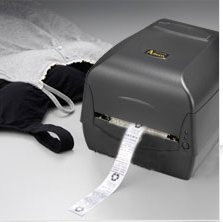
Obrázek 3.1: Argox OX-330 Barcode Monochrome Printer. This image shows the printer actively producing a label, demonstrating its primary function.
Klíčové komponenty:
- tisková hlava: Responsible for transferring the image onto the label.
- Media Guides: Ensure proper alignment of labels.
- Ovládací panel: Includes buttons and indicator lights for printer status and basic operations.
- Napájecí port: Pro připojení napájecího adaptéru.
- Datové porty: For connecting to a computer (e.g., USB, Wi-Fi).
- Media Compartment: Where label rolls and ribbons (for thermal transfer) are loaded.
4. Nastavení
4.1 Vybalení
- Opatrně vyjměte tiskárnu a veškeré příslušenství z obalu.
- Verify that all components listed in the package contents are present.
- Remove any protective films or packing materials from the printer.
4.2 Připojení napájení
- Připojte napájecí adaptér k napájecímu portu tiskárny.
- Zapojte napájecí kabel do vhodné elektrické zásuvky.
- Do not power on the printer until all other connections are made.
4.3 Připojení k počítači
The Argox OX-330 supports Wi-Fi connectivity for seamless integration with your PC.
- Wi-Fi připojení: Refer to the separate Wi-Fi setup guide for detailed instructions on connecting your printer to a wireless network. This typically involves installing the printer driver and utility software on your PC.
- USB Connection (if applicable): If using a USB cable, connect one end to the printer and the other to an available USB port on your PC.
4.4 Loading Labels and Ribbon
The OX-330 supports both Direct Thermal and Thermal Transfer printing methods. The loading procedure varies slightly depending on the method.
- Otevřete horní kryt tiskárny.
- Adjust the media guides to the width of your label roll.
- Place the label roll onto the media spindle, ensuring the labels feed correctly.
- Pro Thermal Transfer printing, also load the ribbon according to the diagrams inside the printer's media compartment. Ensure the ribbon is taut and correctly threaded.
- Zavřete horní kryt.
5. Návod k obsluze
5.1 Zapnutí/vypnutí
- Zapnutí: Press the power button located on the printer. The indicator light will illuminate.
- Vypnutí: Stiskněte a podržte tlačítko napájení, dokud se tiskárna nevypne.
5.2 Instalace ovladačů a softwaru
Before printing, install the appropriate printer drivers and label design software on your PC. These are typically provided on a CD with the printer or available for download from the Argox official webwebu. Postupujte podle pokynů na obrazovce pro instalaci.
5.3 Tisk štítku
- Ensure the printer is powered on and connected to your PC (via Wi-Fi or USB).
- Open your label design software or application from which you wish to print.
- Vytvořte nebo otevřete návrh štítku.
- Go to the 'Print' option in your software.
- Select the Argox OX-330 as your printer.
- Configure print settings such as label size, print quantity, and printing method (Direct Thermal or Thermal Transfer) if applicable. The printer supports a resolution of 203 dpi.
- Click 'Print'. The printer will begin printing your labels.
6. Údržba
Regular maintenance ensures optimal performance and extends the life of your Argox OX-330 printer.
6.1 Čištění tiskové hlavy
Tisková hlava je kritickou součástí a měla by být pravidelně čištěna, zejména pokud se zhorší kvalita tisku.
- Vypněte tiskárnu a odpojte napájecí kabel.
- Open the top cover to access the print head.
- Using a lint-free cloth moistened with isopropyl alcohol (99% pure), gently wipe the print head surface.
- Před zavřením krytu a opětovným připojením napájení nechte tiskovou hlavu zcela vyschnout.
6.2 Obecné čištění
- Otřete vnější povrch tiskárny měkkým, suchým hadříkem.
- Use a soft brush or compressed air to remove dust and debris from inside the media compartment.
7. Řešení problémů
This section addresses common issues you might encounter with your Argox OX-330 printer.
7.1 Bez napájení
- Ujistěte se, že je napájecí kabel bezpečně připojen k tiskárně i k elektrické zásuvce.
- Ověřte funkčnost elektrické zásuvky zapojením jiného zařízení.
7.2 Špatná kvalita tisku
- Vyčistěte tiskovou hlavu podle popisu v části 6.1.
- Ensure you are using the correct type of labels for your printing method (Direct Thermal or Thermal Transfer).
- Check if the ribbon (for thermal transfer) is correctly loaded and not depleted.
- Adjust print darkness settings in your printer driver.
7.3 Tiskárna nereaguje
- Check the connection between the printer and your PC (Wi-Fi or USB).
- Restartujte tiskárnu i počítač.
- Ensure the correct printer driver is installed and updated.
- Check the printer's status indicator lights for error messages.
7.4 Štítky se nepodávají správně
- Ensure labels are loaded correctly and the media guides are adjusted to the label width.
- Zkontrolujte, zda v dráze média nejsou nějaké překážky.
- Calibrate the printer for the label size if necessary (refer to printer utility software).
8. Specifikace
| Funkce | Specifikace |
|---|---|
| Značka | Argox |
| Název modelu | OX-330 |
| Technologie tisku | Thermal (Direct Thermal & Thermal Transfer) |
| Rozlišení tisku | 203 dpi |
| Tiskový výstup | Monochromatický |
| Technologie připojení | Wi-Fi |
| Paměť | 8MB DRAM (5MB user available), 4MB Flash ROM (2MB user available) |
| Kompatibilní zařízení | PC |
| Printing Media Type | Štítky |
| Hmotnost položky | 1800 gramů |
| Rozměry produktu (D x Š x V) | 16H x 6Š x 10V centimetrů |
| Speciální funkce | Kompaktní |
| Oboustranný tisk | Ano |
| Duplex | Automatický |
9. Záruka a podpora
9.1 Informace o záruce
The Argox OX-330 Barcode Monochrome Printer comes with a 1-letá záruka from the date of purchase. This warranty covers manufacturing defects under normal use. It does not cover damage caused by misuse, accidents, unauthorized repairs, or consumables.
9.2 Technická podpora
For technical assistance, troubleshooting beyond this manual, or warranty claims, please contact Argox customer support. Refer to the Argox official website or your purchase documentation for contact details and support resources.