
Zavedení
This manual provides essential information for setting up, operating, maintaining, and troubleshooting your Dell UltraSharp U2417H 24-inch Full HD InfinityEdge Monitor. Please read this manual thoroughly before using the monitor to ensure proper and safe operation.
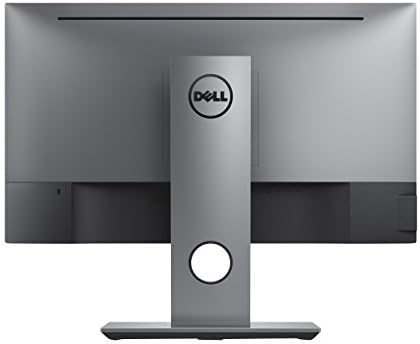
The Dell UltraSharp U2417H monitor features a 24-inch Full HD (1920 x 1080) IPS display with an InfinityEdge design, offering minimal bezels for an expansive viewing experience. It includes anti-glare coating with a 3H hard coat and supports VESA mounting. The stand provides versatile adjustments including tilt, pivot, swivel, and height adjustment to optimize your viewpohodlí.
Obsah balení
Ověřte, zda jsou v balení obsaženy všechny níže uvedené komponenty:
- Dell UltraSharp U2417H Monitor
- Stojan na monitor (základna a podstavec)
- Napájecí kabel
- HDMI kabel
- Kabel DisplayPort (DP)
- Mini DisplayPort (mDP) Cable
- Upstream kabel USB 3.0
- Documentation (Quick Setup Guide, Safety Information)
Nastavení
1. Sestavení stojanu monitoru
- Položte monitor čelní stranou dolů na měkký, čistý hadřík, abyste zabránili poškrábání.
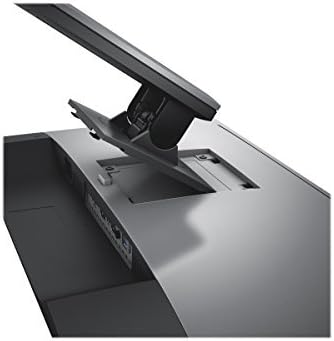
- Připevněte zvedák stojanu k panelu monitoru zarovnáním západek a zatlačením, dokud nezacvakne na místo.
- Attach the stand base to the riser, ensuring it is securely fastened.
2. Připojení kabelů
Připojte potřebné kabely k monitoru a počítači.
- Napájecí kabel: Connect one end to the monitor's AC power port and the other to a power outlet.
- Video kabel: Connect either an HDMI, DisplayPort (DP), or Mini DisplayPort (mDP) cable from your computer's video output to the corresponding input on the monitor.
- Kabel USB pro odchozí přenos: For USB hub functionality, connect the USB 3.0 upstream cable from your computer to the monitor's upstream USB port.
Obsluha monitoru
Zapnutí/vypnutí
Press the power button located on the bottom right side of the monitor bezel to turn the monitor on or off. A small LED indicator next to the button will show the power status.
Nastavení displeje
The Dell U2417H monitor offers multiple adjustment options for optimal viewpohodlí:
- Nastavení výšky: Lift or lower the monitor panel along the stand riser.
- Náklon: Tilt the screen forwards or backwards to adjust the vertical viewúhel.
- Otočný: Otočte panel monitoru doleva nebo doprava na jeho základně.
- Pivot: Rotate the monitor panel 90 degrees clockwise or counter-clockwise for portrait or landscape orientation.


Nabídka na obrazovce (OSD).
The OSD menu allows you to adjust various monitor settings such as brightness, contrast, color, input source, and more. Access the OSD menu using the buttons located on the bottom right bezel of the monitor.
Údržba
Čištění monitoru
- Always unplug the monitor from the electrical outlet before cleaning.
- Lehce používejte měkký hadřík, který nepouští vlákna dampvodou nebo neabrazivním čističem obrazovek.
- Nestříkejte čisticí prostředek přímo na obrazovku ani monitor.asing.
- Avoid using benzene, thinner, ammonia-based cleaners, or abrasive cleaners.
Obecná péče
- Chraňte monitor před přímým slunečním zářením a zdroji tepla.
- Zajistěte dostatečné větrání v okolí monitoru.
- Nepokládejte na monitor ani na jeho kabely těžké předměty.
Odstraňování problémů
Žádný obraz na obrazovce
- Ujistěte se, že je napájecí kabel bezpečně připojen k monitoru i k elektrické zásuvce.
- Verify that the video cable (HDMI, DP, or mDP) is properly connected to both the monitor and your computer.
- Zkontrolujte, zda je v nabídce OSD monitoru vybrán správný vstupní zdroj.
- Restartujte počítač.
Blikající nebo zkreslený obraz
- Zkontrolujte video kabel, zda není poškozený nebo uvolněná připojení.
- Ujistěte se, že ovladače grafické karty vašeho počítače jsou aktuální.
- Adjust the refresh rate in your computer's display settings to 60 Hz.
USB Ports Not Functioning
- Ensure the USB 3.0 upstream cable is connected from your computer to the monitor.
- Try connecting the USB device to a different USB port on the monitor or directly to your computer.
Specifikace
| Funkce | Detail |
|---|---|
| Značka | Dell |
| Číslo modelu | U2417H |
| Velikost obrazovky | 24 palce |
| Rezoluce | Full HD (1920 x 1080) |
| Technologie displeje | IPS LED |
| Obnovovací frekvence | 60 Hz |
| Doba odezvy | 6 Milliseconds (Gray to Gray) FAST Mode, 8 Milliseconds (Gray to Gray) Normal Mode |
| Poměr stran | 16:9 |
| Jas | 250 cd/m² (typicky) |
| Viewúhel | 178 stupňů (horizontálně/vertikálně) |
| Barevný gamut | 99% sRGB |
| Povrch obrazovky | Anti-Glare with 3H Hard Coat |
| Konektivita | 1x HDMI (MHL), 1x DisplayPort (in), 1x Mini DisplayPort, 1x DisplayPort (out), 1x USB 3.0 Upstream, 4x USB 3.0 Downstream, 1x Audio Line-out |
| Nastavitelnost | Výška, sklon, otočení, otočení |
| Montáž VESA | Ano |
| Rozměry (VxŠxH) | 12.37"H x 21.17"W x 1.78"D (without stand) |
| Hmotnost | 13.9 liber (se stojanem) |
Záruka a podpora
Informace o záruce
Your Dell UltraSharp U2417H monitor comes with a 3-Year Advanced Exchange Service. This warranty covers defects in materials and workmanship under normal use. For detailed terms and conditions, please refer to the warranty documentation included with your product or visit the official Dell support webmísto.
Technická podpora
For technical assistance, driver downloads, or further information, please visit the official Dell Support website. You will need your monitor's Service Tag number, which can be found on a label on the back of the monitor or on the packaging.
Podpora společnosti Dell Webmísto: www.dell.com/support
Další zdroje
Produktová videa
Dell UltraSharp InfinityEdge Monitor Review
Video: Podrobný popisview of the Dell UltraSharp InfinityEdge monitor, highlighting its features and benefits for various uses.