
DIGITNOW M125
Uživatelská příručka ke skeneru filmů a diapozitivů DIGITNOW! M125
Model: M125
1. Úvod
The DIGITNOW! M125 Film and Slide Scanner is designed to convert your old 35mm/135 film negatives and mounted slides into digital JPEG images. This standalone device features a 2.4-inch LCD screen, allowing you to preview and adjust images without the need for a computer. Digital files can be saved directly to an SD card for easy transfer and archiving.

Image: The DIGITNOW! M125 Film and Slide Scanner converting film, with a vintage camera and film rolls in the background.
2. Bezpečnostní informace
- Nevystavujte zařízení vlhkosti nebo extrémním teplotám.
- Vyhněte se demontáži jednotky; servis svěřte kvalifikovanému personálu.
- Používejte pouze dodaný napájecí adaptér, abyste předešli poškození.
- Uchovávejte mimo dosah dětí.
- Zařízení čistěte měkkým, suchým hadříkem. Nepoužívejte tekuté čisticí prostředky.
3. Obsah balení
Ověřte, zda jsou v balení přítomny všechny položky:
- DIGITNOW! M125 Film and Slide Scanner
- Držák na 35mm film
- Držák snímku
- USB kabel
- Napájecí adaptér
- Čisticí kartáč
- Uživatelská příručka

Image: The complete package contents of the DIGITNOW! M125 Film and Slide Scanner.
4. Konec produktuview
The M125 scanner features a compact design with intuitive controls and a built-in LCD screen for easy operation.

Obrázek: Přední strana view of the DIGITNOW! M125 Film and Slide Scanner, highlighting the LCD screen and control panel.
4.1. Přední panel
- LCD obrazovka: 2.4-inch TFT LCD for previewing images and navigating menus.
- Ovládací tlačítka: Power, Menu, Capture, Up/Down/Left/Right navigation.
- Kontrolky: SD (SD card status), Power (power status), PC (PC connection status).

Obrázek: Podrobný view of the scanner's screen and buttons, showing the 'FILM SCANNER' label.
4.2. Zadní panel
- Slot pro SD kartu: For inserting an SD/MMC card (up to 8GB SDHC, not included) to save scanned images.
- USB výstup: Connects to a computer for data transfer or power.
- TV vstup: Connects to a TV for viewing images on a larger screen (NTSC/PAL compatible).

Image: The back of the scanner, clearly labeling the SD card slot, USB output, and TV input ports.
5. Nastavení
- Připojte napájení: Plug the power adapter into the scanner's USB port and then into a power outlet.
- Vložte SD kartu: Insert an SD or SDHC memory card (up to 8GB, not included) into the SD card slot on the rear of the scanner. The SD indicator light will illuminate.
- Zapnutí: Press the Power button on the front panel to turn on the scanner.
- Connect to TV (Optional): If desired, connect the scanner to a TV using the provided video cable to view images on a larger screen.

Image: An SD card being inserted into the scanner, with a message on the screen indicating to insert a memory card.
6. Návod k obsluze
6.1. Vkládání filmu a diapozitivů
- For 35mm Film Strips: Open the 35mm film holder, insert the film strip into the designated grooves, and close the holder. Slide the loaded holder into the scanner's film slot.
- Pro namontované diapozitivy: Open the slide holder, place a mounted slide into the opening, and close the holder. Slide the loaded holder into the scanner's film slot.

Image: A mounted slide being pushed into the slide holder, which is then inserted into the scanner.
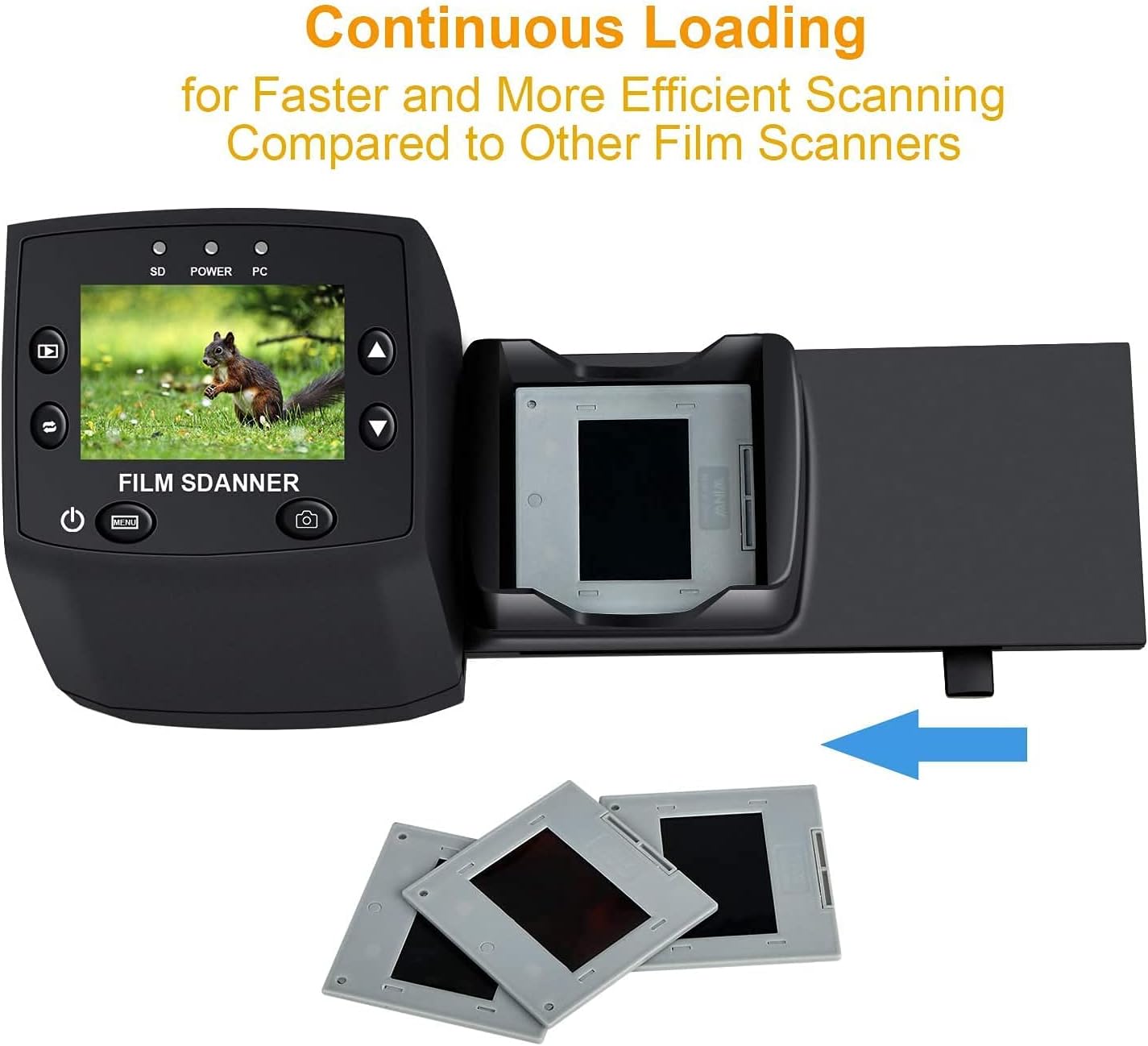
Image: The continuous loading tray for slides, designed for faster scanning.
6.2. Proces skenování
- Předview: Once the film or slide is loaded, the image will appear on the LCD screen.
- Upravit nastavení (volitelné):
- Stiskněte tlačítko Menu tlačítko pro přístup k nastavení.
- Použijte Nahoru/dolů buttons to navigate through options like EV expozice, Rezolucea Jazyk.
- Stiskněte OK vyberte možnost.
- Použití Nahoru/dolů to adjust values (e.g., exposure compensation from -2 to +2, resolution between 5M and 10M).
- Stiskněte OK to confirm changes or EXIT vrátit se do předview obrazovka.
- Zachytit obrázek: When satisfied with the preview, stiskněte tlačítko Zachyťte button (camera icon) to scan and save the image to the SD card.
Video: A demonstration of the DIGITNOW! M125 Film and Slide Scanner's setup and operation, including connecting cables, inserting an SD card, loading film, adjusting settings like exposure and resolution, and capturing images.
6.3. Připojení k PC
To transfer images to your computer:
- Connect the scanner to your PC using the USB cable.
- On the scanner's menu, select USB MSDC (Mass Storage Device Class) and press OK.
- Your computer will recognize the scanner as a removable disk. You can then access the saved JPEG images on the SD card.

Image: The scanner connected to a laptop, demonstrating the USB connection for data transfer.
6.4. Změna jazyka
To change the menu language:
- Stiskněte tlačítko Menu tlačítko.
- Přejděte na Jazyk option using the Nahoru/dolů tlačítka a stiskněte OK.
- Select your desired language (e.g., English, Français, Deutsch, Italiano) and press OK potvrdit.
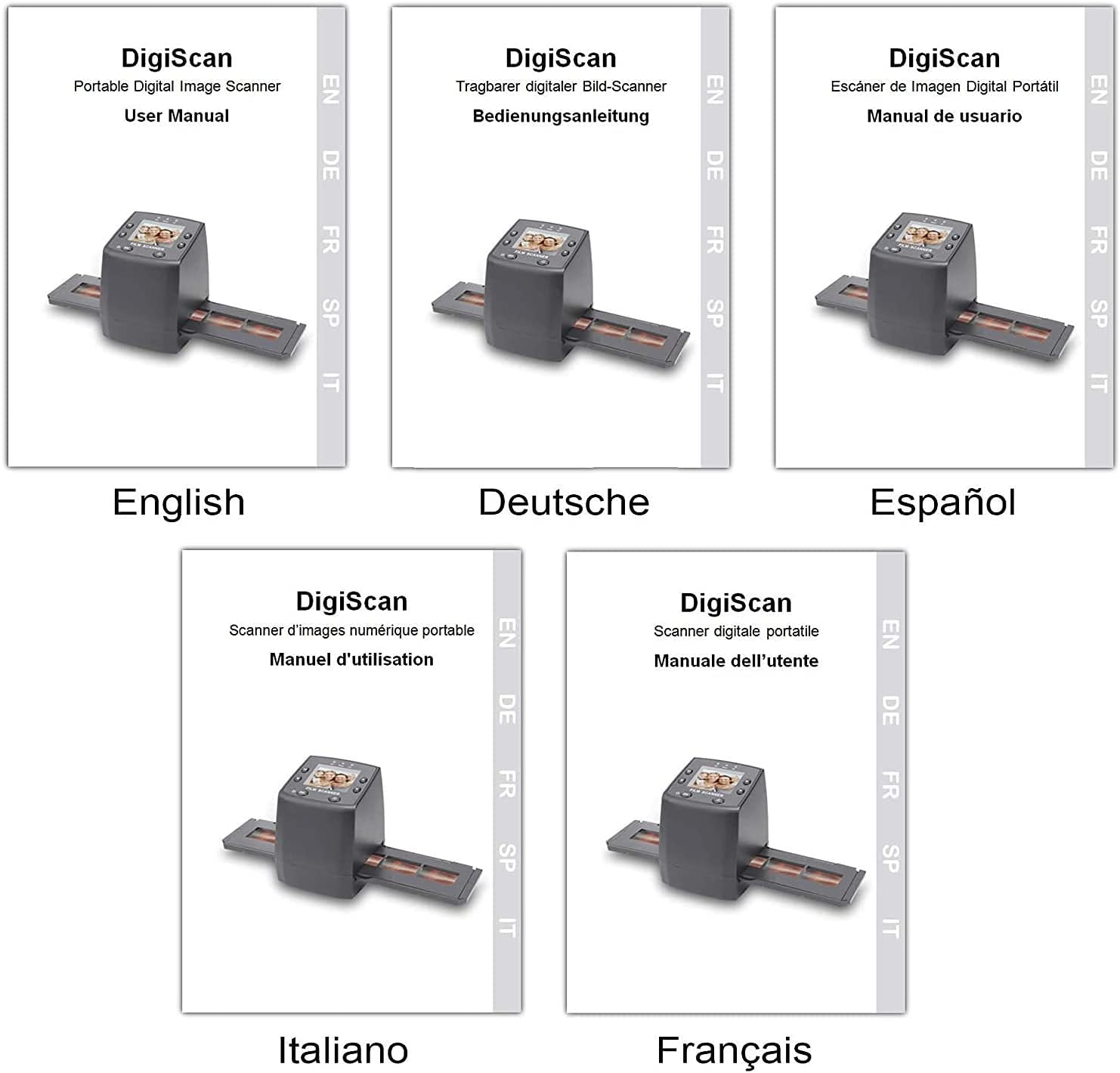
Image: Covers of user manuals in various languages, indicating multi-language support.
7. Údržba
- Cleaning the Film/Slide Holders: Regularly inspect and clean the film and slide holders to ensure no dust or debris interferes with scanning.
- Cleaning the Scanner Lens: Use the provided cleaning brush to gently remove dust from the scanner's lens and light source. Avoid touching the lens directly with your fingers.
- Skladování: Store the scanner in a dry, dust-free environment when not in use.
8. Řešení problémů
- Bez napájení: Ujistěte se, že je napájecí adaptér bezpečně připojen ke skeneru i k funkční zásuvce.
- Image Quality Issues (Blurry/Dusty): Clean the film/slides and the scanner lens using the provided brush. Adjust the focus if available (not explicitly mentioned for this model, but a general tip).
- SD karta nebyla rozpoznána: Ensure the SD card is inserted correctly and is not damaged. Try formatting the card (this will erase all data) or using a different SD card.
- Nelze převést Files do PC: Ensure the USB cable is properly connected and the scanner is in "USB MSDC" mode. Check your computer's device manager to see if the scanner is recognized.
- Image Color Issues: Adjust the EV Exposure settings in the scanner's menu.
9. Specifikace
| Funkce | Specifikace |
|---|---|
| Číslo modelu | M125 |
| Značka | DIGITNOW |
| Podporované typy filmů | 35mm Film Negatives, 135 Mounted Slides |
| LCD obrazovka | 2.4-inch TFT LCD (480 * 234) |
| Rezoluce | 5/10 Megapixel (interpolated to 10M) |
| DPI | 3600 DPI |
| Výstupní formát | JPEG |
| Skladování | SD/MMC Card (up to 8GB SDHC, not included) |
| Rozhraní | USB 2.0, Video Out (NTSC/PAL) |
| Rozměry | 8.6 x 8.6 x 11.2 cm |
| Hmotnost | 270 g |
| Moc | 5 wattů |
| Podpora operačního systému | Windows XP, Vista, 7, 8; Mac OS |

Image: Diagram illustrating the dimensions of the DIGITNOW! M125 Film and Slide Scanner.
10. Záruka a podpora
This product comes with a standard manufacturer's warranty. For specific warranty details, please refer to the warranty card included in your package or contact DIGITNOW! customer support. For technical assistance or further inquiries, please visit the official DIGITNOW! website or contact their support team through the contact information provided with your purchase.
Ask a question about this manual
Ask about setup, troubleshooting, compatibility, parts, safety, or missing instructions. Manuals+ will review the question and use this page’s manual context to help answer it.