
1. Úvod
This manual provides essential information for setting up, operating, maintaining, and troubleshooting your HP 15-AY075NR Notebook. Please read this guide thoroughly to ensure proper use and to maximize the lifespan of your device. This notebook is designed for general computing tasks, featuring an Intel Core i3-5005U processor, 6GB of RAM, a 500GB HDD, and runs on Windows 10.
2. Obsah balení
Before proceeding with setup, verify that all items are present in the package:
- HP 15-AY075NR Notebook
- Napájecí adaptér a napájecí kabel
- Stručný průvodce (pokud je součástí dodávky)
- Informace o záruce (pokud jsou součástí dodávky)
3. Fyzický overview
Familiarize yourself with the main components and ports of your HP 15-AY075NR Notebook.
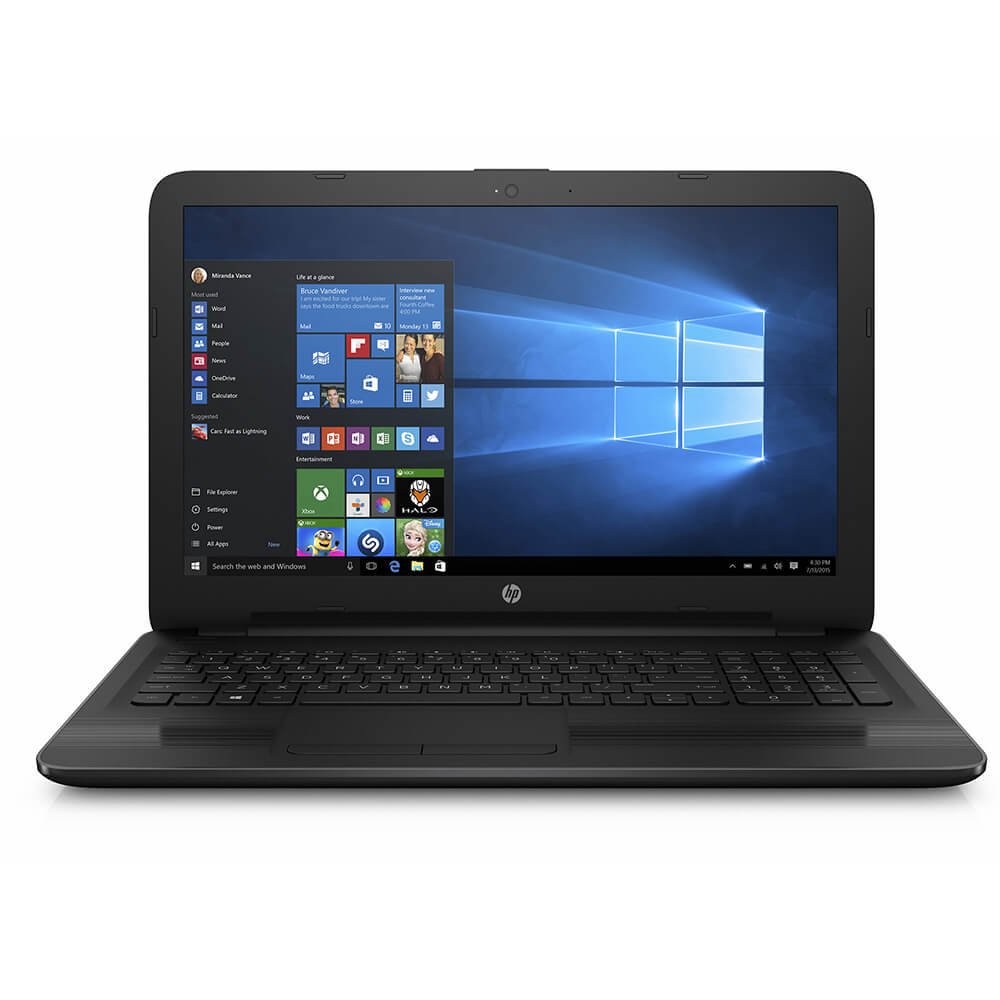
Obrázek 3.1: Přední view of the HP 15-AY075NR Notebook. This image displays the laptop in a closed position, highlighting its sleek black design and overall form factor.
3.1. Porty na levé straně
- Napájecí konektor: Připojuje napájecí adaptér.
- Ethernet (RJ-45) Port: Pro kabelové síťové připojení.
- Port HDMI: Connects to external displays or TVs.
- Port USB 3.0: Pro vysokorychlostní přenos dat s kompatibilními zařízeními.
- Port USB 2.0: Pro připojení periferií.
- Kombinovaný konektor pro sluchátka/mikrofon: Pro audio vstup/výstup.
3.2. Porty na pravé straně
- Optical Drive (DVD Super Multi): Pro čtení a zápis CD/DVD.
- Port USB 2.0: Pro připojení periferií.
- Čtečka SD karet: Pro čtení paměťových karet SD.
3.3. Klávesnice a touchpad
The notebook features a full-size island-style keyboard with a numeric keypad for efficient data entry. The multi-touch touchpad allows for precise cursor control and gesture-based navigation.
4. Nastavení
4.1. Připojení napájecího adaptéru
- Connect the AC adapter to the power connector on the left side of the notebook.
- Zapojte napájecí kabel do uzemněné elektrické zásuvky.
- Baterie se začne automaticky nabíjet. Před prvním použitím se doporučuje baterii plně nabít.
4.2. Počáteční zapnutí a nastavení systému Windows 10
- Open the notebook lid and press the power button, typically located above the keyboard.
- Follow the on-screen instructions to complete the Windows 10 initial setup. This includes selecting your region, language, accepting license terms, creating a user account, and setting up network connections.
- Connect to a Wi-Fi network or use a wired Ethernet connection during setup to download necessary updates.
5. Provoz
5.1. Řízení spotřeby
- Zapnutí: Stiskněte tlačítko napájení.
- Vypnout: Klikněte na tlačítko Start a poté na Napájení > Vypnout.
- Režim spánku: Zavřete víko nebo klikněte na tlačítko Start a poté na Napájení > Režim spánku.
- Restartovat: Klikněte na tlačítko Start a poté na Napájení > Restartovat.
5.2. Připojení k sítím
- Wi-Fi: Click the network icon in the taskbar, select your desired network, and enter the password if prompted.
- Kabelové (Ethernet): Connect an Ethernet cable from your router/modem to the Ethernet port on the notebook.
5.3. Using External Devices
- Zařízení USB: Insert USB drives, mice, or other peripherals into the available USB 2.0 or USB 3.0 ports.
- Externí displej: Connect an HDMI cable from the notebook's HDMI port to an external monitor or TV. Press Klávesa Windows + P to adjust display settings.
- SD karty: Insert an SD card into the card reader slot until it clicks into place.
- Optical Discs: Press the eject button on the optical drive to open the tray. Place a CD or DVD onto the tray, label side up, and gently push the tray back in.
6. Údržba
6.1. Cleaning the Notebook
- Použijte měkký hadřík, který nepouští vlákna dampDisplej opláchněte vodou nebo čističem obrazovek.
- Na klávesnici a šasi používejte měkký, suchý hadřík. Nepoužívejte agresivní chemikálie ani abrazivní materiály.
- Periodically use compressed air to clear dust from vents to ensure proper airflow.
6.2. Péče o baterie
- Vyhněte se častému úplnému vybíjení baterie.
- Pokud notebook delší dobu nepoužíváte, skladujte jej na chladném a suchém místě.
- If the battery is removable (check your specific model), ensure it is properly seated.
6.3. Aktualizace softwaru
Pravidelně kontrolujte a instalujte aktualizace systému Windows a aktualizace ovladačů HP, abyste zajistili optimální výkon a zabezpečení. Aktualizace systému Windows získáte prostřednictvím Nastavení > Aktualizace a zabezpečení > Windows Update.
7. Řešení problémů
7.1. No Power / Does Not Turn On
- Ensure the AC adapter is securely connected to both the notebook and a working power outlet.
- Ověřte funkčnost elektrické zásuvky zapojením jiného zařízení.
- Pokud je baterie zcela vybitá, nechte ji nabíjet alespoň 15–30 minut, než se ji pokusíte zapnout.
7.2. Blank or Black Screen
- Ensure the notebook is powered on.
- Connect an external monitor to the HDMI port to check if the display output works. If it does, the internal display may have an issue.
- Try adjusting the screen brightness using the function keys (e.g., Fn + F2/F3 or similar, depending on your keyboard layout).
7.3. Problémy s připojením k Wi-Fi
- Ensure Wi-Fi is enabled (check the wireless key or function key, e.g., Fn + F12).
- Restartujte router a modem.
- Spusťte Poradce při potížích se sítí systému Windows (Nastavení > Síť a internet > Stav > Poradce při potížích se sítí).
8. Specifikace
| Funkce | Specifikace |
|---|---|
| Model | 15-AY075NR (X0H79UA#ABA) |
| Procesor | Intel Core i3-5005U (2.0 GHz, Dual Core) |
| BERAN | 6 GB DDR3L-1600 SDRAM |
| Skladování | 500GB pevný disk (5400 ot./min) |
| Grafika | Integrovaná grafika Intel HD |
| Zobrazit | 15.6-inch HD SVA BrightView WLED-backlit (1366 x 768) |
| Operační systém | Windows 10 |
| Bezdrátové připojení | Intel 802.11a/b/g/n/ac (1x1) Wi-Fi, Bluetooth 4.0 |
| Porty | 1x USB 3.0, 2x USB 2.0, 1x HDMI, 1x RJ-45, 1x Headphone/Mic Combo, 1x Multi-format SD Media Card Reader |
| Optická mechanika | DVD Super Multi |
| Výdrž baterie (průměrná) | 6.25 hodiny |
| Hmotnost | 4.73 libry |
| Rozměry (DxŠxV) | 24 x 4 x 14 palce (rozměry produktu) |
9. Záruka a podpora
Your HP 15-AY075NR Notebook is covered by a standard manufacturer's warranty. For specific warranty terms and conditions, please refer to the documentation included with your product or visit the official HP support website. HP provides technical support, driver downloads, and troubleshooting resources online.
For further assistance, please visit the official HP Support webmísto: support.hp.com