
1. Úvod
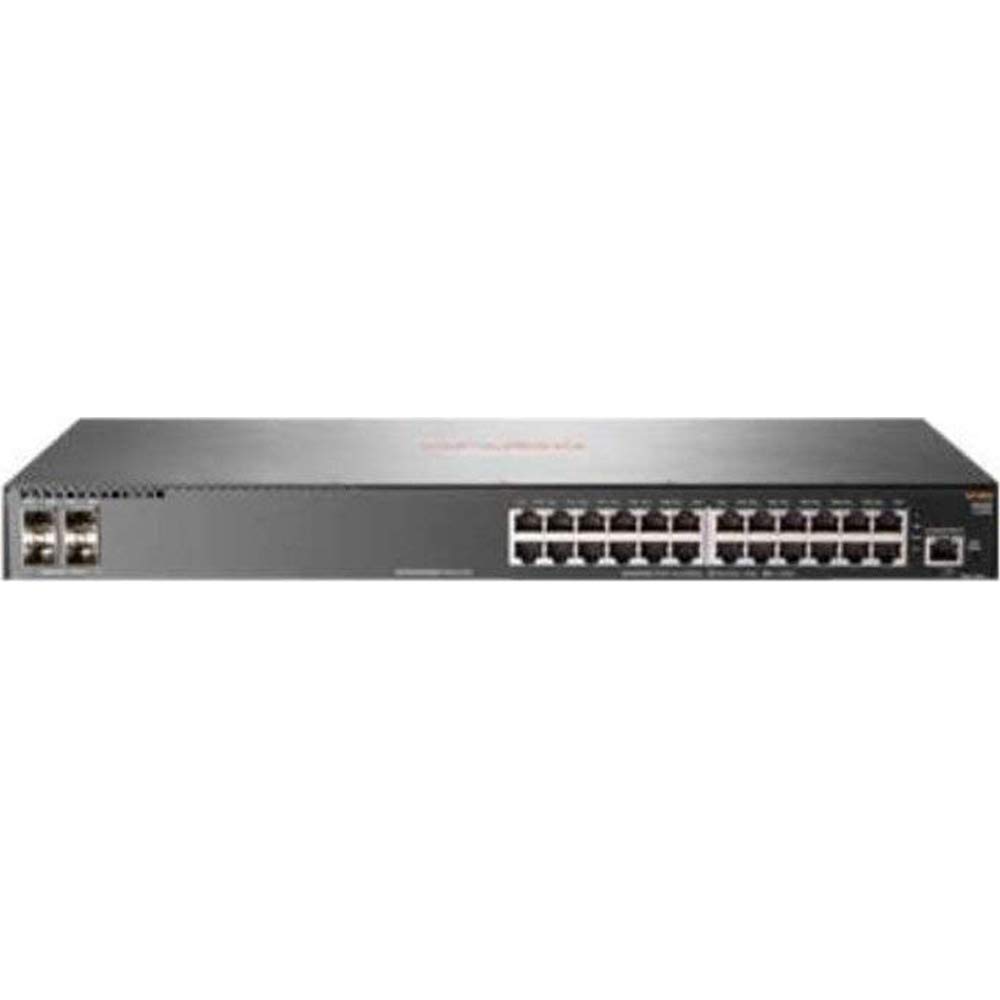
This manual provides comprehensive instructions for the installation, configuration, and operation of the HP 2930F-24G 4SFP Switch. This device is a high-performance network switch designed for reliable and secure network connectivity. It features 24 Gigabit Ethernet ports and 4 SFP uplink ports, supporting Layer 3 functionality for advanced network management.
2. Obsah balení
Carefully unpack the box and verify that all items are present and undamaged. If any items are missing or damaged, contact your vendor immediately.
- 1 x HP 2930F-24G 4SFP Switch
- 1 x Napájecí kabel
- 1 x Sada šroubů
- 4 x montážní uši
- 4 x Bumper Feet
- 1 x Cable Tie
3. Nastavení
3.1. Příprava místa
Ensure the installation site is clean, dry, and has adequate ventilation. Maintain proper temperature and humidity levels as specified in the environmental requirements. Ensure a stable power source is available.
3.2. Montáž spínače
The HP 2930F-24G 4SFP Switch supports both rack-mountable and desktop installations.
- Instalace na plochu: Attach the four bumper feet to the bottom of the switch. Place the switch on a flat, stable surface.
- Instalace do racku: Attach the mounting ears to the sides of the switch using the provided screws. Secure the switch into a standard 1U rack using appropriate rack screws (not included).
3.3. Připojení napájení
- Connect the provided power cord to the power inlet on the rear panel of the switch.
- Zapojte druhý konec napájecího kabelu do uzemněné elektrické zásuvky.
- Ověřte, zda se na předním panelu rozsvítí kontrolka napájení, což znamená, že přepínač je napájen.
3.4. Připojení síťových kabelů
- Ethernetové porty: Connect standard RJ-45 Ethernet cables from your network devices (computers, servers, other switches) to the 24 Gigabit Ethernet ports on the front panel.
- SFP uplink porty: Insert compatible SFP transceivers (not included) into the 4 SFP slots. Connect fiber optic or copper SFP cables to these transceivers for uplink connections to other network devices or the core network.
4. Návod k obsluze
4.1. Počáteční zapnutí
Once power is connected, the switch will automatically begin its boot sequence. This process may take a few minutes. Observe the system status LEDs for indications of successful startup.
4.2. LED indikátory
LED diody na předním panelu poskytují informace o stavu přepínače a jeho portů:
- LED napájení: Indicates power status (On: Power OK, Off: No power).
- Systémová LED: Indicates overall system health (Green: Normal, Amber: Warning, Red: Error).
- LED diody pro připojení/aktivitu portu: Located next to each Ethernet and SFP port. (Green: Link established, Blinking Green: Activity, Off: No link).
4.3. Správa sítě
The HP 2930F-24G 4SFP Switch can be managed via a Command Line Interface (CLI) through a console port (if available) or Telnet/SSH, and typically through a web-based graphical user interface (GUI). Refer to the comprehensive HP ArubaOS-Switch Management and Configuration Guide for detailed instructions on initial configuration, VLAN setup, Layer 3 routing, and other advanced features.
5. Údržba
5.1. Čištění
Regularly clean the exterior of the switch with a soft, dry cloth. Do not use liquid or aerosol cleaners. Ensure ventilation openings are free from dust and obstructions to prevent overheating.
5.2. Aktualizace firmwaru
Pravidelně kontrolujte oficiální podporu HP website for firmware updates. Keeping the switch firmware up-to-date ensures optimal performance, security, and access to new features. Follow the instructions provided with the firmware update package carefully.
5.3. Ohledy na životní prostředí
Ensure the switch operates within its specified temperature and humidity ranges. Avoid exposing the device to direct sunlight, excessive heat, or moisture.
6. Řešení problémů
Tato část obsahuje řešení běžných problémů, se kterými se můžete setkat.
- Bez napájení:
- Check if the power cord is securely connected to both the switch and the power outlet.
- Ověřte, zda je elektrická zásuvka funkční.
- Ensure the power supply unit (internal) is not faulty.
- Žádné spojení na portu:
- Ensure the Ethernet or SFP cable is properly connected at both ends.
- Ověřte, zda je připojené zařízení zapnuté a funguje správně.
- Check the cable for damage. Try a different cable.
- Confirm that the SFP transceiver is compatible and correctly seated (for SFP ports).
- Problémy s připojením k síti:
- Ověřte konfiguraci IP adres na připojených zařízeních a přepínači.
- V případě potřeby zkontrolujte konfiguraci VLAN.
- Ensure no IP address conflicts exist on the network.
- Restartujte přepínač a připojená zařízení.
If problems persist, consult the detailed troubleshooting guides available on the official HP support webwebu nebo se obraťte na technickou podporu HP.
7. Specifikace
| Funkce | Specifikace |
|---|---|
| Číslo modelu | JL259A#ABA |
| Celkový počet síťových portů | 24 x Gigabit Ethernet |
| Uplink porty | 4 x SFP |
| Technologie Ethernet | Gigabit Ethernet (10/100/1000Base-TX) |
| Network Technology | 1000Base-X |
| Podpora vrstev | Vrstva 3 |
| Zdroj napájení | Napájení |
| Form Factor | Rack-mountable, Desktop (1U) |
| Rozměry (V x H) | 1.7 palce x 7.9 palců |
| Hmotnost | 5.31 lb (Approximate) |
| BERAN | 1024 MB |
| Materiál pouzdra | Kov |
| UPC | 190017006000 |
8. Záruka a podpora
Podrobné informace o záruce, registraci produktu a technickou podporu naleznete na oficiálních stránkách podpory HP. website. You can find resources such as knowledge bases, FAQs, driver downloads, and contact information for customer service.
Podpora HP Webmísto: www.hp.com/support