
1. Konec produktuview
This manual provides essential instructions for the safe and efficient installation, operation, and maintenance of your ZOTAC GeForce GTX 1080 AMP Extreme graphics card. Please read this manual thoroughly before proceeding with installation.
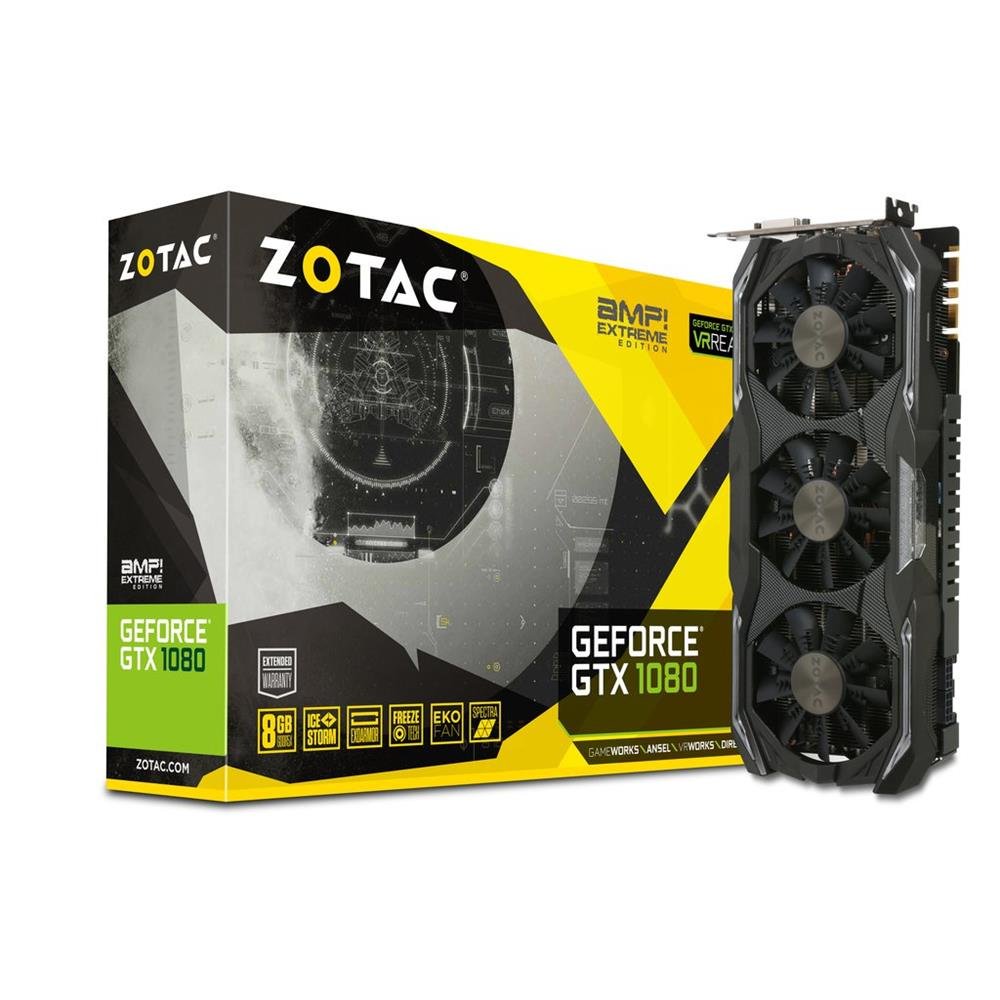
Image 1.1: ZOTAC GeForce GTX 1080 AMP Extreme Graphics Card. This image displays the front view grafické karty, s důrazem na její systém chlazení se třemi ventilátory a celkový design.
2. Obsah balení
Ověřte, zda jsou v balení produktu přítomny všechny níže uvedené položky:
- ZOTAC GeForce GTX 1080 AMP Extreme Graphics Card
- Adaptér DVI-VGA
- Dual 6-pin to 4 x 2-pin Power Cable
- Disk CD s ovladači
- Návod k použití (tento dokument)
3. Nastavení a instalace
3.1. Systémové požadavky
- PCI Express x16 slot on a compatible motherboard.
- Minimum 500W power supply with two 8-pin (or 6+2 pin) PCIe power connectors.
- Compatible operating system (e.g., Windows 7/8/10/11).
- At least 4GB of system memory (8GB recommended).
3.2. Fyzická instalace
- Vypnout: Úplně vypněte počítač a odpojte napájecí kabel ze zásuvky.
- Otevřený případ: Open your computer case to access the motherboard and expansion slots.
- Vyhledejte slot PCIe: Najděte na základní desce dostupný slot PCI Express x16.
- Odstraňte kryt slotu: Sejměte kovový kryt slotu ze zadní strany skříně počítače odpovídajícího vybranému slotu PCIe.
- Vložte grafickou kartu: Carefully align the graphics card with the PCIe slot and press it firmly until it is fully seated. Ensure the retention clip on the slot locks into place.
- Bezpečná karta: Grafickou kartu připevněte k počítači šroubem nebo upevňovacím mechanismem.
- Připojte napájení: Connect the required PCIe power cables from your power supply to the graphics card. The ZOTAC GeForce GTX 1080 AMP Extreme typically requires two 8-pin (or 6+2 pin) power connectors. Use the provided dual 6-pin to 4 x 2-pin power cable if your power supply only has 6-pin connectors.
- Zavřít případ: Zavřete skříň počítače a znovu připojte napájecí kabel.
3.3. Instalace ovladače
- Spouštěcí systém: Zapněte počítač. Systém se může spustit v základním režimu zobrazení.
- Nainstalujte ovladače: Insert the provided Driver CD into your optical drive and follow the on-screen instructions to install the NVIDIA graphics drivers. Alternatively, download the latest drivers directly from the official ZOTAC or NVIDIA webmísto pro optimální výkon a kompatibilitu.
- Restartovat: Po dokončení instalace ovladače restartujte počítač.
3.4. Připojení displejů
Connect your monitor(s) to the appropriate output ports on the graphics card. This model supports HDMI, DisplayPort, and DVI connections. Use the DVI-VGA adapter if your monitor only supports VGA input.
4. Návod k obsluze
4.1. Základní obsluha
Once the drivers are installed, your graphics card will automatically manage display output and graphics processing. You can adjust display settings, resolution, and refresh rates through your operating system's display settings or the NVIDIA Control Panel.
4.2. Nastavení více monitorů
The ZOTAC GeForce GTX 1080 AMP Extreme supports multiple displays. Connect additional monitors to the available video output ports. Use the NVIDIA Control Panel to configure display modes such as extended desktop, duplicate displays, or NVIDIA Surround for an immersive gaming experience.
5. Údržba
Regular maintenance helps ensure optimal performance and longevity of your graphics card.
- Čištění: Periodically clean the fans and heatsink to prevent dust buildup, which can impede airflow and lead to overheating. Use compressed air to gently remove dust from the cooling fins and fan blades. Ensure the system is powered off and unplugged before cleaning.
- Proud vzduchu: Ensure your computer case has adequate airflow to dissipate heat generated by the graphics card. Keep the area around your PC clear of obstructions.
- Aktualizace ovladačů: Keep your graphics drivers updated by regularly checking the ZOTAC or NVIDIA webstránky pro nejnovější verze.
6. Řešení problémů
Pokud narazíte na problémy s grafickou kartou, postupujte podle následujících běžných kroků pro řešení problémů:
- Žádný výstup na displej:
- Ujistěte se, že je monitor správně připojen a zapnutý.
- Ověřte, zda je grafická karta zcela zasunuta do slotu PCIe.
- Check that all PCIe power cables are securely connected to the graphics card.
- Try connecting the monitor to a different video output port on the card or to the motherboard's integrated graphics (if available) to isolate the issue.
- Problémy s ovladači:
- If you experience crashes, artifacts, or poor performance, try reinstalling the graphics drivers. Use a driver uninstaller utility to completely remove old drivers before installing new ones.
- Ensure you are installing the correct drivers for your operating system and graphics card model.
- Problémy s výkonem:
- Check system temperatures using monitoring software. Overheating can lead to performance throttling.
- Ujistěte se, že váš zdroj napájení splňuje minimální příkontagpožadavky na grafickou kartu a další systémové komponenty.
- Verify that your system's BIOS/UEFI settings are configured correctly for a discrete graphics card.
7. Specifikace
| Funkce | Detail |
|---|---|
| Značka | ZOTAC |
| Název modelu | GTX 1080 |
| Číslo modelu | ZT-P10800B-10P |
| Grafický koprocesor | NVIDIA GeForce GTX 1080 |
| Velikost grafické paměti RAM | 8 GB GDDR5X |
| Rychlost paměti | 10800 MHz |
| Engine Clock Speed | 1771 MHz (základní), 1911 MHz (zvýšený) |
| Video výstupní rozhraní | HDMI, DisplayPort, DVI |
| Video rozhraní | PCI Express |
| Maximální rozlišení obrazovky | 7680x4320 |
| Počet fanoušků | 3 |
| Doporučené použití | Hraní |
| Hmotnost položky | 1.6 kg |
| UPC | 816264016721 |
8. Záruka a podpora
8.1. Záruka na produkt
This ZOTAC graphics card comes with a Záruka 24 měsíců od data nákupu. Uschovejte si prosím doklad o koupi pro případné reklamace. Záruka se vztahuje na výrobní vady a poruchy při běžném používání. Nevztahuje se na škody způsobené nesprávným použitím, nehodami, neoprávněnými úpravami nebo nesprávnou instalací.
8.2. Technická podpora
For technical assistance, driver downloads, or further information, please visit the official ZOTAC webmísto:
You may also refer to the FAQ section on the ZOTAC website for solutions to common issues.