
1. Úvod a konecview
The HP OfficeJet Pro 6968 is a versatile all-in-one wireless printer designed for home offices and small workgroups. It offers professional-quality color printing, scanning, copying, and faxing capabilities. Key features include automatic two-sided printing, a color touchscreen for easy navigation, and compatibility with HP Instant Ink for convenient ink replenishment.

Obrázek 1: Přední strana view tiskárny HP OfficeJet Pro 6968.
Klíčové vlastnosti:
- Funkce vše v jednom: Print, copy, scan, and fax.
- Bezdrátové připojení: Easily print from smartphones, tablets, and PCs via Wi-Fi or Ethernet.
- Automatický oboustranný tisk: Save paper with automatic duplex printing.
- Barevný dotykový displej: Intuitivní rozhraní pro správu funkcí tiskárny.
- Automatický podavač dokumentů (ADF): For multi-page scanning and copying.
- HP Instant Ink Ready: Optional service for automatic ink delivery.
2. Nastavení
2.1 Rozbalení a počáteční umístění
Carefully remove the printer from its packaging. Place the printer on a stable, flat surface with adequate space around it for ventilation and paper handling. Ensure all packing materials and tapes are removed from the printer's exterior and interior.
2.2 Připojení napájení
Connect the power cord to the printer and then to a grounded electrical outlet. Press the power button to turn on the printer. Follow the on-screen instructions on the color touchscreen for initial setup, including language selection and date/time settings.
2.3 Instalace inkoustové kazety
Open the ink cartridge access door. Install the HP 902 Setup Black, Cyan, Magenta, and Yellow Instant Ink Ready OfficeJet Ink Cartridges into their corresponding slots. Ensure they click into place. Close the access door.
2.4 Vkládání papíru
Pull out the main input tray. Adjust the paper guides to fit the paper size. Load a stack of plain paper (e.g., A4, Letter) into the tray, ensuring it is not overfilled. Push the tray back into the printer. Confirm the paper type and size on the touchscreen.
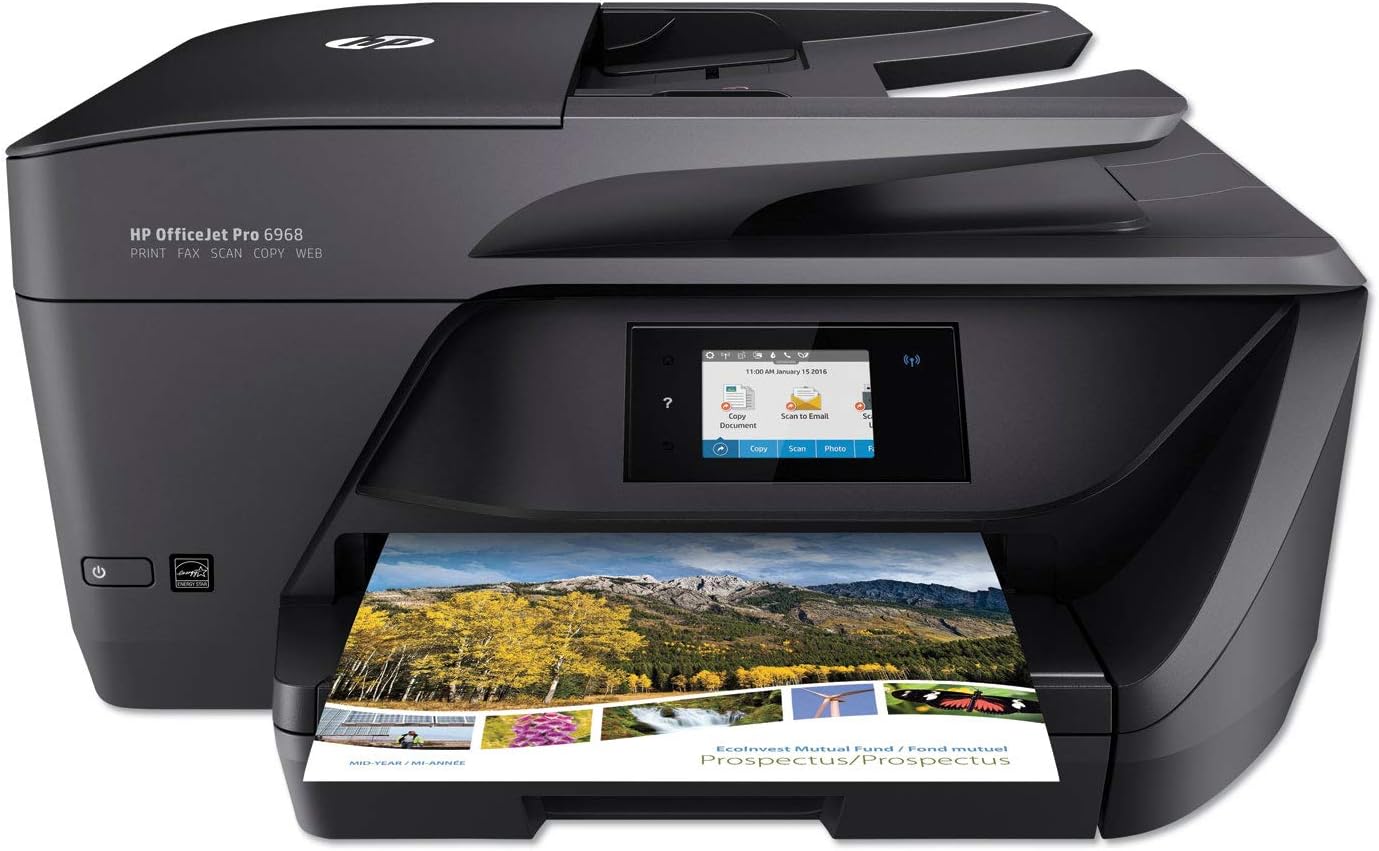
Obrázek 2: Přední strana view of the printer showing the paper output tray.
2.5 Síťové připojení (bezdrátové/ethernetové)
On the printer's touchscreen, navigate to the Wireless Setup Wizard. Select your Wi-Fi network from the list and enter the password. Alternatively, connect an Ethernet cable from your router to the printer's Ethernet port. Follow any additional prompts to complete the network setup.
3. Návod k obsluze
The HP OfficeJet Pro 6968 offers various functions accessible via its color touchscreen and connected devices.
3.1 Tisk
- Z počítače: Install the HP printer software on your computer. Select 'Print' from your application, choose the HP OfficeJet Pro 6968, and adjust settings as needed (e.g., two-sided printing).
- Z mobilních zařízení: Download the HP Smart app on your smartphone or tablet. Connect your device to the same Wi-Fi network as the printer. Use the app to select documents or photos and send them to print.
- Email Print: The printer has its own email address. Send documents to this address from any device to print remotely.
3.2 Skenování
Documents can be scanned using either the Automatic Document Feeder (ADF) or the flatbed scanner.
- Používání automatického podavače dokumentů: Place documents face-up in the ADF tray. On the printer touchscreen, select 'Scan' and choose your destination (e.g., computer, email, cloud service).
- Používání plochého lože: Lift the scanner lid and place the document face-down on the glass. Close the lid. On the touchscreen, select 'Scan' and choose your destination.

Obrázek 3: Nahoře view of the printer highlighting the Automatic Document Feeder.
3.3 Kopírování
Place the original document on the flatbed scanner or in the ADF. On the printer touchscreen, select 'Copy'. Adjust settings such as number of copies, color/black & white, and two-sided copying. Press 'Start Copy'.
3.4 Faxování
Load the document into the ADF or onto the flatbed. On the touchscreen, select 'Fax'. Enter the recipient's fax number and press 'Start Fax'.
4. Údržba
4.1 Výměna inkoustové kazety
When an ink cartridge is low or empty, the printer's touchscreen will display a notification. Open the ink cartridge access door. Press the tab on the old cartridge to release it and pull it out. Unpack the new HP 902 series cartridge, insert it into the correct slot until it clicks, and close the access door. The printer uses dynamic security, which may be updated periodically by firmware updates. The printer is intended to be used solely with cartridges using an original HP chip.
Video 1: Learn how HP Instant Ink can save you money and ensure you never run out of ink.
4.2 Čištění tiskárny
Regularly clean the exterior of the printer with a soft, lint-free cloth. For the scanner glass, use a soft cloth lightly dampened with glass cleaner (non-abrasive). Avoid spraying cleaner directly onto the glass.
5. Řešení problémů
5.1 Problémy s připojením
- Ensure the printer is connected to the correct Wi-Fi network. Check the Wi-Fi status icon on the touchscreen.
- Restart your router, printer, and the device you are printing from.
- Verify that the printer's firmware is up to date.
5.2 Zaseknutí papíru
- If a paper jam occurs, the touchscreen will display instructions.
- Carefully open all access doors and trays to locate the jammed paper. Gently pull the paper in the direction of the paper path.
- Ujistěte se, že uvnitř tiskárny nezůstaly žádné malé kousky papíru.
5.3 Problémy s kvalitou tisku
- Check ink levels on the touchscreen. Replace any low or empty cartridges.
- Perform a printhead cleaning or alignment from the printer's maintenance menu.
- Ujistěte se, že pro tiskovou úlohu používáte vhodný papír.
6. Specifikace
| Funkce | Specifikace |
|---|---|
| Rozměry produktu | 15.35"H x 18.26"Š x 9"V |
| Typ ovladače | Amazon Alexa, Vera |
| Maximální velikost média | 5 x 14 palců |
| Tisková média | Back print film, Glossy photo paper, Labels, Paper (plain) |
| Typ skeneru | Foto, archové podávání |
| Maximální vstupní kapacita listu | 35 |
| Maximální rychlost kopírování (černobíle) | 30 ppm |
| Maximální rozlišení barevného tisku | 1200 x 1200 dpi |
| Maximální rozlišení černobílého tisku | 600 dpi |
| Oboustranný tisk | Ano (automaticky) |
| Technologie připojení | 1 USB 2.0; 1 Ethernet; 1 Wireless 802.11b/g/n; 1 RJ-11 fax |
| Tiskový výstup | Barva |
| Hmotnost položky | 17.7 libry |
7. Záruka a podpora
The HP OfficeJet Pro 6968 comes with a one-year limited hardware warranty. For technical assistance and support, HP offers 24-hour, 7 days a week Web support. Please refer to the official HP website for detailed warranty terms and support contact information.