
1. Úvod
This manual provides instructions for the setup, operation, maintenance, and troubleshooting of the HP PageWide Enterprise Color 586dn Multifunction Printer. This device is designed for business environments, offering print, scan, and copy functionalities with a focus on efficiency and security.
Klíčové vlastnosti:
- Multifunction capabilities: Print, scan, and copy.
- High-speed color printing up to 75 pages per minute (ppm).
- Single-pass, two-sided scanning with a 100-sheet automatic document feeder (ADF).
- Integrated security features for data and device protection.
- Energy-efficient HP PageWide Technology.
- Automatic duplex printing.
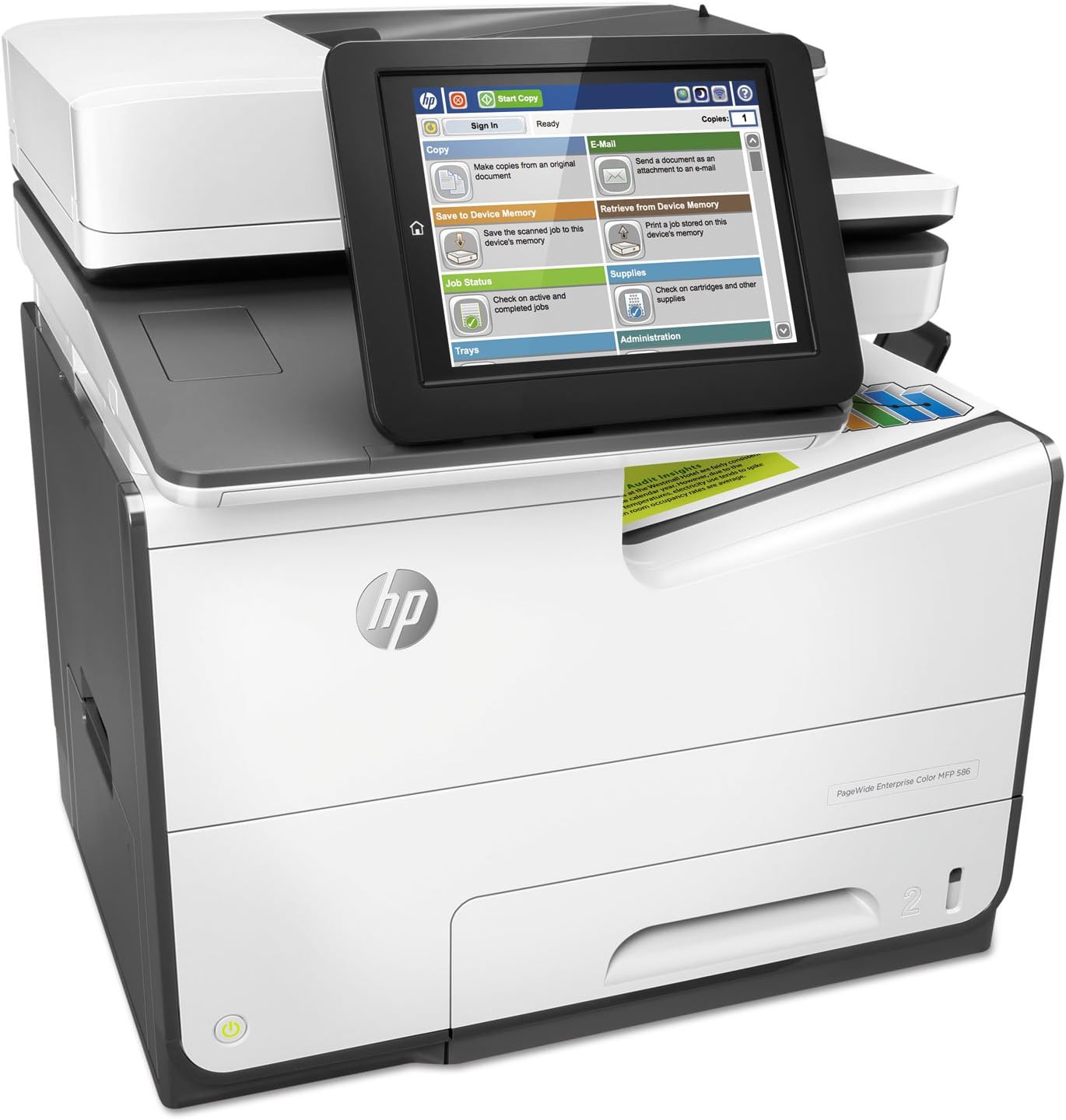
Obrázek 1: Přední strana view of the HP PageWide Enterprise Color 586dn Multifunction Printer, showing the control panel and paper trays.
2. Pokyny k nastavení
2.1 Vybalení a umístění
- Opatrně vyjměte tiskárnu z obalu. Veškerý balicí materiál si uschovejte pro budoucí přepravu.
- Place the printer on a stable, level surface with adequate space for ventilation and access to paper trays.
- Odstraňte všechny ochranné pásky a balicí materiály z vnější i vnitřní strany tiskárny.

Obrázek 2: Úhlové view of the printer, highlighting the output tray and paper path.
2.2 Připojení napájení a sítě
- Připojte napájecí kabel k tiskárně a poté do uzemněné elektrické zásuvky.
- Pro připojení k síti připojte ethernetový kabel z ethernetového portu tiskárny k síťovému routeru nebo přepínači.
- Zapněte tiskárnu pomocí tlačítka napájení.

Obrázek 3: Zadní view of the printer, showing the power input, Ethernet port, and USB ports.
2.3 Počáteční nastavení softwaru
- Follow the on-screen prompts on the printer's control panel to select language, country/region, and date/time settings.
- Install the printer drivers and software on your computer from the provided installation disc or by downloading them from the official HP support webmísto.
- Configure network settings if necessary, using the printer's control panel or the HP Web Administrátorské rozhraní.

Figure 4: Close-up of the printer's control panel, displaying various function options.
3. Návod k obsluze
3.1 Tisk dokumentů
- Load paper into the input tray. Ensure paper guides are adjusted to fit the paper size.
- V počítači otevřete dokument, který chcete vytisknout.
- V nabídce aplikace vyberte možnost „Tisk“.
- Choose the HP PageWide Enterprise Color 586dn printer.
- Podle potřeby upravte nastavení tisku, jako je barva, oboustranný tisk, velikost papíru a kvalita.
- Klikněte na „Tisk“.
3.2 Skenování dokumentů
- Vložte dokument lícem nahoru do automatického podavače dokumentů (ADF) nebo lícem dolů na sklo skeneru.
- Na ovládacím panelu tiskárny vyberte možnost „Skenovat“.
- Vyberte požadovaný cíl skenování (např. e-mail, síťová složka, USB disk).
- Upravte nastavení skenování, jako je rozlišení, barevný režim a file formát.
- Stiskněte tlačítko „Spustit skenování“.

Figure 5: The printer's automatic document feeder in use, scanning a multi-page document.
3.3 Kopírování dokumentů
- Place the document face-up in the ADF or face-down on the scanner glass.
- Na ovládacím panelu tiskárny vyberte možnost „Kopírovat“.
- Zadejte požadovaný počet kopií.
- Adjust copy settings such as color, duplex, and quality.
- Stiskněte tlačítko „Spustit kopírování“.
4. Údržba
4.1 Replacing Print Cartridges
- The printer will display a low cartridge warning when a cartridge needs replacement.
- Otevřete přístupová dvířka kazety.
- Vyjměte starou kazetu jejím vytažením rovně ven.
- Unpack the new Original HP 981A/981X PageWide cartridge and insert it into the corresponding slot until it clicks into place.
- Zavřete přístupová dvířka kazety.
Důležité: This printer is designed to work only with cartridges containing original HP chips or circuitry. Periodic firmware updates may affect the functionality of non-HP cartridges.
4.2 Postupy čištění
- Vnější: Vnější povrchy otřete měkkým, damp, hadřík nepouštějící vlákna.
- Sklo skeneru: Use a soft cloth lightly moistened with glass cleaner to clean the scanner glass. Avoid abrasive cleaners.
- Válečky ADF: Refer to the printer's on-screen menu for instructions on cleaning the Automatic Document Feeder rollers if paper feed issues occur.
4.3 aktualizací firmwaru
Regularly check for and install firmware updates to ensure optimal performance, security, and compatibility. Updates can typically be managed through the printer's control panel or the HP Web Administrátorské rozhraní.
5. Řešení problémů
5.1 Běžné problémy a řešení
- Zaseknutý papír: Follow the on-screen instructions to clear paper jams from designated access areas. Ensure paper is loaded correctly and not creased.
- Problémy s kvalitou tisku: Check cartridge levels. Perform a printhead cleaning or alignment from the printer's maintenance menu. Ensure you are using appropriate paper types.
- Problémy s připojením: Verify network cable connections. Restart the printer and your network router. Check network settings on the printer's control panel.
- Scanning Issues (Mac): Some users have reported scanning issues specifically with Mac operating systems. Ensure your printer's firmware and Mac drivers are up to date. If problems persist, contact HP support.
5.2 Chybové zprávy
Refer to the printer's control panel for specific error codes and messages. Consult the HP support website for detailed explanations and resolution steps for each error.
6. Specifikace
| Funkce | Detail |
|---|---|
| Název modelu | 586dn |
| Číslo modelu položky | G1W39A#BGJ |
| Funkce | Tisk, skenování, kopírování |
| Technologie tisku | PageWide (Inkjet) |
| Tiskový výstup | Barva |
| Maximální rychlost tisku (černobíle) | 75 ppm |
| Maximální rychlost tisku (barevně) | 50 ppm |
| Maximální rozlišení barevného tisku | 1200 x 1200 dpi |
| Maximální rozlišení černobílého tisku | 1200 dpi |
| Oboustranný tisk | Automatický (standardní) |
| Typ skeneru | Listový |
| Maximální vstupní kapacita listu | 100 listů (automatický podavač dokumentů) |
| Maximální velikost média | 8.5 x 14 palce |
| Podporované velikosti médií | A4, B5, C5, C6, 3 x 5 inch |
| Technologie připojení | 1G Ethernet; 2 HS USB 2.0 Host; 1 HS USB 2.0 Device |
| Rozměry produktu (D x Š x V) | 20.87 x 22.2 x 20.83 palce |
| Hmotnost položky | 71.2 libry |
7. Záruka a podpora
7.1 Informace o záruce
The HP PageWide Enterprise Color 586dn Multifunction Printer typically includes a one-year, onsite warranty. For specific terms and conditions, please refer to the documentation provided with your product or visit the official HP webmísto.
7.2 Zákaznická podpora
For technical assistance, troubleshooting, or warranty claims, please contact HP customer support. Free HP Web support is available 24 hours a day, 7 days a week. Visit the official HP support webstránky s kontaktními informacemi a zdroji.