
Zavedení
The INIM Alien/GN is a sophisticated 7-inch touchscreen user interface designed for seamless integration with I-Bus security and automation systems. It provides intuitive control and monitoring capabilities, enhancing user interaction with the system. Key features include a built-in proximity reader for convenient access, a room temperature sensor for environmental monitoring, and integrated microphone and speaker for communication functions.
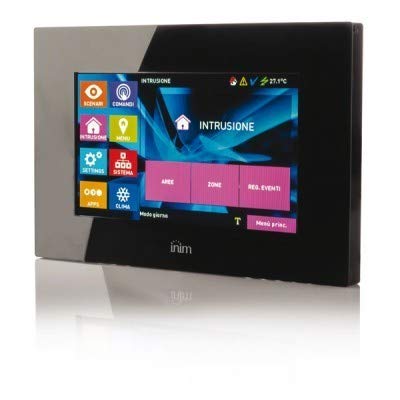
Obrázek 1: Přední strana view of the INIM Alien/GN touchscreen user interface. This image shows the sleek design and the 7-inch display.
Nastavení a instalace
Proper installation is crucial for the optimal performance of your INIM Alien/GN touchscreen. Please follow these guidelines carefully.
1. Montáž zařízení
Select a suitable indoor location, away from direct sunlight, heat sources, and areas with high humidity. Ensure the mounting surface is flat and stable. The device is designed for wall mounting.
- Carefully remove the front cover of the Alien/GN unit to expose the mounting holes.
- Position the backplate on the desired wall location and mark the drilling points.
- Vyvrtejte otvory vhodným vrtákem pro váš typ zdi. V případě potřeby vložte hmoždinky.
- Připevněte zadní desku ke stěně pomocí dodaných šroubů.
2. Elektroinstalace a připojení
The Alien/GN connects to the I-Bus system. Ensure power is disconnected from the main control panel before making any connections.
- Connect the I-Bus communication wires to the designated terminals on the Alien/GN backplate. Observe polarity (typically + and -).
- If external power is required (check system specifications), connect the power supply wires to the appropriate terminals.
- Ujistěte se, že všechny spoje jsou bezpečné a řádně izolované.
3. Počáteční zapnutí
Once all connections are made and verified, restore power to the main control panel.
- The Alien/GN display should illuminate, and the device will begin its boot sequence.
- Follow the on-screen prompts for initial configuration, such as language selection and network settings (if applicable).
- Refer to your main I-Bus system manual for specific device enrollment procedures.
Návod k obsluze
This section details the basic operation of the INIM Alien/GN touchscreen user interface.
1. Navigace na dotykové obrazovce
The 7-inch display is a capacitive touchscreen, responding to light touches. Navigate through menus and options by tapping icons and swiping across the screen.
- Domovská obrazovka: Displays system status, quick access icons, and current time/date.
- Přístup do menu: Tap the menu icon (usually three horizontal lines or a gear) to access system settings and advanced functions.
- Tlačítko Zpět: A dedicated back arrow icon allows you to return to the previous screen.
2. Proximity Reader Functionality
The integrated proximity reader allows for quick arming/disarming of the system or access control using compatible RFID tags or cards.
- To use, present your registered RFID tag or card within a few centimeters of the designated proximity reader area on the touchscreen.
- The device will emit an audible confirmation tone and display a visual indicator upon successful reading.
- Ensure your RFID credentials are properly enrolled in the I-Bus system for them to be recognized.
3. Čidlo pokojové teploty
The Alien/GN includes an ambient room temperature sensor. The current temperature is typically displayed on the home screen or within a dedicated environmental monitoring section.
- The temperature reading provides local environmental data.
- This data can be used by the I-Bus system for automation rules (e.g., activating heating/cooling based on temperature thresholds).
4. Microphone and Speaker
The built-in microphone and speaker facilitate two-way audio communication, often used for intercom functions or voice prompts from the security system.
- Interkom: If configured, tap the intercom icon to initiate communication with other connected devices or the central monitoring station.
- Hlasové výzvy: The speaker will play system alerts, status confirmations, and other audio notifications.
- Adjust speaker volume through the system settings menu.
Údržba
Regular maintenance ensures the longevity and reliable operation of your INIM Alien/GN touchscreen.
1. Čištění dotykové obrazovky
To maintain screen clarity and responsiveness:
- Power off the device or put it into cleaning mode (if available in settings) before cleaning.
- Použijte měkký hadřík bez žmolků, lehceampened with water or a screen-specific cleaning solution.
- Ne use abrasive cleaners, alcohol, ammonia, or spray cleaners directly onto the screen.
- Gently wipe the screen to remove dust, fingerprints, and smudges.
2. Aktualizace softwaru
Periodically check for software updates for your I-Bus system and connected devices, including the Alien/GN. Updates can provide new features, performance improvements, and security enhancements. Consult your system integrator or the INIM webweb pro postupy aktualizace.
3. Ohledy na životní prostředí
Ensure the device remains within its specified operating temperature and humidity ranges. Avoid exposing it to extreme conditions, direct water spray, or excessive dust.
Odstraňování problémů
This section provides solutions to common issues you might encounter with your INIM Alien/GN touchscreen.
| Problém | Možná příčina | Řešení |
|---|---|---|
| Displej je prázdný nebo nereaguje. | No power, loose I-Bus connection, device malfunction. |
|
| Touchscreen is unresponsive or inaccurate. | Dirty screen, temporary software glitch, physical damage. |
|
| Proximity reader not recognizing tags. | Tag not enrolled, tag damaged, reader malfunction. |
|
| Nesprávné údaje o teplotě. | Device location, sensor obstruction, calibration issue. |
|
Specifikace
Key technical specifications for the INIM Alien/GN touchscreen user interface:
| Funkce | Detail |
|---|---|
| Výrobce | INIM ELECTRONICS |
| Model | Alien/GN |
| Typ rozhraní | 7 palcový dotykový displej |
| Kompatibilita se sběrnicí | I-Bus |
| Integrované funkce | Proximity Reader, Room Temperature Sensor, Microphone, Speaker |
| Baterie jsou součástí dodávky | Žádný |
| Jsou vyžadovány baterie | Žádný |
| ASIN | B01CNOYI6M |
| První dostupný termín | 15. října 2022 |
Informace o záruce
The INIM Alien/GN touchscreen user interface is covered by a manufacturer's limited warranty. The specific terms and duration of the warranty may vary by region and point of purchase. Please retain your proof of purchase for warranty claims.
For detailed warranty information, please refer to the documentation provided with your product or visit the official INIM ELECTRONICS webmísto.
Technická podpora
Should you encounter any issues not covered in the troubleshooting section or require further assistance, please contact your authorized INIM ELECTRONICS dealer or system installer. They possess the expertise to provide specialized support for your I-Bus system and connected devices.
You may also visit the official INIM ELECTRONICS website for additional resources, FAQs, and contact information for technical support.