
Zavedení
The Creative Sound BlasterX G5 is a compact, high-performance external sound card designed to significantly enhance audio for gaming and multimedia across various platforms. This device functions as a virtual 7.1 24-bit/192kHz, 120dB USB Digital Audio Converter (DAC) and headphone amplifier, providing an immersive audio experience for PC, Mac, PS4, and other compatible consoles.
Obsah balení
- Sound BlasterX G5 Unit
- Quick Start Leaflet
- Záruční list
- Micro USB kabel
- Mini TOSLINK Cable
Konec produktuview
The Sound BlasterX G5 features a robust design with intuitive controls for an optimized audio experience.

Figure 1: Creative Sound BlasterX G5 external sound card. This image displays the sleek, black rectangular unit with a red 'X' logo and a prominent volume knob on the side.
The top panel of the device includes key controls for audio customization:

Obrázek 2: Nahoře view of the Sound BlasterX G5 controls. This image highlights the 'Scout Mode' button, 'SBX Profile' button, and a gain switch (L <GAIN> H) for headphones, along with LED indicators for selected profiles (1, 2, 3) and audio modes (Scout Mode, SBX, and another icon).
Nastavení
Follow these steps to connect your Sound BlasterX G5 to your desired device.
Připojení k PC/Mac
- Connect the Sound BlasterX G5 to your computer using the provided Micro USB cable.
- For Windows PCs, download and install the latest drivers and software from the Creative support website. This software allows for full customization and profile řízení.
- For Mac OS X, the device is generally plug-and-play. However, you may need to adjust audio settings in 'Audio MIDI Setup' to ensure optimal performance (e.g., setting G5 to "DSP Clock" for Input and Output).
- Connect your headphones or speakers to the appropriate output jacks on the G5.
Connecting to Consoles (PS4, Xbox, etc.)
- Connect the Sound BlasterX G5 to your console's USB port using the provided Micro USB cable for power and data.
- For audio output from the console, connect the console's optical output to the G5's 'LINE/OPTICAL IN' port using the provided Mini TOSLINK cable.
- Connect your headphones to the G5's headphone jack.
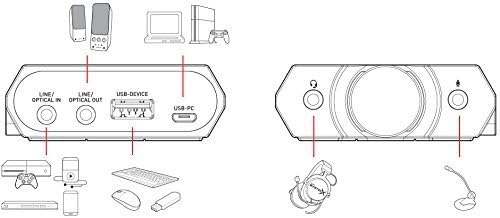
Figure 3: Connection diagram for the Sound BlasterX G5. This diagram illustrates various connection points including Line/Optical In, Line/Optical Out, USB-Device, and USB-PC, showing how to connect to PCs, consoles, headphones, and other peripherals.
Návod k obsluze
The Sound BlasterX G5 offers several controls for managing your audio experience.
- Knoflík ovládání hlasitosti: Located on the side, this knob allows for precise adjustment of the master volume. It also adjusts the system volume in Windows.
- Scout Mode Button: Activates 'Scout Mode,' which enhances in-game audio cues like footsteps, providing a tactical advantage in competitive gaming.
- SBX Profile Tlačítko: Cycles through pre-configured audio profiles (e.g., Gaming, Music, Movies) or custom profiles created using the software. LED indicators on the top panel show the active profile.
- Headphone Gain Switch (L/H): Adjusts the headphone amplifier gain to match the impedance of your headphones. Use 'L' for low-impedance headphones (32-150Ω) and 'H' for high-impedance headphones (150Ω-600Ω).
- Ovládání softwaru: For advanced customization, including equalizer settings, virtual surround sound adjustments, and creating custom audio profiles, use the dedicated Creative software on your PC.
Údržba
To ensure the longevity and optimal performance of your Sound BlasterX G5, follow these maintenance guidelines:
- Udržujte zařízení čisté otíráním měkkým, suchým hadříkem. Nepoužívejte agresivní chemikálie ani abrazivní čisticí prostředky.
- Přístroj skladujte na chladném a suchém místě mimo dosah přímého slunečního záření a extrémních teplot.
- Nevystavujte zařízení vlhkosti nebo tekutinám.
- S kabely a konektory zacházejte opatrně, abyste předešli jejich poškození.
Odstraňování problémů
If you encounter issues with your Sound BlasterX G5, refer to the following common solutions:
- Žádný zvukový výstup:
- Zkontrolujte všechny kabelové spoje a ujistěte se, že jsou bezpečné.
- Verify the volume knob is turned up and not muted.
- Ensure the Sound BlasterX G5 is selected as the default audio output device in your operating system's sound settings.
- For Mac users, check 'Audio MIDI Setup' to confirm the G5 is configured correctly.
- Reinstall or update the device drivers for Windows.
- Audio Distortion or Crackling:
- Try connecting the G5 to a different USB port on your computer or console.
- Ensure the headphone gain switch is set appropriately for your headphones.
- Zkontrolujte sample rate and bit depth settings in your audio control panel; sometimes reducing these can resolve issues.
- Update the device drivers and firmware.
- Software Crashing or Not Responding:
- Restartujte počítač.
- Reinstall the Creative software.
- Ujistěte se, že máte aktuální operační systém.
Specifikace
| Funkce | Detail |
|---|---|
| Značka | Tvůrčí |
| Číslo modelu | SB1700 |
| Režim zvukového výstupu | 7.1 Virtual Surround |
| Hardwarové rozhraní | USB 2.0, USB 3.0, Optical In/Out |
| Kompatibilní zařízení | PC, Mac, PS4, Xbox |
| Operační systémy | Mac OS X, Windows 7, Windows 8, Windows 8.1, Windows 10, Windows Vista |
| Hmotnost položky | 0.01 unce |
| Rozměry produktu (DxŠxV) | 6.18 x 1.72 x 5.83 palce |
| První dostupný termín | 26. listopadu 2015 |
Záruka a podpora
For detailed warranty information, please refer to the warranty leaflet included in your product package or visit the official Creative website. For further technical support, driver downloads, and FAQs, please visit the Creative support page.
Můžete také navštívit Kreativní obchod na Amazonu pro více informací o produktech a příslušenství.