
1. Přesview
The HDWR HD-PS6C is a versatile 2-in-1 device that combines the functionality of a wireless barcode reader and a data collector. This integrated solution significantly enhances daily work comfort and convenience, making tasks easier and more efficient. It is designed for various applications requiring efficient 1D barcode scanning and data storage, such as inventory management, retail, and logistics.
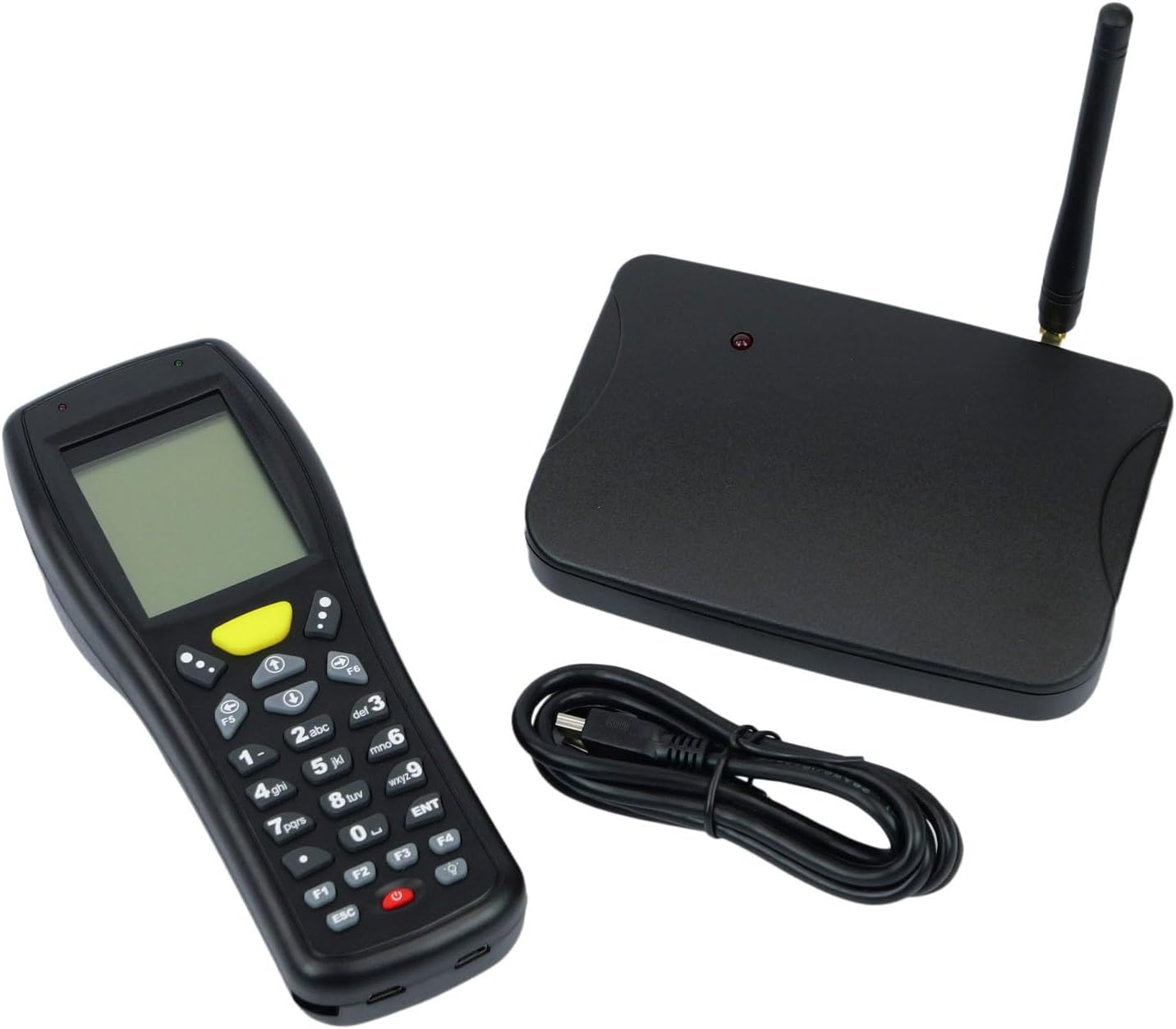
Image: The HDWR HD-PS6C wireless data collector shown with its wireless receiver and USB cable, illustrating the complete package.
2. Klíčové vlastnosti
- Two-in-One Functionality: Combines a wireless barcode reader and a data collector in a single device.
- Uživatelsky přívětivé rozhraní: Equipped with a clear screen and a practical keyboard for easy navigation and manual data entry, especially for damaged or unclear codes.
- Režim inventáře: Allows storage of up to 50,000 scanned codes in its integrated memory, ideal for extensive inventory tasks.
- Kompatibilita s 1D čárovým kódem: Supports a wide range of 1D barcode types including EAN13, EAN8, Code 39, Code 93, Code 128, Interleaved 2 of 5 (IT25), Codabar, UPCA, UPCE, and more.
- Široká podpora operačních systémů: Compatible with Windows XP/7/8/8.1/10, Android, and iOS operating systems.

Image: The HD-PS6C highlighting its dual functionality as a data collector and barcode scanner.

Obrázek: Detailní záběr view of the integrated laser barcode scanner, capable of reading 1D codes.

Image: Visual representation of the wireless USB receiver, 50,000 code internal memory, and the clear screen with keyboard for easy navigation.
3. Průvodce nastavením
3.1. Obsah balení
Před zahájením se ujistěte, že balení obsahuje všechny položky:
- HDWR HD-PS6C Wireless Data Collector
- Bezdrátový USB přijímač
- USB kabel
- 2 AA baterií (součástí balení)
3.2. Instalace baterie
- Locate the battery compartment on the back of the HD-PS6C device.
- Otevřete kryt bateriového prostoru.
- Vložte 2 baterie typu AA a dbejte na správnou polaritu (+/-).
- Bezpečně zavřete kryt bateriového prostoru.
3.3. Připojení bezdrátového přijímače
- Plug the wireless USB receiver into an available USB port on your computer or host device.
- The system should automatically detect and install the necessary drivers. If not, refer to the Troubleshooting section.
3.4. Počáteční zapnutí
- Press and hold the power button (usually red) on the HD-PS6C until the screen illuminates.
- The device will boot up and display the main menu or a default mode.
Video: Overview of the HDWR HD-PS6C, showcasing its design, features, and how it sits on its charging/communication base. This video provides a visual introduction to the product.
4. Návod k obsluze
4.1. Základní navigace
- Use the arrow keys (up, down, left, right) to navigate through menu options on the screen.
- Press the 'ENT' (Enter) key to select an option or confirm an action.
- Press the 'ESC' key to go back to the previous menu or cancel an operation.
- The numeric keypad can be used for manual data input.

Obrázek: Přední strana view of the HDWR HD-PS6C, clearly showing the screen and the full alphanumeric keypad for navigation and data entry.
4.2. Režim zásob
In Inventory Mode, the device stores scanned barcodes in its internal memory for later transfer.
- From the main menu, select 'Inventory Mode' (or similar option).
- Point the scanner window at a 1D barcode and press the scan button (often a large yellow button or a trigger).
- The scanned code will appear on the screen and be stored in memory.
- Repeat for all items. The device can store up to 50,000 codes.
4.3. Skenování čárových kódů
The HD-PS6C is designed to read various 1D barcodes:
- EAN13, EAN8
- Kód 39, kód 93, kód 128
- Interleaved 2 of 5 (IT25)
- Codabar
- UPCA, UPCE
- And other standard 1D codes.
Ensure the barcode is clean and well-lit for optimal scanning performance.
4.4. Manual Data Entry
If a barcode is damaged or unreadable, you can manually enter the code:
- Navigate to the manual entry option within the device's menu.
- Use the numeric and alphanumeric keys on the keypad to type the barcode.
- Press 'ENT' to confirm and save the entry.
4.5. Přenos dat
To transfer collected data to your computer:
- Connect the HD-PS6C to your computer using the provided USB cable.
- On the device, select the 'Data Transfer' or 'Upload' option.
- Follow the on-screen prompts or software instructions on your computer to complete the transfer. Data is typically transferred as a text file.
5. Údržba
5.1. Čištění
- Otřete zařízení měkkým suchým hadříkem.
- Na odolné nečistoty použijte mírně damp hadříkem s jemným mýdlem a poté ihned otřete dosucha.
- Nepoužívejte agresivní chemikálie, rozpouštědla ani abrazivní čisticí prostředky.
- Keep the scanner window clean and free of dust or smudges for accurate scanning.
5.2. Péče o baterie
- Vyměňte baterie, když se na obrazovce zobrazí indikátor slabé baterie.
- Pokud zařízení nebudete delší dobu používat, vyjměte baterie, abyste zabránili jejich vytečení.
- Použité baterie zlikvidujte v souladu s místními předpisy.
6. Řešení problémů
| Problém | Možná příčina | Řešení |
|---|---|---|
| Zařízení se nezapne. | Slabé nebo vybité baterie; nesprávně vložené baterie. | Replace batteries with new ones; ensure batteries are installed with correct polarity. |
| Nelze skenovat čárové kódy. | Barcode is damaged or unclear; scanner window is dirty; incorrect scanning mode. | Try scanning a different barcode; clean the scanner window; ensure the device is in the correct scanning mode. Use manual entry if necessary. |
| Data transfer fails or device not recognized by PC. | Missing or incorrect drivers; loose USB connection; incompatible OS. | Ensure the wireless receiver is properly connected; try a different USB port or cable. For Windows, check Device Manager for driver issues. If drivers are missing, search for 'HDWR HD-PS6C drivers' online. Verify your OS is supported (Windows XP/7/8/8.1/10, Android, iOS). |
| Obrazovka je prázdná nebo nereaguje. | Zařízení zamrzlo; slabá baterie. | Try restarting the device by holding the power button. If unresponsive, remove and reinsert batteries. Check battery level. |
7. Technické specifikace
| Funkce | Detail |
|---|---|
| Číslo modelu | HDPS6C |
| Značka | HDWR |
| Technologie připojení | USB (Wireless 2.4G via receiver) |
| Zdroj napájení | Napájení z baterií (2 baterií AA součástí balení) |
| Kompatibilní zařízení | Stolní počítač |
| Provozní svtage | 5 voltů |
| Maximální skladovací teplota | 50 stupňů Celsia |
| Hmotnost položky | 349 gramů |
| Země původu | Čína |
8. Záruka a podpora
The HDWR HD-PS6C comes with a 2-letá záruka od data nákupu. Tato záruka se vztahuje na výrobní vady a poruchy za běžných podmínek používání.
For technical support, warranty claims, or further assistance, please contact HDWR customer service through your retailer or the official HDWR website. Please have your purchase receipt and product model number (HDPS6C) ready when contacting support.