
1. Konec produktuview
The BUFFALO DriveStation Ultra is a high-performance, high-capacity direct attached storage (DAS) solution designed for demanding data transfer needs, such as high-resolution video editing. This 10-drive desktop model offers a 40 TB storage capacity and features multi-interface support for both Mac and PC systems.
Mezi klíčové vlastnosti patří:
- Industry-leading throughput: Up to 972 MB/s Read and 737 MB/s Write speeds.
- Multi-interface support: Thunderbolt 2 for Mac, and eSATA/USB 3.0 for Windows.
- Advanced data protection: Supports RAID 6 configurations, allowing for up to two drive failures without data loss.
- Equipped with enterprise or NAS hard drives for continuous operation.
1.1 Co je v krabici
- DriveStation™ Ultra unit
- Kabel Thunderbolt
- USB 3.0 kabel
- eSATA kabel
- Průvodce rychlým nastavením
- Prohlášení o záruce
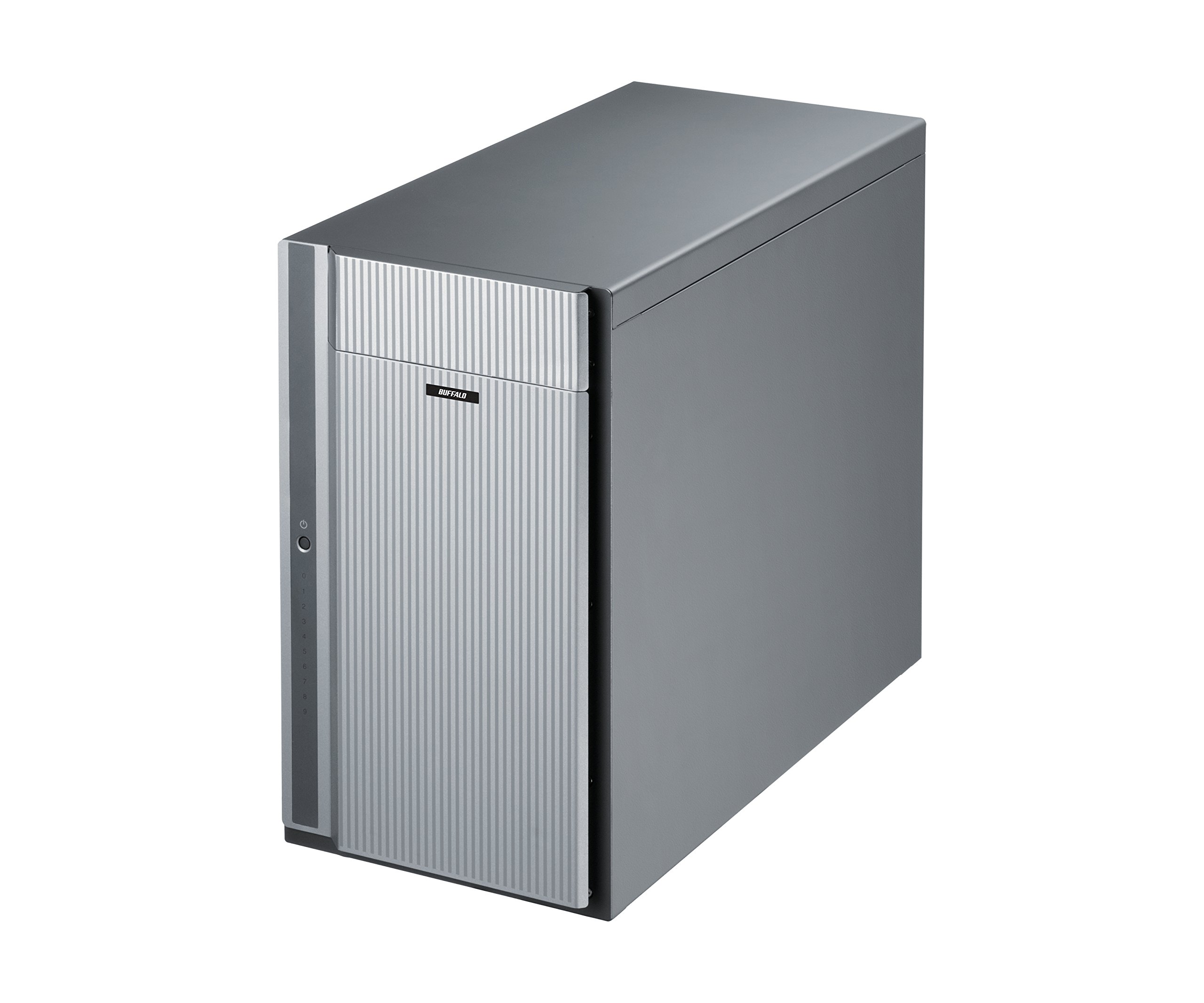
Obrázek 1: Přední strana view of the BUFFALO DriveStation Ultra unit.
2. Pokyny k nastavení
Follow these steps to set up your DriveStation Ultra:
- Rozbalte zařízení: Carefully remove the DriveStation Ultra and all accessories from its packaging.
- Umístěte zařízení: Place the unit on a stable, flat surface with adequate ventilation. Ensure no vents are obstructed.
- Připojte napájení: Connect the power cable to the unit and then to a power outlet. Do not power on the device yet.
- Připojení k počítači: Vyberte jeden z následujících způsobů připojení:
- Thunderbolt 2 (Mac): Use the provided Thunderbolt cable to connect the DriveStation Ultra to your Mac's Thunderbolt port.
- USB 3.0 (PC/Mac): Use the provided USB 3.0 cable to connect the DriveStation Ultra to your computer's USB 3.0 port.
- eSATA (PC): Use the provided eSATA cable to connect the DriveStation Ultra to your computer's eSATA port.
- Zapnutí: Once connected, press the power button on the DriveStation Ultra. The device will initialize.
- Instalace ovladače (pokud je to nutné): Your operating system should automatically detect the device. If prompted, install any necessary drivers from the included software or BUFFALO's support webmísto.
- Konfigurace RAID: The DriveStation Ultra comes pre-configured. For advanced RAID configurations (e.g., changing from default RAID 6), refer to the detailed software manual available on the BUFFALO support webmísto.

Obrázek 2: Zadní view of the DriveStation Ultra, highlighting Thunderbolt, USB 3.0, and eSATA ports.
3. Návod k obsluze
Once the DriveStation Ultra is set up and recognized by your computer, it functions as an external storage device. You can access it like any other connected drive.
- Přenos dat: Drag and drop files to and from the DriveStation Ultra. For optimal performance, use the Thunderbolt 2 connection on Mac systems or USB 3.0/eSATA on PC systems.
- Výkon: Expect high-speed data transfers, particularly with large files, due to the optimized hardware and RAID configuration.
- Bezpečné odstranění: Always safely eject the DriveStation Ultra from your operating system before disconnecting the cables or powering down the unit to prevent data corruption.
- Řízení spotřeby: The device is designed for continuous operation. If you need to power it off, use the power button on the unit after safely ejecting it from your computer.
4. Údržba
Proper maintenance ensures the longevity and reliability of your DriveStation Ultra:
- Čištění: Use a soft, dry cloth to clean the exterior of the unit. Do not use liquid cleaners or aerosols directly on the device.
- Větrání: Ensure that the ventilation openings are clear of dust and obstructions to prevent overheating.
- Aktualizace firmwaru: Pravidelně kontrolujte podporu BUFFALO website for firmware updates. Keeping the firmware updated can improve performance and stability.
- Záloha dat: While the DriveStation Ultra offers RAID 6 for data protection, it is always recommended to maintain separate backups of critical data.
- Stav disku: Monitor the health of the drives using the included utility software or your operating system's disk management tools.
5. Řešení problémů
If you encounter issues with your DriveStation Ultra, try the following steps:
- Zařízení nebylo detekováno:
- Ensure the power cable is securely connected and the unit is powered on.
- Verify that the data cable (Thunderbolt, USB, or eSATA) is firmly connected to both the DriveStation Ultra and your computer.
- Try connecting to a different port on your computer or using a different cable.
- Restart your computer and the DriveStation Ultra.
- Pomalý výkon:
- Ensure you are using the correct high-speed interface (Thunderbolt 2, USB 3.0, or eSATA) and compatible cables.
- Check for background processes on your computer that might be consuming resources.
- Verify that the DriveStation Ultra has adequate ventilation to prevent thermal throttling.
- Drive Failure Indication:
- The DriveStation Ultra's RAID 6 configuration provides protection against up to two drive failures. Consult the detailed manual or BUFFALO support for drive replacement procedures.
- Do not attempt to replace drives without proper guidance to avoid data loss.
- Další problémy: If the problem persists after trying these steps, refer to the comprehensive user manual on the BUFFALO support webwebu nebo kontaktujte technickou podporu.
6. Specifikace
| Funkce | Detail |
|---|---|
| Kapacita pevného disku | 40 TB mechanický pevný disk |
| Značka | BUVOL |
| Série | DriveStation Ultra |
| Číslo modelu | HD-DN040T/R6 |
| Hardwarová platforma | Mac, PC |
| Hmotnost položky | 39.7 libry |
| Rozměry produktu (DxŠxV) | 15.24 x 7.48 x 12.6 palce |
| Barva | Stříbro |
| Rozhraní pevného disku | eSATA |
| Rychlost otáčení pevného disku | 7200 ot./min |
| Technologie připojení | Thunderbolt, USB, eSATA |
| Typ instalace | Externí pevný disk |
| První dostupný termín | 22. července 2015 |
7. Informace o záruce
The BUFFALO DriveStation Ultra 10-Drive Thunderbolt Desktop DAS 40 TB (Model HD-DN040T/R6) comes with a 3letá omezená záruka.
For detailed terms and conditions of the warranty, please refer to the warranty statement included in your product packaging or visit the official BUFFALO webmísto.
8. Podpora
For technical assistance, additional documentation, or to download the latest drivers and firmware, please visit the official BUFFALO support webmísto.
You can typically find support resources by searching for your product model (HD-DN040T/R6) on the BUFFALO support portal.
Contact information for customer service may also be available on the BUFFALO website or in your product's quick setup guide.