Zavedení
This manual provides detailed instructions for the setup, operation, and maintenance of your Zebronic ZEB-250JP USB Vibration Game Pad. Please read this manual carefully before using the product to ensure proper functionality and longevity.
Vlastnosti produktu
- Dual vibration and shock function for immersive gaming.
- Ergonomic slip-proof handle design for comfortable grip.
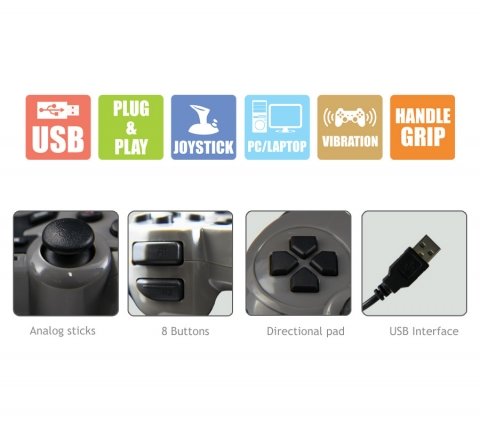
- Equipped with a directional pad, 8 fire buttons, and 2 analog sticks.
- Compatible with Windows XP, Vista, and Windows 7 operating systems.
- Supports both digital and analog modes.
Obsah balení
- Zebronic ZEB-250JP Game Pad
- Installation CD (for drivers, if required)
Pokyny pro nastavení
- Connect the Game Pad: Locate an available USB port on your computer (Desktop or Laptop). Insert the USB connector of the ZEB-250JP Game Pad into the USB port. The device is designed for plug-and-play functionality.
- Instalace ovladače: For optimal performance, especially on older operating systems like Windows XP or Vista, it is recommended to install the drivers from the provided installation CD. Insert the CD into your computer's optical drive and follow the on-screen instructions. For Windows 7 and newer, drivers may install automatically.
- Kompatibilita systému: Ensure your computer is running a compatible operating system (Windows XP, Vista, Windows 7).
Návod k obsluze
Ovládání je ukončenoview
- Směrový ovladač (D-Pad): Used for directional movement or menu navigation.
- Analogové páčky: Dvě analogové páčky poskytují 360stupňový pohyb pro jemnější ovládání ve hrách.
- Fire Buttons (8 buttons): Akční tlačítka pro herní příkazy.
- Funkce vibrací: The game pad features dual vibration motors that provide tactile feedback during gameplay, enhancing immersion. This function is automatically activated by compatible games.
Výběr režimu
The game pad supports both digital and analog modes. The mode can typically be switched using a dedicated button on the game pad (often labeled 'Mode' or 'Analog') or is automatically detected by the game. Refer to your game's settings for specific controller configurations.
Údržba
- Keep the game pad clean by wiping it with a soft, dry cloth.
- Nevystavujte zařízení extrémním teplotám, přímému slunečnímu záření nebo vlhkosti.
- Nepoužívejte drsné chemikálie ani abrazivní čisticí prostředky.
- Store the game pad in a safe place when not in use to prevent damage to the cable or buttons.
Odstraňování problémů
- Game Pad Not Detected:
- Ensure the USB cable is securely connected to both the game pad and the computer.
- Try connecting the game pad to a different USB port.
- Restartujte počítač.
- Verify that the necessary drivers are installed from the provided CD or through Windows Update.
- Funkce vibrací nefunguje:
- Ověřte si, zda hra, kterou hrajete, podporuje vibrační zpětnou vazbu.
- Check the game's settings to ensure vibration is enabled.
- Ujistěte se, že jsou ovladače správně nainstalovány.
- Buttons or Analog Sticks Unresponsive:
- Test the game pad on another computer or in a different game to isolate the issue.
- Ensure the game pad is in the correct mode (digital/analog) for the game.
- Znovu nainstalujte ovladače zařízení.
Specifikace
| Značka | ZEBRONIKA |
| Model | ZEB-250JP |
| Technologie připojení | USB |
| Typ ovladače | Gamepad |
| Kompatibilní zařízení | Windows (Desktop, Laptop) |
| Podpora operačního systému | Windows XP, Vista, Windows 7 |
| Speciální funkce | Handle Grip, Joystick, Plug and Play, Vibration |
| Rozměry produktu | 24.1 x 18.3 x 6.4 cm |
| Hmotnost položky | 290 g |
Informace o záruce
This product is covered by a standard manufacturer's warranty. Please refer to the warranty card included in your package or contact Zebronic's customer support for specific warranty terms and conditions. Keep your purchase receipt as proof of purchase.
Podpora
For further assistance, technical support, or service inquiries, please visit the official Zebronics webnebo kontaktujte jejich oddělení zákaznických služeb. Více informací a kontaktní údaje naleznete na Zebronics Store on Amazon.