
1. Úvod
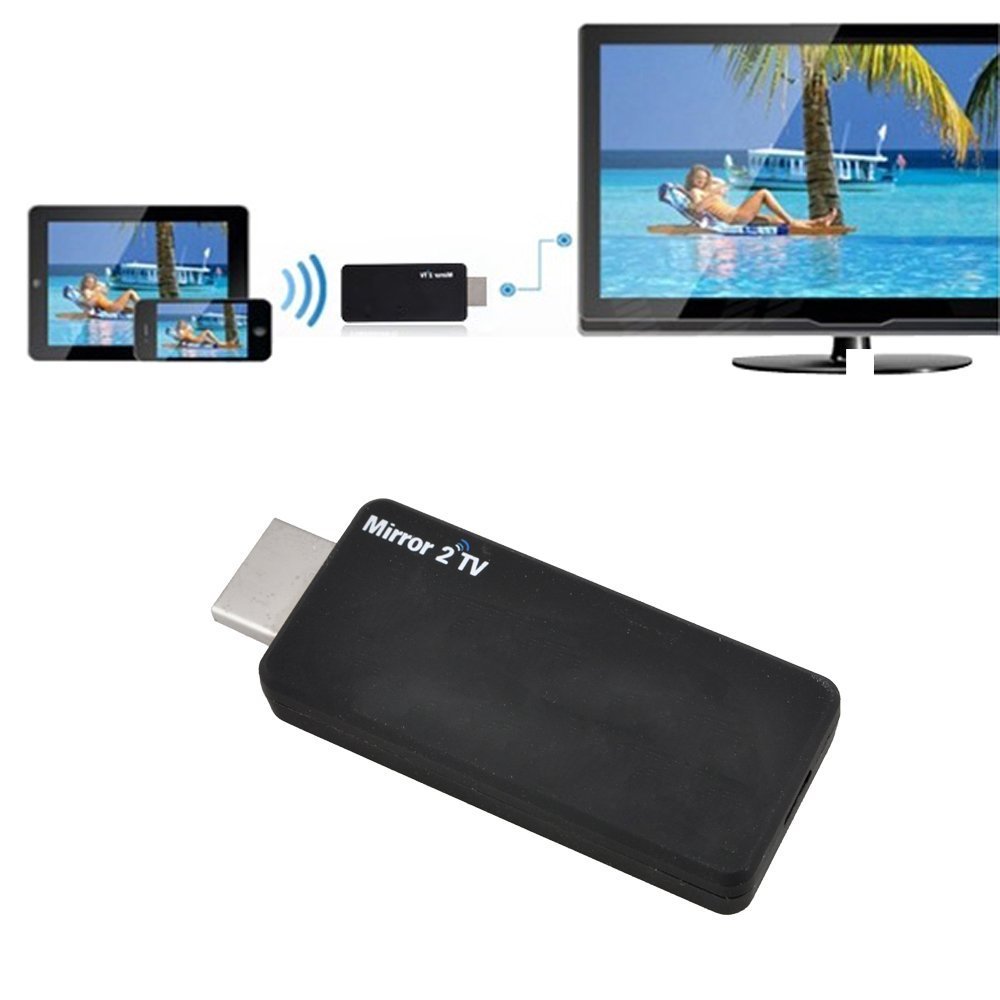
The Tronsmart T1000 Mirror2TV is a wireless display HDMI dongle designed to cast content from your mobile devices or computers to an HDTV or projector. It supports multiple standards including Miracast, DLNA, and AirPlay, making it compatible with Android phones/tablets, Apple iOS iPhones/iPads, Windows PCs/Notebooks, and Mac devices. This manual provides instructions for setup, operation, and troubleshooting to ensure optimal use of your device.
Obrázek 1.1: The Tronsmart T1000 dongle facilitating a wireless presentation in a meeting room environment, demonstrating its capability to display content from a laptop onto a larger screen.
2. Obsah balení
Prosím, ověřte, zda jsou v balení přítomny všechny položky:
- Tronsmart T1000 Mirror2TV Wireless Display HDMI Dongle
- USB Power Cable with Wi-Fi Dongle
- Uživatelská příručka

Obrázek 2.1: The Tronsmart T1000 package contents laid out, showing the main dongle unit, the USB power and Wi-Fi extension cable, and the printed user manual.
3. Nastavení
3.1 Fyzické připojení
- Připojení hardwarového klíče: Plug the Tronsmart T1000 dongle directly into an available HDMI port on your HDTV or projector.
- Zajistěte napájení: Connect the USB power cable to the dongle's micro USB port and then to a USB power source (e.g., a USB port on your TV or a USB power adapter). Ensure the dongle receives stable power.
- Vyberte vstup: Switch your TV's input source to the HDMI port where the dongle is connected. You should see the Tronsmart T1000 startup screen.

Obrázek 3.1: The Tronsmart T1000 dongle connected to its USB power cable, ready for installation.

Obrázek 3.2: Detailní view of the HDMI output connector on the Tronsmart T1000 dongle.

Obrázek 3.3: Detailní view of the micro USB power input port on the Tronsmart T1000 dongle.

Obrázek 3.4: Connection diagram illustrating the steps to plug the dongle into an HDMI port, connect the USB power cable, and switch the TV input source.
3.2 Software Setup (EZCast App)
To configure and use the Tronsmart T1000, you will need to download the EZCast application on your transmitting device.
- Stáhněte si aplikaci: Visit the official EZCast download page or scan the QR code displayed on your TV screen after connecting the dongle.
- Pro Windows/Mac: www.iezvu.com/download/appdownload.htm
- For iOS (iPad/iPhone): Hledat "EZCast" in the Apple App Store.
- Pro Android: Hledat "EZCast" in the Google Play Store.
- Instalace a spuštění: Install the EZCast app on your device and launch it.
- Connect to Dongle's Wi-Fi: On your device, connect to the Wi-Fi network broadcast by the Tronsmart T1000 dongle (SSID and password will be displayed on your TV screen).
- Konfigurace nastavení: Within the EZCast app, you can configure settings such as Wi-Fi network connection for internet access, resolution, and default mirroring mode (EZCast or Miracast).

Obrázek 3.5: A visual guide for downloading the EZCast application across various platforms including Windows, Mac, iOS, and Android, with QR codes and direct links.
4. Návod k obsluze
The Tronsmart T1000 supports various wireless display protocols:
- Miracast: For Android devices and Windows PCs. Allows screen mirroring. Ensure your Android device supports Miracast.
- DLNA: For streaming media content from compatible devices.
- AirPlay: For Apple iOS devices (iPhone/iPad) and Mac. Supports mirroring and media streaming.
4.1 Zrcadlení obrazovky
To mirror your device's screen to the TV:
- Ensure your device is connected to the Tronsmart T1000's Wi-Fi network or configured through the EZCast app to use your home Wi-Fi.
- For Android/Windows (Miracast): Activate the Miracast function on your device (often found in display settings as 'Wireless Display', 'Cast', or 'Screen Mirroring') and select the Tronsmart T1000.
- For iOS/Mac (AirPlay): Open Control Center (iOS) or the menu bar (Mac), select 'Screen Mirroring' or 'AirPlay', and choose the Tronsmart T1000.
- The TV will display your device's screen. You can also use the TV as a second independent screen.
4.2 Content Casting
The EZCast app allows you to cast various types of content:
- Místní média: Play and cast local videos, music, photos, and documents (MS Office) directly from your device through the EZCast app.
- Web Procházení: For optimal streaming of online videos, use the web browser function within the EZCast application. This method is recommended to prevent buffering and ensure smooth playback compared to general screen mirroring of a web prohlížeč.
- Hry: You can cast games, though some lag may be experienced, especially with fast-paced titles.
5. Údržba
To ensure the longevity and optimal performance of your Tronsmart T1000 dongle:
- Udržujte zařízení čisté a bez prachu. K čištění používejte měkký, suchý hadřík.
- Nevystavujte zařízení extrémním teplotám, přímému slunečnímu záření nebo vysoké vlhkosti.
- Nepokoušejte se zařízení rozebírat ani opravovat sami. V případě problémů se obraťte na kvalifikovaný servisní personál.
- Ensure proper ventilation around the dongle when in use, especially if it's behind a TV.
6. Řešení problémů
If you encounter issues with your Tronsmart T1000, refer to the following common solutions:
- Žádné zobrazení na televizoru:
- Ensure the dongle is securely plugged into the HDMI port.
- Verify the USB power cable is connected and receiving power.
- Confirm your TV input is set to the correct HDMI source.
- Cannot Connect to Dongle's Wi-Fi:
- Restart the dongle by unplugging and re-plugging its power.
- Ensure your device's Wi-Fi is enabled and scanning for networks.
- Check the Wi-Fi password displayed on the TV screen.
- Choppy or Lagging Video/Audio:
- Ensure your transmitting device is close to the dongle to minimize signal interference.
- If streaming online content, use the web browser within the EZCast app for better performance.
- Check your home Wi-Fi network's stability and speed if the dongle is connected to it.
- For Windows 8.1, try using the "low" setting for display quality if available in the EZCast app.
- Update the dongle's firmware through the EZCast app if an update is available.
- Android Miracast Not Working:
- Verify that your specific Android device model supports Miracast functionality.
- Some Android devices may require specific settings or apps to enable Miracast.
- EZCast App Issues (Crashes, Display Problems):
- Ensure you have the latest version of the EZCast app installed.
- Restart your transmitting device.
- If persistent, try reinstalling the EZCast app.
- Matoucí instrukce:
- The EZCast app often provides clearer, step-by-step guidance than printed manuals. Refer to the app's instructions.
7. Specifikace
| Funkce | Specifikace |
|---|---|
| Číslo modelu | T1000 |
| Rozměry produktu | 6 x 2.7 x 1.3 palce |
| Hmotnost položky | 0.8 unce |
| Technologie připojení | HDMI, Wi-Fi |
| Typ konektoru | HDMI |
| Speciální funkce | Bezdrátový displej |
| Podporované internetové služby | Facebook, Hulu Plus, Netflix, iTunes (via casting/mirroring) |
| Typ ovladače | Ovládání aplikací |
| Kompatibilní zařízení | Televize |
8. Záruka a podpora
For warranty information and technical support, please contact Tronsmart directly. Refer to the official Tronsmart website or the contact information provided with your product packaging for the most up-to-date support details.