
1. Konec produktuview
The TP-Link TL-WA750RE is a 150Mbps Universal Wireless Range Extender designed to expand the coverage of an existing wireless network. It eliminates Wi-Fi dead zones by boosting the wireless signal to previously unreachable or hard-to-wire areas. Its compact, wall-mounted design allows for flexible deployment and easy relocation within your home or office.
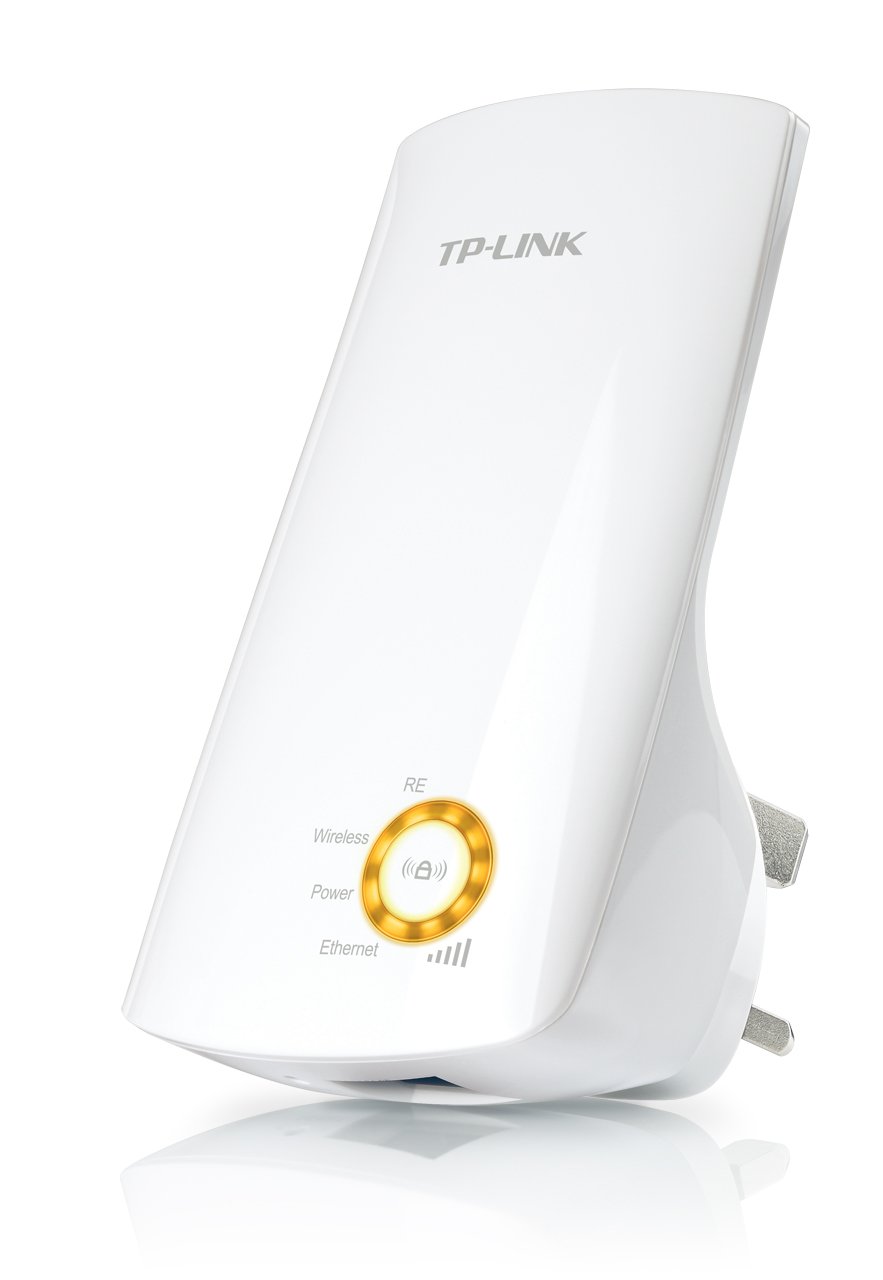
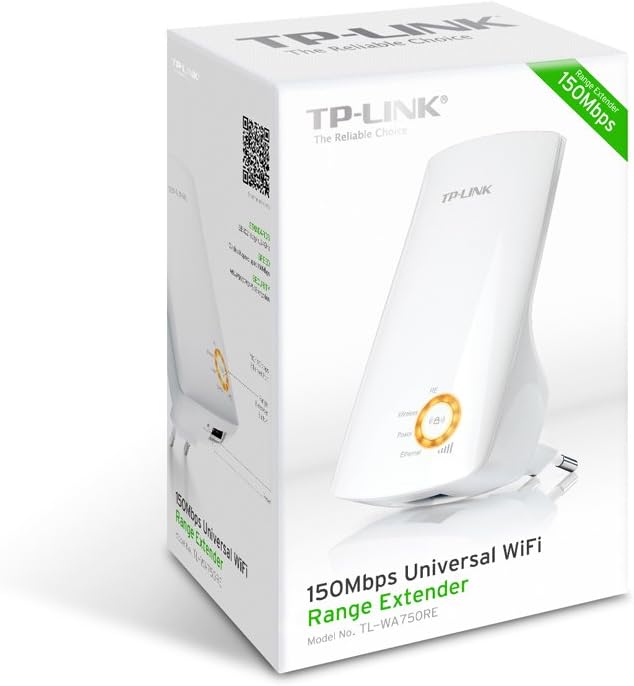
Obrázek 1: TP-Link TL-WA750RE Universal Wireless Range Extender. This image shows the device in its retail packaging, highlighting its compact design and wall-plug form factor.
2. Klíčové vlastnosti
- Režim prodlužovače dosahu: Boosts wireless signal to eliminate Wi-Fi dead zones and extend network coverage.
- Kompaktní design: Small size and wall-mounted design for easy deployment and flexible movement.
- Tlačítko WPS: Allows for instant setup and secure connection with compatible routers.
- Indikátor inteligentního signálu: Helps users find the optimal location for placing the range extender for best performance.
- Univerzální kompatibilita: Works seamlessly with all 802.11n/g/b wireless devices.
3. Obsah balení
Balení produktu obvykle obsahuje následující položky:
- TP-Link TL-WA750RE 150Mbps Universal Wireless Range Extender
- Návod k použití
4. Průvodce nastavením
4.1. Quick Setup using WPS Button
- Připojit: Plug the TL-WA750RE into an electrical outlet near your wireless router.
- Aktivace WPS na routeru: Stiskněte tlačítko WPS na hlavním bezdrátovém routeru. Přesné umístění a postup naleznete v manuálu k routeru.
- Aktivace WPS na extenderu: Within two minutes, press the WPS button on the TL-WA750RE. The Signal LED on the extender should begin to flash.
- Čekání na připojení: The Signal LED will turn solid blue or green when a successful connection is established.
- Přemístit extender: Unplug the extender and move it to a location between your router and the Wi-Fi dead zone. Ensure the Signal LED indicates a strong connection (e.g., solid blue or green) in the new location.
4.2. Manual Setup via Web Prohlížeč
- Připojit: Plug the TL-WA750RE into an electrical outlet near your computer.
- Připojení k extenderu: Connect your computer to the extender's Wi-Fi network (e.g., "TP-LINK_Extender_XXXXXX"). No password is required initially.
- Přístup Web Rozhraní: Otevřete a web prohlížeč a zadejte http://tplinkrepeater.net or the extender's default IP address (usually 192.168.0.254) into the address bar.
- Přihlásit se: Enter "admin" for both the username and password when prompted.
- Postupujte podle pokynů na obrazovce: Use the Quick Setup wizard to select your main Wi-Fi network and enter its password.
- Přemístit extender: Once configured, unplug the extender and move it to an optimal location between your router and the desired coverage area.
Obrázek 2: Strana view of the TL-WA750RE. This image illustrates the physical layout of the device, including the WPS button and Ethernet port, which are crucial for setup and operation.
5. Obsluha prodlužovače dosahu
Once the TL-WA750RE is successfully set up, it will automatically extend your existing Wi-Fi network. Devices within the extended range can connect to the network name created by the extender (e.g., "YourNetworkName_EXT").
5.1. Smart Signal Indicator
The Smart Signal Indicator LEDs on the front of the device provide real-time feedback on the signal strength received from your main router. This helps you determine the best placement for the extender:
- Svítí modrá/zelená: Vynikající síla signálu.
- Svítí červená: Weak signal strength. Consider relocating the extender closer to your router.
- Vypnuto: No connection to the main router.
5.2. Využití ethernetového portu
The TL-WA750RE includes an Ethernet port. This port can be used to connect a wired device, such as a desktop computer, gaming console, or smart TV, to your wireless network, providing a stable wired connection in the extended Wi-Fi area.
6. Údržba
- Čištění: K čištění zařízení používejte měkký, suchý hadřík. Nepoužívejte tekuté ani aerosolové čisticí prostředky.
- Umístění: Neumísťujte extender na přímé sluneční světlo, do blízkosti zdrojů tepla nebo do míst s vysokou vlhkostí.
- Aktualizace firmwaru: Pravidelně kontrolujte oficiální stránky TP-Link webweb s aktualizacemi firmwaru pro zajištění optimálního výkonu a zabezpečení.
- Cyklus napájení: Pokud se se zařízením vyskytnou problémy, zkuste jej na 10 sekund odpojit od elektrické zásuvky a poté jej znovu zapojit.
7. Řešení problémů
- Otázka 1: Co mám dělat, když nemohu přistupovat k extenderu web stránka správy?
- A1: Ensure your computer is connected to the extender's network. Verify that http://tplinkrepeater.net is correctly typed in the browser. If issues persist, try using the extender's IP address (e.g., 192.168.0.254) or reset the extender to factory defaults.
- Q2: My extended network has poor signal or frequent disconnections.
- A2: Check the Smart Signal Indicator on the extender. If it's red or off, the extender is too far from your main router. Relocate the extender to a position where the indicator shows a strong signal (solid blue/green). Ensure there are no major obstructions between the router and the extender.
- Q3: Jak resetovat extender na tovární nastavení?
- A3: With the extender powered on, use a pin to press and hold the Reset button (usually a small hole) for approximately 5-10 seconds until all LEDs flash briefly. The extender will then restart with factory default settings.
8. Specifikace
| Značka | TP-Link |
| Číslo modelu | TL-WA750RE |
| Bezdrátové Standardní | 802.11b/g/n |
| Rychlost přenosu dat | 150 Mbps |
| Frekvence | 2.4 GHz |
| Speciální funkce | Smart Signal Indicator, WPS Button |
| Typ konektoru | RJ45 (ethernetový port) |
| Hmotnost položky | 0.4 libry |
| Barva | Bílý |
9. Záruka a podpora
9.1. Informace o záruce
This TP-Link TL-WA750RE device comes with a 2-letá záruka od data nákupu. Uschovejte si doklad o koupi pro případ reklamace. Záruka se vztahuje na vady materiálu a zpracování při běžném používání.
9.2. Technická podpora
For technical assistance, troubleshooting, or further inquiries, please visit the official TP-Link support website or contact their customer service. You can find detailed support resources, FAQs, and contact information at badaXNUMXjp-XNUMX.


