
HP M1218nfs
Uživatelská příručka k multifunkční černobílé laserové tiskárně HP LaserJet Pro M1218nfs
1. Úvod
This manual provides essential information for setting up, operating, maintaining, and troubleshooting your HP LaserJet Pro M1218nfs Multi-Function Monochrome Laser Printer. Please read these instructions carefully to ensure optimal performance and longevity of your device.
2. Konec produktuview
The HP LaserJet Pro M1218nfs is a versatile multi-function device designed for efficient monochrome printing, copying, scanning, and faxing. It features built-in wireless connectivity, allowing for flexible placement and mobile printing capabilities.
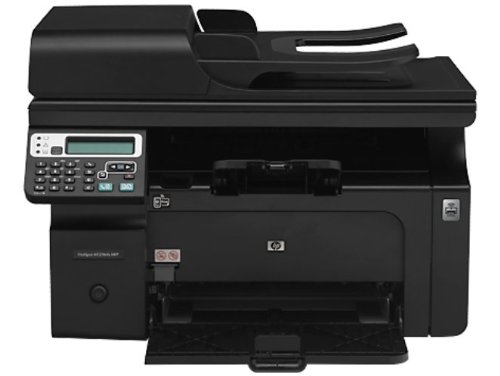
Obrázek 2.1: Přední strana view of the HP LaserJet Pro M1218nfs Multi-Function Monochrome Laser Printer.
Klíčové vlastnosti:
- Multifunkčnost: Print, copy, scan, and fax from a single device.
- Bezdrátové připojení: Built-in wireless hotspot for convenient printing from various devices.
- Mobilní tisk: Print directly from mobile devices.
- HP Smart Install: Simplifies initial setup and driver installation.
- Automatický podavač dokumentů (ADF): 35-page ADF for efficient multi-page scanning and copying.
- Monochrome Laser Printing: Delivers crisp, professional black and white documents.
3. Zahrnuté komponenty
Verify that all items listed below are present in the product packaging:
- HP LaserJet Pro M1218nfs Multi-Function Monochrome Laser Printer
- napájecí kabel(y)
- Phone cord(s)
- Vstupní zásobník na 150 listů
- Výstupní zásobník
- Introductory HP LaserJet toner cartridge (~700 pages)
- CD(s) with software and documentation
- Průvodce instalací
- Leták podpory
- List Errata
- Discovery Sheet
- Ferrite with flyer
- Warranty Guide (where applicable)
- USB kabel
- Readiris PRO text recognition software
4. Nastavení
4.1 Vybalení a umístění
- Opatrně vyjměte tiskárnu z obalu.
- Odstraňte z tiskárny veškerý balicí materiál, pásky a ochranné fólie.
- Umístěte tiskárnu na stabilní, rovný povrch s dostatečným větráním.
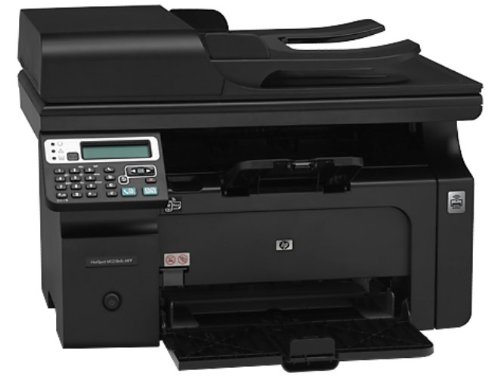
Obrázek 4.1: Přední strana view of the printer with the input tray open, ready for paper loading.
4.2 Připojení tiskárny
- Připojení napájení: Připojte napájecí kabel k tiskárně a poté do uzemněné elektrické zásuvky.
- Připojení USB (volitelné): For a direct connection, use the provided USB cable to connect the printer to your computer.
- Síťové připojení (volitelné): For wired network access, connect an Ethernet cable from the printer's RJ-45 port to your network router or switch.
- Fax Connection (Optional): Connect the phone cord to the RJ-11 fax port on the printer and to your telephone wall jack.
4.3 Instalace softwaru
The HP LaserJet Pro M1218nfs supports HP Smart Install, which simplifies driver installation. Insert the provided CD into your computer's optical drive and follow the on-screen instructions. Alternatively, download the latest drivers from the official HP support webmísto.
Systémové požadavky:
- Microsoft Windows XP (32-bit and 64-bit): Pentium 233MHz, 512MB RAM, 350 MB free disk space, Internet Explorer 7.0.
- Microsoft Windows Vista (Starter Edition, 32-bit, and 64-bit): 1GHz or faster 32-bit (x86) or 64-bit (x64) processor, 1 GB (32-bit) or 2 GB (64-bit) RAM, 920MB free disk space, Internet Explorer 7.0.
- Microsoft Windows 7 (32-bit and 64-bit): 1GHz or faster 32-bit (x86) or 64-bit (x64) processor, 1GB (32-bit) or 2GB (64-bit) RAM, 920MB free disk space, Internet Explorer 8.0.
- Mac OS X v10.4, v10.5, v10.6, and higher: 256MB RAM, 150MB free disk space.
5. Obsluha tiskárny
5.1 Vkládání papíru
- Otevřete vstupní zásobník.
- Adjust the paper guides to the correct paper size (e.g., A4).
- Load up to 150 sheets of plain paper, envelopes, or card stock into the input tray.
- Ensure the paper is flat and fits snugly against the guides.
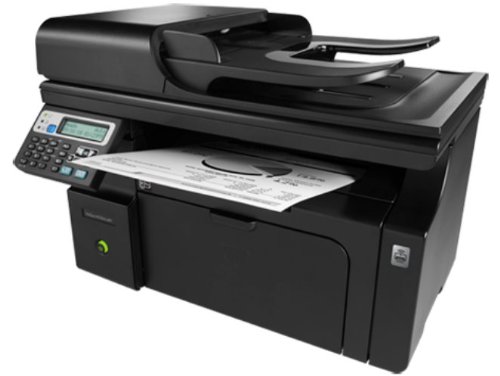
Obrázek 5.1: Úhlové view of the printer showing paper exiting into the output tray.
5.2 Tisk dokumentů
From your computer, open the document you wish to print. Select 'Print' from the application's menu, choose the HP LaserJet Pro M1218nfs as your printer, and adjust settings as needed (e.g., number of copies, paper size). Click 'Print'. The printer supports monochrome printing at up to 18 pages per minute (ppm) with a resolution of 600 x 600 dpi.
5.3 Kopírování dokumentů
- Vložte dokument lícem dolů na sklo skeneru nebo lícem nahoru do automatického podavače dokumentů (ADF).
- On the printer control panel, select the 'Copy' function.
- Adjust settings such as number of copies or darkness.
- Press the 'Start Copy' button. The printer can copy at up to 7.4 ppm with a resolution of 600 x 600 dpi.
5.4 Skenování dokumentů
- Place the document on the flatbed scanner glass or in the ADF.
- From your computer, open the scanning software (e.g., HP Scan or Readiris PRO).
- Select the HP LaserJet Pro M1218nfs as the scanner.
- Vyberte nastavení skenování (např. rozlišení, barevný režim, cílovou složku).
- Klikněte na tlačítko „Skenovat“.
5.5 Faxování dokumentů
- Vložte dokument do automatického podavače dokumentů (ADF) nebo jej položte na sklo skeneru.
- On the printer control panel, select the 'Fax' function.
- Zadejte faxové číslo příjemce pomocí klávesnice.
- Press the 'Start Fax' button. The printer supports fax speeds up to 33.6kbps.
5.6 Bezdrátové připojení
The HP LaserJet Pro M1218nfs features a built-in wireless hotspot (802.11bgn) that allows you to connect mobile devices and PCs directly to the printer for printing. Refer to the printer's network configuration settings on the control panel to set up and manage the wireless hotspot. This enables printing from smartphones and other compatible devices without needing an existing network infrastructure.
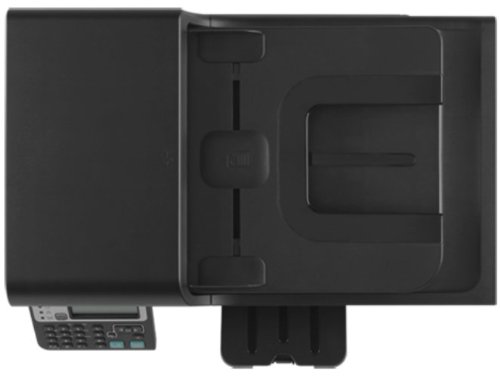
Obrázek 5.2: Nahoře view of the printer, showing the ADF and control panel.
6. Údržba
6.1 Výměna tonerové kazety
When print quality degrades or the toner low indicator appears, it is time to replace the toner cartridge. The compatible cartridge for this model is HP CE285A.
- Otevřete přední přístupová dvířka tiskárny.
- Opatrně vyjměte starou tonerovou kazetu.
- Vybalte novou tonerovou kazetu HP CE285A a jemně s ní protřepejte, aby se toner rovnoměrně rozprostřel.
- Vložte novou kazetu do tiskárny, dokud nezacvakne na místo.
- Zavřete přední přístupová dvířka.
6.2 Čištění tiskárny
- Vnější: Otřete vnější povrchy měkkým hadříkem, který nepouští vlákna dampOpláchněte vodou. Nepoužívejte abrazivní čisticí prostředky.
- Sklo skeneru: Sklo skeneru očistěte měkkým hadříkem a neabrazivním čističem skla.
- Válečky ADF: Periodically clean the ADF rollers to prevent paper jams and ensure proper feeding. Refer to the printer's on-screen menu or software for specific instructions on cleaning ADF rollers.
7. Řešení problémů
7.1 Běžné problémy a řešení
- Tiskárna nereaguje:
- Zkontrolujte připojení napájení.
- Ověřte připojení USB nebo síťového kabelu.
- Ensure the printer is online and not in an error state.
- Restartujte tiskárnu a počítač.
- Zaseknutý papír:
- Otevřete všechna přístupová dvířka a opatrně odstraňte zaseknutý papír.
- Ujistěte se, že je papír správně vložen a není přeplněný.
- Špatná kvalita tisku:
- Zkontrolujte hladinu tonerové kazety a v případě nízké hladiny ji vyměňte.
- Ujistěte se, že je v nastavení tisku vybrán správný typ papíru.
- Proveďte diagnostiku kvality tisku z ovládacího panelu nebo softwaru tiskárny.
- Problémy s bezdrátovým připojením:
- Verify the wireless hotspot is enabled on the printer.
- Ensure your device is connected to the printer's wireless network.
- Zkontrolujte, zda nedochází k rušení jinými bezdrátovými zařízeními.
7.2 Další pomoc
If you encounter issues not covered in this manual, please refer to the HP support webwebu nebo se obraťte na zákaznický servis HP, kde vám poskytnou další pomoc.
8. Specifikace
| Funkce | Specifikace |
|---|---|
| Číslo modelu | M1218nfs (Laser-1218) |
| Funkce | Tisk, kopírování, skenování, fax |
| Technologie tisku | Monochromatický laser |
| Rychlost tisku (černobíle) | Až 18 str./min |
| Rozlišení tisku (max.) | 600 x 600 dpi (Effective 1200 x 1200 dpi) |
| First Page Out (Black) | Již za 8.5 sekund |
| Rychlost kopírování (černobíle) | Až 7.4 str./min |
| Rozlišení kopírování (max.) | 600 x 600 dpi |
| Typ skeneru | Plochý, ADF |
| Kapacita automatického podavače dokumentů | 35 listů |
| Rychlost faxu | Až 33.6 kbps |
| Konektivita | Hi-Speed USB 2.0, RJ-11 Fax, RJ-45 Network, Wi-Fi (802.11bgn) |
| Kapacita vstupního zásobníku | 150 listů |
| Podporované typy médií | Paper (plain), Envelopes, Card stock |
| Podporovány velikosti médií | A4, A5, B5, C5, DL, Postcard |
| Kompatibilní kazeta | HP CE285A Black LaserJet Toner Cartridge |
| Velikost RAM | 64 MB |
| Operační systémy | Windows 7, Windows Vista, Windows XP, Mac OS X v10.4 and higher |
| Rozměry produktu (DxŠxV) | 26.5 x 43.5 x 30.6 cm |
| Hmotnost položky | 8.3 kg |
9. Záruka a podpora
9.1 Záruka na produkt
This HP LaserJet Pro M1218nfs Multi-Function Monochrome Laser Printer comes with a 1 rok záruka from the date of purchase. Please retain your proof of purchase for warranty claims. For detailed terms and conditions, refer to the Warranty Guide included in your product packaging or visit the official HP webmísto.
9.2 Zákaznická podpora
Pro technickou podporu, stažení ovladačů nebo další informace o produktech navštivte oficiální stránky podpory HP. webmísto: www.hp.com/support.
Ask a question about this manual
Ask about setup, troubleshooting, compatibility, parts, safety, or missing instructions. Manuals+ will review the question and use this page’s manual context to help answer it.