
1. Úvod
This manual provides essential information for the proper setup, operation, and maintenance of your Honeywell 7580G Genesis USB Kit Barcode Scanner. Please read this guide thoroughly before using the device to ensure optimal performance and longevity.
2. Nastavení
2.1 Vybalení
Opatrně vyjměte všechny součásti z obalu. Ujistěte se, že jsou přítomny následující položky:
- Honeywell 7580G Genesis Barcode Scanner
- USB Type A 3M Cable (CBL-500-300-S00)
- Dokumentace
2.2 Připojení skeneru
The Honeywell 7580G Genesis scanner connects to your host device (desktop or laptop) via a standard USB cable. No external power adapter is typically required as the scanner draws power directly from the USB port.
- Connect the smaller end of the USB cable to the USB port located at the base of the Honeywell 7580G Genesis scanner.
- Connect the larger USB Type A end of the cable to an available USB port on your computer.
- Upon successful connection, the scanner will typically emit a power-on beep and its indicator lights will activate, signaling it is ready for use. Most operating systems will automatically detect and install the necessary drivers for the scanner to function as a keyboard wedge (HID-POS).
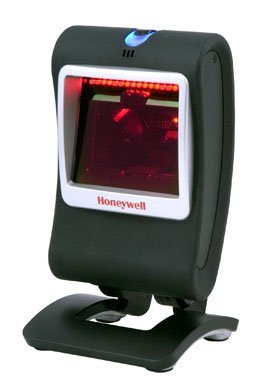
Image: The Honeywell 7580G Genesis barcode scanner shown with its USB cable connected, ready for integration with a computer system.
3. Návod k obsluze
3.1 Základní skenování
The 7580G Genesis is designed for intuitive, hands-free scanning. It can also be picked up for handheld operation.
- Umístění: Place the item with the barcode facing the scanner's window. For optimal performance, ensure the barcode is within the scanner's field of view.
- Snímání: The scanner will automatically detect and read the barcode. A successful scan is typically indicated by an audible beep and/or a visual confirmation light.
- Přenos dat: The decoded barcode data will be transmitted to your computer as if it were typed on a keyboard, appearing in any active text field.
3.2 Podporované symboly
The Honeywell 7580G Genesis scanner supports a wide range of 1D, PDF417, and 2D barcode symbologies, including but not limited to:
- 1D čárové kódy: UPC/EAN, kód 39, kód 128, prokládané 2 z 5 atd.
- PDF417: Standard PDF417 codes.
- 2D čárové kódy: Data Matrix, QR Code, Aztec, etc.
3.3 Scanning Feedback
The scanner provides feedback to indicate its status and successful scans:
- Zvukové pípnutí: A short beep typically indicates a successful barcode read.
- Vizuální indikátor: The scanner may have LED indicators that change color or flash to confirm a successful scan or indicate an error. Refer to the full product documentation for specific indicator patterns.
4. Údržba
4.1 Čištění skeneru
Regular cleaning helps maintain optimal scanning performance.
- Vnější: Použijte měkký, čistý hadřík dampened with water or a mild cleaning solution to wipe the exterior of the scanner. Avoid abrasive cleaners or solvents.
- Okno skenování: Gently wipe the scan window with a soft, lint-free cloth. Do not use harsh chemicals or scratch the window, as this can impair scanning accuracy.
4.2 Skladování
Pokud skener nepoužíváte, skladujte jej v čistém a suchém prostředí mimo dosah extrémních teplot a přímého slunečního záření.
5. Řešení problémů
If you encounter issues with your Honeywell 7580G Genesis scanner, refer to the following common problems and solutions:
| Problém | Možná příčina | Řešení |
|---|---|---|
| Skener se nezapne. | USB kabel není správně připojen nebo je USB port vadný. | Ujistěte se, že je kabel USB bezpečně připojen ke skeneru i k počítači. Zkuste jiný port USB na počítači. |
| Skener nečte čárové kódy. | Barcode damaged, incorrect symbology enabled, or scanner window dirty. | Ensure the barcode is not damaged. Verify the barcode type is supported. Clean the scanner window as described in Section 4.1. |
| Naskenovaná data se zobrazují nesprávně. | Incorrect keyboard layout setting on the computer. | Ensure your computer's keyboard layout matches the region settings for the scanner (if applicable). |
| Skener pípá, ale žádná data se nepřenášejí. | Aplikace není ve fokusu nebo nepřijímá vstupy. | Ensure the cursor is in the desired text field of your application. Test with a simple text editor like Notepad. |
6. Specifikace
Key technical specifications for the Honeywell 7580G Genesis Barcode Scanner:
| Funkce | Detail |
|---|---|
| Číslo modelu | 7580G-2 |
| Číslo dílu výrobce | MK7580-30B38-12-A |
| Značka | Honeywell |
| Technologie připojení | USB kabel |
| Zdroj napájení | Elektrický kabel (napájený přes USB) |
| Kompatibilní zařízení | Stolní počítač, notebook |
| Hmotnost položky | 16 unce |
| Podporované čárové kódy | 1D, PDF417, 2D |
7. Informace o záruce
Honeywell products are manufactured to high-quality standards and are covered by a manufacturer's warranty. For specific warranty terms and conditions, please refer to the warranty card included with your product or visit the official Honeywell webUschovejte si doklad o koupi pro případ reklamace.
8. Podpora
For technical assistance, product inquiries, or service, please contact Honeywell customer support. Support contact information can typically be found on the Honeywell webwebu nebo v dokumentaci dodané se skenerem.