
1. Úvod
The EnGenius ENS202EXT is a high-powered, long-range 2.4 GHz Wireless N300 Outdoor Access Point designed to provide robust wireless connectivity in outdoor environments. It supports data rates up to 300Mbps and is suitable for extending network access to areas such as restaurant patios, educational campuses, or corporate venues. Its IP55-rated weatherproof housing ensures reliable operation in various outdoor conditions.
2. Klíčové vlastnosti
- 802.11n Speeds up to 300Mbps on 2.4 GHz.
- Weatherproof IP55-Rated Housing Resists Harsh Climates.
- Robust 26dBm Transmit Power Supports Wireless to Yards & Patios.
- Two Detachable 5dBi, MIMO Antennas Maximize 360 Degree Coverage.
- PoE (Power over Ethernet) Extends Power to Unwired Areas; Connect Remote IP Cameras or APs via 2nd Port.
- High 400mW power delivers long-range coverage.
- Signal strength LED indicators, pole mount kit, and PoE kit provide easy installation.
- Can be monitored after deployment with EnGenius EZ Controller software for Windows.
3. Obsah balení
Ověřte, zda jsou v balení přítomny všechny položky:
- ENS202EXT Wireless Access Point
- PoE Injector (EPE1212)
- Napájecí adaptér
- Sada pro montáž na tyč
- Sada šroubů
- Rychlý průvodce
4. Konec produktuview
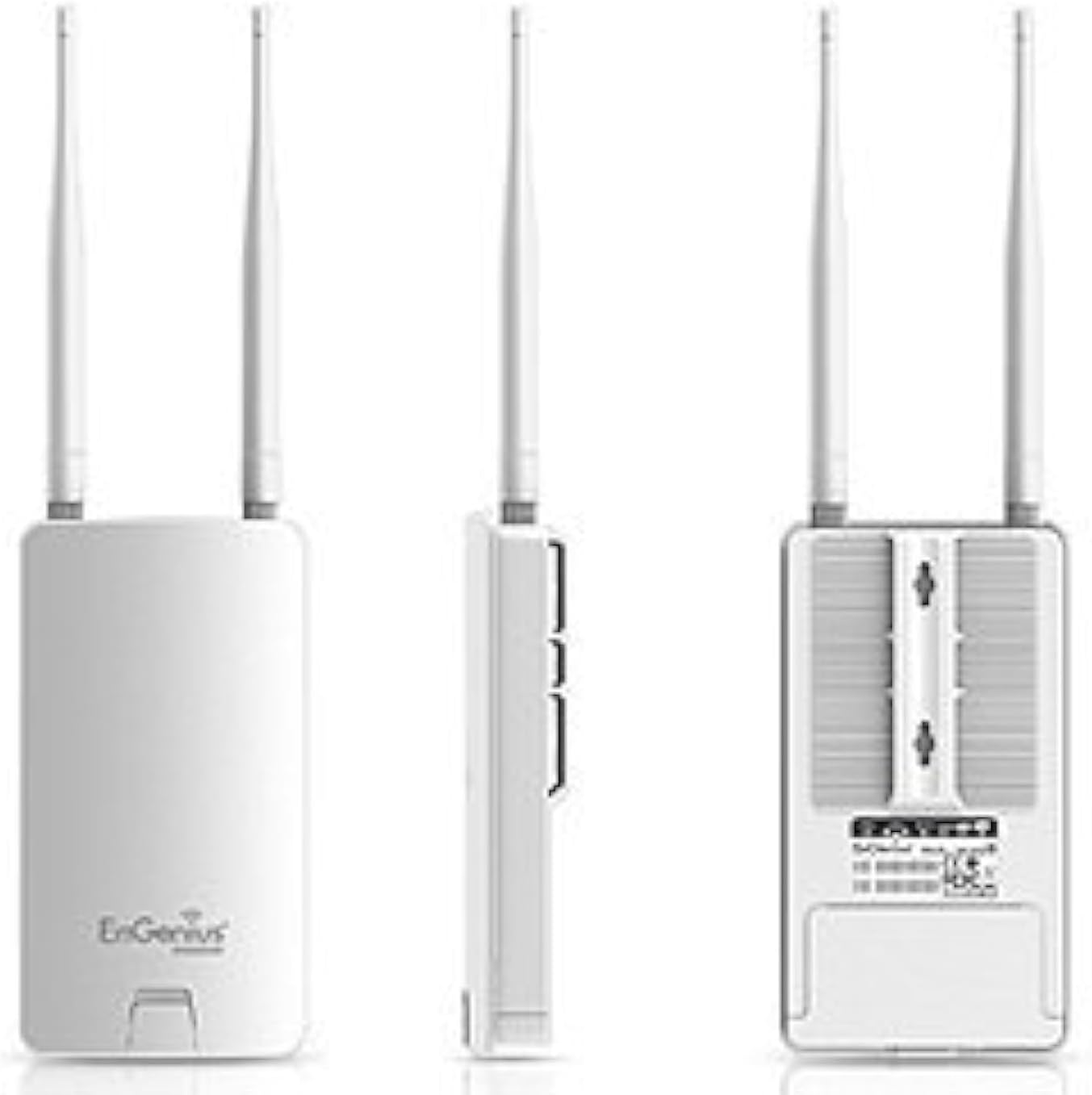
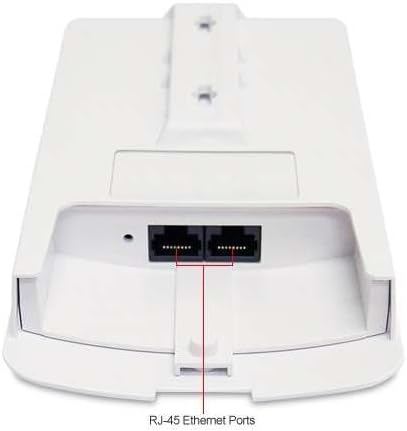
The ENS202EXT features a compact, weatherproof design with external antennas for enhanced signal coverage.



5. Nastavení a instalace
5.1 Fyzická instalace
- Montáž: Use the provided pole mount kit and screw kit to securely attach the ENS202EXT to a pole or wall in your desired outdoor location. Ensure the device is positioned for optimal signal coverage.
- Připojení antény: Screw the two detachable 5dBi omni-directional antennas onto the connectors on the top of the unit.
- PoE připojení: Connect an Ethernet cable from the LAN port of the ENS202EXT to the 'PoE' port on the included PoE Injector (EPE1212).
- Internetové připojení: Connect another Ethernet cable from the 'LAN' port of the PoE Injector to your network switch or router.
- Moc: Plug the power adapter into the PoE Injector's 'DC IN' port and then into a power outlet. The device will power on.
5.2 Počáteční konfigurace
The ENS202EXT is factory-set with a static IP address of 192.168.1.1. Pro přístup k web-based management interface for initial setup, follow these steps:
- Přímé připojení: Connect your computer directly to the ENS202EXT (or via the PoE injector) using an Ethernet cable. Disconnect your computer from any other network (Wi-Fi or other Ethernet connections).
- Configure Computer's IP: Manually set your computer's Ethernet adapter to a static IP address within the same subnet as the ENS202EXT, for example, 192.168.1.10 s maskou podsítě 255.255.255.0.
- Přístup Web Rozhraní: Otevřete a web prohlížeč a zadejte http://192.168.1.1 v adresním řádku.
- Přihlášení: Enter the default username and password (refer to the Quick Start Guide for default credentials, typically 'admin'/'admin' or similar).
- Změnit IP adresu: Navigate to the network settings and change the ENS202EXT's IP address to one compatible with your existing network, or configure it to obtain an IP address via DHCP if your network supports it.
- Uložit nastavení: After making changes, ensure you click the 'Accept' button and then locate and click the 'Save/Reload' link (often in the upper left corner) to apply and save the new configuration. Failure to do so may result in lost settings upon reboot.
- Restore Computer's IP: Revert your computer's Ethernet adapter settings back to DHCP or its original configuration.
- Reconnect to Network: Connect the ENS202EXT back to your main network. You should now be able to access it at its new IP address.
6. Provozní režimy
The ENS202EXT supports various operating modes to suit different network requirements:
- Režim přístupového bodu (AP): Functions as a central hub for wireless clients, allowing them to connect to your wired network.
- Client Bridge Mode: Connects a wired device (e.g., a printer or PC) to a wireless network, acting as a wireless client.
- WDS Bridge Mode: Connects two or more access points wirelessly to extend the network over a larger area without requiring wired connections between them.
- WDS AP Mode: An access point that also participates in a Wireless Distribution System (WDS) bridge.
- WDS Station Mode: A client device that participates in a WDS bridge.
- Client Router Mode: Acts as a wireless client to an existing network and provides NAT routing services for connected wired devices.
Refer to the device's web interface for detailed configuration options for each mode.
7. Konfigurace a správa
The ENS202EXT is primarily managed through its web-based interface. Additionally, EnGenius offers management software for larger deployments.
7.1 Web Rozhraní
After initial setup, you can access the web interface by entering the device's configured IP address in a web prohlížeč. Toto rozhraní vám umožňuje:
- Configure wireless settings (SSID, security, channels).
- Manage network settings (IP address, DHCP server/client).
- Set up operating modes.
- Monitor device status and connected clients.
- Proveďte aktualizace firmwaru.
Important: Always click 'Accept' for changes and then 'Save/Reload' to ensure your settings are permanently applied.
7.2 EnGenius EZ Controller Software
For managing multiple EnGenius devices, the EnGenius EZ Controller software for Windows provides a centralized platform for monitoring and configuration. This software can simplify the management of your wireless network after deployment.
8. Údržba
8.1 aktualizací firmwaru
Regularly check the EnGenius website for the latest firmware updates. Firmware updates can provide new features, performance improvements, and security enhancements. Follow the instructions provided with the firmware download for the update process.
8.2 Péče o životní prostředí
The ENS202EXT features an IP55-rated weatherproof housing. While designed for outdoor use, ensure that all cable glands and covers are properly sealed to maintain its weather resistance. Periodically inspect the unit for any physical damage or signs of wear.
8.3 Automatické restartování
Consider enabling the 'Auto Reboot' option in the device's settings. This can help maintain device stability and prevent potential issues that may arise from continuous operation over long periods.
9. Řešení problémů
This section addresses common issues you might encounter with the ENS202EXT.
9.1 Nelze přistupovat Web Interface (Default IP Conflict)
Problém: After connecting the device, you cannot access the web interface at 192.168.1.1, or your network experiences an IP conflict.
Řešení: The ENS202EXT uses 192.168.1.1 as its default static IP, which is common for many home routers. To resolve this:
- Disconnect your computer from your main network.
- Connect your computer directly to the ENS202EXT (via the PoE injector).
- Manually configure your computer's Ethernet adapter with a static IP address like 192.168.1.10 (subnet mask 255.255.255.0).
- Access 192.168.1.1 in your browser.
- Change the ENS202EXT's IP address to one that is unique on your network or enable DHCP client mode.
- Remember to 'Accept' and 'Save/Reload' the settings.
- Revert your computer's IP settings and reconnect the ENS202EXT to your network.
9.2 Wireless Signal Drops or SSID Not Broadcasting
Problém: The wireless signal becomes unstable, or the SSID disappears periodically.
Řešení:
- Aktualizace firmware: Ensure the device is running the latest firmware version. Outdated firmware can sometimes lead to instability.
- Automatické restartování: Enable the 'Auto Reboot' feature in the device settings to schedule periodic reboots, which can help maintain stability.
- Rušení: Check for potential sources of 2.4GHz interference in the area. Try changing the wireless channel in the device's settings.
- Cyklus napájení: Perform a power cycle by unplugging the PoE injector for 30 seconds and then plugging it back in.
- Obnovení továrního nastavení: If issues persist, consider performing a factory reset. This will revert all settings to default, requiring reconfiguration. Refer to the Quick Start Guide for factory reset instructions.
9.3 Internet Access Issues in Repeater/WDS Mode
Problém: Devices connect to the ENS202EXT in repeater or WDS mode and obtain an IP address, but cannot access the internet.
Řešení:
- Gateway/DNS Settings: Verify that the ENS202EXT is correctly configured to use the gateway and DNS servers of your main network.
- Pravidla brány firewall: Check if any firewall rules on the ENS202EXT or your main router are blocking internet traffic.
- WDS Compatibility: Ensure that the other access point in the WDS setup is compatible and correctly configured for WDS bridging.
- Síla signálu: Confirm that the ENS202EXT has a strong and stable wireless connection to the main access point it is extending.
10. Specifikace
| Funkce | Specifikace |
|---|---|
| Název modelu | ENS202EXT |
| Bezdrátové Standardní | 802.11b/g/n |
| Frekvenční pásmo | 2.4 GHz |
| Maximální rychlost | Až 300 Mbps |
| RF výkon (dBm) | 26 dBm |
| RF výkon (mW) | 400 mW |
| Typ antény | Two 5 dBi External Omni-Directional MIMO Antennas |
| Rozhraní LAN | 2 ethernetové porty 10/100 Mb/s |
| Šifrování | WEP / WPA / WPA2 |
| PoE napájení | 24V (Proprietary PoE Injector Included) |
| Hodnocení IP | IP55 |
| BERAN | 64 MB |
| Velikost paměti Flash | 16 MB |
| Hmotnost položky | 10.6 unce (přibližně 300 g) |
| Rozměry produktu (DxŠxV) | 12.2 x 9.2 x 2.8 palců (přibližně 31 x 23.4 x 7.1 cm) |
| Hardwarová platforma | PC |
| Speciální funkce | Režim přístupového bodu, WPS |
| Kompatibilní zařízení | Osobní počítač |
| Doporučená použití | podnikání |
11. Záruka a podpora
For warranty information, please refer to the documentation included with your product or visit the official EnGenius website. For technical support, product inquiries, or to download the latest drivers and firmware, please contact EnGenius customer support through their official channels.
Technologie EnGenius: www.engeniustech.com