
1. Úvod a konecview
This manual provides comprehensive instructions for the setup, operation, maintenance, and troubleshooting of your InFocus IN3124 Projector. Designed for clarity and ease of use, this guide will help you maximize your projector's performance and longevity.
The InFocus IN3124 is a high-performance projector featuring XGA (1024 x 868) native resolution, 4800 lumens of brightness, and a 3000:1 contrast ratio, making it suitable for various presentation environments. Its portable design allows for flexible placement and usage.
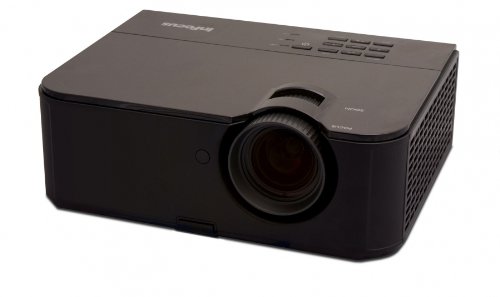
Obrázek 1: Přední strana view of the InFocus IN3124 Projector, highlighting the main lens and the top-mounted control panel.
2. Nastavení
2.1 Vybalení
Opatrně vyjměte projektor a veškeré příslušenství z obalu. Zkontrolujte, zda jsou přítomny všechny součásti uvedené v dodacím listu. Uschovejte si originální obal pro budoucí přepravu nebo skladování.
2.2 Umístění
Position the projector on a stable, level surface. Ensure adequate ventilation around the unit to prevent overheating. Maintain a clear path between the projector lens and the projection screen or surface. The optimal projection distance will vary based on the desired screen size.
2.3 Připojení napájení
- Připojte napájecí kabel k napájecímu vstupu projektoru.
- Zapojte druhý konec napájecího kabelu do uzemněné elektrické zásuvky.
2.4 Připojení vstupních zdrojů
The IN3124 projector supports various input sources. Connect your video source (e.g., computer, DVD player) to the appropriate input port on the projector. Common ports include VGA and HDMI (if available on your specific model).
- VGA: Use a VGA cable to connect to a computer's video output.
- HDMI: Use an HDMI cable for digital video and audio (check projector for HDMI port availability).
3. Návod k obsluze
3.1 Zapnutí/vypnutí
- Zapnutí: Stiskněte tlačítko napájení na ovládacím panelu projektoru nebo na dálkovém ovladači. Rozsvítí se kontrolka napájení.
- Vypnutí: Press the power button twice. The projector will enter a cooling cycle before shutting down completely. Do not unplug the projector during the cooling cycle.
3.2 Nastavení zaostření a zoomu
Rotate the focus ring on the projector lens until the image appears sharp and clear. Use the zoom ring (if present) to adjust the image size to fit your screen.
3.3 Selecting Input Sources
Press the "Source" or "Input" button on the projector's control panel or remote control to cycle through available input sources (e.g., VGA, HDMI). Select the input corresponding to your connected device.
3.4 Menu Navigation and Keystone Correction
Use the menu buttons on the projector or remote to access the On-Screen Display (OSD). Navigate through the menu options to adjust settings such as brightness, contrast, color, and keystone correction. Keystone correction helps to square the image if the projector is not perfectly perpendicular to the screen.
4. Údržba
4.1 Čištění objektivu
Jemně otřete čočku projektoru měkkým hadříkem bez žmolků, který je speciálně určen pro optické povrchy. Nepoužívejte abrazivní čisticí prostředky ani nadměrnou sílu, mohlo by dojít k poškrábání čočky.
4.2 Čištění vzduchových filtrů
Regularly check and clean the projector's air filters to ensure proper airflow and prevent overheating. Refer to the projector's specific filter access instructions. Use a soft brush or vacuum cleaner to remove dust accumulation.
4.3 lamp Nahrazení
Projektor lamp má omezenou životnost. Když lamp life indicator appears or the image becomes dim, the lamp may need replacement. Consult the full service manual or manufacturer's website for detailed lamp replacement procedures and compatible lamp models. Always allow the projector to cool down completely before attempting lamp nahrazení.
4.4 Skladování
Pokud projektor delší dobu nepoužíváte, skladujte jej na chladném a suchém místě mimo dosah přímého slunečního záření a extrémních teplot. Použijte originální obal nebo ochranné pouzdro, abyste zabránili prachu a poškození.
5. Řešení problémů
This section addresses common issues you might encounter with your InFocus IN3124 Projector. For more complex problems, contact customer support.
- Není zobrazen žádný obrázek:
- Ujistěte se, že je projektor zapnutý a že indikátor napájení svítí nepřetržitě.
- Verify that the input source cable (VGA, HDMI) is securely connected to both the projector and the source device.
- Vyberte správný vstupní zdroj pomocí tlačítka „Zdroj“.
- Check if the source device is outputting a signal.
- Dim or Faded Image:
- Adjust brightness and contrast settings in the OSD menu.
- Ujistěte se, že lamp is not nearing the end of its lifespan.
- Clean the projector lens and air filters.
- Check the projection mode (e.g., Eco mode might reduce brightness).
- Obrázek je rozmazaný:
- Upravte zaostřovací kroužek na objektivu projektoru.
- Ujistěte se, že projekční plocha je rovná a projektor stabilní.
- Check the resolution settings of your source device to match the projector's native resolution.
- Dálkové ovládání nefunguje:
- Vyměňte baterie v dálkovém ovladači.
- Ujistěte se, že mezi dálkovým ovladačem a infračerveným přijímačem projektoru nejsou žádné překážky.
- Namiřte dálkový ovladač přímo na projektor.
6. Specifikace
The following table outlines the key technical specifications for the InFocus IN3124 Projector:
| Funkce | Specifikace |
|---|---|
| Číslo modelu | IN3124 |
| Rozlišení displeje (nativní) | XGA (1024 x 868) |
| Jas | 4800 XNUMX lumenů |
| Kontrastní poměr | 3000:1 |
| Typ zobrazení | LCD, LCoS |
| Hmotnost položky | 8.16 libry (3.7 kg) |
| Rozměry produktu (D x Š x V) | 12.83 x 10.43 x 4.8 palce (32.59 x 26.49 x 12.19 cm) |
| Speciální funkce | Přenosný |
7. Záruka a podpora
For detailed warranty information, please refer to the warranty card included with your product packaging or visit the official InFocus webZáruka se obvykle vztahuje na výrobní vady po stanovenou dobu od data nákupu.
If you encounter issues that cannot be resolved using the troubleshooting guide, or require technical assistance, please contact InFocus customer support. Contact details can usually be found on the manufacturer's webwebu nebo v dokumentaci k produktu.