
1. Úvod
This manual provides instructions for the Mad Catz STRIKE7 Modular Gaming Keyboard. The STRIKE7 is designed for customization, featuring a modular layout, programmable macro buttons, RGB backlighting, and an integrated LCD touchscreen. This keyboard is compatible with Windows 7, 8, and 10 operating systems.

Figure 1: Mad Catz STRIKE7 Modular Gaming Keyboard fully assembled.
2. Nastavení
2.1 Vybalení a identifikace součástí
Carefully remove all components from the packaging. The STRIKE7 keyboard consists of several modular parts:
- Main Keyboard Module
- Numeric Keypad Module
- VENOM LCD Module
- Left Palm Rest Module (with control wheel)
- Right Palm Rest Module
- Nastavitelné opěrky zápěstí
- Kabel USB a napájecí adaptér

Figure 2: Individual modular components of the STRIKE7 keyboard.
2.2 Modular Assembly
The STRIKE7 allows for various configurations. Connect the modules by aligning the connectors and gently pushing them together until they click into place. Ensure a secure connection for proper functionality.
- Attach the Numeric Keypad Module to the right side of the Main Keyboard Module, if desired.
- Connect the VENOM LCD Module to the top-left or top-right of the Main Keyboard Module.
- Attach the Left and Right Palm Rest Modules to the bottom of the Main Keyboard Module and Numeric Keypad Module, respectively.
- Adjust the integrated wrist rests for optimal comfort.
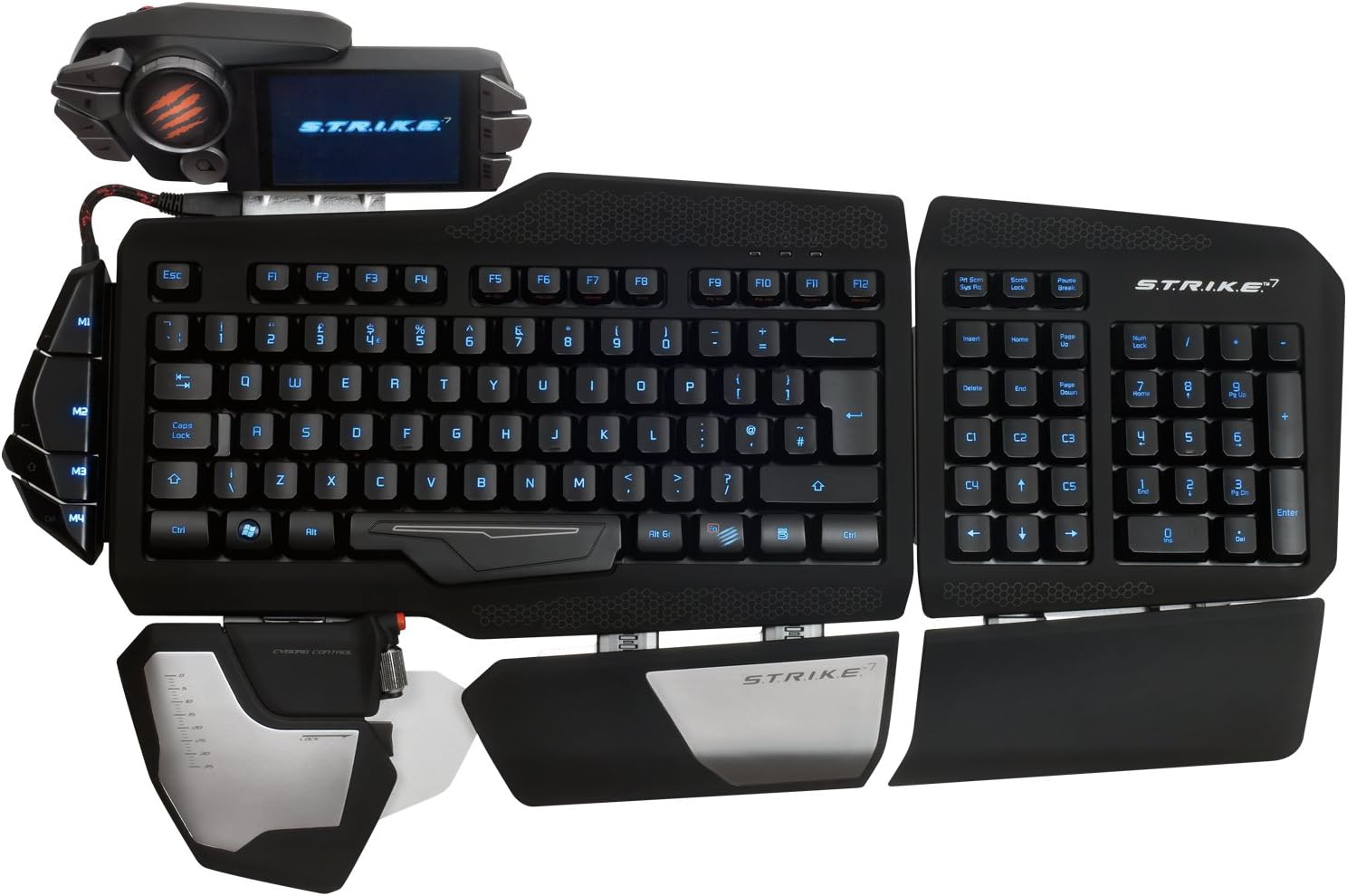
Obrázek 3: Nahoře view of the STRIKE7 in a common assembled configuration.
2.3 Connecting to Your PC
Connect the keyboard to your computer using the provided USB cable. The STRIKE7 requires an external power adapter for full functionality, including the VENOM LCD module and integrated USB ports. Plug the power adapter into a wall outlet and connect it to the keyboard.
Důležitá poznámka:
Ensure your system's USB ports are compatible. Some users have reported issues with USB 3.0 ports without updated firmware. If experiencing connectivity problems, try connecting to a USB 2.0 port or updating the keyboard's firmware from the official Mad Catz support webmísto.
2.4 Instalace ovladačů a softwaru
After connecting the keyboard, your operating system (Windows 7, 8, or 10) should automatically detect the device. For full customization and macro programming, download and install the latest drivers and software from the official Mad Catz support webwebu. Během instalace postupujte podle pokynů na obrazovce.
3. Návod k obsluze
3.1 VENOM LCD Module
The VENOM LCD Module provides access to various functions and settings. Use the touchscreen interface to navigate through menus, launch applications, and manage profiles. The module also includes two high-speed USB 2.0 ports for connecting additional peripherals.

Figure 4: VENOM LCD Module with integrated USB ports.
3.2 Programovatelná makra
The STRIKE7 features 24 programmable macro buttons. These buttons can be assigned complex commands or sequences using the keyboard's software. Refer to the software's user interface for detailed instructions on macro creation and assignment.
3.3 RGB podsvícení
The keyboard's RGB backlighting can be customized to various colors and effects through the Mad Catz software. Adjust brightness, color, and lighting patterns to suit your preferences.
3.4 Adjustable Palm and Wrist Rests
The 3-part active palm rest and two integrated wrist rests are designed for ergonomic comfort. Adjust their positions to find the most comfortable typing and gaming posture.
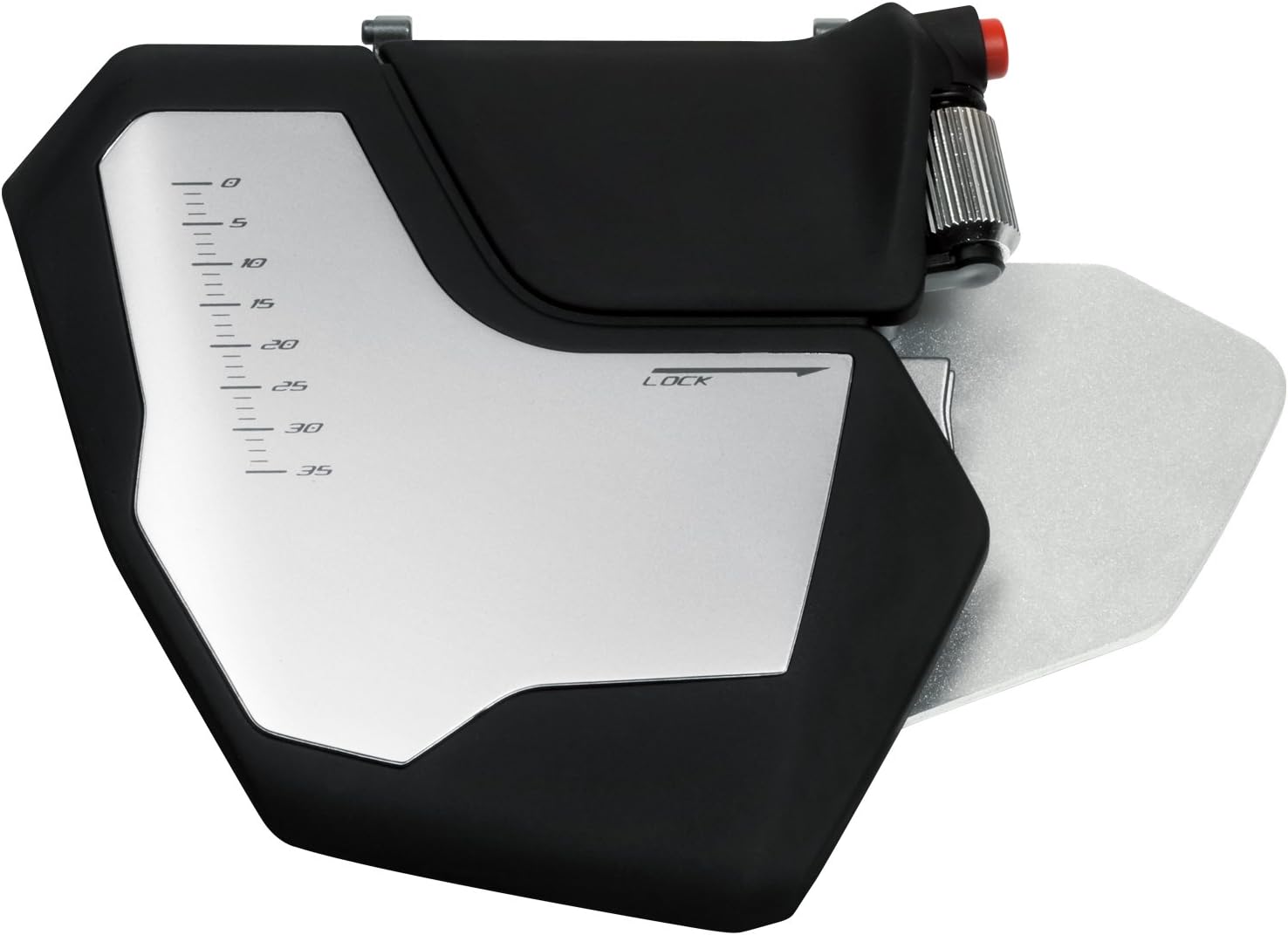
Figure 5: Left palm rest module with integrated control wheel.
3.5 Interchangeable Keys
The STRIKE7 includes interchangeable WASD and arrow keys. These can be swapped to provide a different tactile feel or visual distinction for common gaming controls.
4. Údržba
4.1 Čištění klávesnice
To clean the keyboard, disconnect it from your computer and power source. Use a soft, dry cloth to wipe down the surfaces. For stubborn dirt, a slightly damp cloth with mild soap can be used, ensuring no liquid enters the key switches or electronic components. Do not use harsh chemicals or abrasive materials.
4.2 Čištění obrazovky LCD
Use a soft, lint-free cloth specifically designed for electronics to clean the VENOM LCD screen. Avoid excessive pressure and do not use chemical cleaners directly on the screen.
5. Řešení problémů
5.1 Klávesnice nereaguje
- Ujistěte se, že je kabel USB bezpečně připojen k klávesnici i k počítači.
- Verify the external power adapter is properly connected and plugged into a working outlet.
- Try connecting the keyboard to a different USB port on your computer. If using a USB 3.0 port, try a USB 2.0 port or ensure firmware is updated.
- Restartujte počítač.
5.2 VENOM LCD Module Not Displaying
- Confirm the external power adapter is connected, as the LCD requires external power.
- Ensure the VENOM LCD Module is securely attached to the Main Keyboard Module.
- Check for updated drivers and software from the Mad Catz support webmísto.
5.3 Macro Programming Issues
- Ensure the Mad Catz software is correctly installed and running.
- Refer to the software's help documentation for detailed macro creation steps.
- Ověřte, zda je to správný profesionálfile is active on the VENOM LCD Module.
5.4 Podsvícení nefunguje
- Check the backlighting settings within the Mad Catz software.
- Ensure the external power adapter is connected, as backlighting may require additional power.
6. Specifikace
| Funkce | Detail |
|---|---|
| Značka | Šílený Catz |
| Číslo modelu | MCB43109N002/02/1 |
| Technologie připojení | USB |
| Hardwarová platforma | PC |
| Kompatibilita operačního systému | Windows 10, Windows 7, Windows 8, Windows Vista |
| Hmotnost položky | 7.28 libry (přibližně 3.3 kg) |
| Rozměry produktu (DxŠxV) | 9.33 x 7.52 x 15.08 palců (přibližně 23.7 x 19.1 x 38.3 cm) |
| Barva | Černý |
| Zdroj napájení | USB Power (with external adapter) |
| Počet portů USB 2.0 | 2 (on VENOM LCD Module) |
| Podsvícení klávesnice | RGB |
| Materiál | Kov |
7. Informace o záruce
This product is covered by a limited manufacturer's warranty. For specific warranty terms, conditions, and duration, please refer to the warranty card included with your product or visit the official Mad Catz webUschovejte si doklad o koupi pro případ reklamace.
8. Podpora a kontakt
For technical assistance, driver downloads, firmware updates, or further product information, please visit the official Mad Catz support website. You may also find FAQs and community forums there to assist with common inquiries.
Official Mad Catz Webmísto: www.madcatz.com (Poznámka: Toto je zástupný symbol URL. Refer to your product packaging for the most current support contact information.)