
Zavedení
This manual provides essential information for setting up, operating, and maintaining your HP F3510 e-All-in-One printer. The HP F3510 is a versatile device designed for printing, scanning, and copying everyday documents and photos. It features wireless connectivity for convenient use within your network.
Bezpečnostní informace
Při používání tohoto produktu vždy dodržujte základní bezpečnostní opatření, abyste snížili riziko zranění v důsledku požáru nebo úrazu elektrickým proudem.
- Přečtěte si a pochopte všechny pokyny v tomto návodu.
- Používejte pouze napájecí kabel a adaptér dodaný s tiskárnou.
- Do not place the printer in a location where the cord can be damaged.
- Keep the printer away from water or moist environments.
- Nepokoušejte se opravovat tiskárnu sami. Veškerý servis svěřte kvalifikovanému servisnímu personálu.
Co je v krabici
Před zahájením instalace ověřte, zda jsou všechny komponenty přítomny.
- HP F3510 e-All-in-One Printer
- Napájecí kabel
- Nastavení inkoustových kazet (černá a tříbarevná)
- Software CD (may vary by region)
- Průvodce nastavením
- Obálky
Nastavení
1. Vybalení tiskárny
Carefully remove the printer from its packaging. Remove all packing materials, tapes, and protective films from the exterior and interior of the printer. Open the cartridge access door to ensure all internal packing materials are removed.
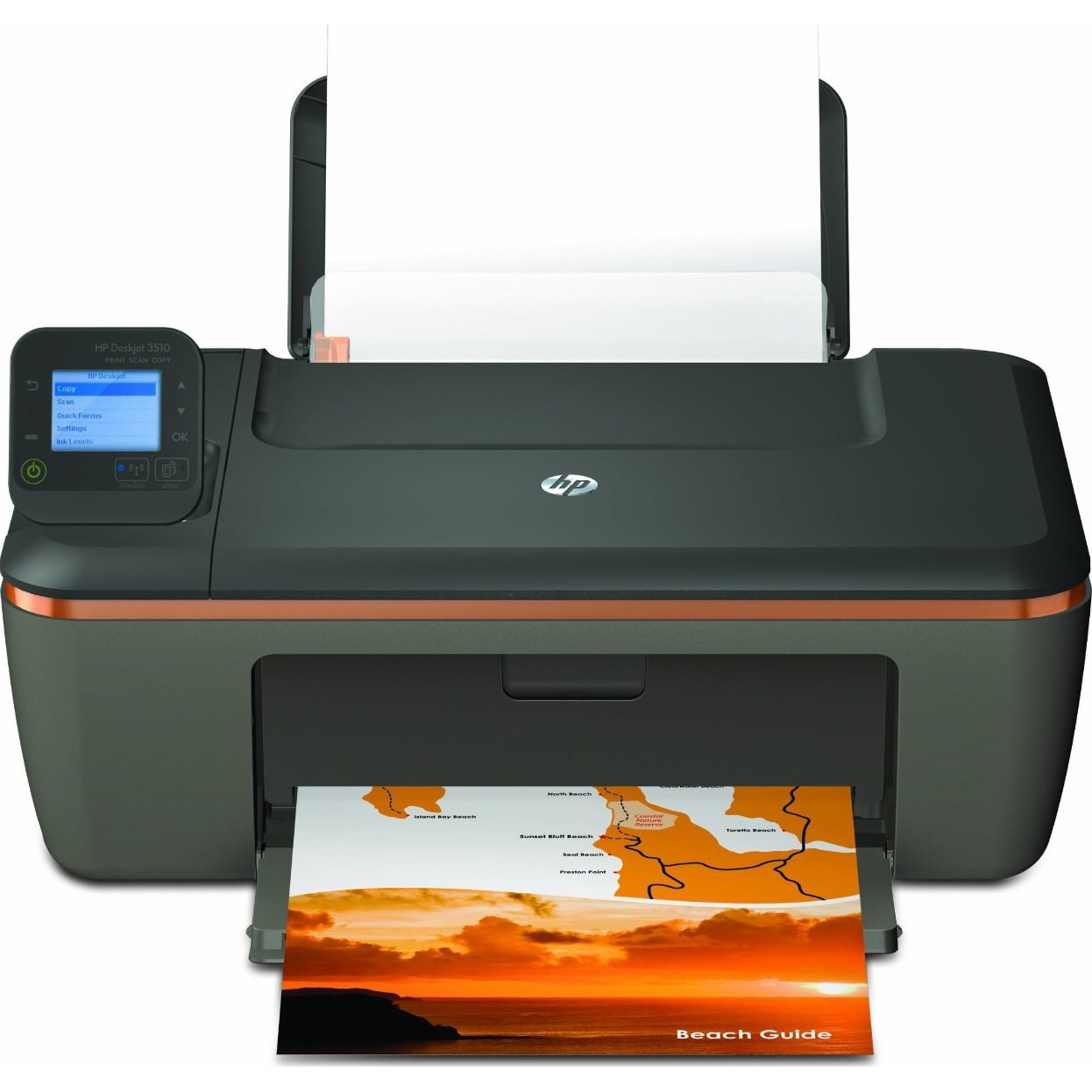
Image: The HP F3510 printer, showing its compact design with the paper input tray visible at the back and the output tray extended at the front. The scanner lid is closed on top.
2. Připojování k napájení
Connect the power cord to the back of the printer and then plug the other end into a grounded electrical outlet. Press the Power button to turn on the printer.
3. Instalace inkoustových kazet
- Otevřete dvířka pro přístup k inkoustovým kazetám. Vozík se přesune do středu.
- Počkejte, až bude vozík nečinný a tichý.
- Gently press down on the cartridge to release it, then pull it out of its slot.
- Remove the new cartridge from its packaging. Pull the orange pull tab to remove the protective tape. Nedotýkejte se měděných kontaktů ani inkoustových trysek.
- Slide the new cartridge into its slot until it clicks into place. Ensure the color cartridge goes into the left slot and the black cartridge into the right slot.
- Close the ink cartridge access door. The printer will perform an alignment page print.
4. Vkládání papíru
Load plain white paper into the input tray. Adjust the paper guides to fit the paper size snugly. The printer supports standard letter size (8.5 x 11 inches).
5. Nastavení bezdrátového připojení
The HP F3510 features HP Auto Wireless Connect, simplifying the process of connecting to your wireless network.
- Install the printer software on your computer using the provided CD or by downloading it from the official HP support webmísto.
- During the software installation, select the "Wireless" connection option.
- Follow the on-screen prompts. The HP Auto Wireless Connect feature will attempt to automatically connect your printer to your wireless network.
- If prompted, enter your network name (SSID) and password (WPA key or WEP key).
- Once connected, the wireless indicator light on the printer will be solid blue.
For mobile printing, you can use HP ePrint. Register your printer with HP ePrint to assign it an email address, allowing you to print documents by sending them to the printer's email address from any internet-connected device.
Návod k obsluze
Tisk dokumentů
- Z počítače: Otevřete dokument nebo obrázek, který chcete vytisknout. V nabídce aplikace vyberte možnost „Tisk“. File menu. Choose your HP F3510 printer, adjust settings (e.g., paper size, print quality, color/grayscale), and click "Print".
- Bezdrátový tisk: Ensure your computer or mobile device is connected to the same wireless network as your printer. Use the HP ePrint app or other compatible mobile printing solutions for direct printing from smartphones and tablets.
- Automatický oboustranný tisk: The HP F3510 supports automatic duplex printing. In your print settings, look for an option to print on both sides of the paper and select it. This feature helps reduce paper consumption.
Skenování dokumentů a fotografií
- Place the original document or photo face-down on the scanner glass, aligning it with the guide.
- Zavřete víko skeneru.
- V počítači otevřete software tiskárny HP nebo skenovací aplikaci.
- Select "Scan a Document or Photo" and choose your desired settings (e.g., document type, resolution, destination).
- Click "Scan" to begin the process. The scanned image will appear on your computer.
Kopírování dokumentů
- Umístěte originální dokument lícem dolů na sklo skeneru.
- Zavřete víko skeneru.
- On the printer's control panel, press the "Black Copy" button for a black and white copy or the "Color Copy" button for a color copy.
- To make multiple copies, press the respective copy button multiple times or use the control panel options if available to specify the number of copies.
Údržba
Výměna inkoustových kazet
When an ink cartridge runs low or is empty, replace it promptly to ensure optimal print quality. Refer to the "Installing Ink Cartridges" section in Setup for detailed steps. Use genuine HP ink cartridges for best results.
Čištění tiskárny
- Vnější: Wipe the exterior surfaces of the printer with a soft, lint-free cloth. Do not use abrasive cleaners.
- Sklo skeneru: Očistěte sklo skeneru měkkým hadříkem, který lehceampčističem skla. Nestříkejte čisticí prostředek přímo na sklo.
- Čištění tiskové hlavy: If print quality issues (streaks, faded colors) occur, use the printer software to initiate a printhead cleaning cycle. This helps clear clogged nozzles.
Odstraňování problémů
This section addresses common issues you might encounter with your HP F3510 printer.
Tiskárna nereaguje
- Ensure the printer is powered on and connected to a working electrical outlet.
- Check the USB cable connection (if using USB) or wireless network connection.
- Restart both the printer and your computer/router.
- Verify that the correct printer is selected in your computer's print dialog.
Problémy s bezdrátovým připojením
- Confirm your router is on and broadcasting a signal.
- Check the wireless indicator light on the printer; if it's blinking, it's not connected.
- Run the Wireless Setup Wizard from the printer's control panel or through the HP software.
- Ujistěte se, že je tiskárna v dosahu bezdrátového routeru.
Špatná kvalita tisku
- Zkontrolujte hladinu inkoustu a vyměňte všechny málo inkoustu nebo prázdné kazety.
- Perform a printhead cleaning cycle and print an alignment page using the printer software.
- Ujistěte se, že pro tiskovou úlohu používáte vhodný papír.
- Check print settings to ensure they match your desired quality (e.g., "Best" quality for photos).
Zaseknutý papír
- Vypněte tiskárnu a odpojte ji.
- Carefully remove any jammed paper from the input tray, output tray, or inside the printer. Pull paper slowly and evenly to avoid tearing.
- Ujistěte se, že je papír správně vložen a že vstupní zásobník není přeplněný.
- Remove any foreign objects from the paper path.
Specifikace
| Funkce | Specifikace |
|---|---|
| Číslo modelu | F3510 |
| Funkce | Tisk, skenování, kopírování |
| Technologie tisku | Inkoustové |
| Konektivita | Bezdrátové (Wi-Fi), USB 2.0 |
| Maximální rychlost tisku (černobíle) | Až 14 str./min |
| Maximální rychlost tisku (barevně) | Až 16 str./min |
| Maximální rozlišení tisku (černobíle) | 300 dpi |
| Maximální rozlišení tisku (barevně) | 300 dpi |
| Typ skeneru | Flatbed with Auto Document Feeder (ADF) |
| Maximální rozlišení skenování | 300 dpi |
| Maximum Copy Resolution (Black/Color) | 300 dpi |
| Maximální velikost média | 8.5 x 11 inches (Letter) |
| Kapacita vstupního zásobníku | 100 listů |
| Kapacita výstupního zásobníku | 50 listů |
| Oboustranný tisk | Automatický (oboustranný) |
| Hmotnost položky | 8.59 libry |
Záruka a podpora
Your HP F3510 printer comes with a limited warranty. For specific warranty terms and conditions, please refer to the documentation included with your product or visit the official HP support webmísto.
For technical assistance, driver downloads, or further troubleshooting, visit the HP support website or contact HP customer service. Have your printer's model number (F3510) and serial number ready when contacting support.
Online podpora: support.hp.com