
1. Úvod
The HP 1910-8G-PoE+ 180W Switch (Model JG350A) is an advanced smart-managed, fixed-configuration Gigabit Ethernet Layer 3 switch. Designed for small businesses, it offers enhanced features in an easy-to-administer solution, providing reliable network connectivity and Power over Ethernet Plus (PoE+) capabilities.
2. Klíčové vlastnosti
- Gigabitové ethernetové porty: Provides 8 Gigabit Ethernet ports for high-speed network connections.
- PoE+ Capability: Supports Power over Ethernet Plus (802.3at) to power compatible devices such as IP phones, wireless access points, and IP cameras directly through the network cable.
- SFP porty: Includes additional true Gigabit SFP ports for fiber connectivity, extending network reach.
- Flexibilní nasazení: Supports both rack mounting and desktop operation.
- Tichý provoz: Utilizes variable-speed fans to minimize noise.
- Podpora IPv6: Operates at full wire-speed IPv6.
- Kvalita služeb (QoS): Supports traffic prioritization for optimal performance of critical applications.
- Bezpečnostní funkce: Includes 802.1X network login, access control lists (ACLs), and denial-of-service (DoS) prevention.
- Advanced Layer 3 Features: Customizable features such as VLANs, link aggregation trunking, static routing, and Spanning Tree Protocols (STP, RSTP, MSTP).
3. Obsah balení
Ověřte, zda váš balíček obsahuje následující položky:
- HP 1910-8G-PoE+ 180W Switch (JG350A)
- Napájecí kabel
- Sada pro montáž do racku (pokud je k dispozici)
- Stručná úvodní příručka a informace o záruce
Pokud některé položky chybí nebo jsou poškozené, ihned kontaktujte svého prodejce.
4. Fyzický popis
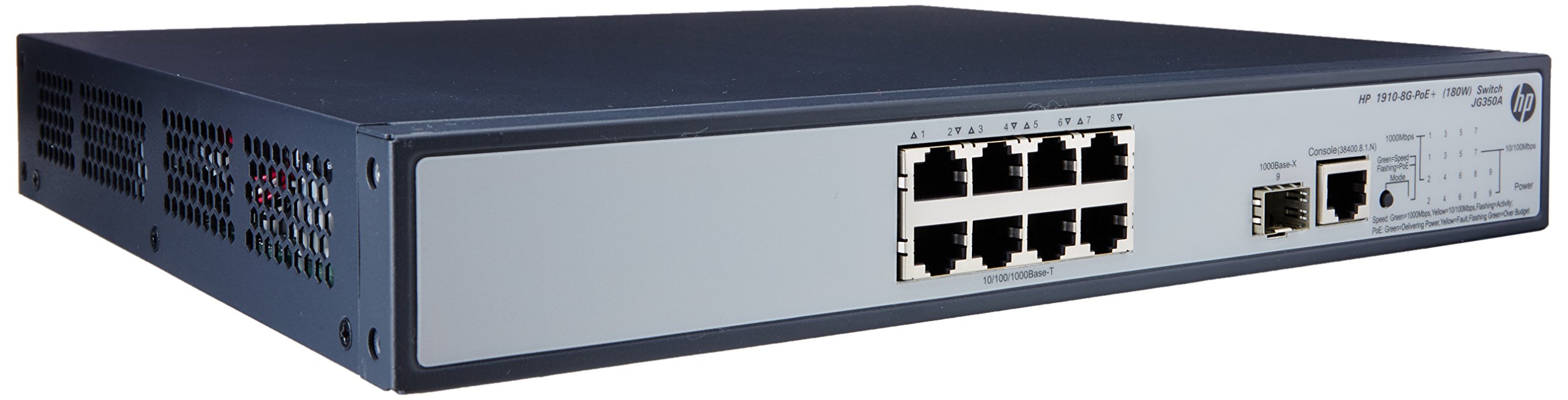

4.1 Přední panel
The front panel of the switch includes:
- 8 x RJ45 Gigabit Ethernet Ports: These ports support 10/100/1000 Mbps connections and are PoE+ enabled, providing power to connected devices.
- 2 x SFP Ports: Dedicated slots for Gigabit fiber optic transceivers, allowing for long-distance connections.
- LED indikátory: Status lights for power, system, and individual port activity/PoE status.
4.2 Zadní panel
The rear panel typically contains the AC power input connector and ventilation openings.
5. Nastavení
5.1 Bezpečnostní opatření
- Zajistěte řádné větrání kolem spínače, aby nedošlo k přehřátí.
- Neblokujte žádné ventilační otvory.
- Používejte pouze napájecí kabel dodaný se zařízením.
- Avoid placing the switch in direct sunlight or near heat sources.
5.2 Montáž spínače
The HP 1910-8G-PoE+ 180W Switch can be deployed in two ways:
- Umístění na počítači: Place the switch on a flat, stable surface, ensuring adequate space for ventilation.
- Montáž do racku: Use the provided rack-mount kit to install the switch into a standard 19-inch equipment rack. Follow the instructions included with the rack-mount kit for proper installation.
5.3 Připojení napájení
- Connect one end of the power cord to the AC power input on the rear panel of the switch.
- Druhý konec napájecího kabelu zapojte do uzemněné elektrické zásuvky.
- Na předním panelu by se měla rozsvítit kontrolka napájení, což znamená, že přepínač je napájen.
5.4 Připojení síťových zařízení
- Porty RJ45: Connect your network devices (computers, servers, IP phones, wireless access points) to the RJ45 ports using standard Ethernet cables. For PoE-powered devices, ensure they are PoE+ compatible.
- SFP porty: Insert compatible SFP transceivers into the SFP slots, then connect fiber optic cables to the transceivers for fiber uplinks or long-distance connections.
5.5 Počáteční konfigurace
The HP 1910 switch is a smart-managed device, typically configured via a web-based graphical user interface (GUI). Refer to the Quick Start Guide for the default IP address, username, and password to access the management interface. It is recommended to change default credentials immediately after initial access for security purposes.
6. Ovládání přepínače
6.1 Zapnutí
Once connected to power, the switch will automatically power on. Observe the system LED for boot-up status. A steady green light typically indicates normal operation.
6.2 Síťové připojení
When a device is connected to an RJ45 port, the corresponding port LED will illuminate. A blinking LED indicates network activity. Ensure the link LED is solid green for a stable connection.
6.3 Funkce PoE+
For devices requiring Power over Ethernet, connect them to the PoE+ enabled RJ45 ports. The switch will automatically detect and provide power to compatible devices. The PoE status LED for the port will indicate power delivery.
7. Údržba
7.1 Čištění
Periodically clean the exterior of the switch with a soft, dry cloth. Do not use liquid or aerosol cleaners. Ensure ventilation openings are free from dust and debris to maintain proper airflow.
7.2 aktualizací firmwaru
Pravidelně kontrolujte podporu HP website for firmware updates. Keeping the switch firmware up-to-date ensures optimal performance, security, and access to new features. Follow the instructions provided with the firmware update package carefully.
7.3 Environmentální hlediska
Operate the switch within its specified temperature and humidity ranges to ensure longevity and stable performance. Avoid extreme conditions.
8. Řešení problémů
8.1 Bez napájení
- Zkontrolujte, zda je napájecí kabel bezpečně připojen k vypínači i k elektrické zásuvce.
- Zkontrolujte, zda je elektrická zásuvka funkční, zapojením jiného zařízení.
- Ensure the power switch (if present) is in the ON position.
8.2 Žádné síťové připojení
- Check the Ethernet cable connections between the switch and the device.
- Verify that the port LED on the switch is illuminated for the connected device.
- Ensure the device's network adapter is enabled and configured correctly.
- Try connecting the device to a different port on the switch or using a different Ethernet cable.
8.3 PoE nefunguje
- Confirm that the connected device is PoE+ compatible.
- Zkontrolujte stavovou LED diodu PoE pro daný port.
- Ensure the total power budget of the switch is not exceeded.
- Try connecting the PoE device to a different PoE+ port.
8.4 Resetování spínače
If the switch is unresponsive or experiencing persistent issues, a factory reset may be necessary. Refer to the device's management interface or the full user guide for instructions on performing a factory reset. Varování: A factory reset will erase all custom configurations and restore the switch to its default settings.
9. Specifikace
| Funkce | Specifikace |
|---|---|
| Číslo modelu | JG350A |
| Typ rozhraní | PoE+, SFP |
| Počet portů | 8 (Gigabit Ethernet PoE+) |
| Rychlost přenosu dat | 1000 megabitů za sekundu |
| BERAN | 128 MB |
| Hmotnost položky | 8.35 libry (3.79 kg) |
| Rozměry produktu (DxŠxV) | 17.5 x 13.12 x 3.5 palce (44.45 x 33.32 x 8.89 cm) |
| Kompatibilní zařízení | Fotoaparát, stolní počítač, notebook, tiskárna |
| Výrobce | HP |
10. Záruka a podpora
Podrobné informace o záruce a technické podpoře naleznete v dokumentaci dodané s produktem nebo navštivte oficiální stránky podpory HP. webstránky. The website provides access to drivers, firmware updates, troubleshooting guides, and contact information for customer service.