
1. Úvod
This manual provides essential information for setting up, operating, and maintaining your HP Officejet Pro 8600 e-All-in-One Wireless Color Printer. This versatile device combines printing, faxing, scanning, and copying functionalities, along with web connectivity, to meet various office and home needs.

Obrázek 1: Přední strana view of the HP Officejet Pro 8600 printer.
2. Nastavení
2.1 Vybalení
Opatrně vyjměte tiskárnu z obalu. Ujistěte se, že jsou z vnější i vnitřní strany zařízení odstraněny veškeré balicí materiály, pásky a ochranné fólie.
2.2 Připojení napájení
Connect the power cord to the printer and then to a standard 110V AC outlet. Press the power button to turn on the printer.
2.3 Instalace softwaru
Insert the provided Setup CD into your computer's optical drive. Follow the on-screen instructions to install the necessary drivers and software. Drivers are compatible with Microsoft Windows 7, Windows Vista, Windows XP (SP3) or higher (32-bit only), and Mac OS X v 10.5, v 10.6 or v 10.7.
2.4 Instalace inkoustové kazety
Open the ink cartridge access door. Install the HP Inkjet Cartridges into their corresponding slots. Ensure they click into place. Close the access door.
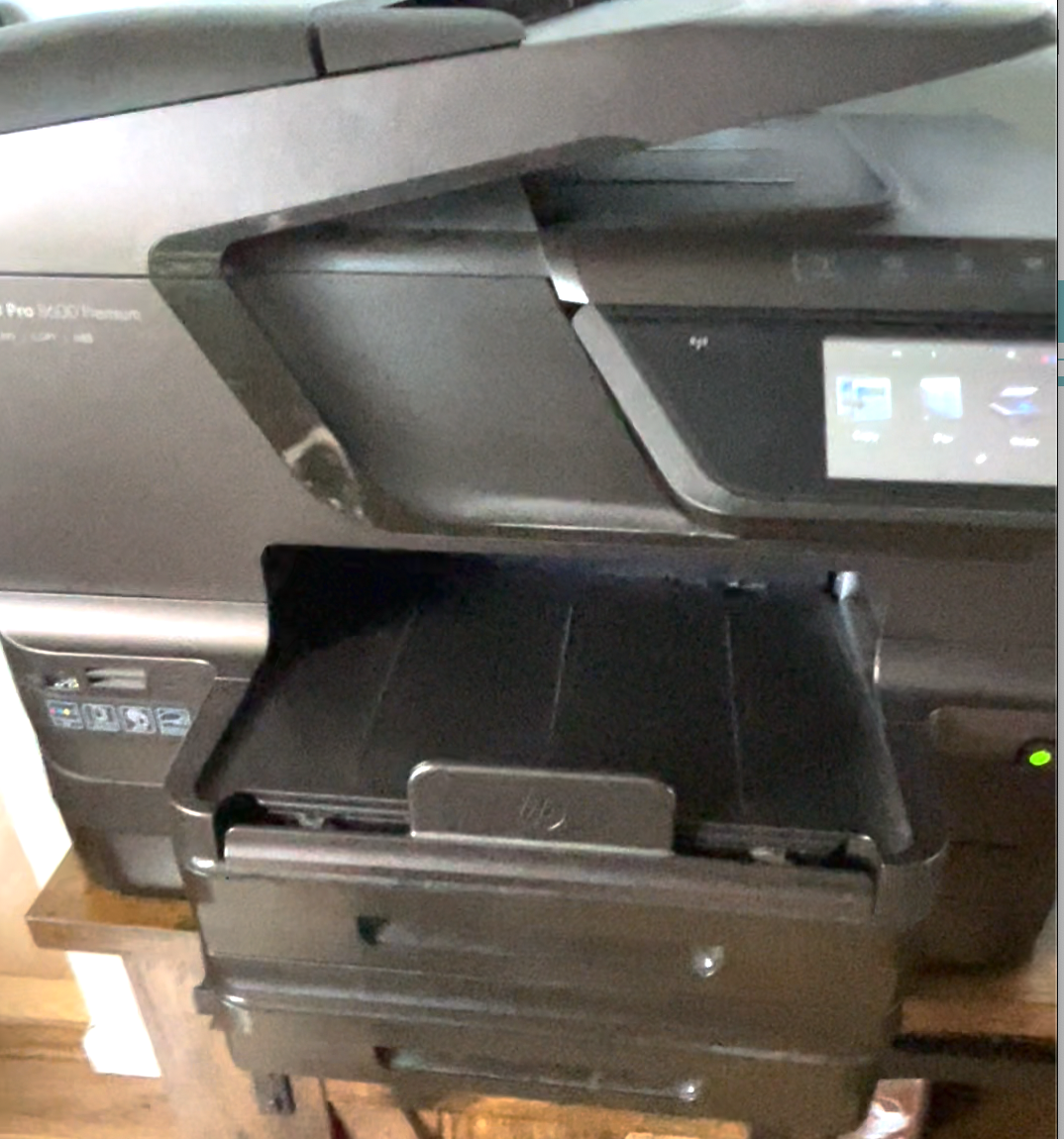
Obrázek 2: View of the ink cartridge installation area.
2.5 Vkládání papíru
Pull out the input tray. Load paper into the tray, adjusting the paper guides to fit the paper size. The input capacity is up to 250 sheets of letter/legal paper. The printer supports various media sizes including Letter, Legal, Statement, Executive, 3x5 in, 4x6 in, 5x7 in, 5x8 in, 8x10 in, and envelopes (No. 10, Monarch, DL).
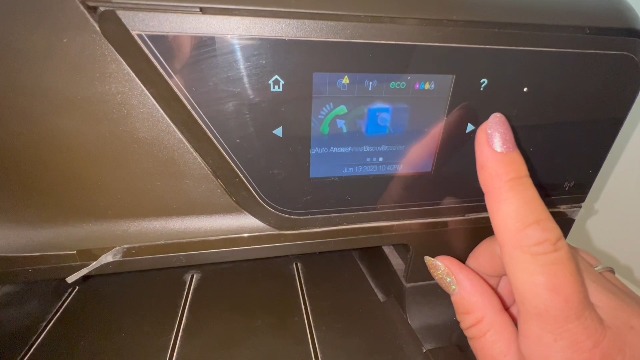
Figure 3: Paper input tray extended with paper loaded.
3. Návod k obsluze
3.1 Tisk
The HP Officejet Pro 8600 supports both wired and wireless printing. It features HP ePrint and AirPrint for convenient mobile printing from compatible devices like iPad, iPhone, and iPod touch. Standard connectivity includes 2 USB 2.0 ports, 1 Ethernet port, and Wireless 802.11b/g/n.
- Rychlost tisku: Up to 18 ppm (black), Up to 13 ppm (color) ISO Speed.
- Rozlišení tisku: Up to 1200 x 600 dpi (black), Up to 4800 x 1200 optimized dpi (color).
- Oboustranný tisk: Automatic (standard).
- Bezokrajový tisk: Yes (up to 8.5 x 11 in, 216 x 279 mm).
3.2 Kopírování
Use the control panel to select the copy function. Place your document on the scanner glass or in the Automatic Document Feeder (ADF).
- Rozlišení kopírování: Up to 1200 x 600 dpi (black text/graphics), Up to 1200 x 600 dpi (color text/graphics).
- Maximální počet kopií: Až 99 kopií.
3.3 Skenování
Documents can be scanned using the flatbed scanner or the ADF. Scan input modes include front-panel scan and HP Photosmart software.
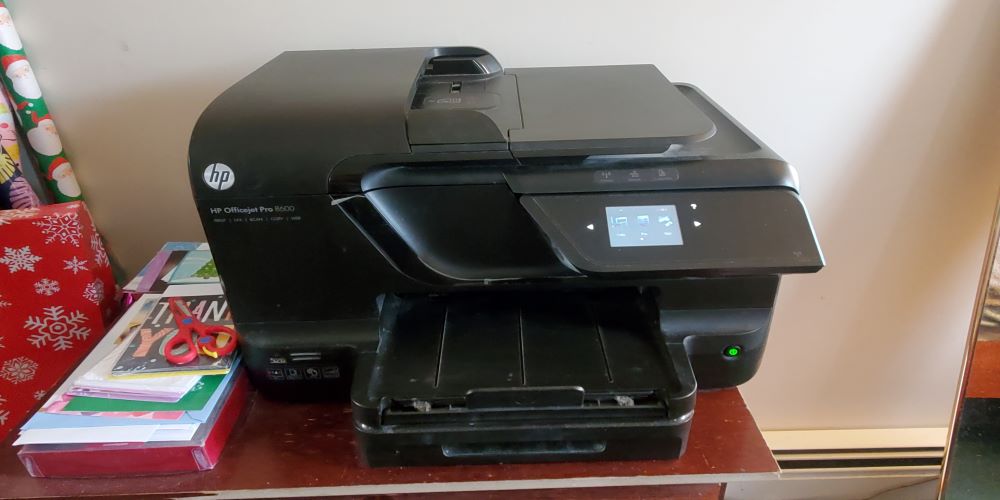
Figure 4: Scanner bed with lid open.
- Typ skeneru: Flatbed, ADF.
- Rozlišení skenování: Až 4800 dpi.
- Scan Speed (ADF Letter): Up to 5.6 ppm (200 ppi, b&w), Up to 5.6 ppm (200 ppi, color).
- Maximální velikost skenování: 8.5 x 11.7 in (216 x 297 mm).
3.4 Faxování
The printer includes fax functionality with 2 RJ-11 modem ports.
- Fax Speed: 4 sec per page.
- Rozlišení faxu: 203 x 98 dpi (black), 200 x 200 dpi (color), 203 x 196 dpi (photo).
3.5 Použití ovládacího panelu
The printer features a touch-sensitive control panel for easy navigation through functions like Copy, Fax, Scan, and Apps. It provides intuitive step-by-step guidance for various tasks.
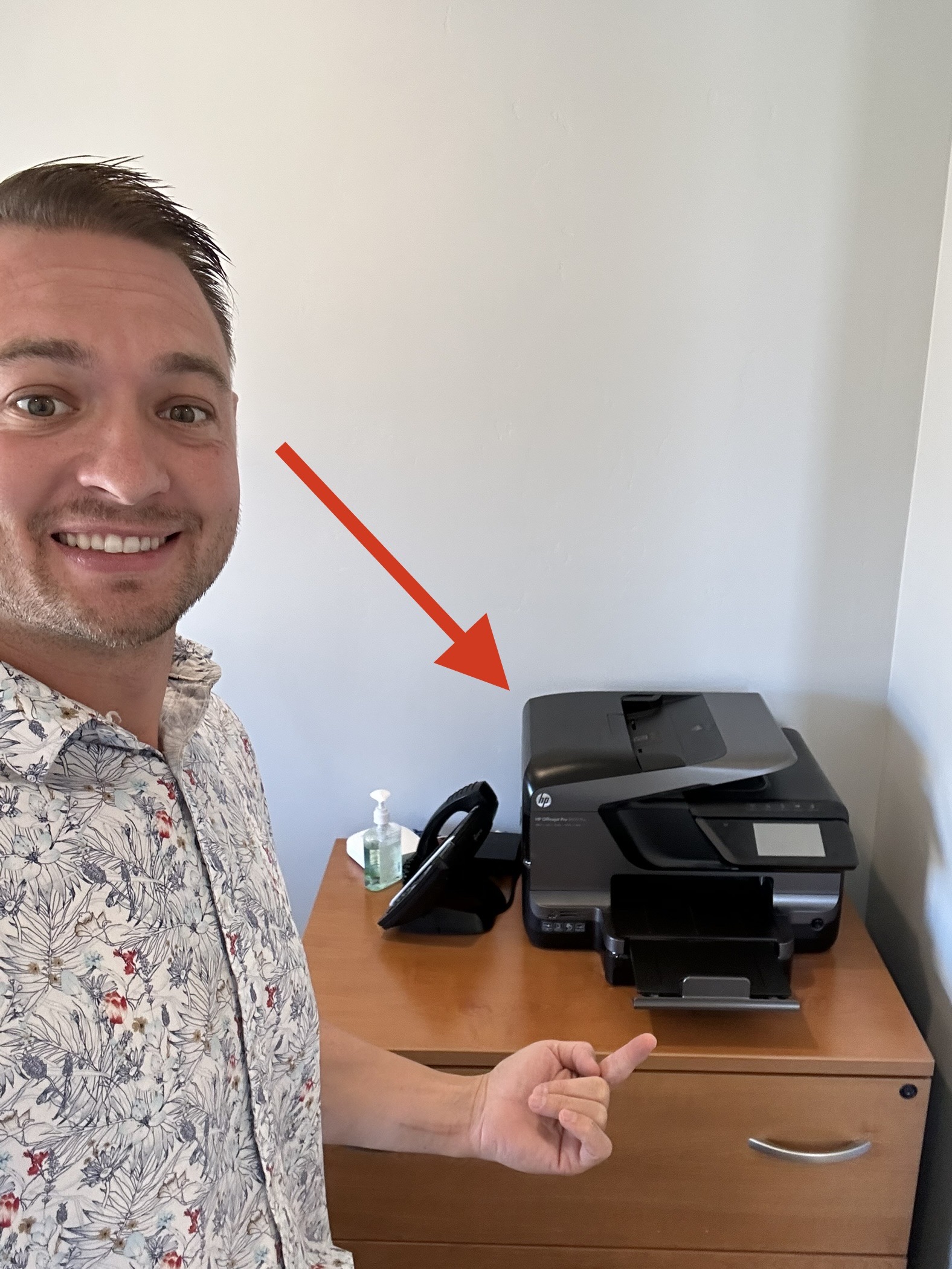
Figure 5: Close-up of the printer's touch control panel.
4. Údržba
4.1 Čištění
Pravidelně čistěte vnější povrch tiskárny měkkým hadříkemamp cloth. Periodically clean the scanner glass and the ADF rollers to ensure optimal scan quality and prevent paper jams.
4.2 Ink Replacement
When an ink cartridge runs low or is empty, the printer's control panel will indicate which cartridge needs replacement. Always use only Original HP Ink for best results and to maintain printer warranty.
4.3 Řešení zaseknutí papíru
If a paper jam occurs, the printer's control panel will display instructions on how to clear it. Follow these instructions carefully to avoid damaging the printer. Typically, this involves opening access doors and gently pulling the jammed paper in the direction of the paper path.
5. Řešení problémů
For common issues such as connectivity problems, print quality issues, or error messages, refer to the printer's on-screen help or the comprehensive troubleshooting guide available on the HP support website. Ensure your printer's firmware is up to date for optimal performance.
6. Specifikace
| Funkce | Print, Fax, Scan, Copy, Web |
| Technologie tisku | Termální inkoustová tiskárna HP |
| Rozlišení tisku (černobíle) | Až 1200 600 x XNUMX XNUMX dpi |
| Rozlišení tisku (barevně) | Optimalizované rozlišení až 4800 x 1200 dpi |
| Print Speed (ISO Black) | Až 18 str./min |
| Print Speed (ISO Color) | Až 13 str./min |
| Duplex Print Options | Automatický (standardní) |
| Pracovní cyklus | Až 25,000 XNUMX stran |
| Typ skeneru | Plochý, ADF |
| Rozlišení skenování | Až 4800 dpi |
| Maximální velikost skenování | 8.5 x 11.7 palce (216 x 297 mm) |
| Rozlišení kopírování | Až 1200 600 x XNUMX XNUMX dpi |
| Maximální počet kopií | Až 99 kopií |
| Rychlost faxu | 4 s na stránku |
| Konektivita | 2 USB 2.0, 1 Ethernet, 1 Wireless 802.11b/g/n, 2 RJ-11 modem ports, memory card slots |
| Podporovány velikosti médií | Letter, Legal, Statement, Executive, 3x5 in, 4x6 in, 5x7 in, 5x8 in, 4x10 in, 4x11 in, 4x12 in, 8x10 in, envelopes (No. 10, Monarch, DL) |
| Vstupní kapacita | Up to 250 sheets letter/legal |
| Výstupní kapacita | Up to 150 sheets letter/legal |
| Rozměry (ŠxHxV) | 19.4 x 16.3 x 11.8 palce (494 x 412.8 x 300 mm) |
| Hmotnost | 26.4 lb (12 kg) |
7. Záruka a podpora
7.1 Informace o záruce
The HP Officejet Pro 8600 e-All-in-One Wireless Color Printer comes with a Jednoletá omezená záruka na hardwareUschovejte si prosím doklad o koupi pro případ reklamace.
7.2 Zákaznická podpora
Pro technickou pomoc, stažení ovladačů nebo další informace navštivte oficiální stránky podpory HP. website or contact HP customer service. Using only Original HP Ink is recommended for optimal performance and to ensure warranty validity.