
1. Úvod
The D-Link Wireless N300 Dual Band PCI Express Desktop Adapter (DWA-566) provides high-speed wireless connectivity for your desktop computer. Utilizing Wireless N technology, it maximizes the speed and range of your wireless signal, offering superior performance compared to Wireless G devices. The dual-band capability supports both 2.4GHz and 5GHz wireless signals, allowing for flexible network usage, such as browsing on 2.4GHz and HD streaming or gaming on the clearer 5GHz band.
This adapter is designed to fit into any standard PCI Express slot, offering a higher performance interface than legacy PCI. It supports secure wireless networks with WPA or WPA2 encryption.

Figure 1.1: D-Link DWA-566 Wireless N300 Dual Band PCI Express Desktop Adapter with antennas.
2. Vlastnosti
The DWA-566 adapter includes the following key features:
- IEEE 802.11n, 802.11g, and 802.11a Compliant
- Dual Band Technology for Superior Wireless Performance (2.4GHz or 5GHz)
- Access secure wireless networks using advanced WPA or WPA2 encryption
- Fits into any standard PCI Express slot
- PCI Express Interface provides higher performance than a legacy PCI interface
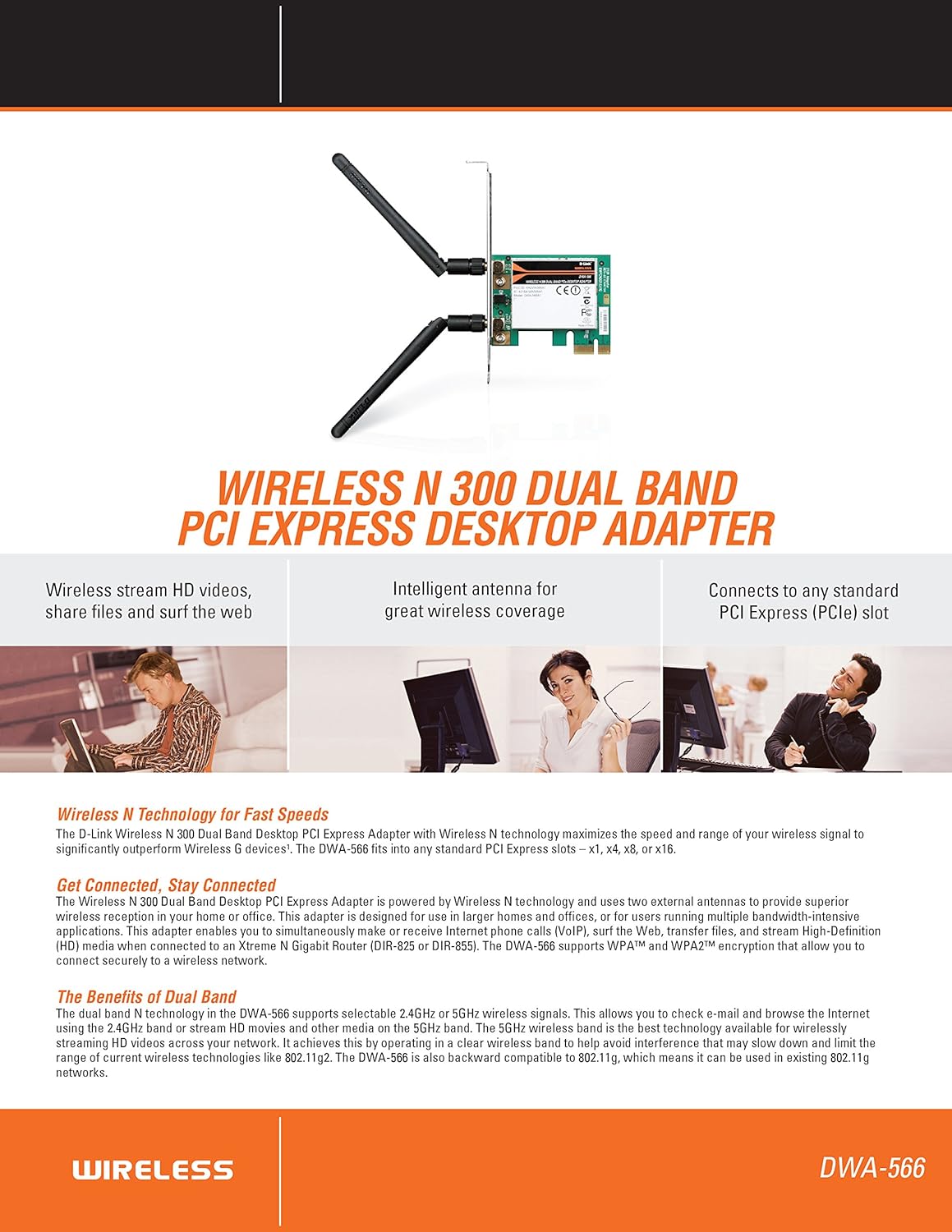
Obrázek 2.1: Přesview of DWA-566 features and benefits.
3. Obsah balení
Ověřte, zda váš balíček obsahuje následující položky:
- Wireless N 300 Dual Band PCI Express Adapter (DWA-566)
- Dvě odnímatelné antény
- Low-profile montážní konzole
- Průvodce rychlou instalací
- CD-ROM with:
- Správce bezdrátového připojení D-Link
- Ovladače
- Produktová dokumentace
4. Systémové požadavky
Before installing the DWA-566, ensure your system meets the following minimum requirements:
- Computer with an available PCI Express slot
- Windows operating system (Windows XP, Vista, 7, 8, 10)
- CD-ROM drive (for driver installation from included CD)
- Internet Explorer 7 or Firefox 3.0 and above (for viewing documentation)
- Předplatné u poskytovatele internetových služeb (ISP)
For optimal performance, a D-Link Wireless N router (DIR-655 or DIR-825) is recommended.

Figure 4.1: Detailed technical specifications, minimum requirements, and network diagram.
5. Nastavení a instalace
5.1 Instalace hardwaru
- Vypnutí počítače: Vypněte počítač a odpojte napájecí kabel.
- Otevřete počítačovou skříň: Sejměte kryt skříně počítače.
- Vyhledejte slot PCI Express: Find an available PCI Express slot on your motherboard.
- Vložkový adaptér: Carefully insert the DWA-566 adapter into the PCI Express slot, ensuring it is seated firmly.
- Bezpečný adaptér: Secure the adapter with a screw to the computer chassis.
- Připojit antény: Screw the two included antennas onto the connectors on the adapter.
- Zavření pouzdra a zapnutí: Nasaďte kryt počítače, zapojte napájecí kabel a zapněte počítač.

Figure 5.1: DWA-566 adapter with antennas attached, ready for installation.
5.2 Instalace softwaru
After hardware installation, proceed with driver and utility installation:
- Vložte instalační CD: Insert the DWA-566 installation CD into your computer's CD-ROM drive. The setup wizard should launch automatically. If not, navigate to the CD drive and run the 'Setup.exe' file.
- Postupujte podle pokynů na obrazovce: Follow the prompts of the D-Link setup wizard to install the drivers and the D-Link Wireless Connection Manager utility.
- Restartujte počítač: After the installation is complete, restart your computer when prompted.
Poznámka: For Windows 7/8 64-bit systems, ensure you are using the latest drivers available from the official D-Link support website to avoid potential compatibility issues.
6. Návod k obsluze
Once the drivers are installed, you can connect to a wireless network:
- Launch Connection Manager: Open the D-Link Wireless Connection Manager utility or use the built-in Windows wireless network utility.
- Vyhledávání sítí: Nástroj prohledá dostupné bezdrátové sítě ve vaší oblasti.
- Vyberte síť: Vyberte ze seznamu požadovanou bezdrátovou síť (SSID).
- Zadejte bezpečnostní klíč: If the network is secured, enter the correct WPA/WPA2 security key or passphrase.
- Připojit: Klikněte na tlačítko „Připojit“ pro navázání bezdrátového připojení.
A successful connection will be indicated by a strong signal strength and internet access.
7. Údržba
To ensure optimal performance and longevity of your DWA-566 adapter:
- Udržujte ovladače aktualizované: Pravidelně kontrolujte podporu D-Link website for the latest drivers and firmware updates.
- Zajistěte správné větrání: Make sure your computer case has adequate airflow to prevent overheating of internal components, including the wireless adapter.
- Umístění antény: Adjust the antennas for the best possible signal reception.
- Environmentální faktory: Avoid placing your computer near large metal objects or other devices that may cause wireless interference.
8. Řešení problémů
If you encounter issues with your DWA-566 adapter, consider the following:
8.1 No Wireless Connection
- Verify Hardware Installation: Ensure the adapter is correctly seated in the PCI Express slot and antennas are securely attached.
- Zkontrolujte ovladače: Confirm that the drivers are installed correctly. Check Device Manager for any error symbols next to the network adapter. Reinstall drivers if necessary.
- Stav routeru: Ensure your wireless router is powered on and broadcasting a signal.
- Bezpečnostní klíč: Double-check that the correct wireless security key (WPA/WPA2 passphrase) is entered.
- Nastavení firewallu: Temporarily disable your computer's firewall to see if it is blocking the connection. If it resolves the issue, configure your firewall to allow the D-Link utility.
8.2 Slow Connection Speed or Frequent Disconnections
- Nastavení antény: Try repositioning the antennas for better signal reception.
- Rušení: Move the computer away from potential sources of interference (e.g., cordless phones, microwaves, Bluetooth devices).
- Blízkost routeru: Ensure the computer is within the effective range of your wireless router.
- Dual Band Usage: If your router supports it, try connecting to the 5GHz band for less interference and potentially higher speeds, especially for streaming or gaming.
- Aktualizace ovladačů: Update the adapter drivers to the latest version from the D-Link webmísto.
9. Specifikace
| Funkce | Specifikace |
|---|---|
| Značka | D-Link |
| Číslo modelu | DWA-566 |
| Hardwarové rozhraní | PCI Express |
| Data Link Protocol | IEEE 802.11n, 802.11g, 802.11a |
| Rychlost přenosu dat | Až 300 megabitů za sekundu |
| Frekvenční pásmo | 2.4 GHz / 5 GHz (Dual Band) |
| Zabezpečení | WPA, WPA2 |
| Kompatibilní zařízení | Stolní počítače |
| Hmotnost položky | 0.4 libry (přibližně 181 gramů) |
| Certifikace externího testování | FCC B, IC B, CE, C-Tick |
10. Záruka a podpora
The D-Link Wireless N300 Dual Band PCI Express Desktop Adapter (DWA-566) comes with a 1letá omezená záruka. For specific terms and conditions, please refer to the warranty documentation included with your product or visit the official D-Link webmísto.
D-Link provides 24/7 Basic Installation Support to assist with initial setup and configuration. For technical assistance, driver downloads, and further product information, please visit the D-Link support webnebo kontaktujte jejich zákaznický servis.
Podpora D-Link Webmísto: https://support.dlink.com/