BlackBerry BB 9900 Bold Touch Smartphone User Manual
Model: BB 9900
1. Úvod
This manual provides essential instructions for setting up, operating, and maintaining your BlackBerry BB 9900 Bold Touch smartphone. Please read this guide thoroughly to ensure proper use and to maximize the device's capabilities. The BlackBerry BB 9900 Bold Touch combines a capacitive touchscreen with a full QWERTY keyboard, running on BlackBerry OS 7.
2. Obsah balení
Ověřte, zda váš balíček obsahuje následující položky:
BlackBerry BB 9900 Bold Touch Smartphone
Nabíjecí baterie
Nástěnná nabíječka
USB kabel
Uživatelská příručka (tento dokument)
3. Zařízení skončiloview
Familiarize yourself with the physical features of your BlackBerry BB 9900 Bold Touch.
3.1 Přední View
Obrázek: Přední strana view of the BlackBerry BB 9900 Bold Touch, highlighting the 2.8-inch touchscreen and the physical QWERTY keyboard below it. The device also features a trackpad and call/end buttons.
Dotykový displej: 2.8-inch capacitive display for interactive navigation.
QWERTY klavesnice: Full physical keyboard for efficient typing.
Optical Trackpad: For precise navigation and selection.
Tlačítka pro volání/ukončení: Standard telephony controls.
3.2 Zadní View
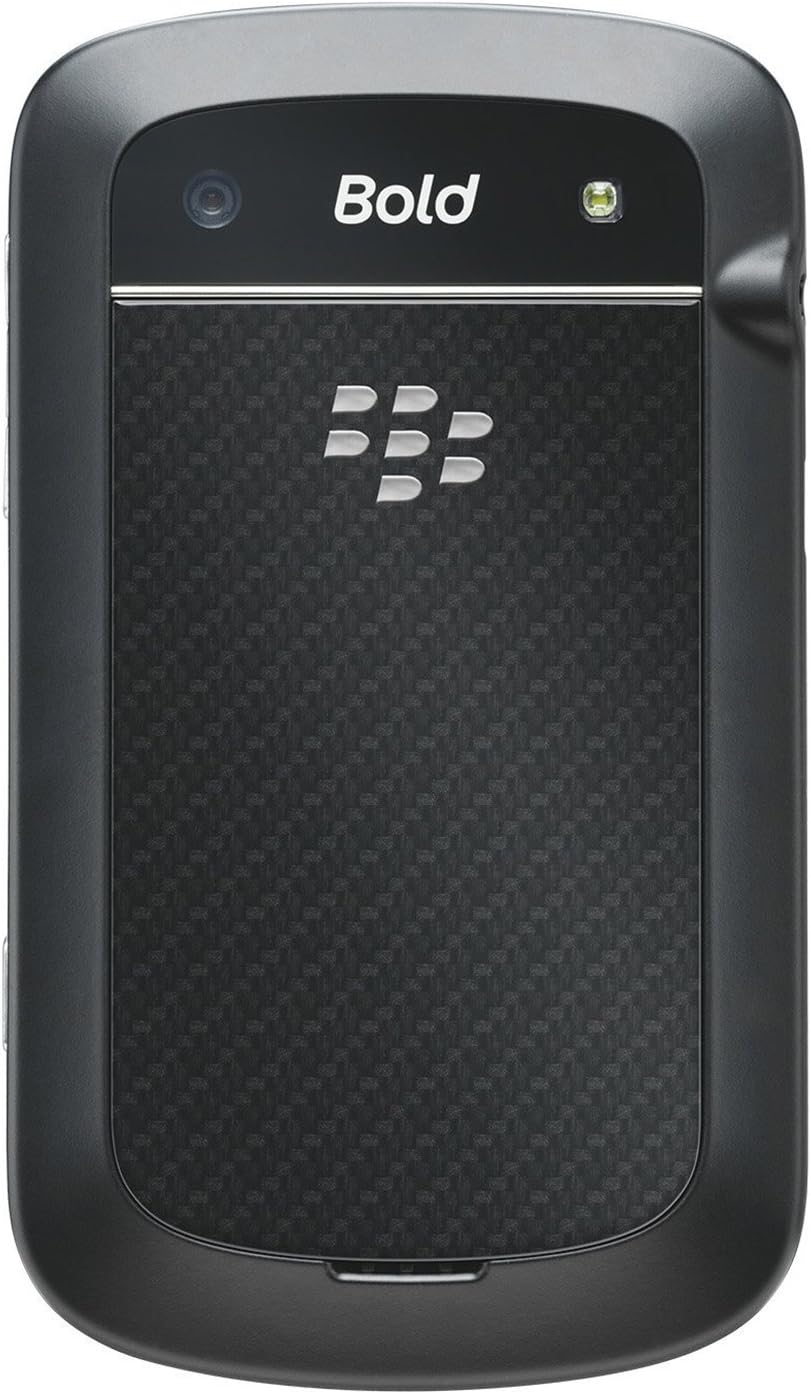
Obrázek: Zadní view of the BlackBerry BB 9900 Bold Touch, featuring the 5-megapixel camera lens, LED flash, and the BlackBerry logo.
5MP Kamera: Primary camera with autofocus and LED flash.
Kryt baterie: Removable cover for battery and SIM card access.
3.3 Strana View
Obrázek: Boční view of the BlackBerry BB 9900 Bold Touch, illustrating the placement of the volume control buttons and a customizable convenience key.
Vložte SIM kartu zlatými kontakty směrem dolů a zkoseným rohem zarovnaným se slotem.
Ujistěte se, že je SIM karta bezpečně na svém místě.
4.2 Vložení baterie
After inserting the SIM card, align the battery's gold contacts with the contacts in the battery compartment.
Jemně zatlačte baterii na místo, dokud nezaklapne.
Nasaďte kryt baterie.
4.3 Nabíjení zařízení
Connect the USB cable to the charging port on your device.
Plug the other end of the USB cable into the wall charger, then into a power outlet.
Před prvním použitím nechte zařízení plně nabít. Indikátor baterie na obrazovce bude zobrazovat stav nabíjení.
4.4 Zapnutí/vypnutí
Zapnutí: Press and hold the Power/Lock button (usually located on the top edge) until the BlackBerry logo appears.
Vypnutí: Press and hold the Power/Lock button until the 'Power Off' option appears on the screen. Tap 'Power Off' to confirm.
5. Návod k obsluze
5.1 Navigace na dotykové obrazovce
Klepněte na: Touch the screen briefly to open applications, select items, or activate buttons.
Výpad: Drag your finger across the screen to scroll through lists or switch between home screen panels.
Přiblížení/zvětšení prsty: Use two fingers to zoom in or out on photos, web stránky nebo mapy.
5.2 Používání klávesnice QWERTY
The physical QWERTY keyboard allows for fast and accurate text entry. Each key corresponds to a letter, number, or symbol. Use the 'Alt' key for alternate characters and the 'Shift' key for capitalization.
5.3 Volání
From the home screen, tap the Phone icon or press the green Call button.
Enter the phone number using the keyboard.
Stiskněte zelené tlačítko Volat pro zahájení hovoru.
Chcete-li hovor ukončit, stiskněte červené tlačítko Ukončit hovor.
5.4 Odesílání zpráv
Tap the Messages icon from the home screen.
Select 'Compose New' or similar option.
Zadejte číslo příjemce nebo jej vyberte z kontaktů.
Type your message using the QWERTY keyboard.
Tap 'Send'.
5.5 Používání fotoaparátu
Klepnutím na ikonu Fotoaparát otevřete aplikaci Fotoaparát.
Komponujte snímek pomocí obrazovky jako viewnálezce.
Tap the screen or press the convenience key (if configured) to take a photo.
The 5MP camera features autofocus and an LED flash for improved image quality.
5.6 Připojení k Wi-Fi
Go to 'Options' > 'Networks and Connections' > 'Wi-Fi'.
Turn Wi-Fi on. The device will scan for available networks.
Vyberte požadovanou síť a v případě potřeby zadejte heslo.
Once connected, the Wi-Fi indicator will appear in the status bar.
5.7 Using NFC (Near Field Communication)
The BlackBerry BB 9900 Bold Touch supports NFC for short-range wireless communication. This allows for quick pairing with compatible accessories or sharing data with other NFC-enabled devices by tapping them together.
Ujistěte se, že je v nastavení zařízení povoleno NFC.
Hold your device close to another NFC-enabled device or tag.
Follow on-screen prompts to complete the desired action (e.g., pairing, data transfer).
6. Údržba
6.1 Čištění vašeho zařízení
K otření obrazovky a těla zařízení použijte měkký hadřík, který nepouští vlákna.
Vyhněte se používání agresivních chemikálií, abrazivních čisticích prostředků nebo aerosolových sprejů.
Nevystavujte zařízení nadměrné vlhkosti.
6.2 Péče o baterii
Vyhněte se extrémním teplotám, které mohou snížit výkon baterie.
Používejte pouze originální nebo schválenou nabíječku.
Baterii nepropichujte ani nepoškozujte.
6.3 Aktualizace softwaru
Periodically check for software updates to ensure your device has the latest features and security enhancements. Updates can typically be found in the device's 'Options' or 'Settings' menu under 'Software Updates'.
7. Řešení problémů
7.1 Zařízení se nezapíná
Ujistěte se, že je baterie správně vložena a nabita.
Connect the device to the charger and wait a few minutes before attempting to power on again.
Pokud problém přetrvává, zkuste vyjmout a znovu vložit baterii.
7.2 Problémy s připojením k síti
Check if your SIM card is correctly inserted and activated with your carrier.
Verify that cellular data or Wi-Fi is enabled in your device settings.
Restartujte zařízení.
If using Wi-Fi, ensure your router is working and you have entered the correct password.
7.3 Dotyková obrazovka nereaguje
Restartujte zařízení.
Ujistěte se, že obrazovka je čistá a bez nečistot nebo vlhkosti.
If the issue is intermittent, check for any recent software installations that might be causing conflicts.
8. Specifikace
Funkce
Detail
Název modelu
BB 9900
Operační systém
Operační systém BlackBerry 7
Zobrazit
2.8-inch Capacitive Touchscreen, 640 x 480 Resolution
Procesor
Not specified (typically 1.2 GHz for this model)
BERAN
768 MB
Interní úložiště
8 GB
Zadní kamera
5 MP, Autofocus, LED Flash
Konektivita
Wi-Fi 802.11 b/g/n, NFC, Bluetooth, GPS
Síťová podpora
Quad-band GSM/GPRS/EDGE, Tri-band HSPA+
Rozměry
4.53 x 2.6 x 0.41 palce (115 x 66 x 10.5 mm)
Hmotnost
4.6 unce (130 gramů)
Audio Jack
3.5 mm
9. Podpora a záruka
9.1 Zákaznická podpora
For technical assistance, troubleshooting beyond this manual, or service inquiries, please visit the official BlackBerry support website or contact your local service provider. Refer to the packaging or official webweb pro konkrétní kontaktní údaje.
9.2 Informace o záruce
Your BlackBerry BB 9900 Bold Touch is covered by a limited warranty. Please refer to the warranty card included in your product packaging or visit the official BlackBerry webPodrobné podmínky, včetně záruční doby a podrobností o krytí, naleznete na webových stránkách. Uschovejte si doklad o koupi pro případ reklamace.
Ask a question about this manual
Ask about setup, troubleshooting, compatibility, parts, safety, or missing instructions. Manuals+ will review the question and use this page’s manual context to help answer it.