
Zavedení
This manual provides detailed instructions for the setup, operation, maintenance, and troubleshooting of your Avaya 9640G IP Phone. Please read this manual thoroughly before using the device to ensure proper functionality and to prevent damage.
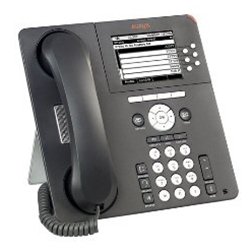
Obrázek 1: Přední view of the Avaya 9640G IP Phone, showing the display, keypad, and function buttons.
1. Nastavení
1.1 Vybalení
Opatrně vyjměte všechny součásti z obalu. Zkontrolujte, zda jsou přítomny následující položky:
- Avaya 9640G IP Phone unit
- Sluchátko
- Kabel sluchátka
- Ethernetový kabel
- Stojan na stůl (pokud je k dispozici)
- Napájecí adaptér (pokud nepoužíváte napájení přes Ethernet – PoE)
1.2 Připojení telefonu
Follow these steps to connect your IP phone:
- Připojení sluchátka: Plug one end of the coiled handset cord into the handset and the other end into the handset port on the phone base (usually marked with a handset icon).
- Připojení headsetu (volitelné): If using a headset, plug it into the headset port (usually marked with a headset icon).
- Připojit k síti:
- Plug one end of the Ethernet cable into the LAN port on the phone (often labeled with a network icon or "LAN").
- Plug the other end of the Ethernet cable into a network jack or a network switch/router.
- If your network provides Power over Ethernet (PoE), the phone will power on automatically.
- Připojení napájení (pokud nepoužíváte PoE): If PoE is not available, connect the power adapter to the phone's power port and then plug the adapter into a wall outlet.
- Počáteční spuštění: The phone will power on and begin its boot-up sequence. This may take a few minutes. The display will show progress and eventually indicate readiness for use.
1.3 Počáteční konfigurace
Upon first boot-up or after a factory reset, the phone may require network configuration or login credentials. Consult your network administrator for specific settings such as IP address, subnet mask, gateway, and SIP server details.
2. Návod k obsluze
2.1 Základní funkce volání
- Uskutečnění hovoru:
- Lift the handset, press the Speaker button, or press a Line button.
- Vytočte požadované číslo pomocí klávesnice.
- Press the "Call" or "Dial" softkey, or wait for the call to connect automatically.
- Přijetí hovoru:
- Lift the handset, press the Speaker button, or press the flashing Line button.
- Ukončení hovoru:
- Replace the handset, press the Speaker button again, or press the "End Call" softkey.
2.2 Pokročilé funkce volání
- Držet: During an active call, press the "Hold" button. The call will be placed on hold, and the line button may flash. To resume, press the flashing line button again.
- Převod: During an active call, press the "Transfer" button. Dial the number to which you want to transfer the call. You can either announce the call (wait for the other party to answer) or perform a blind transfer (press "Transfer" again before they answer).
- Konference: During an active call, press the "Conference" button. Dial the number of the third party. Once they answer, press "Conference" again to join all parties.
2.3 Hlasová schránka
To access your voicemail, press the "Message" or "Voicemail" button (often indicated by an envelope icon). Follow the audio prompts to listen to, save, or delete messages. You may need to enter a PIN.
2.4 Directory/Contacts
The phone may have a local directory or access to a corporate directory. Press the "Directory" or "Contacts" button to access these lists. Use the navigation buttons to scroll and select entries, then press "Dial" to call.
2.5 Feature Buttons and Display Navigation
The Avaya 9640G features a color display and several programmable buttons. Use the navigation cluster (up, down, left, right arrows, and Select button) to move through menus and options on the display. Softkeys (buttons directly below the display) change their function based on the current context.
3. Údržba
3.1 Čištění
K čištění telefonu použijte měkký,amp, lint-free cloth. Do not use abrasive cleaners, solvents, or aerosol sprays directly on the phone. Disconnect the phone from power before cleaning.
3.2 Aktualizace softwaru a firmwaru
Software and firmware updates are typically managed by your system administrator. Do not attempt to manually update the phone's software unless instructed to do so by qualified personnel. Regular updates ensure optimal performance and security.
4. Řešení problémů
| Problém | Možná příčina | Řešení |
|---|---|---|
| Žádný oznamovací tón | Phone not powered, network cable loose, network issue. | Check power connection (PoE or adapter). Ensure Ethernet cable is securely connected. Contact your network administrator. |
| Nelze uskutečňovat/přijímat hovory | Network connectivity issues, incorrect configuration, account not registered. | Verify network connection. Check phone's IP address and registration status. Contact your system administrator. |
| Displej je prázdný nebo zamrzlý | Power issue, software error. | Disconnect and reconnect power. If the issue persists, contact technical support. |
| Špatná kvalita zvuku | Network congestion, faulty cable, handset/headset issue. | Check network activity. Try a different handset or headset. Report to network administrator if problem persists. |
For issues not listed here, or if the suggested solutions do not resolve the problem, please contact your IT or network support department.
5. Specifikace
- Značka: Avaya
- Model: 9640G
- ASIN: B003P5AA8Y
- Typ systému odpovědí: Digitální
- Identifikace volajícího: Žádný
- Konektivita: Ethernet (PoE capable)
- Zobrazit: Barevný displej
- Sluchátko: Kabelové
- Podpora headsetu: Ano
Poznámka: Specifikace se mohou změnit bez předchozího upozornění.
6. Záruka a podpora
6.1 Informace o záruce
The Avaya 9640G IP Phone typically comes with a limited manufacturer's warranty. Please refer to the warranty card included with your product or visit the official Avaya website for detailed terms and conditions regarding warranty coverage, duration, and claims procedures. Keep your proof of purchase for warranty purposes.
6.2 Technická podpora
For technical assistance, troubleshooting beyond this manual, or service requests, please contact your authorized Avaya reseller or your organization's IT support department. You may also find additional resources and support documentation on the official Avaya support webmísto: support.avaya.com.