
AudioCodes MP-118
AudioCodes MediaPack MP-118 VoIP Gateway User Manual
Model: MP118/4S/4O/SIP
Značka: AudioCodes
Zavedení
This manual provides comprehensive instructions for the installation, operation, and maintenance of the AudioCodes MediaPack MP-118 Analog VoIP Gateway. The MP-118 is designed to connect traditional analog devices and PSTN/ISDN networks to VoIP services, supporting 4 FXS and 4 FXO analog lines.
Konec produktuview
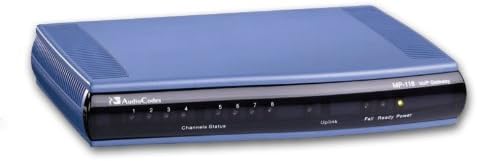
Obrázek 1: Přední strana view of the AudioCodes MediaPack MP-118 VoIP Gateway. The front panel features status LEDs for channels, uplink, and power.
The AudioCodes MediaPack MP-118 is a robust analog VoIP gateway, facilitating the integration of legacy telephony equipment with modern IP communication systems. It includes 4 FXS ports for connecting analog phones or fax machines and 4 FXO ports for connecting to PSTN lines or PBX extensions. The device operates on a single 100/10 BaseT Ethernet connection and is powered by an AC power supply.
Nastavení a instalace
Obsah balení
- AudioCodes MediaPack MP-118 VoIP Gateway
- Napájecí adaptér
- Ethernetový kabel
- Stručný průvodce (pokud je k dispozici)
Připojení brány
- Připojení napájení: Connect the provided AC power adapter to the gateway's power input and then to a standard electrical outlet.
- Internetové připojení: Connect an Ethernet cable from the gateway's 100/10 BaseT port to your network switch or router.
- FXS Port Connection: Connect analog phones, fax machines, or other FXS-compatible devices to the FXS ports (typically labeled 1-4).
- FXO Port Connection: Connect PSTN lines or PBX extensions to the FXO ports (typically labeled 5-8).
Počáteční konfigurace
Upon initial power-up, the gateway will perform a self-test. Refer to the Provozní section for details on LED indicators. Network configuration and SIP registration typically require access to the device's web-based management interface or command-line interface. Consult the full administration guide for detailed configuration steps, including IP address assignment, SIP server registration, and dial plan setup.
Obsluha brány
LED indikátory
The front panel of the MP-118 features several LED indicators to provide status information:
- LED napájení: Indicates power status. Solid green typically means the device is powered on and operating correctly.
- LED připravenosti: Indicates system readiness. Solid green when the gateway is fully initialized and ready for operation.
- Uplink LED: Indicates Ethernet link status. Blinking or solid green indicates network activity.
- Channel Status LEDs (1-8): Each LED corresponds to an FXS or FXO port.
- Vypnuto: Port is idle or not connected.
- Svítí zelená: Port is active (e.g., phone off-hook, call in progress).
- Bliká zeleně: May indicate a specific status like ringing or a configuration issue, depending on firmware.
Basic Call Operations
Once configured, analog devices connected to the FXS ports can make and receive calls via the VoIP network. FXO ports allow calls to be routed between the VoIP network and the PSTN. The gateway supports basic conference call capabilities and multi-line operation, depending on the connected devices and SIP server configuration.
Údržba
- Aktualizace firmwaru: Periodically check the AudioCodes support website for firmware updates. Keeping the firmware current ensures optimal performance and security.
- Čištění: Clean the exterior of the device with a soft, dry cloth. Do not use liquid cleaners or aerosols. Ensure ventilation openings are clear of dust.
- Podmínky prostředí: Ensure the gateway is operated within recommended temperature and humidity ranges to prevent damage. Avoid direct sunlight and excessive heat.
- Konfigurace zálohy: Regularly back up the gateway's configuration settings to prevent data loss in case of a reset or failure.
Odstraňování problémů
| Problém | Možná příčina | Řešení |
|---|---|---|
| Žádná indikace napájení LED diodou | Napájecí adaptér je odpojený nebo vadný. | Check power connections. Ensure the adapter is securely plugged into the gateway and a working electrical outlet. Test the outlet with another device. |
| Uplink LED is off | Odpojený ethernetový kabel nebo problém se sítí. | Verify the Ethernet cable is securely connected to both the gateway and the network device. Check network switch/router status. Try a different Ethernet cable. |
| Analog phone has no dial tone | FXS port not connected, not configured, or SIP registration failure. | Ensure the phone is correctly plugged into an FXS port. Check the channel status LED. Verify SIP registration status via the gateway's management interface. Consult your VoIP service provider. |
| Cannot make or receive calls via PSTN | FXO port not connected, not configured, or PSTN line issue. | Ensure the PSTN line is correctly plugged into an FXO port. Check the channel status LED. Verify FXO port configuration and dial plan settings. Test the PSTN line directly. |
Specifikace
| Funkce | Detail |
|---|---|
| Číslo modelu | MP118/4S/4O/SIP |
| Analogové porty | 4 FXS (Foreign Exchange Subscriber) for analog devices, 4 FXO (Foreign Exchange Office) for PSTN/PBX lines |
| Protokoly VoIP | SIP (Session Initiation Protocol), MGCP, H.323 |
| Rozhraní Ethernet | Single 100/10 BaseT |
| Zdroj napájení | Corded Electric (AC Power Supply) |
| Rozměry (D x Š x V) | 8.66 x 6.77 x 1.65 palce (220 x 172 x 42 mm) |
| Hmotnost | 1.1 libry (500 gramů) |
| Kompatibilní zařízení | VoIP services, PSTN/ISDN networks, analog devices (phones, fax machines, answering machines), computer systems |
| Možnost konferenčního hovoru | Základní |
| Víceřádkový provoz | Podporováno |
Informace o záruce
AudioCodes products typically come with a standard manufacturer's warranty. For specific warranty terms and conditions, including duration and coverage, please refer to the warranty card included with your product or visit the official AudioCodes webUschovejte si doklad o koupi pro případ reklamace.
Zákaznická podpora
For technical assistance, advanced configuration guides, or further support, please visit the official AudioCodes support portal or contact their customer service department. You may find additional resources, FAQs, and software downloads on their webmísto.
- AudioCodes Official Webmísto: www.audiocodes.com
- Portál podpory: Obraťte se na úředníka website for the latest support contact information and resources.
Ask a question about this manual
Ask about setup, troubleshooting, compatibility, parts, safety, or missing instructions. Manuals+ will review the question and use this page’s manual context to help answer it.