
1. Úvod
This manual provides detailed instructions for the installation, operation, and maintenance of the ASUS M4A87TD EVO motherboard. This ATX motherboard supports AMD Phenom II, Athlon II, and Sempron 100 Series Processors with an AM3 socket, offering robust performance for personal computer systems. Key features include AMD 870 & SB850 chipset, DDR3 memory support, CrossFireX technology, SATA 6Gb/s, and USB 3.0 connectivity.
2. Nastavení a instalace
Správná instalace je klíčová pro stabilní provoz vašeho systému. Pečlivě dodržujte tyto kroky.
2.1 Rozložení základní deskyview
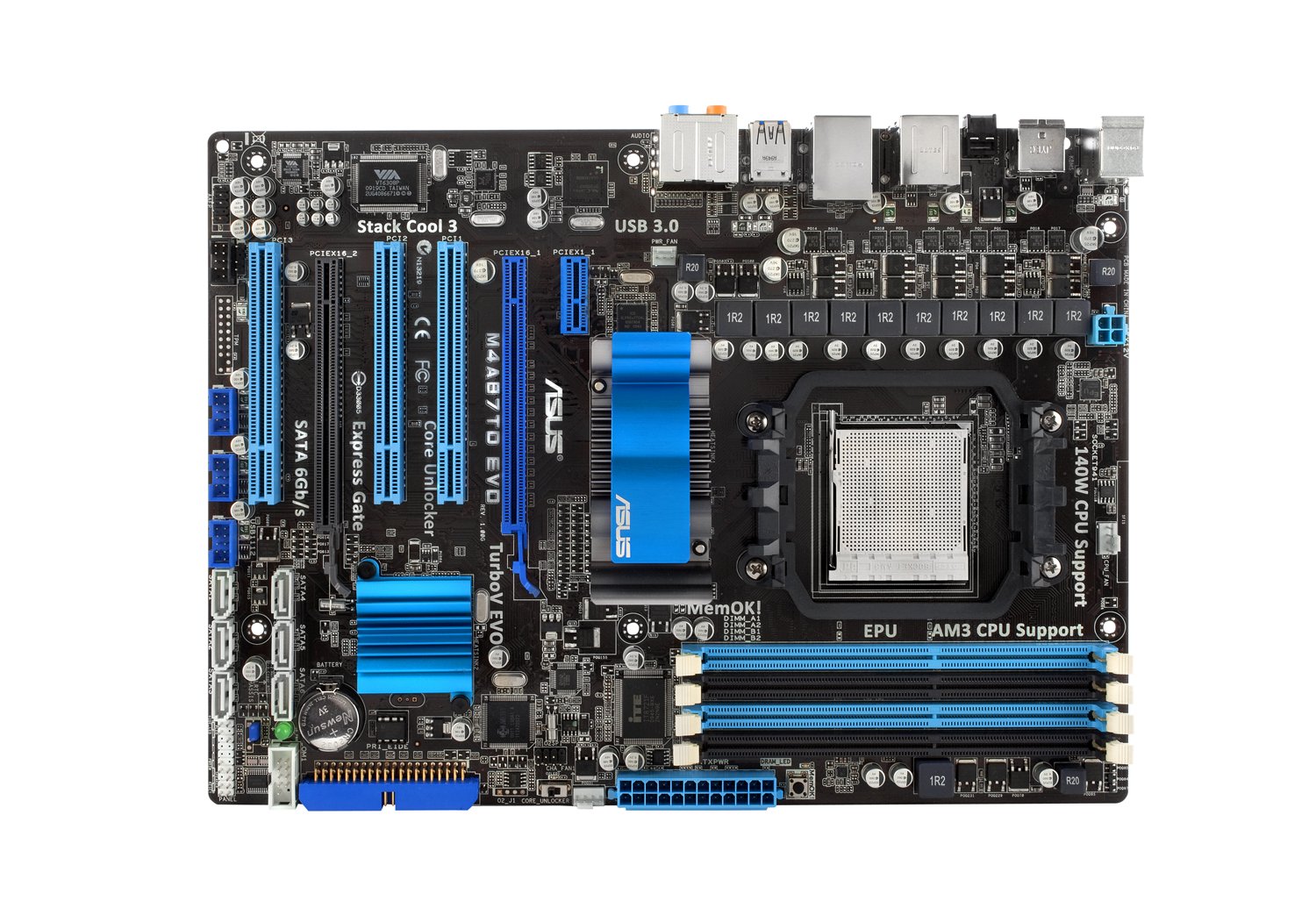
Obrázek 1: Plná view of the ASUS M4A87TD EVO Motherboard, highlighting various components and connectors.
2.2 Instalace CPU
The motherboard features an AM3 socket for compatible AMD processors. Ensure the CPU is correctly oriented before placing it into the socket.
- Vyhledejte soket CPU na základní desce.
- Zvedněte páku zatížení na boku zásuvky.
- Zarovnejte trojúhelníkovou značku na procesoru s odpovídající značkou na patici.
- Opatrně vložte procesor do patice, aniž byste na něj tlačili.
- Spusťte páku zatížení, abyste zajistili procesor na místě.
Obrázek 2: Detailní view of the AM3 CPU socket area on the motherboard.
2.3 Instalace paměti (RAM)
The motherboard supports up to 16GB of DDR3 memory across four DIMM slots. For dual-channel operation, install memory modules in matched pairs.
- Otevřete klipy na obou koncích slotu DIMM.
- Zarovnejte zářez na paměťovém modulu s výstupkem ve slotu DIMM.
- Pevně zatlačte na oba konce paměťového modulu, dokud klipsy nezacvaknou na místo.
Obrázek 3: View of the four DDR3 DIMM slots for memory installation.
2.4 Instalace rozšiřující karty
The motherboard includes two PCI-Express 2.0 x16 slots (supporting ATI CrossFireX), one PCI-Express 2.0 x1 slot, and three PCI slots.
- Select an appropriate expansion slot for your card (e.g., graphics card in a PCIe x16 slot).
- Remove the corresponding slot cover from your computer case.
- Align the card with the slot and press down firmly until it is seated.
- Kartu připevněte k pouzdru šroubem.
Figure 4: Expansion slots including PCI-Express x16, x1, and standard PCI slots.
2.5 Připojení úložného zařízení
Connect SATA 6Gb/s (SATA3) and SATA 3Gb/s (SATA2) devices to the available ports.
- Identify the SATA 6Gb/s ports (typically labeled SATA6G_1, SATA6G_2) and SATA 3Gb/s ports.
- Connect one end of the SATA data cable to the motherboard port and the other end to your storage device (HDD/SSD).
- Ensure the storage device also receives power from the power supply unit.
Figure 5: SATA 6Gb/s and SATA 3Gb/s ports for connecting storage devices.
2.6 Připojení napájení
Connect the main 24-pin ATX power connector and the 4-pin ATX 12V power connector from your power supply unit to the motherboard.
- 24pinový napájecí konektor ATX: Provides main power to the motherboard.
- 4pinový napájecí konektor ATX 12V: Poskytuje CPU dodatečný výkon.
2.7 Připojení zadního I/O panelu
Connect peripheral devices to the rear input/output ports.
- Porty PS/2: For keyboard and mouse.
- USB 2.0/3.0 Ports: For various USB devices.
- eSATA2 Port: For external SATA devices.
- IEEE 1394 Ports: For FireWire devices.
- Port RJ45 LAN: Pro připojení k síti.
- Audio I/O Jacks: For speakers, microphone, and other audio devices.
- Optical S/PDIF Out: Pro digitální audio výstup.
Figure 6: Rear I/O panel showing various connectivity options including USB 3.0, LAN, and audio ports.
3. Návod k obsluze
After successful hardware installation, proceed with system startup and software configuration.
3.1 Initial Power On and BIOS Setup
- Připojte monitor, klávesnici a myš.
- Zapněte počítač.
- Stiskněte tlačítko DEL klávesu během spouštění pro vstup do nástroje pro nastavení systému BIOS.
- Configure essential settings such as boot order, date, and time.
- Explore advanced features like Core Unlocker a TurboV EVO for performance tuning, if desired. Refer to the BIOS utility for detailed explanations of each setting.
- Uložte změny a ukončete BIOS.
3.2 Instalace operačního systému
Install your preferred operating system (e.g., Windows 10) from a bootable USB drive or optical disc.
3.3 Instalace ovladače
Install the necessary drivers for the motherboard components, including chipset, LAN, audio, and USB 3.0 drivers. These are typically provided on a support DVD or available for download from the ASUS webmísto.
4. Údržba
Regular maintenance helps ensure the longevity and stability of your motherboard.
- Odstranění prachu: Pravidelně čistěte prach ze základní desky a jejích součástí pomocí stlačeného vzduchu. Před čištěním se ujistěte, že je systém vypnutý a odpojený od sítě.
- Aktualizace BIOSu: Zkontrolujte podporu ASUSu website for the latest BIOS updates. Updating the BIOS can improve compatibility and system stability. Follow the instructions provided by ASUS carefully during the update process.
- Kontroly součástí: Ensure all cables and components are securely seated. Loose connections can lead to intermittent issues.
5. Řešení problémů
Tato část se zabývá běžnými problémy, se kterými se můžete setkat.
- Systém se nezapne:
- Verify all power supply connections to the motherboard (24-pin ATX and 4-pin ATX 12V).
- Ujistěte se, že je napájecí jednotka zapnutá.
- Zkontrolujte připojení vypínače na předním panelu k základní desce.
- Žádný výstup na displej:
- Ujistěte se, že je grafická karta správně usazena ve slotu PCIe a má dostatečné napájení.
- Check monitor connections and ensure the monitor is powered on and set to the correct input.
- If using integrated graphics (if available on your CPU/APU, though this board requires a discrete GPU), ensure the display cable is connected to the motherboard's video output.
- Memory (RAM) Issues:
- The motherboard features a DRAM LED that illuminates if there is an issue with memory detection.
- Reseat memory modules firmly in their slots.
- Test with one memory module at a time to identify a faulty stick or slot.
- Operating System Instability:
- Ujistěte se, že všechny ovladače jsou správně nainstalovány a aktuální.
- Check for overheating issues by monitoring CPU and chipset temperatures.
- Spusťte diagnostické nástroje paměti a zkontrolujte chyby paměti RAM.
- Porty USB zůstávají napájeny i po vypnutí:
- This is a known characteristic for some configurations. To fully power off USB devices, either toggle the power supply switch off and on, or unplug and replug the power cable from the wall.
6. Specifikace
| Funkce | Detail |
|---|---|
| Značka | ASUS |
| Číslo modelu | M4A87TD EVO |
| Zásuvka CPU | Zásuvka AM3 |
| Kompatibilní procesory | AMD Phenom II / Athlon II / Sempron 100 Series |
| Typ čipové sady | AMD 870 & SB850 |
| Technologie paměti RAM | DDR3 2000(O.C.)/1600/1333/1066 |
| K dispozici paměťové sloty | 4 (Dual Channel, ECC/Non-ECC Un-buffered) |
| Maximální velikost paměti RAM | 16 GB |
| Rozhraní grafické karty | PCI, PCI Express (2x PCIe 2.0 x16, 1x PCIe 2.0 x1, 3x PCI) |
| Podporovaný standard systémové sběrnice | SATA 6Gb/s (SATA 3) |
| Total SATA Ports | 7 (6x SATA 6Gb/s, 1x eSATA2) |
| USB porty | 12x USB 2.0 (6 vzadu, 6 na konektorech), 2x USB 3.0 (vzadu) |
| Počet ethernetových portů | 1 (RTL8111E Gigabit LAN) |
| Zvuk | 8-Channel HD Audio, Optical S/PDIF Out |
| Napájecí konektor | 1x 24-pin ATX, 1x 4-pin ATX 12V |
| Platforma | Windows 10 (kompatibilní) |
| Hmotnost položky | 2.9 libry |
7. Informace o záruce
The ASUS M4A87TD EVO motherboard comes with a 3-letá záruka. For specific terms and conditions, please refer to the warranty card included with your product or visit the official ASUS support webmísto.
8. Podpora
Pro technickou pomoc, stažení ovladačů nebo další informace navštivte oficiální stránky podpory ASUS. website. You can typically find support resources by searching for your product model, M4A87TD EVO, on the ASUS webmísto.
Oficiální ASUS Webmísto: https://www.asus.com/support/