
1. Konec produktuview
The Logitech Wired Mouse M90 is a simple, reliable, and comfortable USB mouse designed for everyday use. It offers precise optical tracking and an ambidextrous design, making it suitable for both left and right-handed users. This manual provides essential information for setting up, operating, and maintaining your M90 mouse.
Klíčové vlastnosti:
- Snadné nastavení: Plug-and-play functionality with no software installation required.
- Precise Optical Tracking: Enjoy smooth and accurate cursor control (1000 dpi).
- Full-Size Comfort: Designed for comfortable use, even after extended periods.
- Oboustranný design: Vhodné pro leváky i praváky.
- Odolné kabelové připojení: Reliable USB connection for consistent performance.
2. Průvodce nastavením
Setting up your Logitech M90 mouse is quick and straightforward. No special software or drivers are needed.
- Rozbalte myš: Carefully remove the Logitech M90 mouse from its packaging.
- Vyhledejte USB port: Identify an available USB-A port on your computer (desktop, laptop, or compatible device).
- Připojte myš: Insert the USB connector of the M90 mouse into the USB port. Ensure it is fully seated.
- Rozpoznávání systému: Your operating system (Windows, macOS, Linux, Chrome OS) should automatically detect and install the necessary drivers for the mouse. This process usually takes a few seconds.
- Začněte používat: Once recognized, the mouse is ready for immediate use. You can adjust cursor speed and other settings through your operating system's mouse settings if desired.

Obrázek 2.1: Shora dolů view of the Logitech M90 mouse, ready for connection.
3. Návod k obsluze
The Logitech M90 mouse provides intuitive control for your computer. It features a standard three-button design with a scroll wheel.
- Levé tlačítko myši: Located on the left side of the mouse. Used for selecting items, opening filea aktivační funkce.
- Kliknutí pravým tlačítkem myši: Located on the right side of the mouse. Used for accessing context menus and additional options.
- Rolovací kolečko: Located between the left and right buttons.
- Scroll up or down to navigate through documents, web stránky a aplikace.
- Press the scroll wheel down (middle-click) to activate specific functions in some applications, such as opening links in a new tab.
- Hnutí: Move the mouse across a flat surface to control the cursor on your screen. The optical sensor provides precise tracking on most surfaces, with or without a mouse pad.
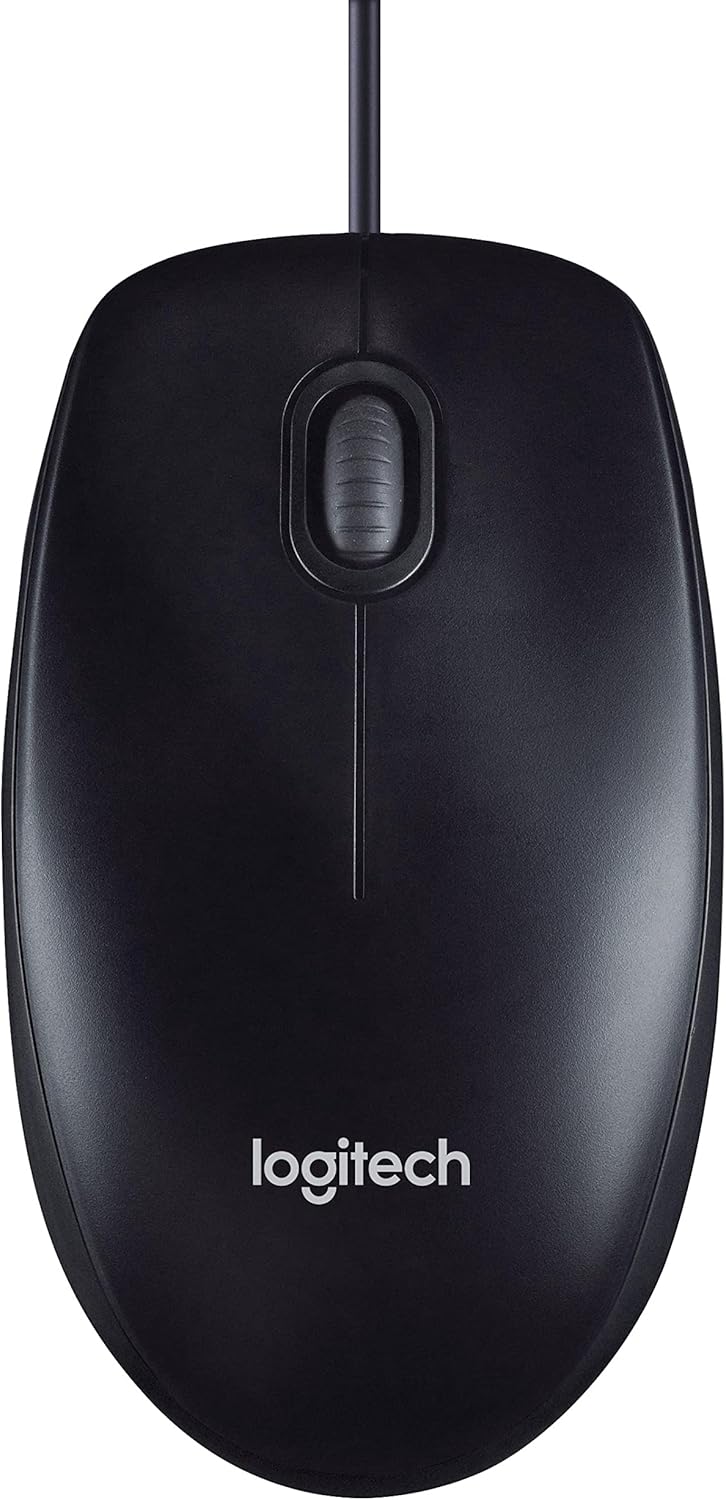
Figure 3.1: The Logitech M90 mouse in use, highlighting its simple design.
4. Údržba
To ensure the longevity and optimal performance of your Logitech M90 mouse, follow these simple maintenance guidelines:
- Čištění:
- Regularly wipe the surface of the mouse with a soft, lint-free cloth.
- Pro odolnou špínu lehceampOtřete hadřík vodou nebo jemným, neabrazivním čisticím roztokem. Vyhněte se agresivním chemikáliím.
- Clean the optical sensor area on the bottom of the mouse periodically to prevent tracking issues. Use a dry cotton swab or compressed air.
- Péče o kabely: Avoid sharp bends or kinks in the USB cable. Do not pull the mouse by its cable when disconnecting it from the computer; always grasp the USB connector.
- Skladování: Pokud myš nepoužíváte, skladujte ji v čistém a suchém prostředí mimo dosah extrémních teplot.
- Povrch: Pro nejlepší výkon snímání používejte myš na čistém, rovném a nereflexním povrchu.

Figure 4.1: The underside of the Logitech M90 mouse, showing the optical sensor that requires occasional cleaning.
5. Řešení problémů
If you encounter issues with your Logitech M90 mouse, try the following troubleshooting steps:
| Problém | Možné řešení |
|---|---|
| Myš nereaguje / Kurzor se nepohybuje |
|
| Nesprávný pohyb kurzoru |
|
| Tlačítka nebo rolovací kolečko nefungují |
|
If these steps do not resolve the issue, please refer to the warranty and support information section.
6. Specifikace
| Funkce | Detail |
|---|---|
| Značka | Logitech |
| Číslo modelu | 910-001793 |
| Technologie připojení | Kabelové, USB |
| Technologie detekce pohybu | Optický |
| DPI (body na palec) | 1000 dpi |
| Barva | Černý |
| Hmotnost položky | 2.89 unce |
| Rozměry produktu (DxŠxV) | 5.91 x 4.72 x 0.04 palce |
| Hardwarová platforma | PC |
| Kompatibilita operačního systému | Linux, Mac OS X 10.4 Tiger, Windows XP, Windows Vista, Windows 7 |
| Zdroj napájení | Elektrický kabel |
| svtage | 1.5 voltů |
| První dostupný termín | 19. září 2011 |

Figure 6.1: Dimensions of the Logitech M90 mouse.
7. Obrázky produktů
Shora dolů view of the Logitech M90 mouse.
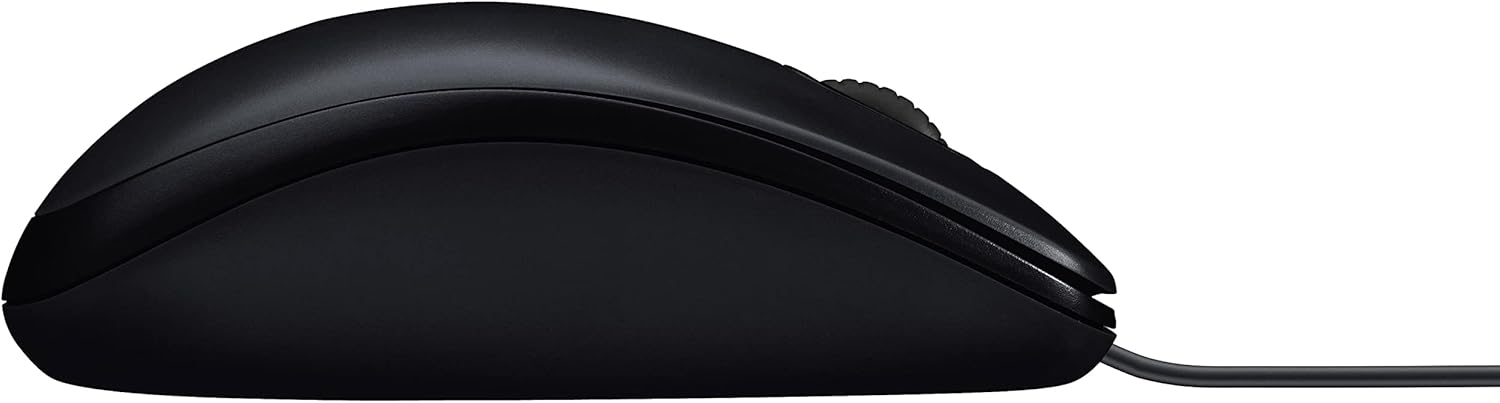
Boční profíkfile of the Logitech M90 mouse.
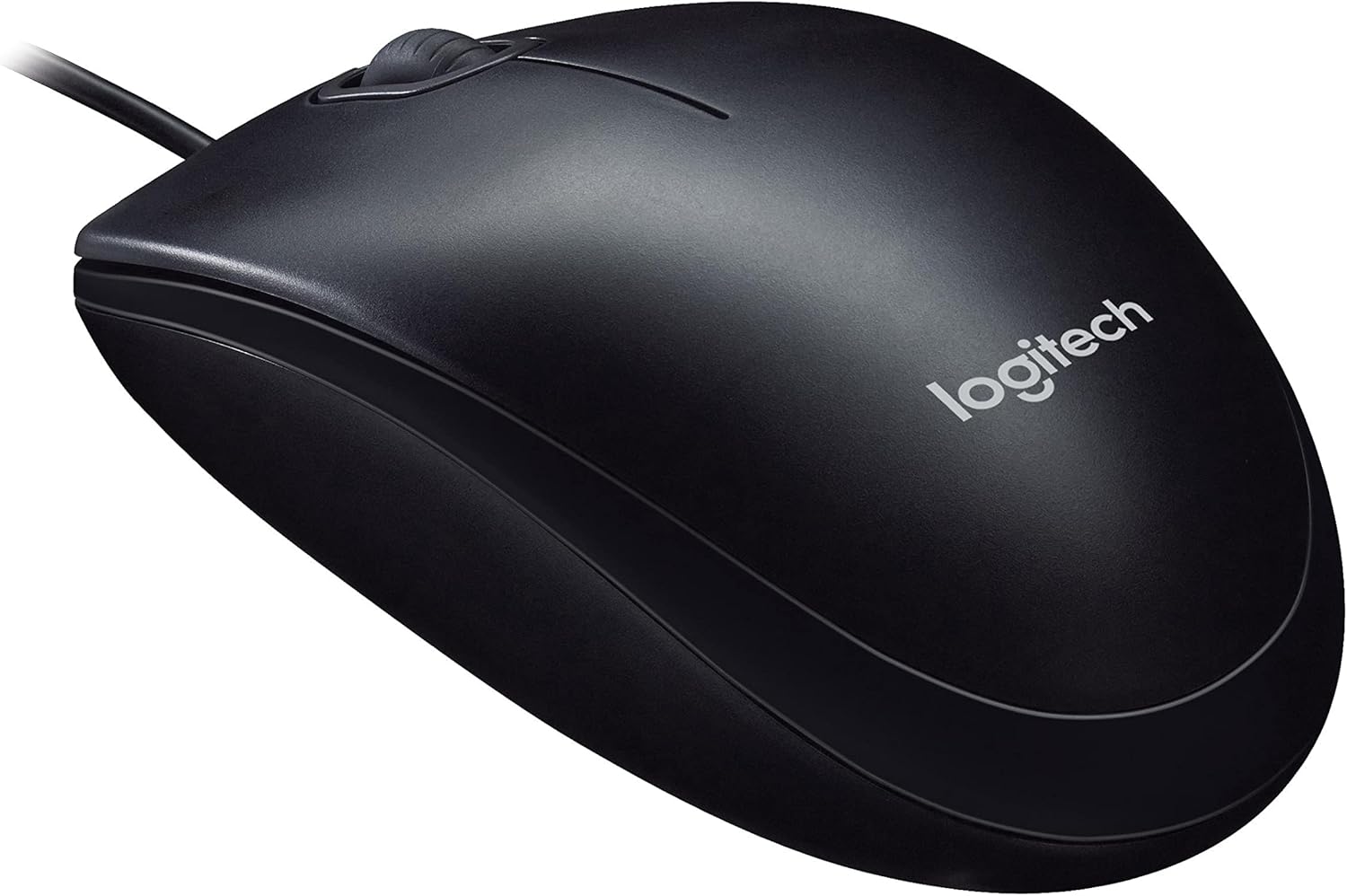
Úhlové view of the Logitech M90 mouse, highlighting the brand logo.
Shora dolů view of the Logitech M90 mouse, emphasizing the wired connection.
Logitech M90 mouse with key dimensions indicated.
8. Oficiální produktová videa
Pro tento produkt momentálně nejsou k dispozici žádná oficiální produktová videa od prodejce.
9. Záruka a podpora
For detailed warranty information and technical support, please refer to the documentation included in your product packaging or visit the official Logitech support webmísto.
Podpora Logitech Webmísto: www.logitech.com/support
Please have your product model number (M90) and serial number (if applicable) ready when contacting support.