
1. Úvod
This manual provides comprehensive instructions for the safe and efficient operation of your DYMO RhinoPRO 5200 Industrial Label Maker. Designed for demanding job sites, the RhinoPRO 5200 offers robust labeling solutions for various industrial applications, including cable and wire marking, asset management, and panel identification. Please read this manual thoroughly before using the device.

Figure 1: The DYMO RhinoPRO 5200 Industrial Label Maker kit, including the device, a protective carry case, and two rolls of industrial vinyl labels.
2. Bezpečnostní informace
Always observe the following safety precautions to prevent injury or damage to the label maker:
- Do not expose the label maker to extreme temperatures, direct sunlight, or high humidity.
- Use only genuine DYMO label cassettes. Using unauthorized labels may damage the device and void the warranty.
- Keep the label maker away from liquids. If liquid enters the device, disconnect power immediately and contact support.
- Do not attempt to disassemble or repair the label maker yourself. Refer all servicing to qualified personnel.
- Ensure hands are clear of the label exit slot during printing to avoid injury.
3. Obsah balení
Ověřte, zda jsou v balení přítomny všechny položky:
- DYMO RhinoPRO 5200 Industrial Label Maker
- Pevné pouzdro
- 2 Rolls of DYMO Industrial Vinyl Labels (3/4" & 3/8", Black on White)
- Rechargeable Battery Pack (pre-installed or separate)
- AC adaptér
- USB kabel
- Rychlý průvodce
4. Nastavení
4.1. Nabíjení baterie
Before first use, fully charge the rechargeable battery. Connect the AC adapter to the label maker and a power outlet. The charging indicator will show the charging status.
4.2. Installing a Label Cassette
- Open the label compartment cover on the back of the label maker.
- Insert a DYMO Industrial label cassette with the label material facing the print head. Ensure the cassette clicks into place.
- Bezpečně zavřete kryt přihrádky na štítky.

Figure 2: The RhinoPRO 5200 in use, emphasizing the importance of using authentic DYMO labels for optimal performance and compatibility.
4.3. Zapnutí/vypnutí
Stiskněte tlačítko MOC button to turn the label maker on or off.
5. Návod k obsluze
5.1. Základní tvorba štítků
- Turn on the label maker.
- Type your desired text using the QWERTY keyboard. The text will appear on the display.
- Use the formatting options (e.g., bold, italic, size) as needed.
- Stiskněte tlačítko VYTISKNOUT button to print the label.
- Use the integrated cutter to cut the label.
5.2. Using Hot Keys for Specialized Labels
The RhinoPRO 5200 features exclusive one-touch "Hot Keys" to automatically size, space, and format label text for common industrial applications.
- Cable/Wire Flags: Stiskněte tlačítko KABEL Hot Key for labels that wrap around cables and flag out.
- Horizontal/Vertical Wraps: Použijte PANELY Hot Key for labels designed for horizontal or vertical wraps on wires and cables.
- Patch Panels: Vyberte BLOKY Hot Key for labels optimized for patch panels and terminal blocks.
- Fixed-Length Applications: The PEVNÝ Hot Key allows you to create labels of a specific, pre-set length.
- General Labels: For standard labels, use the GENERÁL Hot Key.

Figure 3: A cable clearly marked with an "A-107" label, demonstrating the label maker's ability to create durable and legible cable identification.

Figure 4: A worker holding the robust DYMO RhinoPRO 5200 label maker, highlighting its portability and suitability for on-site use.

Figure 5: A technician applying labels created by the RhinoPRO 5200 to cables within a server rack, showcasing its utility in network infrastructure.
5.3. Barcode Printing
The RhinoPRO 5200 supports printing Code 39 and Code 128 barcodes on 3/4" (19mm) wide labels, ideal for asset management.
- Select the barcode function from the menu.
- Choose the desired barcode type (Code 39 or Code 128).
- Enter the data for the barcode.
- Vytiskněte štítek.

Figure 6: Storage bins organized with barcode labels, illustrating the RhinoPRO 5200's capability for asset and inventory management.

Figure 7: A close-up of hands applying a barcode label to a metal component, demonstrating the practical application of asset tracking labels.

Figure 8: A roll of specialized cable wrap labels positioned next to the RhinoPRO 5200, indicating its versatility in label types.

Figure 9: The RhinoPRO 5200 label maker resting on a bundle of yellow and blue cables, illustrating its use in cable management environments.
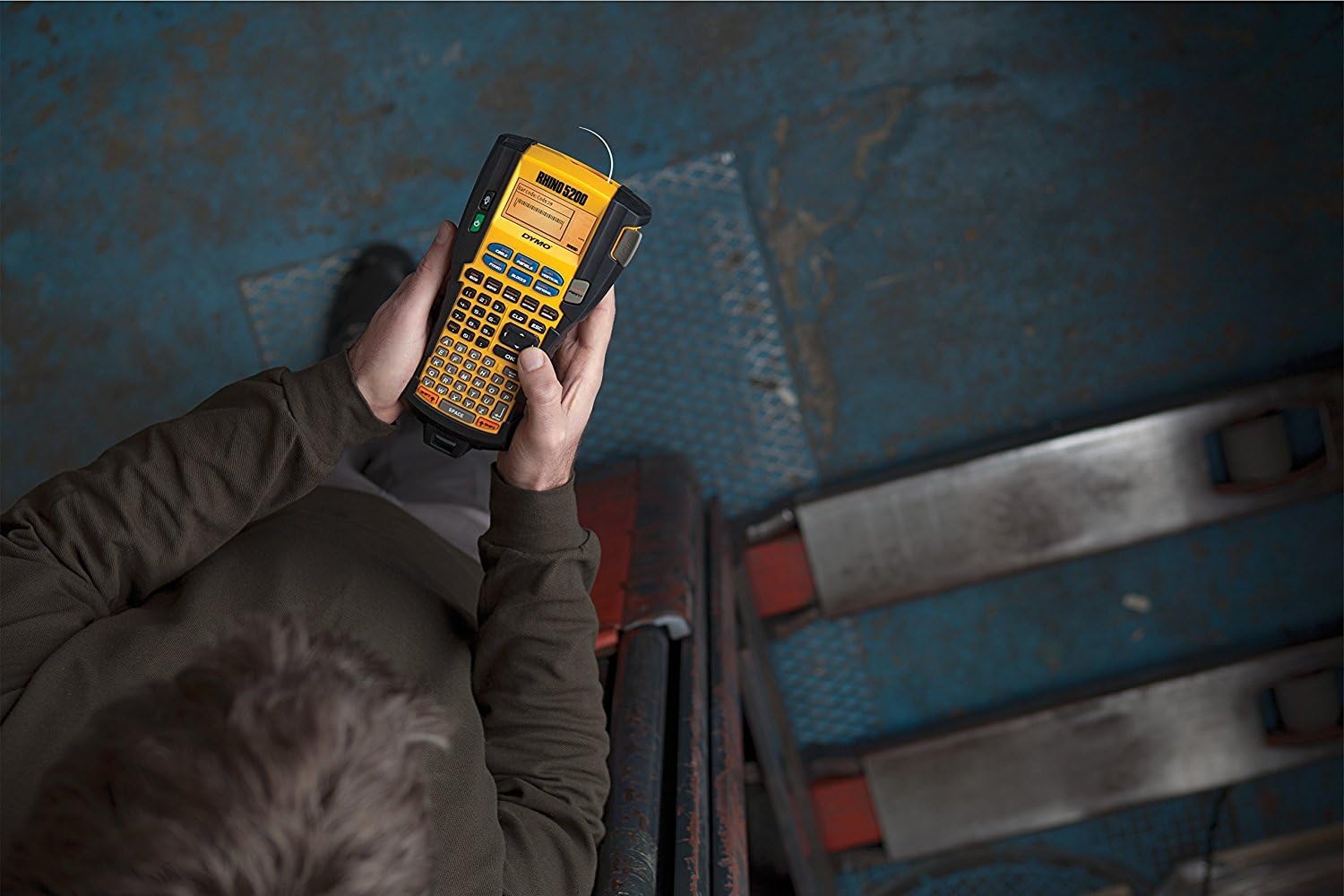
Obrázek 10: Režijní náklady view of a person operating the RhinoPRO 5200, showing its ergonomic design for handheld use.

Figure 11: Clearly labeled network cables in a patch panel, demonstrating the organized results achievable with the RhinoPRO 5200.
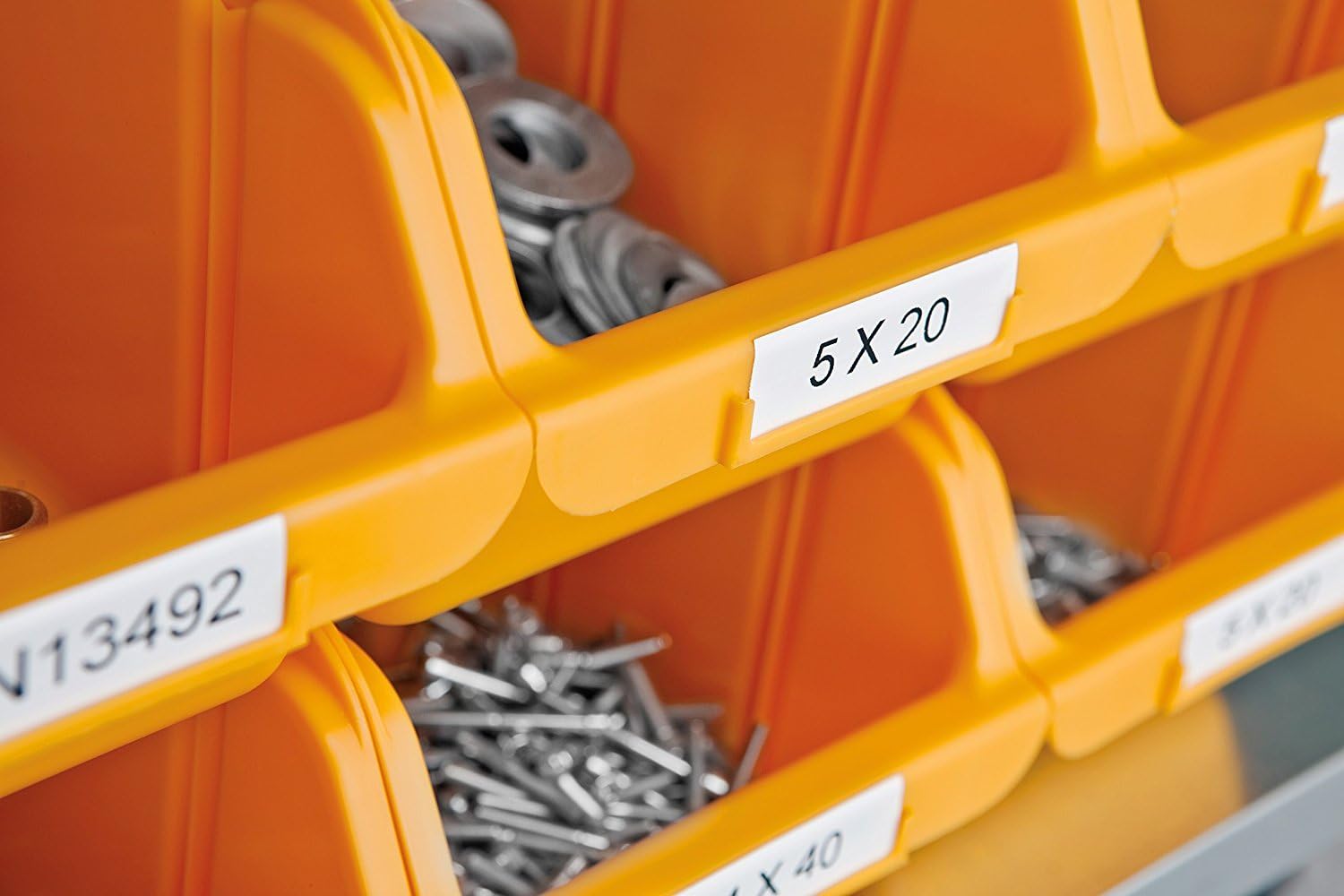
Figure 12: Small parts storage bins with clear, legible labels, showcasing the label maker's utility for organizing components.
6. Údržba
6.1. Čištění tiskové hlavy
To ensure optimal print quality, clean the print head periodically. Use a DYMO cleaning tool or a cotton swab lightly dampisopropylalkoholem. Jemně otřete povrch tiskové hlavy.
6.2. Péče o baterie
For best battery life, avoid fully discharging the battery frequently. Recharge the battery when the low battery indicator appears. If storing the device for an extended period, ensure the battery is partially charged.
7. Řešení problémů
| Problém | Možná příčina | Řešení |
|---|---|---|
| Žádná síla | Dead battery; AC adapter not connected | Charge battery; connect AC adapter |
| Špatná kvalita tisku | Dirty print head; incorrect label type; low battery | Clean print head; ensure correct DYMO label cassette; charge battery |
| Zaseknutí štítku | Improperly installed cassette; foreign object | Open cover, remove cassette, clear obstruction, reinsert cassette |
| "Cassette Error" message | Cassette not installed correctly; non-DYMO cassette | Reinstall cassette; ensure use of authentic DYMO labels |
8. Specifikace
- Značka: DYMO
- Název modelu: RhinoPRO 5200 (Machine + 2 Packs + Case)
- Technologie připojení: USB
- Technologie tisku: Thermal Transfer
- Speciální funkce: Nabíjecí baterie
- Barva: Žlutá/černá
- Tiskový výstup: Monochromatický
- Maximální rychlost tisku (černobíle): 10 mm/second (approximate)
- Hmotnost položky: 6 Grams (Note: This weight seems incorrect for the full product, likely refers to a component. Refer to packaging for actual product weight.)
- Kompatibilita štítků: DYMO Industrial labels (various materials and widths up to 19mm)
- Podpora čárových kódů: Kód 39, kód 128
- Industry Compliance: Meets ANSI and TIA/EIA-606-A labeling standards

Figure 13: A diagram illustrating the approximate dimensions of the RhinoPRO 5200 label maker, showing a height of 10 inches (24 cm).
9. Záruka a podpora
For warranty information, technical support, or to purchase additional supplies, please visit the official DYMO website or contact DYMO customer service. Keep your proof of purchase for warranty claims.
DYMO Official Webmísto: www.dymo.com