
1. Konec produktuview
The HP ProCurve 3500-24-PoE Ethernet Switch is an intelligent edge switch designed for demanding network environments. It features a programmable ProVision ASIC, enabling advanced networking capabilities such as Quality of Service (QoS) and security. This switch offers a variety of Gigabit and 10/100 interfaces with integrated Power over Ethernet (PoE) functionality, providing flexibility and scalability for network deployments.
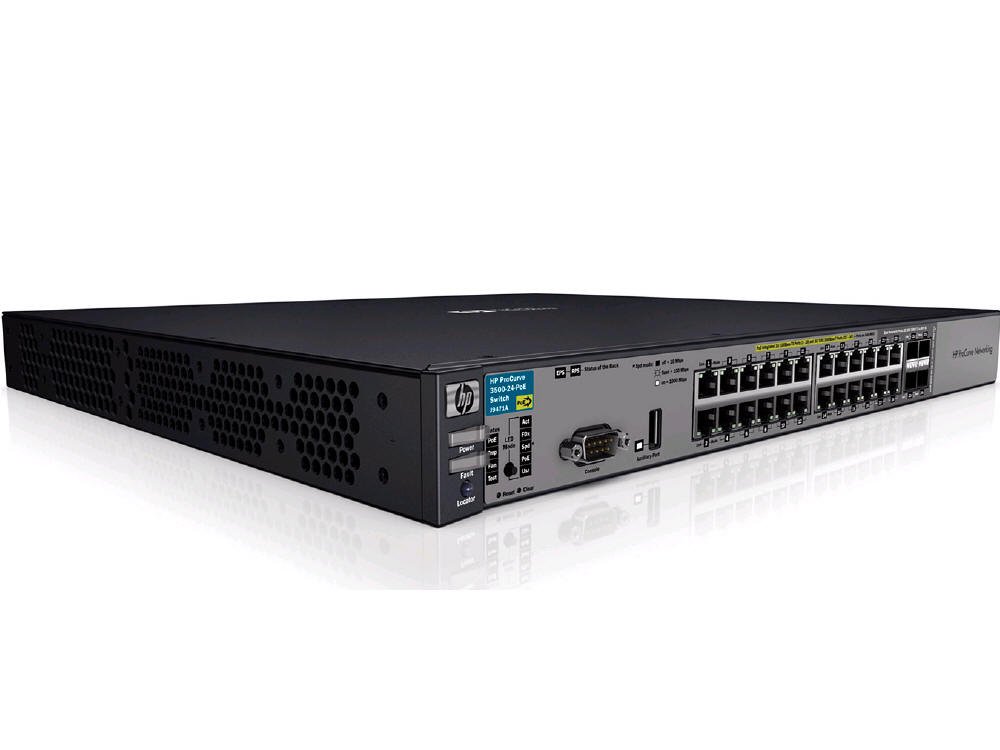
Obrázek 1: Přední strana view of the HP ProCurve 3500-24-PoE Ethernet Switch, showing its network ports and status indicators.
2. Obsah balení
Ověřte, zda jsou v balení přítomny všechny položky:
- HP ProCurve 3500-24-PoE Ethernet Switch
- Accessories (e.g., power cord, rack-mount kit, console cable)
3. Nastavení
3.1 Fyzická instalace
- Montáž do racku: Securely mount the switch in a standard 19-inch equipment rack using the provided rack-mount kit. Ensure adequate ventilation around the switch.
- Připojení napájení: Connect the power cord to the switch's power inlet and then to a grounded AC power outlet.
3.2 Síťová připojení
- Uplink porty: Connect the switch's uplink ports (Gigabit or SFP) to your core network or other switches using appropriate Ethernet cables or SFP transceivers.
- Porty zařízení: Connect network devices (computers, IP phones, wireless access points) to the 10/100 or Gigabit Ethernet ports. For PoE-enabled devices, ensure they are connected to PoE-capable ports.
3.3 Počáteční konfigurace
The switch can be configured via a console port, web interface, or Telnet/SSH. Refer to the HP ProCurve documentation for detailed configuration steps.
- Konzolový přístup: Connect a console cable from your computer to the switch's console port. Use a terminal emulation program (e.g., PuTTY) with settings: 9600 baud, 8 data bits, no parity, 1 stop bit, no flow control.
- Web Rozhraní: If the switch has a default IP address, connect your computer to a switch port and configure your computer's IP address to be in the same subnet. Access the web rozhraní přes a web prohlížeč.
4. Návod k obsluze
4.1 Zapnutí
After connecting the power cord, the switch will automatically power on. Observe the system LED indicators for boot-up status.
4.2 LED indikátory
Monitor the front panel LEDs to understand the switch's operational status:
- Systémová LED: Indicates overall switch health (e.g., green for normal operation, amber for issues).
- LED diody portů: Indicate link status and activity for each port (e.g., solid green for link, flashing green for activity).
- PoE LED diody: Indicate PoE status for ports providing power.
4.3 Přístup pro správu
Access the switch's management interface (web GUI or Command Line Interface) to configure VLANs, QoS, security settings, and monitor network traffic.
4.4 PoE Functionality
The switch provides Power over Ethernet on designated ports. Connect PoE-compatible devices (e.g., IP cameras, VoIP phones, wireless access points) to these ports to supply both data and power over a single Ethernet cable.
5. Údržba
5.1 Čištění
Periodically clean the exterior of the switch with a soft, dry cloth. Ensure ventilation openings are free from dust and obstructions to prevent overheating.
5.2 aktualizací firmwaru
Pravidelně kontrolujte informace od výrobce website for firmware updates. Applying updates can improve performance, add new features, and address security vulnerabilities. Follow the provided instructions carefully when performing firmware upgrades.
5.3 Environmentální hlediska
Ensure the switch operates within its specified temperature and humidity ranges. Avoid placing the switch in direct sunlight or near heat sources.
6. Řešení problémů
6.1 Bez napájení
- Zkontrolujte, zda je napájecí kabel bezpečně připojen k přepínači i k elektrické zásuvce.
- Zkontrolujte, zda je zásuvka funkční, zapojením jiného zařízení.
- Ensure the power supply unit (if external) is working correctly.
6.2 Žádné síťové připojení
- Check the link/activity LEDs on the switch port and the connected device.
- Ujistěte se, že jsou ethernetové kabely správně připojeny a nejsou poškozené.
- Verify network configuration (IP addresses, VLANs) on the switch and connected devices.
6.3 PoE Issues
- Confirm the device connected is PoE-compatible and within the switch's PoE power budget.
- Check the PoE status LEDs for the specific port.
- Ensure PoE is enabled on the port via the switch's management interface.
6.4 Problémy s výkonem
- Check for high CPU utilization or memory usage on the switch.
- Inspect for network loops or broadcast storms.
- Verify duplex settings on connected devices match the switch ports.
7. Specifikace
| Funkce | Popis |
|---|---|
| Značka | HEWLETT PACKARD |
| Číslo modelu | J9471A |
| Počet portů | 20 |
| Rozhraní | PoE |
| Kompatibilní zařízení | Desktop |
| Hmotnost položky | 13 libry |
| UPC / GTIN | 884962106013, 884962105979, 884962106006 |
8. Záruka a podpora
8.1 Informace o záruce
This product typically comes with a 30-day warranty. Please refer to your purchase documentation or contact your vendor for specific warranty terms and conditions.
8.2 Technická podpora
For technical assistance, troubleshooting beyond this manual, or to report issues, please contact HP customer support or your authorized reseller. Have your product model number (J9471A) and serial number ready when contacting support.