
1. Úvod
This manual provides detailed instructions for the safe and efficient use of your Vivitar VIVICAM-7340RED 7.0MP Digital Camera. Please read this manual thoroughly before operating the camera and keep it for future reference. Your camera is designed for capturing high-quality still images and video recordings with ease.
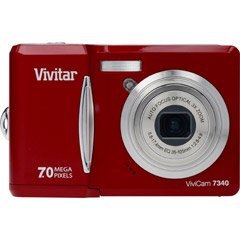
Obrázek 1: Přední strana view of the Vivitar VIVICAM-7340RED Digital Camera. This image shows the lens, flash, and the overall compact design of the camera.
2. Nastavení
2.1. Vložení baterií
- Vyhledejte kryt prostoru pro baterie na spodní nebo boční straně fotoaparátu.
- Posunutím západky otevřete kryt.
- Insert the required batteries (typically AA or AAA, refer to packaging) according to the polarity indicators (+ and -) inside the compartment.
- Kryt přihrádky na baterie bezpečně zavřete, dokud nezacvakne na místo.
Note: Ensure batteries are inserted with correct polarity as indicated inside the compartment.
2.2. Vložení paměťové karty
Your camera requires a compatible memory card (e.g., SD card) to store photos and videos. The memory card slot is usually located near the battery compartment or on the side of the camera.
- Otevřete kryt slotu paměťové karty.
- Insert the memory card with the metal contacts facing the correct direction (refer to the diagram near the slot). Push gently until it clicks into place.
- Zavřete kryt slotu paměťové karty.
Note: Do not force the memory card. If it does not insert easily, check its orientation.
2.3. Zapnutí/vypnutí
- Chcete-li zapnout fotoaparát, stiskněte tlačítko MOC button. The LCD screen will illuminate.
- To turn off the camera, press and hold the MOC button again until the LCD screen turns off.
2.4. Initial Settings (Date & Time)
Upon first use or after battery replacement, you may need to set the date and time. Follow the on-screen prompts or navigate to the MENU > NASTAVENÍ > DATUM/ČAS option to adjust these settings.
3. Ovládání fotoaparátu
3.1. Pořizování fotografií
- Turn on the camera. Ensure it is in photo capture mode (usually indicated by a camera icon on the LCD).
- Komponujte snímek pomocí 2.4palcového LCD displeje.
- Press the shutter button halfway down to allow the camera to focus. A green frame or beep typically indicates focus lock.
- Úplným stisknutím tlačítka spouště pořiďte snímek.
3.2. Using Optical Zoom
Your camera features a 3x optical zoom. Use the zoom lever (often located around the shutter button) to zoom in or out. Optical zoom adjusts the lens elements to magnify the subject without losing image quality.
- Zatlačte páčku zoomu směrem k T (Teleobjektiv) pro přiblížení.
- Zatlačte páčku zoomu směrem k W (Širokoúhlý) pro oddálení.
The camera also has a 5x digital zoom, which can be accessed after reaching the maximum optical zoom. Digital zoom digitally enlarges the image, which may result in reduced image quality.
3.3. Nahrávání videí
- Switch the camera to video recording mode (usually via a mode dial or menu option).
- Press the shutter button to start recording. A red dot or timer on the LCD indicates recording is in progress.
- Dalším stisknutím tlačítka spouště nahrávání zastavíte.
3.4. Viewfotografie a videa
- Stiskněte tlačítko PŘEHRÁVÁNÍ button (often indicated by a play icon).
- Pomocí směrových tlačítek můžete procházet pořízené snímky a videa.
- Chcete-li přehrát video, vyberte ho a stiskněte OK or HRÁT tlačítko.
3.5. Přenos Files to a Computer (PictBridge)
Your camera is PictBridge compatible, allowing direct printing to compatible printers. For transferring files do počítače:
- Připojte fotoaparát k počítači pomocí dodaného kabelu USB.
- Turn on the camera. It should appear as a removable disk or device on your computer.
- Open the camera's folder and copy the desired photos and videos to your computer.
- Safely eject the camera from your computer before disconnecting the USB cable.
4. Údržba
4.1. Čištění fotoaparátu
- Čočka: Use a soft, lint-free cloth specifically designed for camera lenses. Gently wipe in a circular motion. Avoid using harsh chemicals.
- LCD obrazovka: Wipe with a soft, dry cloth. For stubborn smudges, a slightly damp cloth (water only) can be used, followed by a dry wipe.
- Tělo fotoaparátu: Prach a otisky prstů setřete měkkým suchým hadříkem.
Do not use solvents, alcohol, or abrasive cleaners on any part of the camera.
4.2. Péče o baterie
- Pokud fotoaparát nebudete delší dobu používat, vyjměte baterie, abyste zabránili jejich vytečení.
- Používejte pouze doporučené typy baterií.
- Staré baterie zlikvidujte zodpovědně v souladu s místními předpisy.
4.3. Skladování
Store the camera in a cool, dry place away from direct sunlight, extreme temperatures, and high humidity. Use the included case for protection during transport.
5. Řešení problémů
| Problém | Možná příčina | Řešení |
|---|---|---|
| Fotoaparát se nezapne. | Vybité nebo nesprávně vložené baterie. | Vyměňte baterie nebo se ujistěte, že jsou vloženy se správnou polaritou. |
| Fotografie jsou rozmazané. | Camera shake, out of focus, or dirty lens. | Hold camera steady, ensure focus is achieved before shooting, clean the lens. |
| Zpráva „Chyba paměťové karty“. | Card not inserted correctly, damaged, or full. | Reinsert card, try a different card, or delete fileuvolnit místo. |
| Blesk se neaktivuje. | Flash mode set to OFF, or batteries low. | Check flash settings in menu, replace batteries. |
6. Specifikace
| Funkce | Detail |
|---|---|
| Značka | Vivitar |
| Číslo modelu | VIVICAM-7340RED |
| Efektivní rozlišení | 7 MP |
| Optický zoom | 3x |
| Digitální zoom | 5x |
| Velikost obrazovky LCD | 2.4 palce |
| Nahrávání videa | Až 640 x 480 při 30 snímcích za sekundu |
| Rozlišení obrazu | Až 3072 x 2304 |
| Autofokus | Ano |
| Kompatibilní s PictBridge | Ano |
| Zdroj napájení | Baterie (součástí balení) |
| Barva | Červený |