
ECS Elitegroup P4M800-M7
ECS P4M800-M7 Motherboard User Manual
Model: P4M800-M7
Zavedení
This manual provides detailed instructions for the installation, operation, and maintenance of the ECS P4M800-M7 motherboard. The P4M800-M7 is designed to support Socket LGA775 Intel Pentium 4 / Pentium D / Celeron D Processors with FSB 800/533 MHz and Hyper-Threading Technology.
Key features include 64-bit support, FSB 800MHz, RAID0, RAID1, and Serial ATA capabilities.
Konec produktuview

Figure 1: ECS P4M800-M7 Motherboard Layout. This image displays the main components of the motherboard, including the CPU socket (LGA 775), two DDR RAM slots, PCI and AGP expansion slots, and various I/O ports.
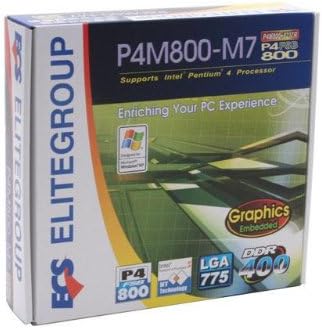
Figure 2: ECS P4M800-M7 Retail Box. The product packaging indicates support for Intel Pentium 4 processors, embedded graphics, and DDR400 memory, along with the LGA 775 socket type.
Nastavení a instalace
Follow these steps for proper installation of the ECS P4M800-M7 motherboard into your computer system.
1. Prepare Your System
- Ensure your power supply is disconnected from the wall outlet.
- Discharge any static electricity by touching a grounded metal object.
2. Nainstalujte procesor
- Otevřete páčku patice procesoru.
- Carefully align the CPU (Intel Pentium 4 / Pentium D / Celeron D) with the socket, ensuring the notches match.
- Opatrně vložte procesor do patice. Netlačte na něj silou.
- Zavřete páčku patice, abyste zajistili procesor.
- Apply a thin layer of thermal paste to the CPU surface.
- Nainstalujte chladič CPU podle pokynů výrobce.
3. Install Memory Modules
The motherboard supports DDR memory. Insert DDR modules into the available memory slots (2 slots).
- Otevřete klipy na obou koncích slotu DIMM.
- Zarovnejte paměťový modul se slotem a ujistěte se, že zářez na modulu odpovídá výstupku ve slotu.
- Pevně zatlačte na oba konce modulu, dokud klipsy nezacvaknou na své místo.
4. Namontujte základní desku
- Install standoffs in your PC case that align with the motherboard's mounting holes.
- Carefully place the motherboard onto the standoffs, aligning the I/O shield with the case opening.
- Zajistěte základní desku šrouby.
5. Připojení napájení a periferií
Connect the 20-pin ATX main power connector and the 4-pin ATX 12V power connector from your power supply to the motherboard. Connect SATA and IDE devices, front panel connectors, and expansion cards as needed.
Návod k obsluze
Once the motherboard is installed and all components are connected, you can proceed with system operation.
1. Počáteční spuštění
After connecting the power supply and monitor, power on your system. The system should display the BIOS POST screen. Press the designated key (usually DEL or F2) to enter the BIOS setup utility.
2. Konfigurace systému BIOS
In the BIOS, you can configure various system settings, including boot order, date/time, and hardware parameters. Refer to the BIOS section of the full manual for detailed settings. Save changes and exit the BIOS to continue.
3. Instalace operačního systému
Insert your operating system installation media (e.g., Windows CD/DVD) and follow the on-screen prompts to install the OS. Ensure all necessary drivers (chipset, audio, network, graphics) are installed after the OS installation for optimal performance. Drivers are typically provided on a CD with the motherboard or can be downloaded from the ECS Elitegroup webmísto.
Údržba
Správná údržba zajistí dlouhou životnost a stabilní provoz vaší základní desky.
- Odstranění prachu: Pravidelně čistěte prach z vnitřku počítačové skříně, zejména z chladičů a ventilátorů, pomocí stlačeného vzduchu. Před čištěním se ujistěte, že je systém vypnutý a odpojený od sítě.
- Správa kabelů: Ensure internal cables are neatly routed to allow for proper airflow.
- Aktualizace BIOSu: Periodically check the ECS Elitegroup webweb pro aktualizace systému BIOS. Systém BIOS aktualizujte pouze v případě potřeby a přesně dodržujte pokyny, abyste předešli nestabilitě systému.
- Aktualizace ovladačů: Keep your device drivers updated to ensure compatibility and performance.
Odstraňování problémů
This section addresses common issues you might encounter with the ECS P4M800-M7 motherboard.
| Problém | Možná příčina | Řešení |
|---|---|---|
| Systém se nezapne. | Power cables not connected, faulty power supply, or short circuit. | Check all power connections (20-pin ATX, 4-pin 12V). Test power supply. Ensure no metal objects are touching the motherboard. |
| Žádné zobrazení na monitoru. | Monitor cable loose, faulty graphics card (if external), or RAM not seated correctly. | Verify monitor cable connection. Reseat RAM modules. If using an external graphics card, ensure it is properly seated and powered. |
| Systém zamrzá nebo havaruje. | Overheating, unstable drivers, or faulty RAM. | Check CPU and chipset temperatures. Update drivers. Test RAM modules individually. |
| Operační systém nebyl nalezen. | Incorrect boot order in BIOS, or hard drive not detected. | Enter BIOS and set the correct boot order. Check SATA/IDE cable connections to the hard drive. |
Specifikace
| Funkce | Detail |
|---|---|
| Výrobce | ECS |
| Číslo modelu | P4M800-M7 |
| Zásuvka CPU | LGA 775 |
| Kompatibilní procesory | Intel Celeron D, Intel Pentium 4, Intel Pentium |
| Typ čipové sady | Intel |
| K dispozici paměťové sloty | 2 |
| Podporovaný standard systémové sběrnice | SATA 3 |
| Podpora FSB | 800/533 MHz |
| Technologie Hyper-Threading | Podporováno |
| Podpora RAID | RAID0, RAID1 |
| UPC | 881038001678 |
| Datum první dostupnosti | 5. dubna 2006 |
Záruka a podpora
For warranty information and technical support, please refer to the documentation included with your purchase or visit the official ECS Elitegroup webZáruční podmínky se mohou lišit v závislosti na regionu a prodejci.
Official ECS Elitegroup Webmísto: ECS Elitegroup Store on Amazon (Note: This link directs to the brand's store page on Amazon, where further support information might be available.)
Ask a question about this manual
Ask about setup, troubleshooting, compatibility, parts, safety, or missing instructions. Manuals+ will review the question and use this page’s manual context to help answer it.